# 5. UPDD (Windows and MacOS)

Information about UPDD installation and configuration

# 1. Using UPDD for enhanced touch functionality (Download UPDD)

##### <span data-identifyelement="571" dir="ltr">Enhanced touch functionality via UPDD</span>

<span data-identifyelement="583" dir="ltr"><span dir="ltr">UPDD is the best option for taking advantage of a touch screen on the macOS.</span></span>

<p class="callout success"><span data-identifyelement="583" dir="ltr"><span dir="ltr"> Note that we have a simple utility that will take the mouse cursor to the touch display when it detects a touch gestrure.   
See more information [here](https://kb.mpmidi.com/books/mp-controller-documentation/page/7-mac-mp-touch-utility-for-moving-the-mouse-cursor-to-the-touch-screen).</span></span></p>

<span data-identifyelement="583" dir="ltr"><span dir="ltr">UPDD offers the following important benefits and others such as multi-gesture configurations:</span></span>  
  
<span dir="ltr">**1. On the Mac:** </span><span dir="ltr">If the mouse is not located on the touchscreen of the MP Controller, touch will affect where the mouse is currently located. UPDD transfers the mouse pointer to the touch screen automatically when it detects a touch gesture.</span>  
  
<span dir="ltr">**2. Both Mac and Windows:** </span>The [smart magnifier](https://www.youtube.com/watch?v=wO2_4cpVhLo) (Zoom on the controller screens with gestures)  
  
<span dir="ltr">**3**</span><span dir="ltr">**. Both Mac and Windows:** Returning the mouse position to its previous position after a touch gesture</span>  
  
<span dir="ltr">**4. Both Mac and Windows:** Keep the keyboard focused on the DAW after a touch gesture.</span>

  
![](https://kb.mpmidi.com/storage/uploads/images/gallery/2025-04/1745645080-fDaIthSK94fwqrje.png)

##### Download and Install UPDD

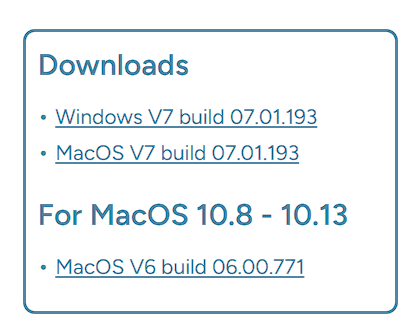
<span data-identifyelement="578"><span dir="ltr">You can get the UPDD software from </span></span>[<span data-identifyelement="580">**<span dir="ltr">https://touch-base.com/controllerbyte</span>**</span>](https://touch-base.com/controllerbyte)<span data-identifyelement="581" dir="ltr"><span dir="ltr"> at a heavily discounted price for a lifetime license and 3 years of receiving updates and support.</span></span>

<span data-identifyelement="585"><span dir="ltr">There is a 7 day **trial** available to download it prior to purchasing.</span></span>

<span data-identifyelement="585"><span dir="ltr">[![](https://kb.mpmidi.com/storage/uploads/images/gallery/2025-04/1745645080-VSvrpmWQxqPfXB6q.png)](https://portal.touch-base.com/oemdrivers/mpc)</span></span>

<p class="callout warning">**IMPORTANT:**  
Purchase UPDD only from https://touch-base.com/controllerbyte as this is a special version for the MP Controller.   
No configuration is needed after you install UPDD except the Identify procedure.   
Do not select any devices in UPDD, everything is done automatically.  
   
**MacOS:** Ensure you have given UPDD the appropriate permissions during installation.  
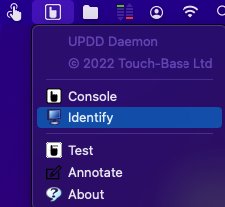
After installation you only need to run Identify in UPDD.  
  
if you have Slate Digital Raven, you need to reach out to   
support@touch-base.com and they will provide a software that works for both, the MP Controller and Raven.</p>

![](https://kb.mpmidi.com/storage/uploads/images/gallery/2025-04/1745645080-IclxmKdN7rrXx1IJ.png)

##### Identify Procedure

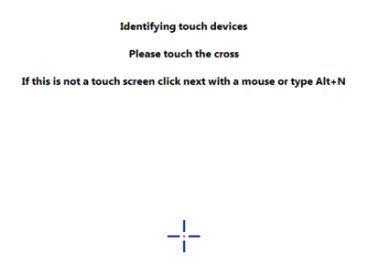
<span data-identifyelement="587">After installing UPDD, you will need to run </span><span data-identifyelement="588">Identify </span><span data-identifyelement="589" dir="ltr">from UPDD in order to select the target monitor</span>

![](https://kb.mpmidi.com/storage/uploads/images/gallery/2025-04/1745645081-KeQZQGt4pG50Cv6o.jpg)![](https://kb.mpmidi.com/storage/uploads/images/gallery/2025-04/1745645081-La3ToJLPgI39uqAO.jpg)

<table id="bkmrk-gestures-for-the-sma"><tbody><tr><td>> <span data-identifyelement="612">Gestures for the smart magnifier are preset in UPDD (tap with 2 fingers to magnify). </span>  
> <span data-identifyelement="615">Optionally you can also </span>[<span data-identifyelement="617">setup</span>](https://kb.mpmidi.com/books/mp-controller-documentation/page/3-how-to-configure-the-updd-zoom-and-gestures)<span data-identifyelement="618" dir="ltr"><span dir="ltr"> your own gestures.</span></span>

</td></tr></tbody></table>

![](https://kb.mpmidi.com/storage/uploads/images/gallery/2025-04/1745645081-Jmx1jHpEv4LsPAaA.png)

##### <span data-identifyelement="622" dir="ltr"><span dir="ltr">MacOS: Enable the Commander in Screen Recording</span></span>

<span data-identifyelement="624"><span dir="ltr">Don’t forget to enable the Commander in Screen Recording, otherwise the smart magnifier will appear on the desktop instead of the MP Host plugin window (hiding the MP Host window) see </span></span><span data-identifyelement="627" dir="ltr">[https://support.touch-base.com/Documentation/50778/Smart-Magnifier](https://support.touch-base.com/Documentation/50778/Smart-Magnifier)</span><span data-identifyelement="625"> </span>

<p class="callout info">Permissions required for UPDD on MacOS are shown [here](https://kb.mpmidi.com/books/mp-controller-documentation/page/11-updd-permissions-on-the-mac)</p>

![](https://kb.mpmidi.com/storage/uploads/images/gallery/2025-04/1745645081-kU8uEz7bsq1JvACy.png)

##### <span dir="ltr">Updating UPDD</span>

<span dir="ltr">To update UPDD go to [<span data-identifyelement="580">**https://touch-base.com/controllerbyte**</span>](https://touch-base.com/controllerbyte) and select to download the **trial** (regardless if you have purchased it already).</span>

<span dir="ltr">Enter your name and email address. </span>

<span dir="ltr">Select the OS you have and submit. </span>

<span dir="ltr">It will send to your email the link to download the latest UPDD version. </span>

<span dir="ltr">If you have already register the license, it will register automatically after you install UPDD.</span>

![](https://kb.mpmidi.com/storage/uploads/images/gallery/2025-04/1745645082-GqBIC663oNThMjzp.png)

##### <span data-identifyelement="631" dir="ltr">Suggestion</span>

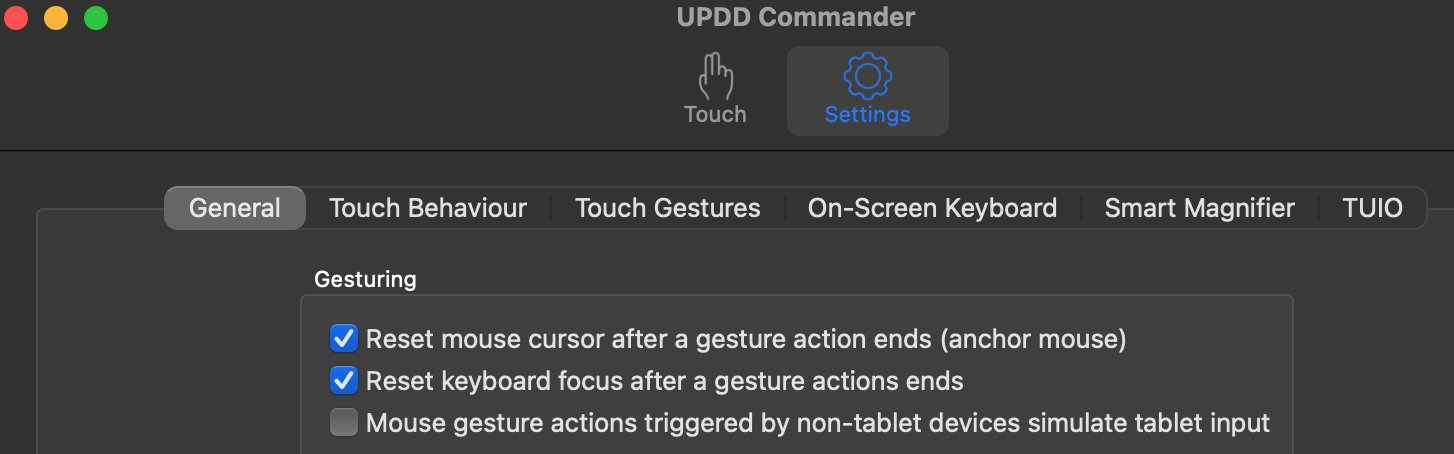
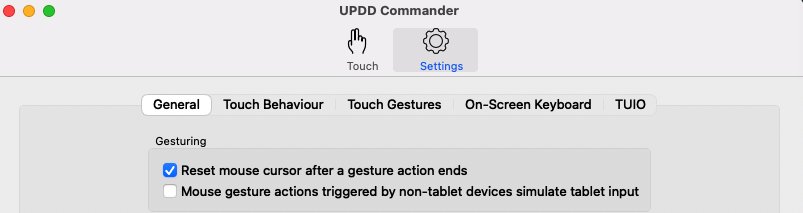
<span data-identifyelement="633">A very helpful setting in the UPDD settings is the </span><span data-identifyelement="635">Reset mouse cursor after a gesture action ends. </span><span data-identifyelement="636" dir="ltr"> This option automatically returns the mouse pointer back to its previous position after you finish with a touchscreen gesture. </span>

<span data-identifyelement="636" dir="ltr"><span dir="ltr">It can also reset the Keyboard focus (take it back to the previous app). Read more [here](https://kb.mpmidi.com/books/mp-controller-documentation/page/28-mac-os-transferring-the-keyboard-focus-on-the-daw)</span></span>

 ![](https://kb.mpmidi.com/storage/uploads/images/gallery/2025-04/1745645082-c5jb1M816rEakUzt.jpg)

<span data-identifyelement="645">Alternatively, see these </span>[<span data-identifyelement="647" dir="ltr">mouse to touchscreen suggestions</span>](https://kb.mpmidi.com/books/mp-controller-documentation/page/2-mouse-to-touchscreen-suggestions)

<span data-identifyelement="647" dir="ltr"><span dir="ltr">![](https://kb.mpmidi.com/storage/uploads/images/gallery/2025-04/1745645082-erA5dA0ROHRAbUOE.png)</span></span>

##### Troubleshooting:

<span data-identifyelement="528" dir="ltr"><span dir="ltr">Mac OS X Touchscreen Model 1A+</span></span>

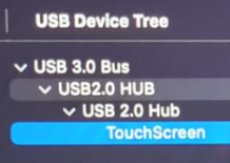
<span data-identifyelement="530">The first time, connect the Display USB, using the cable provided, directly on the Mac (not via a hub to eliminate any possibilities of issues). It should show up under System Report &gt; USB as “MP Controller Touch Screen”. </span>

<span data-identifyelement="533">Touch will work, but the mouse cursor needs to be on the MP Controller’s touch screen to control that screen. </span>

<span data-identifyelement="536" dir="ltr">UPDD takes care of this, along with other benefits such as the Smart Magnifier, right click function and many more. </span>
![](https://kb.mpmidi.com/storage/uploads/images/gallery/2025-04/1745645083-ERT5rhBO1rAKcv1U.jpg)

<p class="callout info">**UPDD will display it as**  
Vendor ID 0x222A, Product ID 0x0858,  
Manufacturer: MP Controller Touch Display,   
Product: MP TouchScreen</p>

<span dir="ltr">Do not check the box to select the device.</span>

![](https://kb.mpmidi.com/storage/uploads/images/gallery/2025-04/1745645083-A2OntuFNXQQTAisU.png)

##### <span data-identifyelement="545" dir="ltr">Mac OS X Touchscreen Model 1A</span>

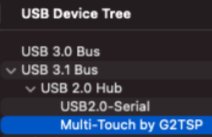
<span data-identifyelement="547">The touch needs to show up first in System Report as </span><span data-identifyelement="549">G2TSP Multi touch display</span><span data-identifyelement="550"> under USB. Then you can install UPDD for the touch function to work</span>

<span data-identifyelement="553">The touchscreen works as mouse input, therefore when you touch the screen it gets the mouse cursor. If you touch and drag, it behaves in the same way as clicking and dragging with the mouse. </span>

<span data-identifyelement="559">For up to Mac OSX Mojave, the touchscreen monitor does not need any drivers and works with the native Mac OSX drivers when connected. However on Mojave, the mouse position needs to be on the touchscreen so to enhance the workflow we have these 3 </span>[<span data-identifyelement="561">suggestions</span>](https://kb.mpmidi.com/books/mp-controller-documentation/page/2-mouse-to-touchscreen-suggestions)<span data-identifyelement="562" dir="ltr">.</span>

<span data-identifyelement="564" dir="ltr">![](https://kb.mpmidi.com/storage/uploads/images/gallery/2025-04/1745645083-wIZqwZwxwYwADEQZ.jpg)</span>

![](https://kb.mpmidi.com/storage/uploads/images/gallery/2025-04/1745645083-NZLKyazVcejuhRwx.png)

# 2. Mouse to touchscreen suggestions

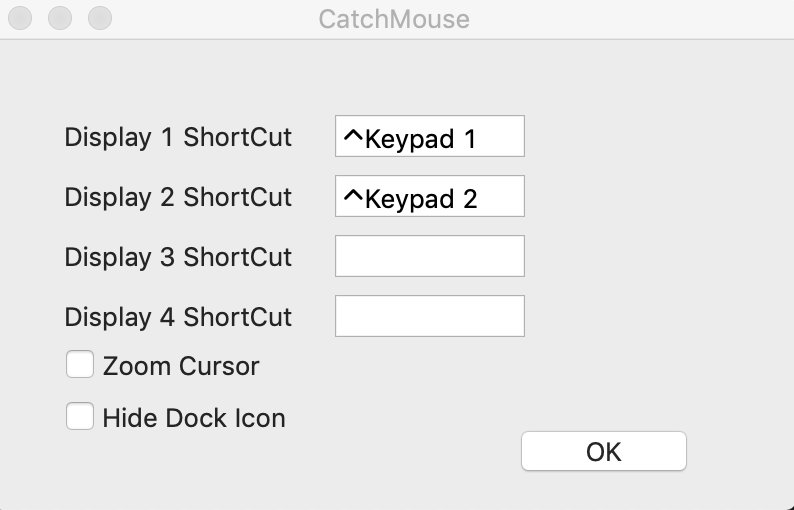
<span data-identifyelement="516" dir="ltr">1. </span><span data-identifyelement="519">Keyboard Shortcut to take automatically the mouse to the touchscreen and back with a small utility</span>

<span data-identifyelement="522">Download from </span>[<span data-identifyelement="524" dir="ltr">here</span>](https://mpmidi.com/utilities/mouse-mac.zip)
<span data-identifyelement="528" dir="ltr"><span data-identifyelement="529"><span data-identifyelement="530">![](/storage/uploads/images/gallery/2025-04/1745645084-zfd2MlQekgJFT0dH.jpg)</span></span></span>

<span data-identifyelement="533" dir="ltr">In the above example ctrl + 1 moves the mouse to the main screen, and ctrl + 2 moves the mouse to the touchscreen.</span>

---

<span data-identifyelement="537" dir="ltr">2. </span><span data-identifyelement="540">Take automatically the mouse to the touchscreen via </span>[<span data-identifyelement="543">Better touch tool</span>](https://folivora.ai/)<span data-identifyelement="544">   
(45 day trial and paid $8.5 license)</span>

1. <span data-identifyelement="552">Go to </span>[<span data-identifyelement="554">BetterTouchTool</span>](https://folivora.ai/)<span data-identifyelement="555"> Preferences =&gt; Keyboard.</span>
2. <span data-identifyelement="559">Click Add New Shortcut or Key Sequence button.</span>
3. <span data-identifyelement="563">Assign new Keyboard Shortcut from Click to record shortcut  
    for example, for Monitor-1 Control+Shift+1, for Monitor-2 Control+Shift+2 etc.</span>
4. <span data-identifyelement="568">Then from Trigger Predefined Action dropdown menu, select  
    Other Mouse Actions =&gt; Move Mouse To Position</span>
5. <span data-identifyelement="573">A modal window will appear to capture your desired mouse position. Simply take your cursor to the desired position of a Monitor and Press Space to capture the position. Now Save the position in the Modal Window.</span>
6. <span data-identifyelement="577">Repeat 2 to 5 for all your Monitors.</span>

<span data-identifyelement="583">Now you'll be able to jump your mouse cursor to Monitor-1 by pressing Control+Shift+1, to </span>

<span data-identifyelement="586">Monitor-2 by pressing Control+Shift+2 and to Monitor-3 by pressing Control+Shift+3.</span>

---

<span data-identifyelement="537" dir="ltr">3. </span>Get the MP Controller Touch-base driver from here [https://touch-base.com/controllerbyte](https://touch-base.com/controllerbyte)

<span dir="ltr">Trial available. To purchase the price is 35 GBP per license with 3 years of support.</span>

<span dir="ltr">This utility takes the mouse to the touchscreen automatically and there is no need for shortcuts</span>

A very helpful setting in the UPDD settings is the Reset mouse cursor after a gesture action ends. <span dir="ltr"> This option automatically returns the mouse pointer back to its previous position after you finish with a touchscreen gesture. This means that If you are working on the main screen and you touched the touchscreen it will return back to the main screen automatically at the exact position it was before you touched the touchscreen.</span>

<span dir="ltr"> </span>![](/storage/uploads/images/gallery/2025-04/1745645084-m5hxha3DGwOYG5Vu.jpg)

<span dir="ltr">For all UPDD features see [**here**](https://mpcontrollerbyteltd.freshdesk.com/a/solutions/articles/103000120458)</span>

# 3. How to configure the UPDD Zoom and gestures

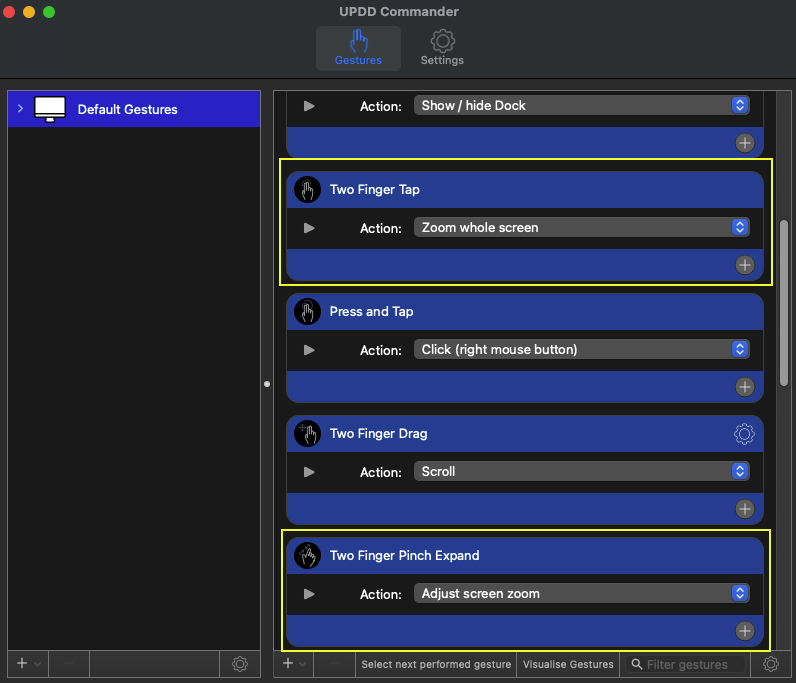
<p class="callout warning"><span dir="ltr">**The latest version of UPDD is configured to use Zoom Screen with the 2 finger tap gesture. Zoom Screen zooms only within the controller's display. The Smart Magnifier zooms outside the controller display as well.** </span></p>

[![Screenshot at Mar 06 14-57-32.png](https://kb.mpmidi.com/uploads/images/gallery/2026-03/scaled-1680-/ZFWT7TFW7gtVY2yF-screenshot-at-mar-06-14-57-32.png)](https://kb.mpmidi.com/uploads/images/gallery/2026-03/ZFWT7TFW7gtVY2yF-screenshot-at-mar-06-14-57-32.png)

<span dir="ltr">If you need to change the behavior of the Smart Magnifier here are the steps to do so.</span>

> <span dir="ltr">If the Smart Magnifier shows the desktop instead of zooming on the MP Host plugin see [here](https://kb.mpmidi.com/books/mp-controller-documentation/page/7-mac-the-updd-smart-magnifier-shows-the-background-instead-of-the-mp-host)</span>

<span dir="ltr">First make sure you have the latest UPDD version installed. This should be normally obtained from</span><span dir="ltr"> </span><span dir="ltr">**[Touch Base](https://touch-base.com/controllerbyte)**</span><span dir="ltr">.</span>

[**Allow** ](https://support.touch-base.com/Documentation/50778/Smart-Magnifier)the necessary access on Mac OS.

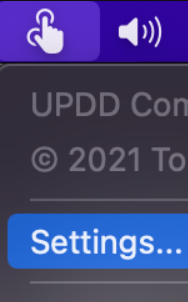
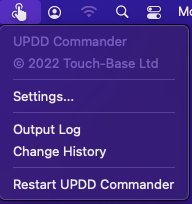
Open the UPDD Commander Settings <span dir="ltr">from the top bar on the Mac</span>

<span dir="ltr"> ![](https://kb.mpmidi.com/storage/uploads/images/gallery/2025-04/1745645084-5Fu1ltKaB5qmIAVw.jpg)</span>

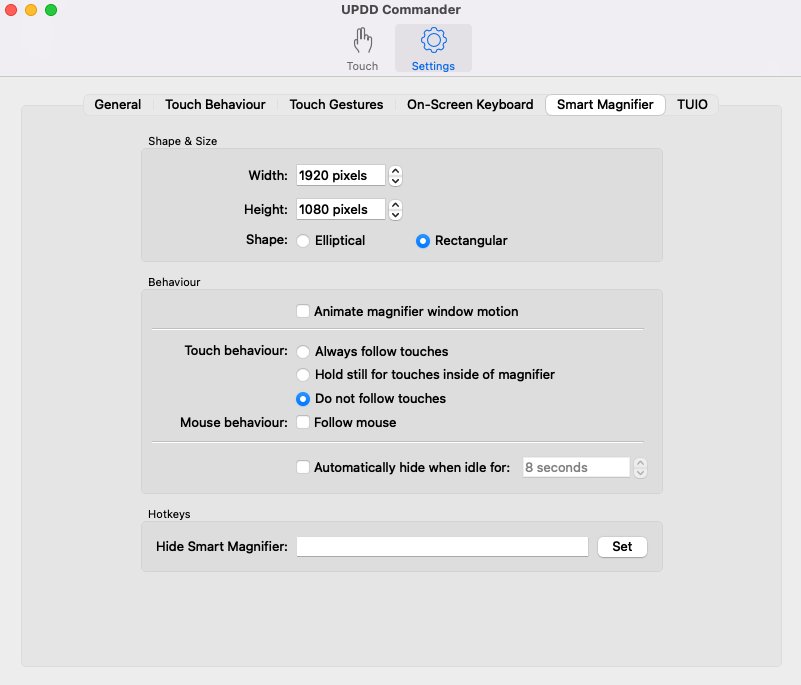
Go to Smart Magnifier tab and set the:

1. Width to 1920
2. Height to 1020
3. Rectangular Shape
4. <span dir="ltr">and to Not follow touches   
    </span>
    
    <span dir="ltr">![](https://kb.mpmidi.com/storage/uploads/images/gallery/2025-04/1745645085-A2iKDaYhhmcza6Np.jpg)</span>
    
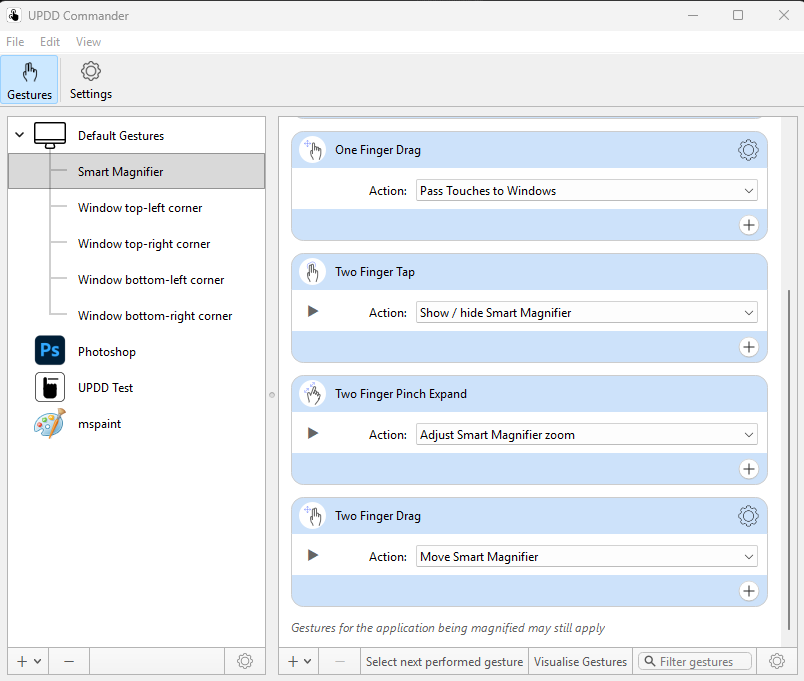
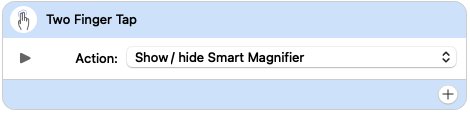
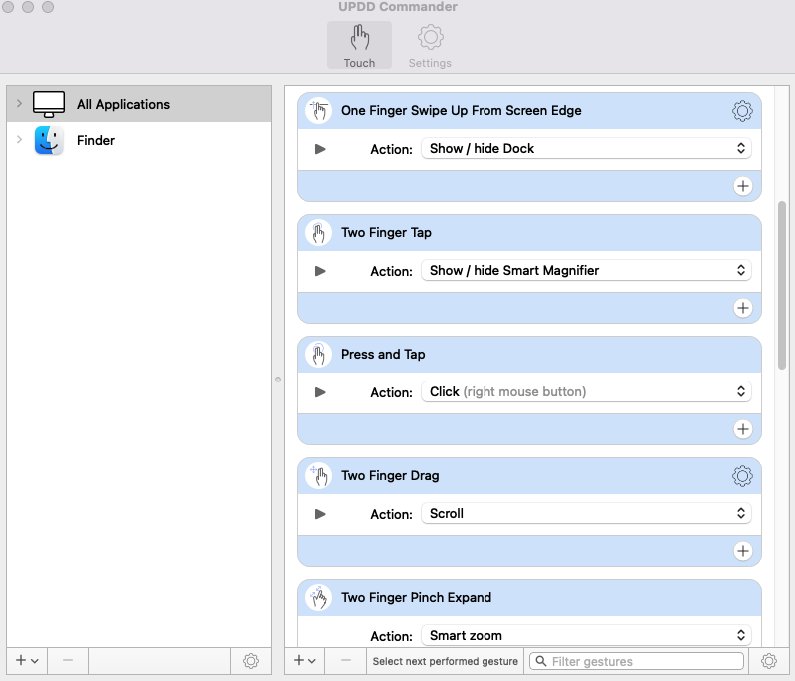
    <span dir="ltr">5. Navigate to All Applications</span>
    
    And set the:
    
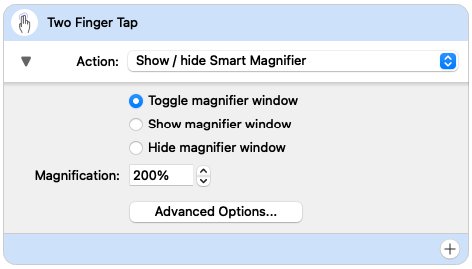
    Two Finger Tap to
    
    Action: Show/Hide the Smart Magnifier
    
      
    Optionally you can set the
    
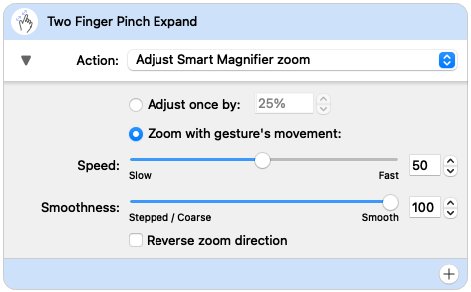
    Two Finger Pinch Expand to
    
    Action: Smart zoom
    
    ![](https://kb.mpmidi.com/storage/uploads/images/gallery/2025-04/1745645085-oNj5ErLvlTaViaBH.jpg)<span dir="ltr">  
    Set the Magnification to your preference ie 200%</span>  
      
    ![](https://kb.mpmidi.com/storage/uploads/images/gallery/2025-04/1745645085-kO8GvAvU65IeJFEN.jpg)  
      
      
    ![](https://kb.mpmidi.com/storage/uploads/images/gallery/2025-04/1745645086-0hnWwCie7VtnkcmV.jpg)

<span dir="ltr"> </span><span dir="ltr">Then set the amount of </span>

<span dir="ltr"> Zoom with gesture movement.</span>

<span dir="ltr"> ![](https://kb.mpmidi.com/storage/uploads/images/gallery/2025-04/1745645086-xQNHwE2K1NR0pmrU.jpg)</span>

# 4. UPDD Quick Installation Guide for Mac

[https://support.touch-base.com/Documentation/50245/Quick-installation-guide](https://support.touch-base.com/Documentation/50245/Quick-installation-guide)

mac OS Ventura 13.0.1 is supported by [driver UPDD V7.](https://touch-base.com/controllerbyte)

V7 - macOS 10.14 and above

V6 - macOS 10.8 and above

Due to security considerations, since macOS 10.13, users must manually 'Allow' these extensions to be installed, and will be prompted to do so during installation.

<p class="callout warning">You do not need to change any setting in UPDD except run the identify procedure as explained [here](https://mpcontrollerbyteltd.freshdesk.com/a/solutions/articles/103000120458)</p>

# 5. Uninstalling UPDD from the Mac

# <span dir="ltr">Uninstall procedure</span>

To uninstall locate and run “UPDD Uninstall” program.

Since UPDD 6.0.242 there is a shortcut icon in the Utilities folder:

![](/storage/uploads/images/gallery/2025-04/1745645086-CJAHUpuCCcx4ezc1.jpg)

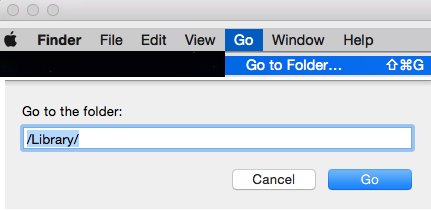
This shortcut links to the actual uninstaller held in the **/library/application support/updd** folder.

<div id="bkmrk-%C2%A0"><div><table><tbody><tr><td>![](/storage/uploads/images/gallery/2025-04/1745645087-tN6Tb33qetzzhKvf.jpg)</td><td> </td></tr></tbody></table>

</div></div>![](/storage/uploads/images/gallery/2025-04/1745645087-iEiWUFd2uGB4HK2R.jpg)

You will need to enter your login details to authenticate the uninstall request and then the   
process will start. The uninstaller welcome screen is shown; click Continue.  
  
![](/storage/uploads/images/gallery/2025-04/1745645087-MJK29rIMvpwBiHCm.jpg)

<div id="bkmrk-after-a-few-moments-"><div>After a few moments the completion screen is shown:  
  
![](/storage/uploads/images/gallery/2025-04/1745645088-9vfZRlUeRaijZcC7.jpg)</div></div>Click close to complete the uninstall.

<span dir="ltr">The uninstaller also uninstalls any UPDD extensions that require the driver to be installed, such as</span>

<span dir="ltr"> Commander, Gestures and TUIO Server. Any start up items are removed and the applications are </span>

<span dir="ltr">deleted from the /applications/utilites folder </span>

<span dir="ltr">(so long as they reside in this folder!)</span>

##### Commander gesture settings

Since UPDD v7.0.48, uninstall can optionally delete the UPDD Commander application,

<span dir="ltr">gesture and actions setting as controlled by global setting updd\_commander\_uninstall\_settings </span>

This setting indicates how UC gesture settings should be handled during uninstall

0 – Retain  
1 – Remove  
2 – Request (default – show dialog to confirm deletion, given that they may want to be retained)

#### **Silent uninstall**

In some cases it may be desirable to uninstall silently, especially if called from a 3rd party uninstaller

<span dir="ltr">that needs to remove UPDD as part of its own uninstall. In this case call the uninstall program using </span>

<span dir="ltr">the “-s” option.</span>

*Note: An icon appears in the dock when running and some messages are output to the console*   
*<span dir="ltr">but we believe this should not be an issue. Please advise if it is.</span>*

# 6. UPDD Commander Presets - Studio One TUIO

**UPDD Commander:**

<span dir="ltr"> 1. Open UPDD Commander settings.</span>

<span dir="ltr">![](/storage/uploads/images/gallery/2025-04/1745645088-l1sVcXd19yoyU2xP.jpg)</span>

<span dir="ltr"> 2. Click the '+' Icon Left-Bottom and add the 'Studio One' preset.![](/storage/uploads/images/gallery/2025-04/1745645088-96jB4Z932FNHTGqp.jpg)</span>

3\. Navigate to Studio One Section One the left should be like this as shown below.

![](/storage/uploads/images/gallery/2025-04/1745645089-CU4TGwdUoHkgmezW.png)

 4. Click the '+' icon and add these gesture as shown below

![](/storage/uploads/images/gallery/2025-04/1745645089-AWrPlJTaJk6yr7iD.jpg)![](/storage/uploads/images/gallery/2025-04/1745645090-ugYYL1Y9ZhuD5del.jpg)

 5. Set the Action for 'Two Finger Tap' to 'Show / hide Smart Magnifier'

![](/storage/uploads/images/gallery/2025-04/1745645090-LU4uTa3qBmknJ6ki.jpg)

<span dir="ltr"> 6. Set the Action for 'Two Finger Pinch Expand' to 'Adjust Smart Magnifier zoom'  
</span>

![](/storage/uploads/images/gallery/2025-04/1745645091-hfpmceNIwcbX6rBX.jpg)

**In Studio One:**

\- To enable touch in Studio One go to **Preferences &gt; General** and **enable TUIO**.(**Set Port at: 3333**)

\- Drag the Preferences window that is shown below on the MP Controller's screen and click "**This**"![](/storage/uploads/images/gallery/2025-04/1745645091-Uw6lPcJVb4fAhNKV.jpg)

<span dir="ltr">More information from Touch-base [here](https://support.touch-base.com/Documentation/50681/Studio-One).</span>

# 7. Mac - The UPDD Smart Magnifier shows the background instead of the MP Host

If this happens, then it means that the UPDD needs Screen Recording permissions on the Mac OS.

Set the screen recording permissions as follows for UPDD:

![](https://kb.mpmidi.com/storage/uploads/images/gallery/2025-04/1745645092-HgaySi8hMjiVd2WM.jpg)

Run the Identify as shown in the setup article.

Reboot the Mac after making these changes.

---

# 8. UPDD notifications

<span data-identifyelement="843"><span data-identifyelement="844"><span data-identifyelement="845" dir="ltr">If you are getting frequent notifications from updd, i</span></span></span><span data-identifyelement="847"><span data-identifyelement="848"><span data-identifyelement="849" dir="ltr">ssue this command in a terminal on the Mac and the notifications will stop.</span></span></span>

```
<strong><em>upddutils nodevice set minimum_notify_level 2</em></strong>
```

when n = 1 issue warning and critical only, 2 critical only. Any other value implies 0 - all notifications are issued.

# 9. Running the UPDD Diagnostics to troubleshoot the touch screen

<span dir="ltr">**Troubleshooting the UPDD touch-base driver**</span>

<span dir="ltr">If the touch hardware is listed in System Report but touch is still not functional, open the Diagnostics from UPDD console and run the diagnostics:</span>

<span dir="ltr">[https://support.touch-base.com/Documentation/50453/Diagnostics-procedure](https://support.touch-base.com/Documentation/50453/Diagnostics-procedure)  
</span>

<span dir="ltr">You will be asked to draw some patterns.</span>

It will create a zip file on your desktop and this can be sent to support@touch-base.com

# 10. Touch screen calibration via UPDD

You can calibrate the touch screen if you have UPDD installed.

Click on the UPDD Console icon to open it and click on the Calibrate icon.

[https://support.touch-base.com/Documentation/50697/Calibration](https://support.touch-base.com/Documentation/50697/Calibration)

[![image.png](https://kb.mpmidi.com/uploads/images/gallery/2025-06/scaled-1680-/TP6oub3OfllBSGiB-image.png)](https://kb.mpmidi.com/uploads/images/gallery/2025-06/TP6oub3OfllBSGiB-image.png)

# 11. UPDD Permissions on the Mac

UPPDD Requires the following permissions in MacOS under System Settings &gt; Privacy and Security:

[![image.png](https://kb.mpmidi.com/uploads/images/gallery/2025-11/scaled-1680-/MCkbrS67fXq8mJCb-image.png)](https://kb.mpmidi.com/uploads/images/gallery/2025-11/MCkbrS67fXq8mJCb-image.png)

[![image.png](https://kb.mpmidi.com/uploads/images/gallery/2025-11/scaled-1680-/XnJgNwB2BfDwiGtR-image.png)](https://kb.mpmidi.com/uploads/images/gallery/2025-11/XnJgNwB2BfDwiGtR-image.png)

---

[![image.png](https://kb.mpmidi.com/uploads/images/gallery/2025-11/scaled-1680-/UATkaTRcLWI0BFWv-image.png)](https://kb.mpmidi.com/uploads/images/gallery/2025-11/UATkaTRcLWI0BFWv-image.png)

[![image.png](https://kb.mpmidi.com/uploads/images/gallery/2025-11/scaled-1680-/QOHSQWn2glDCed91-image.png)](https://kb.mpmidi.com/uploads/images/gallery/2025-11/QOHSQWn2glDCed91-image.png)

---