# 1. Fender Studio Pro and Presonus Studio One Control Surface Installation Windows and macOS

##### Installation on Windows

Download and install <span data-identifyelement="597" dir="ltr">[**<u>loopMIDI </u>**](https://www.tobias-erichsen.de/software/loopmidi.html)</span><span data-identifyelement="597" dir="ltr">which is a free utility software for creating virtual MIDI ports.</span>

<span data-identifyelement="597" dir="ltr">Open loopMIDI and create 2 ports by entering the name in the New port-name box and click +.</span>

[![image.png](https://kb.mpmidi.com/uploads/images/gallery/2026-06/scaled-1680-/QlEQmVGUwydYMdVy-image.png)](https://kb.mpmidi.com/uploads/images/gallery/2026-06/QlEQmVGUwydYMdVy-image.png)

<span data-identifyelement="597" dir="ltr">Download and run the Fender CS installer from your account.</span>

---

##### Installation on macOS

<span data-identifyelement="597" dir="ltr">Download and run the Fender CS installer from your account.</span>

---

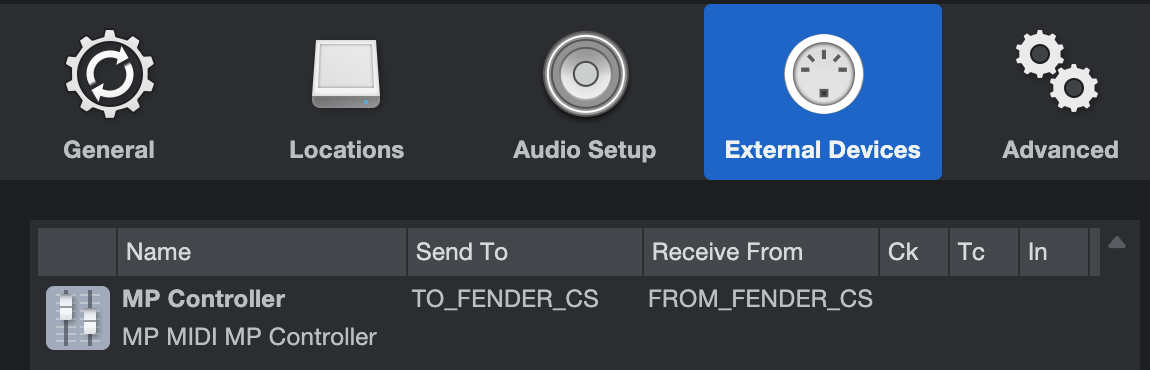
##### <span data-identifyelement="597" dir="ltr">Add the Controller in External Devices: </span><span data-identifyelement="597" dir="ltr">Windows and macOS</span>

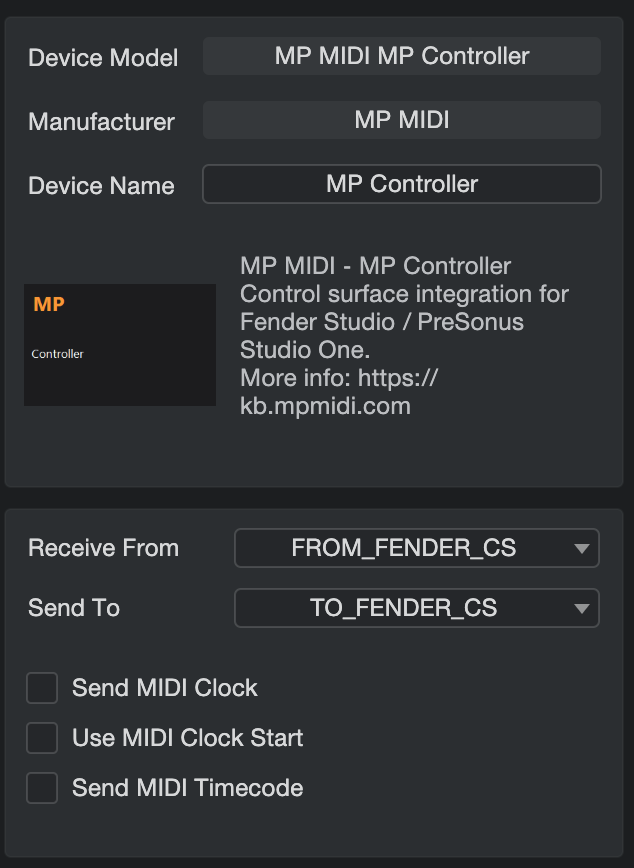
Select the MIDI IN and OUT ports.

<p class="callout info">On Windows the port assignments should be: Receive From: TO DAW, Send To: FROM DAW</p>

[![image.png](https://kb.mpmidi.com/uploads/images/gallery/2026-06/scaled-1680-/QOwRBzEij2KLg8vU-image.png)](https://kb.mpmidi.com/uploads/images/gallery/2026-06/QOwRBzEij2KLg8vU-image.png)

[![image.png](https://kb.mpmidi.com/uploads/images/gallery/2026-06/scaled-1680-/cWNqfICXiB9aPa9c-image.png)](https://kb.mpmidi.com/uploads/images/gallery/2026-06/cWNqfICXiB9aPa9c-image.png)
---

##### <span data-identifyelement="597" dir="ltr">How to start the Control Surface on Windows and macOS</span>

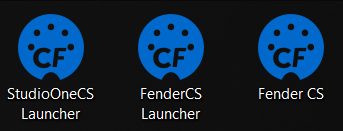
<span data-identifyelement="597" dir="ltr">You will see 3 icons placed on your Desktop</span>

[![image.png](https://kb.mpmidi.com/uploads/images/gallery/2026-06/scaled-1680-/BSGFSOzOaERypucP-image.png)](https://kb.mpmidi.com/uploads/images/gallery/2026-06/BSGFSOzOaERypucP-image.png)

The Launchers apps will start Fender Studio Pro or Studio One and the Control Surface app. Closing the DAW will also quit the Control Surface app.  
The Fender CS icon will simply start the Control Surface app but without opening the DAW.

<p class="callout success">Always run the Fender CS Launcher or Studio One Launcher (depending which one you have) so that it opens both the DAW and the Control Surface app. </p>

---

##### Selecting the Controller Display

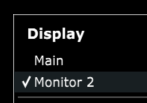
Right click on the empty area and select the target display for the Control Surface to appear.

[![image.png](https://kb.mpmidi.com/uploads/images/gallery/2026-06/scaled-1680-/ch7ywd9Gf5Ply3qL-image.png)](https://kb.mpmidi.com/uploads/images/gallery/2026-06/ch7ywd9Gf5Ply3qL-image.png)
---

##### Keyboard Focus

The CS app passes the keyboard focus automatically to the DAW after a click or touch so that you don't have to click back to the DAW manually. On the Mac CS there is a button "Keyboard Focus" to enable/disable this function.

---

Proceed to the [documentation page.](https://kb.mpmidi.com/books/mp-controller-documentation/page/2-fender-studio-pro-presonus-studio-one-control-surface-documentation)