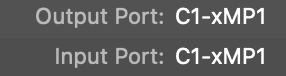
1. Mac - "Controller Not Connected" message
The MP Controller uses a separate USB device for MIDI communication called C1-xMP1.
This device appears in the Mac’s System Report and does not require a driver.
The “Controller not connected” message means that the MP Host software cannot communicate with the C1-xMP1 MIDI device of the MP Controller. It does not refer to the MP Controller display or touchscreen.
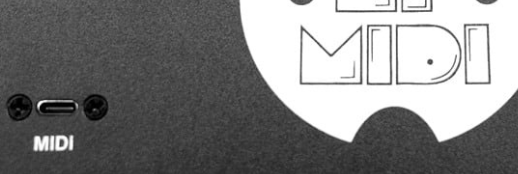
First, ensure that you have the MIDI port connected to the computer.
Connect it using the USB-C to USB-A cables provided with the controller.
Steps to Troubleshoot
-
After connecting it, check in the System Report that the C1-xMP1 shows up.
(Not to be confused with MP Touchscreen hardware)
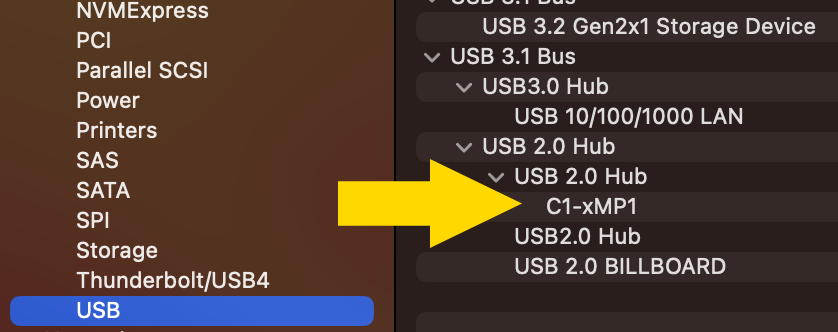
If it does not show up, there is a connection issue. Connect the cable provided directly from the MIDI port of the controller, to the computer’s USB A port (not USB-C port).
If don't have a USB-A port of your Mac connect it via a USB-C docking station that has USB 2.0 and USB 3.0 ports.
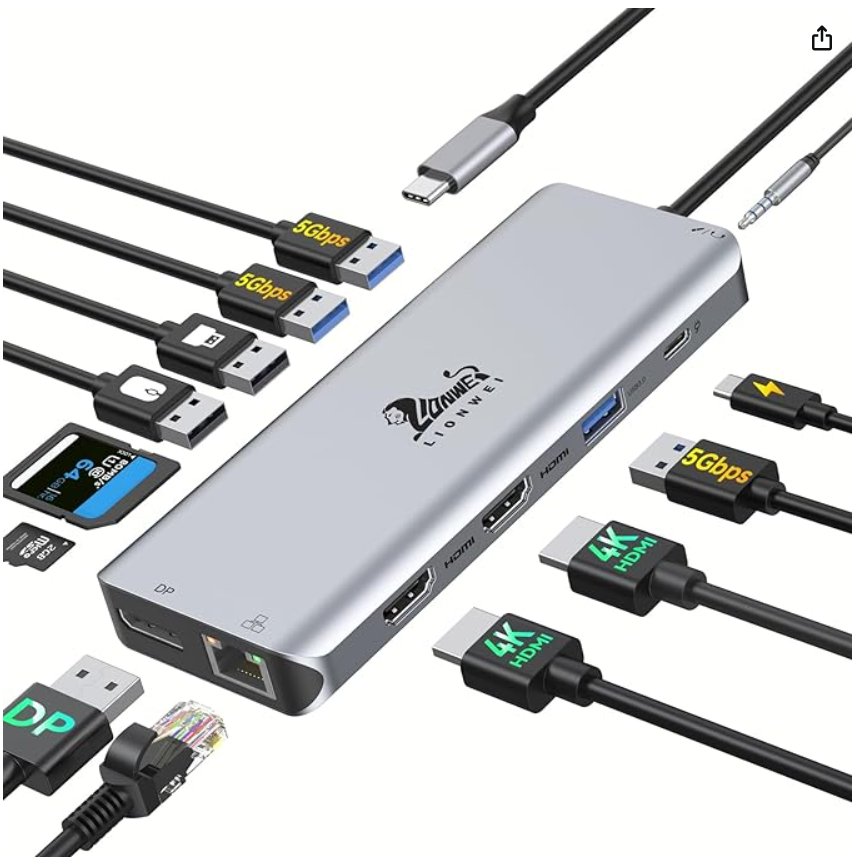
If it still does not show up in the System Report do not proceed futher with this guide, continue with this article
-
If it does show up in the System Report but you still get the "Controller not connected" message, then make sure that it shows up and that it is active and online in MAC’s MIDI Studio. (Do not rename the C1-xMP1 in MIDI Studio on the Mac) as shown in the screenshot below.
If you have more than one C1-xMP1, delete the additional one.
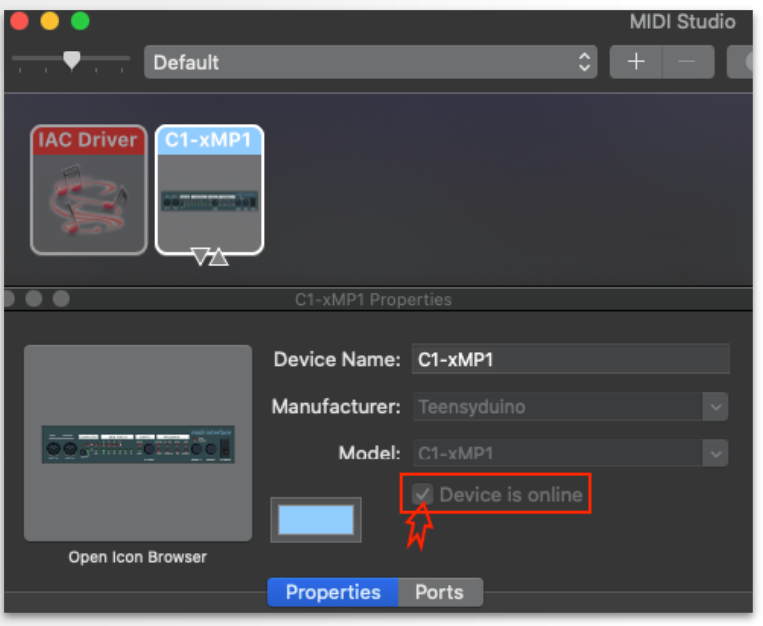
If the C1-xMP1 does not show up in the MIDI Studio, try Refresh MIDI Setup from the top bar menu option.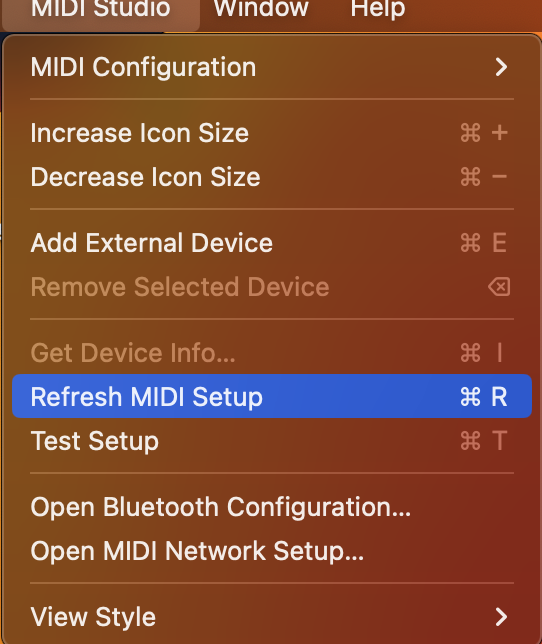
and try pressing the Rescan MIDI button

- Disable the MIDI In/Out of the C1-xMP1 in the DAW as instructed here. The controller should now be found by the MPH plugin shown on the left bottom of the MPH plugin window.
Additional Troubleshooting information:
Like all USB devices, the C1-xMP1 must be initialized by the Mac and it will be displayed in the System Report of the Mac.
If a USB device is not listed under the USB tree of the System Report, the device is either not connected to the Mac or it has a hardware/connection problem.
There is no need to check the MIDI Studio if the C1-xMP1 does not show up in the System Report. If it is not listed in the System Report, it will definitely not be displayed in the MIDI Studio.
If the C1-xMP1 device is listed in the System Report but you still get the message "Controller not connected" then it is a software related issue. See step 2 of the troubleshooting steps below. If the device is listed and displays [Safe Mode] it is ok and it does not affect the function of the device.
The Mac's System Report needs to be reopened to show newly connected devices. Alternatively, you can open a terminal and paste this command
system_profiler SPUSBDataType | grep -i "C1-xMP1"
If it is connected it will print: C1-xMP1. If not, it will not print anything.
While on the terminal pressing the up arrow on the keyboard and enter will repeat the command
IMPORTANT: If you have UPDD installed and the C1-xMP1 is listed in the System Report but not found in the Mac MIDI Studio, it is possible that some setting/selection in UPDD is causing this.
Uninstall UPDD and reboot the Mac. Check the MIDI Studio if C1-xMP1 is listed and online
Please note, UPDD does not need any hardware selection setting to be done manually.
It should work without any manual configuration.
Logic Pro configuration when using the Logic Pro Control Surface
This section is only applicable if you are using the Logic Pro Control Surface. If you are using only the MP Host for controlling plugins you don't need to apply the following settings. If you are setting up for the first time the MP Host then you do not need to apply the following settings.
If you are using the Logic Pro Control Surface, it requires that the MIDI port for C1-xMP1 to be enabled under MIDI INPUTS in Logic. Therefore, enable it and Logic will still be able to use it. This is because macOS allows MIDI ports to be shared. See here to disable the C1-xMP1 from sending MIDI CC directly to Logic. This way you allow the MIDI port to be used for the Control Surface but at the same time prevent it from sending unwanted MIDI CC messages to Logic directly.
If it does show up in the MIDI studio and you are in Logic Pro go to
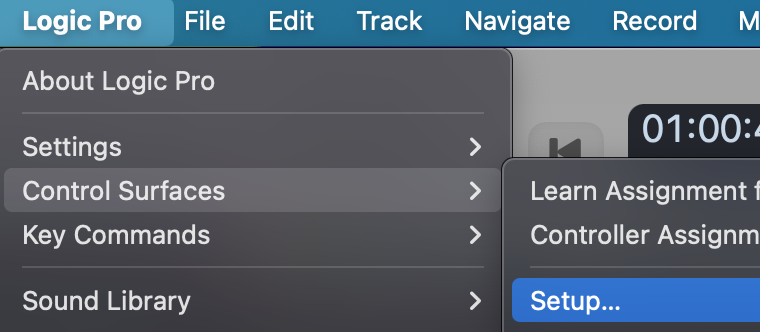
and check that no other control surface has the C1-xMP1 selected in its input/output port (except the MP MIDI if you have the Logic Control Surface installed). If some other control surface does have C1-xMP1 MIDI ports selected, deselect it or delete the control surface and restart Logic Pro.