If your monitor flickers (does not stay on) you can use the Y-cable to provide power and touch data. It’s recommended to use the Y-cable in any case, because it will lessen the power load on the computer’s USB port. It is also recommended to connect this port directly on the computer and not via a hub.
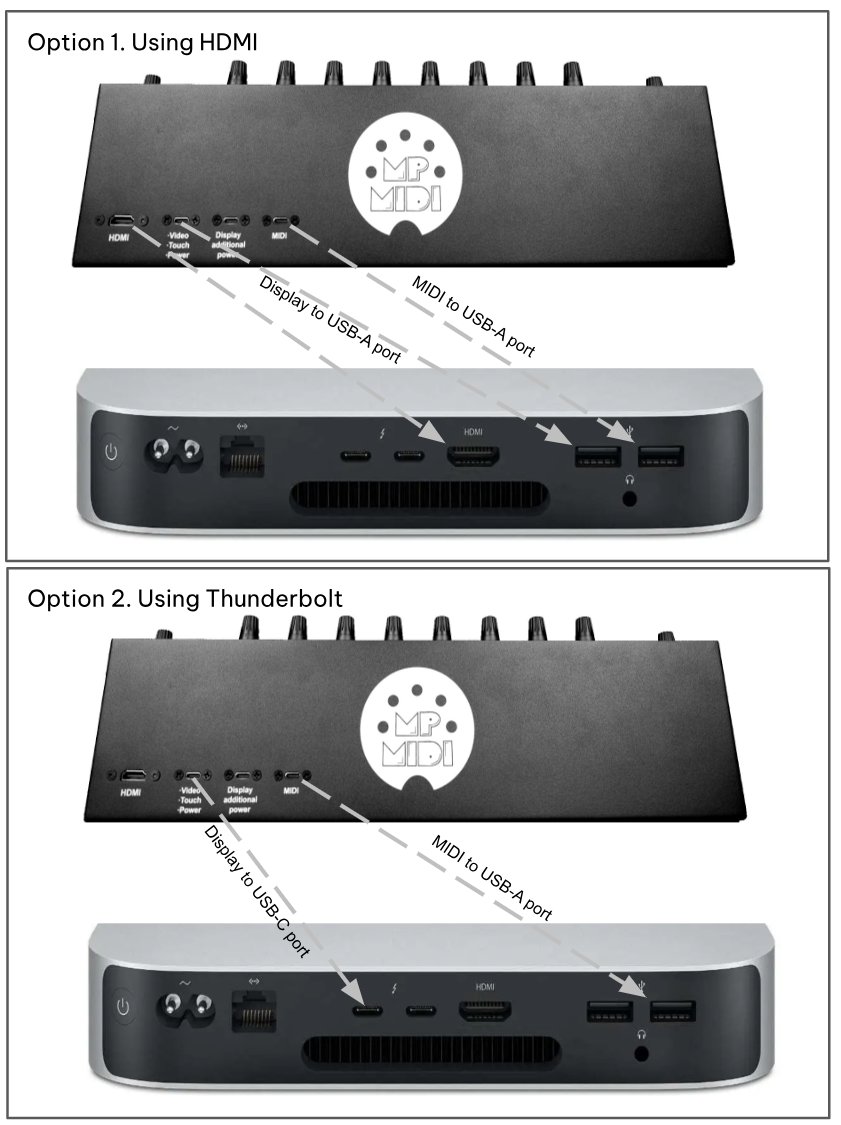
Port 3. The USB-C MIDI port is used to send/receive MIDI data (MIDI Controller) to/from the computer. The hardware is listed as C1-xMP1 on both Mac OS and Windows. On this port you can use longer usb cables if you need to. Connect **only** with a USB-C to USB-A cable (not USB-C to USB-C).  ##### Model 2A 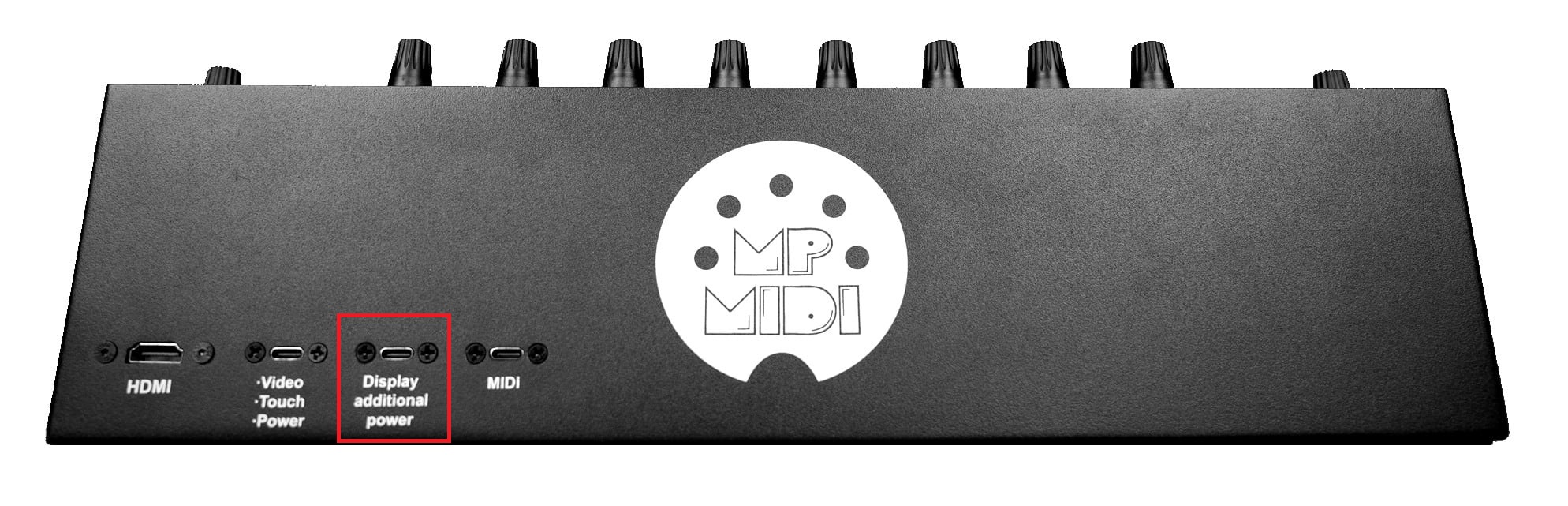 **Port 1.** The HDMI provides a video signal to the display, however it does not provide power. When the HDMI is not connected (but it has power) the display will go to sleep within 2 seconds. On a Mac or PC with thunderbolt, it is possible to connect a Thunderbolt cable on the USB-C Display port of the controller, instead of HDMI, but not both. **Port 2.** The USB-C Display port is used to provide power to the monitor and it is also used to send touch data to the computer from the monitor.On Macs, Thunderbolt ports almost always support DisplayPort Alternate Mode (DP Alt Mode) over USB-C, so a display connected through a Thunderbolt/USB-C cable can output video directly. For M4 or later Macs see [here](https://kb.mpmidi.com/books/mp-controller-documentation/page/4-mac-m4-display-connection-options). On Windows PCs, it depends heavily on the hardware: Not all Thunderbolt ports on PCs carry DisplayPort video. Some motherboards or laptops wire the Thunderbolt controller only for data/PCIe without a DP passthrough.If the GPU is not routed to that Thunderbolt controller, no video signal can be sent. Some systems require Intel Graphics / NVIDIA/AMD GPU drivers and Thunderbolt drivers/software for video over USB-C to function. On desktops, the Thunderbolt add-in card must be cabled internally to the GPU’s DisplayPort output to carry video through the USB-C connector. Without that DP link, the port only does data. Macs are wired universally to provide DP Alt Mode via Thunderbolt, while on PCs it’s optional and depends on motherboard/GPU integration.
**Port 3. A****dditional power port for the display which it can be connected on external power adapter. This port should be connected only when there is not enough power provided by the computer’s USB port for the display. However, it is a good practice and we recommend to connect this port to a wall adapter (5v/2A) so that it lessens the power load on the computer's USB port. **Port 4.** The USB-C MIDI port is used to send/receive MIDI data (MIDI Controller) to/from the computer. The hardware is listed as C1-xMP1 on both Mac OS and Windows. On this port you can use longer usb cables if you need to. Connect **only** with a USB-C to USB-A cable (not USB-C to USB-C).  ##### Common connection diagram for all models