Note that we have a simple utility that will take the mouse cursor to the touch display when it detects a touch gestrure. See more information [here](https://kb.mpmidi.com/books/mp-controller-documentation/page/7-mac-mp-touch-utility-for-moving-the-mouse-cursor-to-the-touch-screen).
UPDD offers the following important benefits and others such as multi-gesture configurations: **1. On the Mac:** If the mouse is not located on the touchscreen of the MP Controller, touch will affect where the mouse is currently located. UPDD transfers the mouse pointer to the touch screen automatically when it detects a touch gesture. **2. Both Mac and Windows:** The [smart magnifier](https://www.youtube.com/watch?v=wO2_4cpVhLo) (Zoom on the controller screens with gestures) **3****. Both Mac and Windows:** Returning the mouse position to its previous position after a touch gesture **4. Both Mac and Windows:** Keep the keyboard focused on the DAW after a touch gesture.  ##### Prerequisite for macOS UPDD requires that the Touch port of the MP Controller is connected first and **shows in the System Report.** For Model 1 A [see this article](https://kb.mpmidi.com/books/mp-controller-documentation/page/3-mac-model-1a-troubleshooting-the-touch-function) For Model 1A+ & 2A [see this article](https://kb.mpmidi.com/books/mp-controller-documentation/page/4-mac-model-1a2a-troubleshooting-the-touchscreen). When you first connect the touch USB port, move your mouse cursor onto the touchscreen display and then touch the screen. You should be able to control the mouse pointer with your finger, just like using a touchpad. If this works, it is a clear indication that the touchscreen is properly connected and functioning correctly. If touching the screen does not affect the mouse pointer, there may be an issue with the touch connection. #####  ##### Download and Install UPDD You can get the UPDD software from [**https://touch-base.com/controllerbyte**](https://touch-base.com/controllerbyte) at a heavily discounted price for a lifetime license and 3 years of receiving updates and support. There is a 7 day **trial** available to download it prior to purchasing. [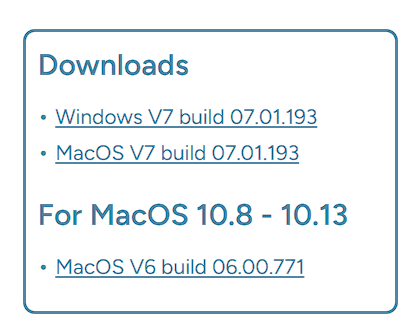](https://portal.touch-base.com/oemdrivers/mpc)**IMPORTANT:** Purchase UPDD only from **https://touch-base.com/controllerbyte** as this is a special version for the MP Controller. No configuration is needed after you install UPDD except the Identify procedure. Do not select any devices in UPDD, everything is done automatically. **MacOS:** Ensure you have given UPDD the appropriate permissions during installation. After installation, reboot the Mac and you **only** need to run Identify in UPDD after reboot. **No other configuration is needed in UPDD.** if you have Slate Digital Raven, you need to reach out to support@touch-base.com and they will provide a software that works for both, the MP Controller and Raven.
 ##### Identify Procedure After installing UPDD, you will need to run Identify from UPDD in order to select the target monitor 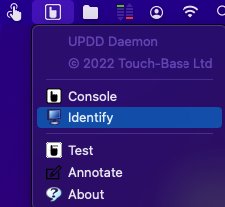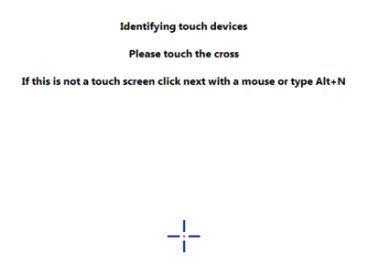| > Gestures for the smart magnifier are preset in UPDD (tap with 2 fingers to magnify). > Optionally you can also [setup](https://kb.mpmidi.com/books/mp-controller-documentation/page/3-how-to-configure-the-updd-zoom-and-gestures) your own gestures. |
Permissions required for UPDD on MacOS are shown [here](https://kb.mpmidi.com/books/mp-controller-documentation/page/11-updd-permissions-on-the-mac)
 ##### UPDD Commander When you install UPDD, it does **not require any configuration** to operate except the Identify procedure as shown above. The 2 finger pinch expand to zoom the display is already configured. [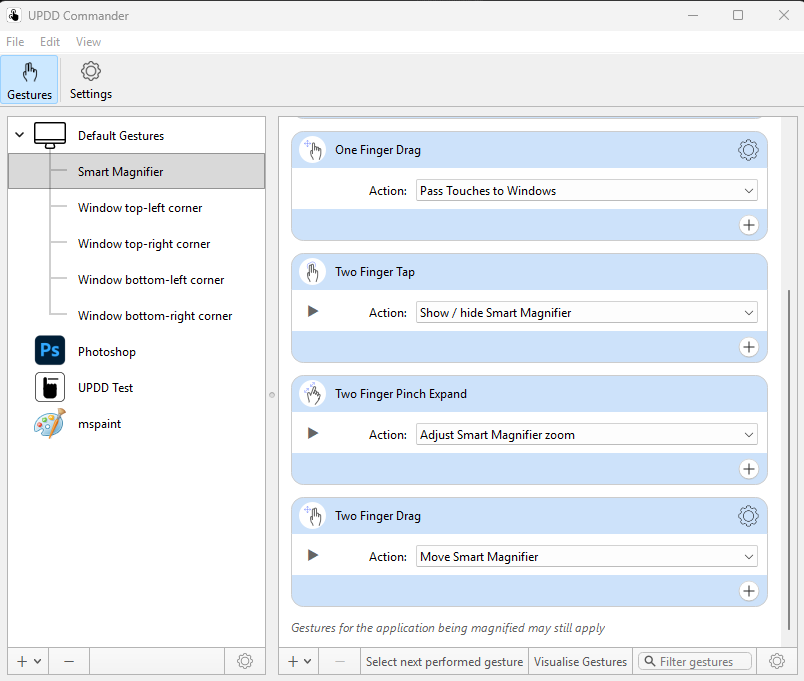](https://kb.mpmidi.com/uploads/images/gallery/2026-06/9VloDaJXQ2XRnyp1-screenshot-2026-06-22-123455.png) You can configure more gestures and change the default touch gestures using the UPDD commander by clicking on the Commander Icon on the taskbar and choose settings. [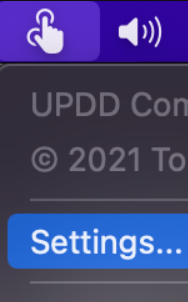](https://kb.mpmidi.com/uploads/images/gallery/2026-06/QcFCKW7UcGq8sAbq-image.png) See the UPDD manual on gesture configuration: [https://support.touch-base.com/Documentation/50605/Gesture-definitions](https://support.touch-base.com/Documentation/50605/Gesture-definitions) #####  ##### Updating UPDD To update UPDD go to [**https://touch-base.com/controllerbyte**](https://touch-base.com/controllerbyte) and select to download the **trial** (regardless if you have purchased it already). Enter your name and email address. Select the OS you have and submit. It will send to your email the link to download the latest UPDD version. If you have already register the license, it will register automatically after you install UPDD.  ##### Suggestion A very helpful setting in the UPDD settings is the Reset mouse cursor after a gesture action ends. This option automatically returns the mouse pointer back to its previous position after you finish with a touchscreen gesture. It can also reset the Keyboard focus (take it back to the previous app). Read more [here](https://kb.mpmidi.com/books/mp-controller-documentation/page/28-mac-os-transferring-the-keyboard-focus-on-the-daw) 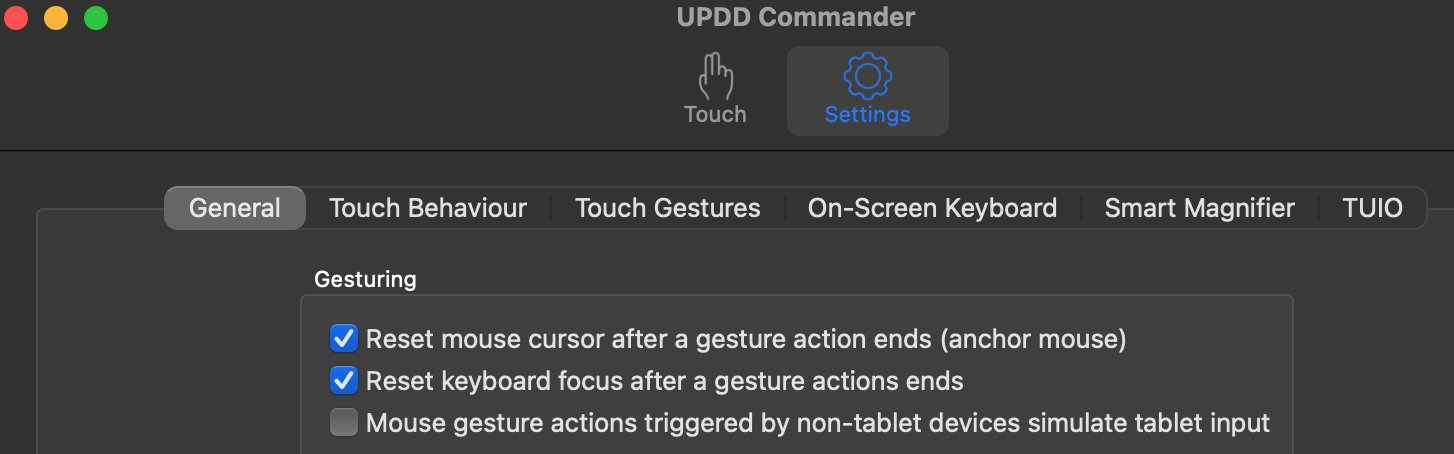 Alternatively, see these [mouse to touchscreen suggestions](https://kb.mpmidi.com/books/mp-controller-documentation/page/2-mouse-to-touchscreen-suggestions)  ##### Troubleshooting: Mac OS X Touchscreen Model 1A+ The first time, connect the Display USB, using the cable provided, directly on the Mac (not via a hub to eliminate any possibilities of issues). It should show up under System Report > USB as “MP Controller Touch Screen”. Touch will work, but the mouse cursor needs to be on the MP Controller’s touch screen to control that screen. UPDD takes care of this, along with other benefits such as the Smart Magnifier, right click function and many more. 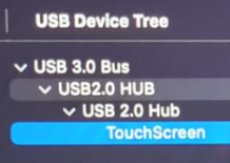**UPDD will display it as** Vendor ID 0x222A, Product ID 0x0858, Manufacturer: MP Controller Touch Display, Product: MP TouchScreen
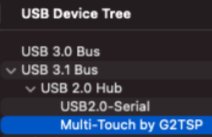
Do not check the box to select the device.  ##### Mac OS X Touchscreen Model 1A The touch needs to show up first in System Report as G2TSP Multi touch display under USB. Then you can install UPDD for the touch function to work The touchscreen works as mouse input, therefore when you touch the screen it gets the mouse cursor. If you touch and drag, it behaves in the same way as clicking and dragging with the mouse. For up to Mac OSX Mojave, the touchscreen monitor does not need any drivers and works with the native Mac OSX drivers when connected. However on Mojave, the mouse position needs to be on the touchscreen so to enhance the workflow we have these 3 [suggestions](https://kb.mpmidi.com/books/mp-controller-documentation/page/2-mouse-to-touchscreen-suggestions).