# 1. Windows - Display and Touch Setup

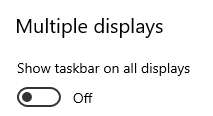
<span data-identifyelement="521" dir="ltr">On Windows, first disable the Taskbar on Multiple Displays</span>

<span data-identifyelement="479"><span data-identifyelement="523" dir="ltr">![](https://kb.mpmidi.com/storage/uploads/images/gallery/2025-04/1745645021-ZLd0zWcKJpAkoPJS.png)</span></span>

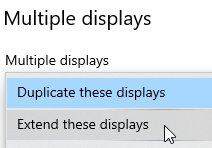
<span data-identifyelement="482"><span data-identifyelement="483" dir="ltr">Then, choose to Extend the Displays, from Display Settings</span></span>

<span data-identifyelement="485"><span data-identifyelement="486"><span data-identifyelement="487">![](https://kb.mpmidi.com/storage/uploads/images/gallery/2025-04/1745645021-WAImukotdrIWSA2N.jpg)</span></span></span>

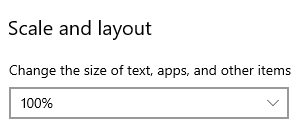
**<span data-identifyelement="501" style="color: rgb(224, 62, 45);"><span data-identifyelement="550" dir="ltr">Set, the magnification (Scaling) on Windows to 100% on the MP Controller’s display.</span></span>**

> <span data-identifyelement="503"><span data-identifyelement="552" dir="ltr">if you have a different scaling setting, the MPH plugin or hosted plugins may look either too big or out of bounds,   
> showing partially instead of full</span></span>

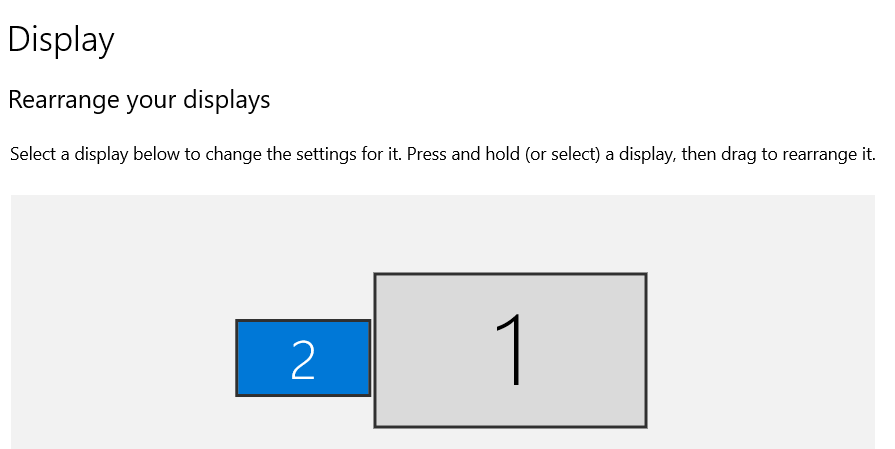
<span data-identifyelement="503"><span data-identifyelement="552" dir="ltr">First select the display that is the MP Controller and it will turn blue</span></span>

[![image.png](https://kb.mpmidi.com/uploads/images/gallery/2025-04/scaled-1680-/c6N0DFkNhqYHBhp9-3fHimage.png)](https://kb.mpmidi.com/uploads/images/gallery/2025-04/c6N0DFkNhqYHBhp9-3fHimage.png)

<span dir="ltr"> Set it to 100%</span>

[![image.png](https://kb.mpmidi.com/uploads/images/gallery/2025-04/scaled-1680-/sCuD2xh32jzeumyJ-fsHimage.png)](https://kb.mpmidi.com/uploads/images/gallery/2025-04/sCuD2xh32jzeumyJ-fsHimage.png)

---

##### <span data-identifyelement="491"><span data-identifyelement="530">Windows 10/11 Touchscreen setup</span></span>

<span data-identifyelement="493"><span data-identifyelement="532" dir="ltr">For Model 1A+/2A see </span>[<span data-identifyelement="535">**this**</span>](https://kb.mpmidi.com/books/mp-controller-documentation/page/3-windows-model-1a2a-configuration-for-the-touch-hardware)<span data-identifyelement="538" dir="ltr"> </span><span data-identifyelement="538" dir="ltr">guide</span></span>

<span data-identifyelement="496"><span data-identifyelement="541">For Model 1A see </span>[<span data-identifyelement="543">**this**</span>](https://mpcontrollerbyteltd.freshdesk.com/en/support/solutions/articles/103000120363-model-1a-touch-function-setup-on-windows)<span data-identifyelement="498"><span data-identifyelement="544" dir="ltr"> </span></span><span data-identifyelement="544" dir="ltr">guide</span></span>

---

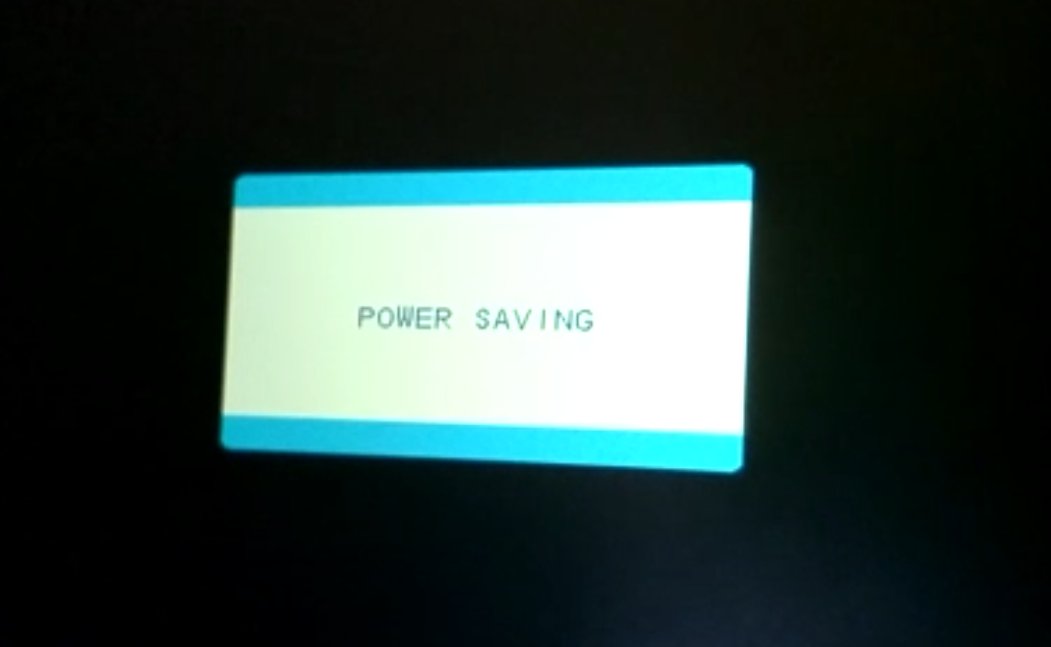
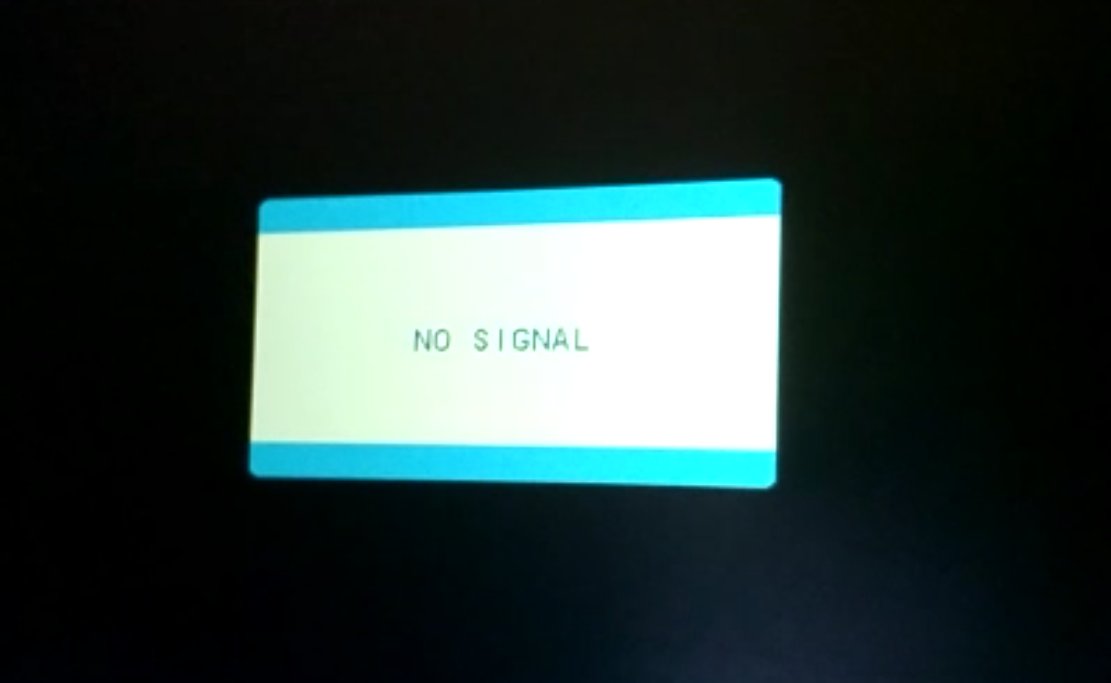
##### <span data-identifyelement="506"><span data-identifyelement="570" dir="ltr"><span data-identifyelement="571" dir="ltr">Getting “No Signal” and then “Power Saving”</span></span></span>

<span data-identifyelement="507">  
</span>

<span data-identifyelement="508">![](https://kb.mpmidi.com/storage/uploads/images/gallery/2025-04/1745645021-Fo8QccdSQZnBqvwb.jpg) ![](https://kb.mpmidi.com/storage/uploads/images/gallery/2025-04/1745645022-iQ1c7PMAmgggl4P7.jpg)</span>

<span data-identifyelement="510"><span data-identifyelement="581">If you see a No Signal it means the monitor is powered properly.</span></span>

<span data-identifyelement="512"><span data-identifyelement="587">If after the “No Signal” you see “Power Saving” it means that the monitor is not receiving video signal from the HDMI port and goes to power saving sleep mode.</span></span>

<span data-identifyelement="514"><span data-identifyelement="593">In most systems you need to connect the USB-C cable first and then the HDMI to provide video signal</span></span>

<span data-identifyelement="516"><span data-identifyelement="599">If you have the HDMI connected, disconnect and reconnect it to initiate the video signal from the computer to the controller’s monitor</span></span>

<span data-identifyelement="518"><span data-identifyelement="604" dir="ltr">If you are getting “No Signal” and then “Power Saving” when connecting with a USB-C to USB-C cable then it means the monitor is receiving enough power, but not video signal. Connect the HDMI.</span></span>
---

##### <span data-identifyelement="521"><span data-identifyelement="610" dir="ltr"><span data-identifyelement="611" dir="ltr">Windows 10: a menu item does not appear on screen</span></span></span>

<span data-identifyelement="522"><span data-identifyelement="613">If using a 4k monitor and the MP Controller and If a menu does not appear in the controller’s screen then try this:</span></span>

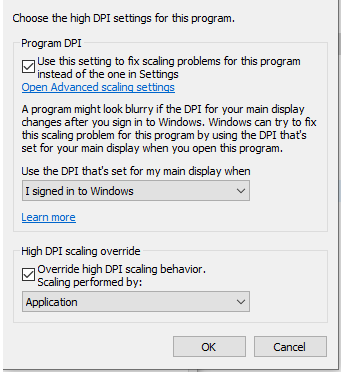
<span data-identifyelement="523"><span data-identifyelement="616">Right click on the DAW exe program file and choose </span><span data-identifyelement="617">properties</span></span>

<span data-identifyelement="525"><span data-identifyelement="623">Then click </span><span data-identifyelement="624">high DPI settings and </span><span data-identifyelement="625" dir="ltr">try these options</span></span>

<span data-identifyelement="527"><span data-identifyelement="629" dir="ltr">![](https://kb.mpmidi.com/storage/uploads/images/gallery/2025-04/1745645022-kkPo1SdCTa7B5uPu.png)</span></span>

<p class="callout warning"><span data-identifyelement="528">Ensure you have set the scale at 100% in Windows display settings for the MP Controller's display</span></p>

---

##### <span data-identifyelement="531"><span data-identifyelement="638" dir="ltr">Disable Auto-Scaling in Ableton Live on Windows</span></span>

<span data-identifyelement="532"><span data-identifyelement="640">If you have set the scaling to one of your other monitors to more than 100% then some menus of the MP Host may appear bigger and not centered.</span></span>

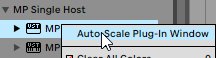
<span data-identifyelement="533"><span data-identifyelement="643" dir="ltr">To solve this issue disable the Auto-scale on the MPH plugins in Ableton by right clicking <span data-identifyelement="534">once</span> on each MPH from the plugin list .</span></span>

<span data-identifyelement="535"><span data-identifyelement="643" dir="ltr">[https://help.ableton.com/hc/en-us/articles/209775985-High-DPI-monitor-support](https://help.ableton.com/hc/en-us/articles/209775985-High-DPI-monitor-support)</span></span>

<span data-identifyelement="537"><span data-identifyelement="645" dir="ltr">![](https://kb.mpmidi.com/storage/uploads/images/gallery/2025-04/1745645023-opFh2ewu9gkbQgJY.jpg)</span></span>

<div data-identifyelement="541" id="bkmrk--14">![](https://kb.mpmidi.com/storage/uploads/images/gallery/2025-04/1745645023-hOZOvvzZTlQgk2qx.jpg)</div>Additionally, instead of scaling the Windows display you can increase the Zoom level in Ableton Live

![](https://kb.mpmidi.com/storage/uploads/images/gallery/2025-04/1745645023-R9hKgy34PM98OI3n.png)

---

##### Pro Tools and 4K monitors

If you are using Pro Tools on Windows and you have a 4K monitor as your main display and it is scaled in Display Settings, for example at 125% the MP Host may display off-centered on the display of the mp controller.

<p class="callout info"> The mp controller display should always be set to 100% scaling in Windows.  
</p>

If you experience such issue, open the [host.properties ](https://kb.mpmidi.com/books/mp-controller-documentation/page/3-mp-host-properties-and-config-files)file in a text editor (Sublime, Notepad, Notepad++, TextEdit etc) and go to the end of the file. Find the line that has **&lt;VALUE name="scale\_factor" val="100"/&gt;**

Set the value to the same value as your scaling factor in windows. For example if you are scaling your main display at 150%, change the number from 100 to 150.

Save the host.properties text file.

Quit the MP Host and reload it so that the change takes effect.   
The MP Host should now be centered on the mp controller's display.

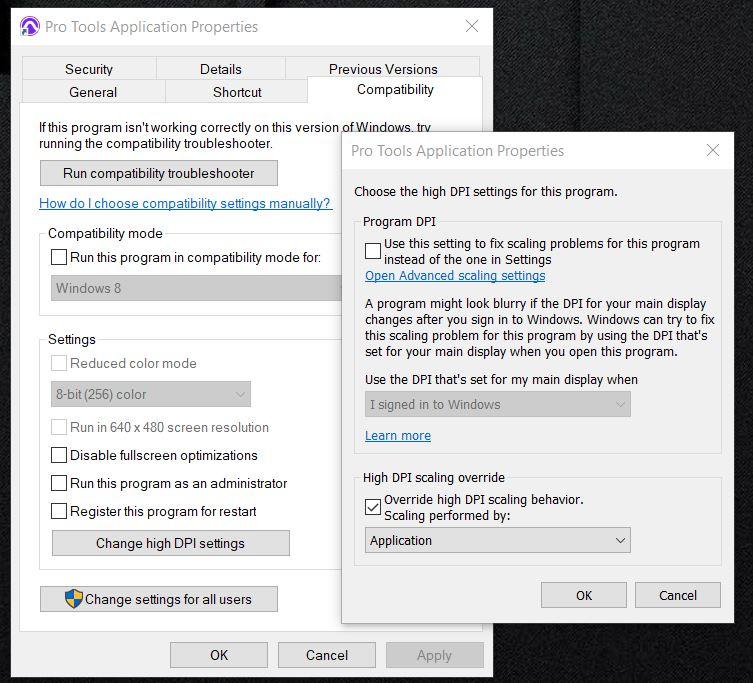
Alternatively you can change the DPI settings of Pro Tools.exe

[![Pro Tools Override High DPI.jpg](https://kb.mpmidi.com/uploads/images/gallery/2025-10/scaled-1680-/IZ275fhBjxXXFwMN-pro-tools-override-high-dpi.jpg)](https://kb.mpmidi.com/uploads/images/gallery/2025-10/IZ275fhBjxXXFwMN-pro-tools-override-high-dpi.jpg)
---