# 12. Mixer Mode in the MP MIDI app
In the November 2024 update of the MP MIDI app we have introduced a new view called Mixer Mode. See [video ](https://www.youtube.com/watch?v=8HFd1RPQmKs&ab_channel=MPMidiController)on YouTube.
The view can be activated using the Mixer Mode button on the upper right corner.
[](https://kb.mpmidi.com/uploads/images/gallery/2025-06/F1XFW0ci204P60fL-image.png)
**The Mixer mode shows**
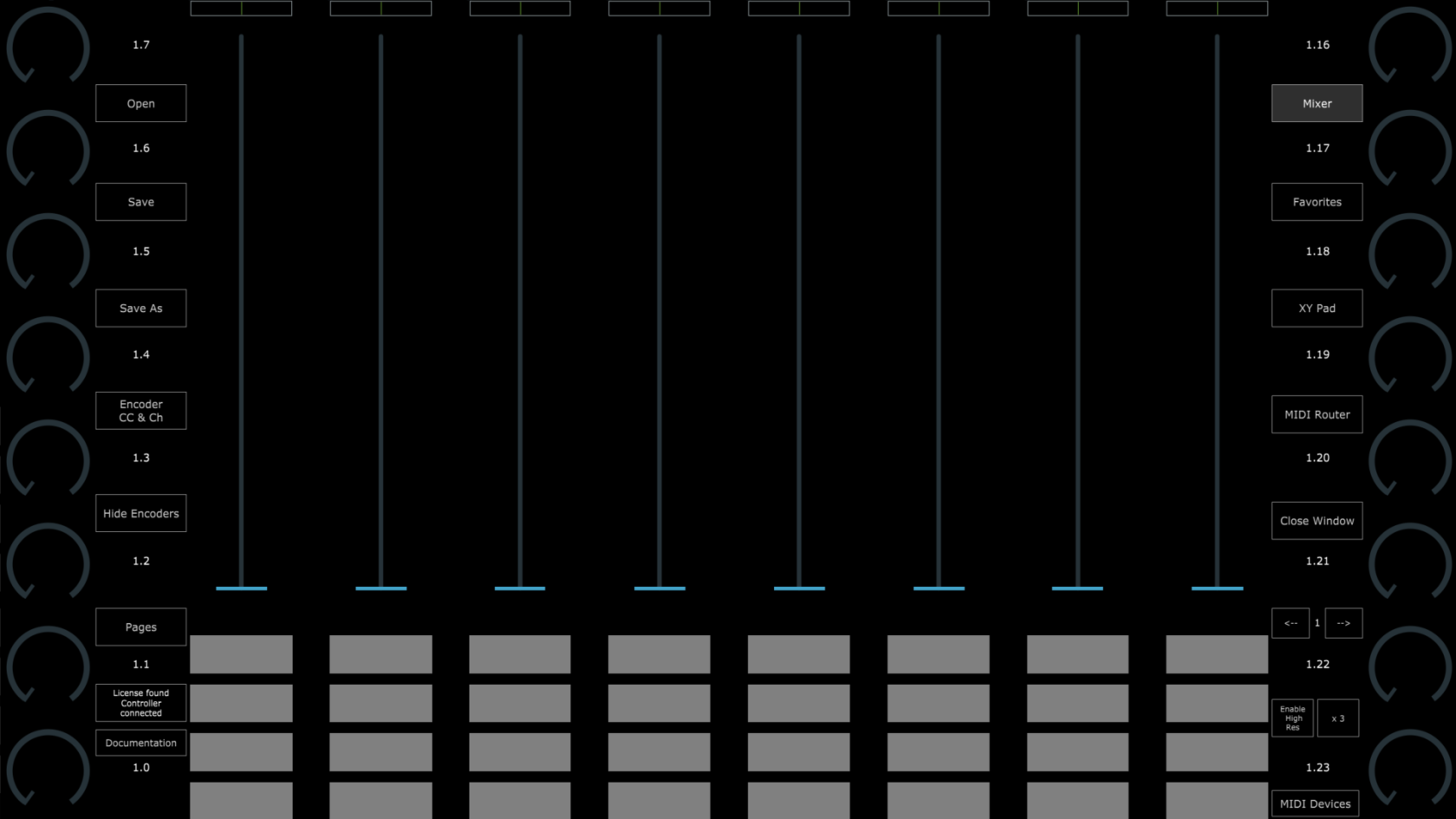
- 8 horizontal faders which are assigned to the top row encoders. The meter starts from the center to be mapped on the pan on the DAW's mixer.
- 8 vertical faders which are assigned to the bottom row encoders. These can be mapped on the DAW's mixer volume and can also be controlled via touch.
- 4 buttons under each column (32 in total) assignable buttons.
[](https://kb.mpmidi.com/uploads/images/gallery/2025-06/9V8TKY92iGPO71e6-image.png)
**Setting CC numbers on the top encoders and faders**
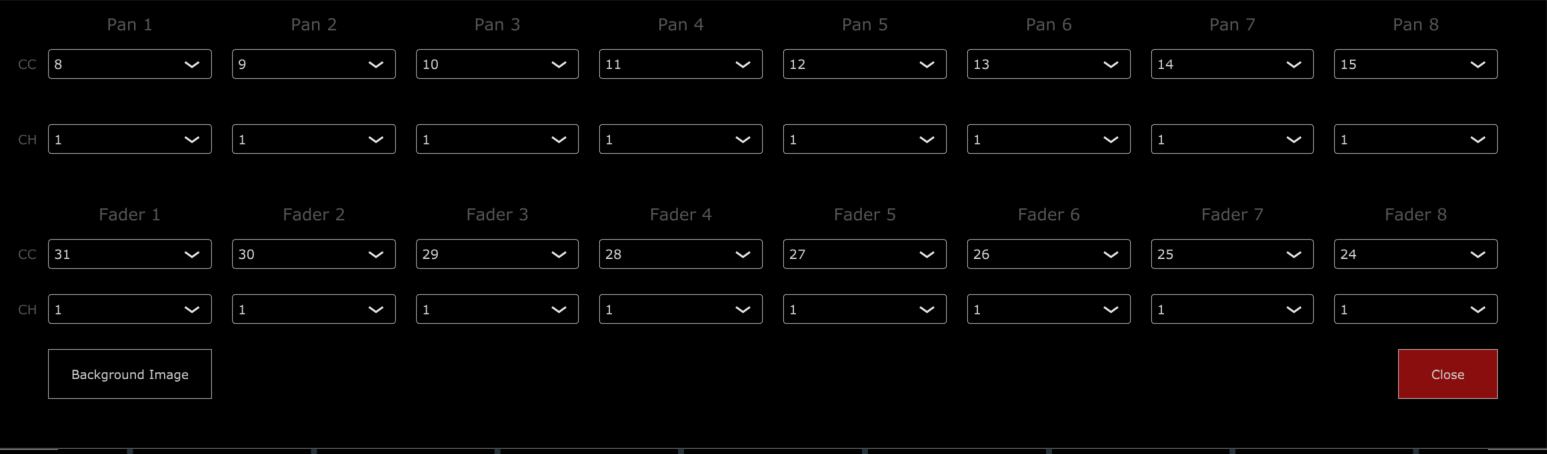
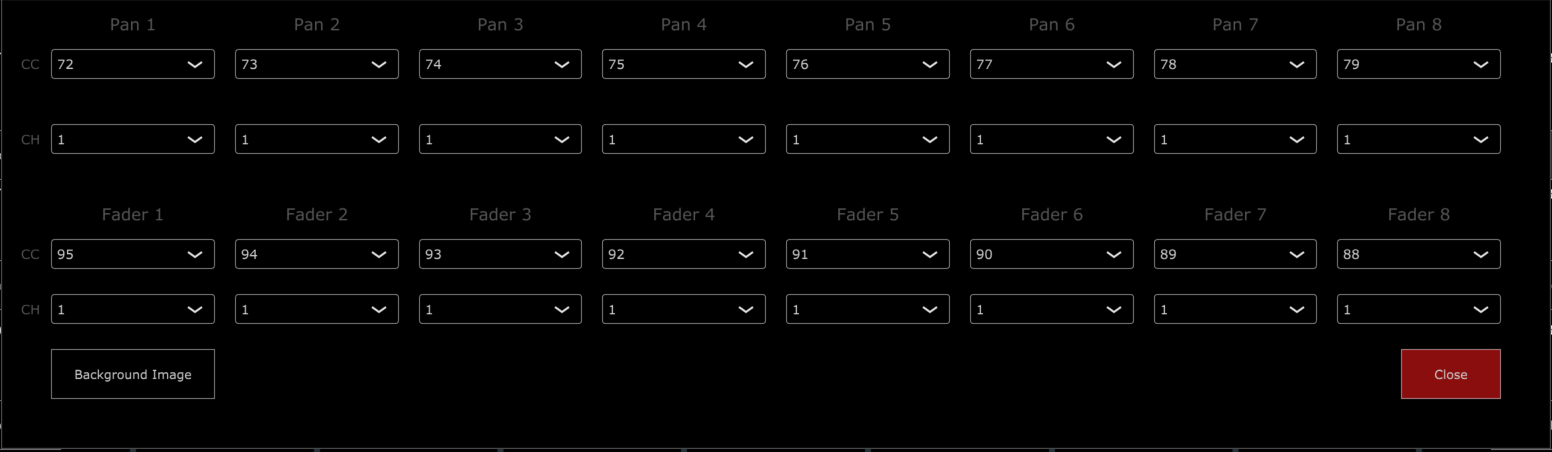
Right click on any fader and the option menu will appear
In odd numbered pages the default CC assignments are
In even numbered pages the default CC assignments are
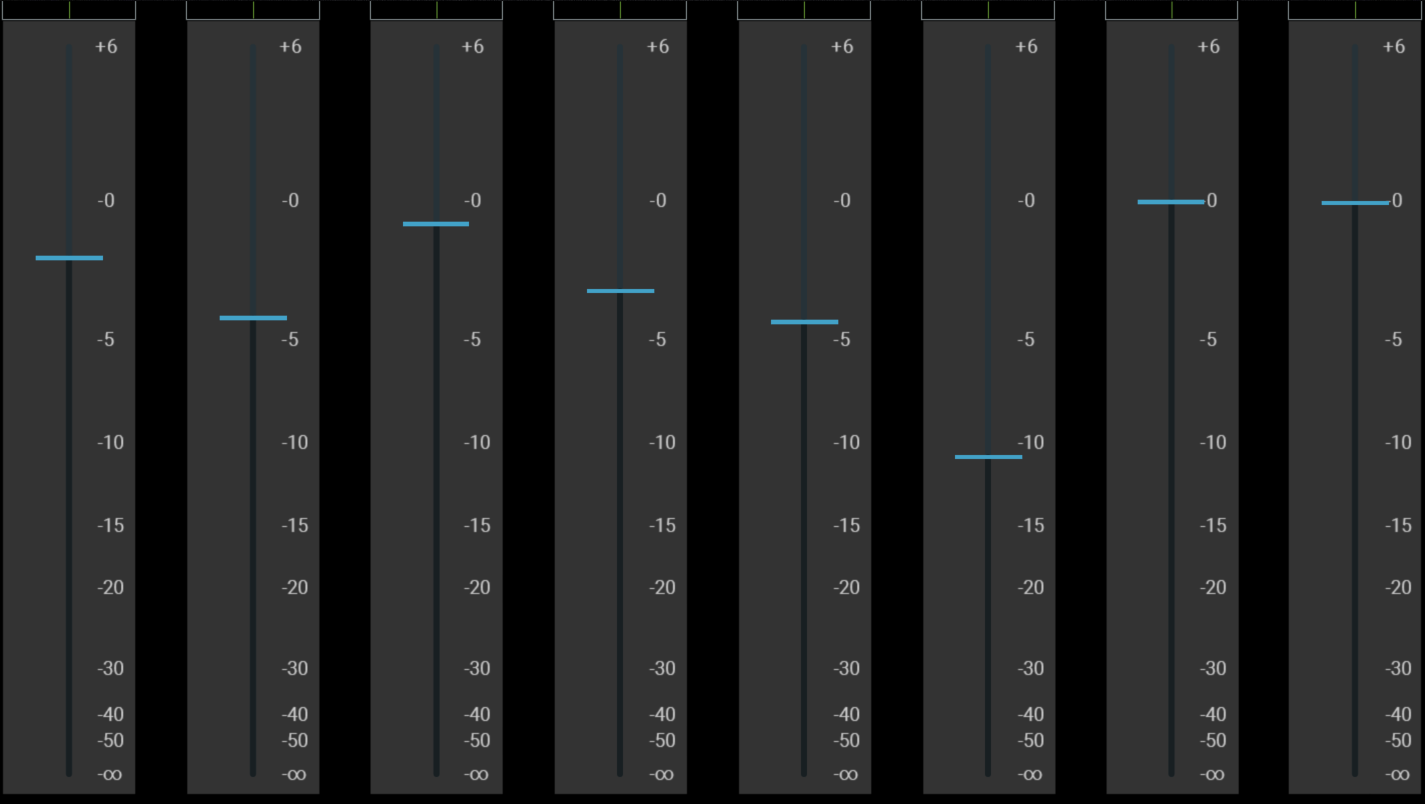
There is an option to set a background image which is ideal for showing dB values. We made images for each popular DAW to match the dB values on the mixer.
To set a background image, click on the Background Image button and select an image from the ~\\MP\\Host\\MP MIDI Presets\\Images folder.
You can download background images for your DAW from [**here**](https://drive.google.com/drive/folders/1tKjY2GC-t12vw_ogi78glaEkKR9upRh8?usp=sharing) and place them in the Images folder.
**Button Options**
The button options are the same as in the rest of the centered buttons of the MP MIDI app with a couple of changes.
Right click on a button and it will show the button options
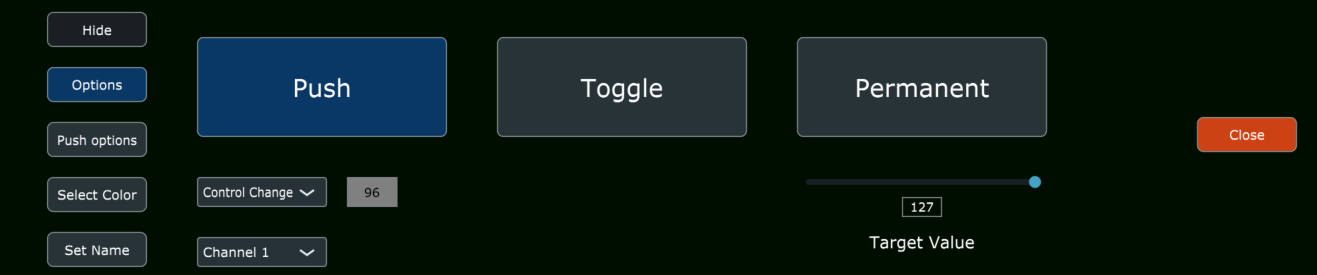
In the Set Name section, you can set the name of the button.
There are 2 additional options.
The Copy options to row will copy the following settings to the row of buttons:
\- Name
\- Colors (pressed/unpressed)
\- Type of button (Push/Toggle/Permanent)
The "Copy options to the same row in all pages" will copy the options to the same row in all pages.

---
##### ****Cubase use with the MP MIDI remote script
You need to download the updated Cubase-03.xml preset to use the Mixer mode.
On Windows only, after loading the preset you need to route the FROM DAW and TO DAW ports in the MIDI router and save the preset.
