UPDATE for up coming updates on Windows 11 MIDI Services - April 2026
The new [Windows 11 MIDI Services](https://blogs.windows.com/windowsexperience/2026/02/17/making-music-with-midi-just-got-a-real-boost-in-windows-11/) Native MIDI 2.0 support in Windows 11 is arriving through "Windows MIDI Services," rolling out to supported retail releases of Windows 11 24H2 and 25H2 starting in February 2026 and it provides the following options. To check if you have the new MIDI services installed open a Windows power shell [](https://kb.mpmidi.com/uploads/images/gallery/2026-07/Aq01YbbWq7V4r2JA-image.png) and type: *Get-Service -Name MidiSrv* If it is not installed you will see this output. [](https://kb.mpmidi.com/uploads/images/gallery/2026-07/OEYB0GTM0n1RqD7N-image.png) If you do have the MIDI services installed, check the option ***"Use names compatible with previous versions of the Windows MIDI APIs"*** is selected. [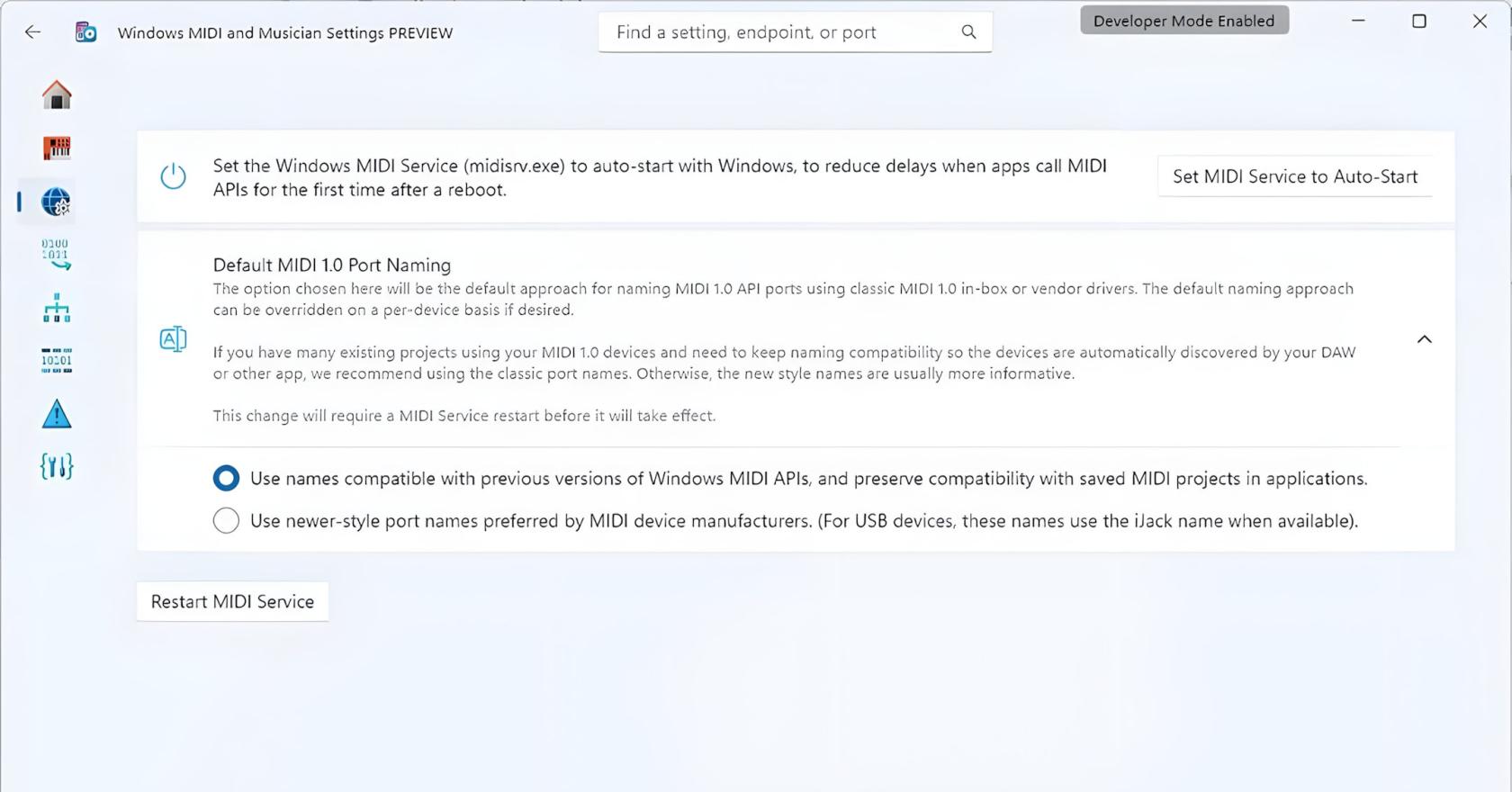](https://kb.mpmidi.com/uploads/images/gallery/2026-03/fW8Z9Z0VSACiJmVA-win11-midi-update4x.jpg)**See more infomation about the new Windows 11 MIDI Services [here](https://kb.mpmidi.com/books/mp-controller-documentation/page/11-new-midi-services-on-windows-11-2026-updates)**
--- ##### **Setup MIDI on Windows** To use the MP MIDI on Windows, you need to install a virtual midi port software. We recommend [**loopMIDI **](https://www.tobias-erichsen.de/software/loopmidi.html)which is a free utility software. There are others as well like [LoopBe30](https://www.nerds.de/en/loopbe30.html). LoopMIDI allows you to create multiple virtual ports you need and set custom names for each port. For the MP MIDI we need two ports, one for sending another one for receiving MIDI. After you install loopMIDI, open loopMIDI and add a port, name it "PORT 1", then add another port and name it "PORT 2" so it will look like this: 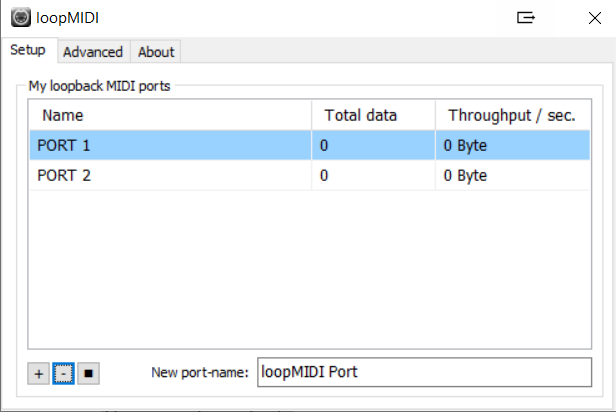 Keep in mind that each port "PORT 1" and "PORT 2" both carry MIDI inputs and outputs. Therefore, you will see them listed in both sections of the MIDI inputs and MIDI outputs of your DAW and the MP MIDI app. Run first the MP MIDI standalone app (not the VST plugin). Open its window by clicking on the small bar icon and then run your DAW. In the MP MIDI app. the button on the bottom right named MIDI devices allows you to select which MIDI devices will be visible in the MIDI router. The MP MIDI app does not use a MIDI device unless it is linked to another device in the MIDI Router. *Selecting a device makes it visible in the MIDI router, however the device will only be used (consumed on Windows) when a line is drawn from the device to another device.* 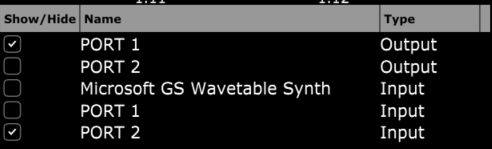 Then click on the MIDI Router button on the MP MIDI app and click and drag to create the following routing: 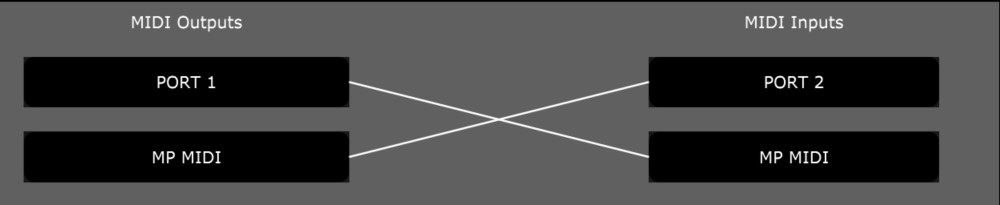 Click to close the MIDI Router and **Save the default preset, choosing to overwrite it.** In your DAW, choose the PORT1 for the MIDI IN port, and PORT2 for the MIDI OUT port. For bidirectional communication from/to the controller from/to the DAW, the DAW must be able to send out MIDI output. Ableton and Cubase do this very well. You need to check your DAWs ability to send out MIDI CC when changing a parameter with the mouse. To troubleshoot, you can see the throughput traffic displayed in loopMIDI when sending MIDI from the controller (moving an encoder) and when sending MIDI from the DAW (moving a parameter with the mouse). In this case, you can see PORT 2 displaying traffic when moving an encoder from the controller. 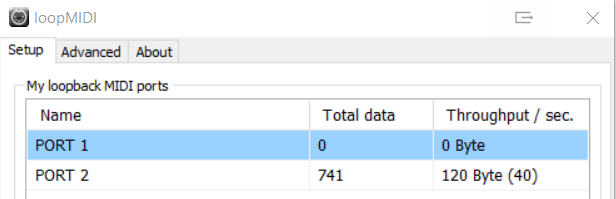 --- **Understanding MIDI ports on Windows** On Windows, MIDI ports can only be used by one application at a time. They are exclusive per app. This applies to the MIDI port IN and OUT independently. This means that one application can be using for example PORT1 MIDI IN, and another application can be using PORT1 MIDI OUT. However, PORT1 MIDI IN cannot be used by 2 application at the same time. The same applied to the MIDI OUT. The first app that gets the port's IN or OUT, will be able to use it, while any other app trying to use the port, will not be able to use it. if a MIDI port's IN or OUT is used by another application when opening an MP MIDI app preset, the connection line will show in red color, indicating that a connection cannot be made. This is important especially when running the MP MIDI plugin, because upon opening the DAW, the DAW will consume midi ports and these will not be available to be used by the MP MIDI app. If the port appears with a grey background, it means that the port is no longer visible on the system. *On Windows, to check if your midi ports are free,* *[**Midiview** ](https://hautetechnique.com/midi/midiview/)**is a free app that can tell you if a device is occupied by another app.* 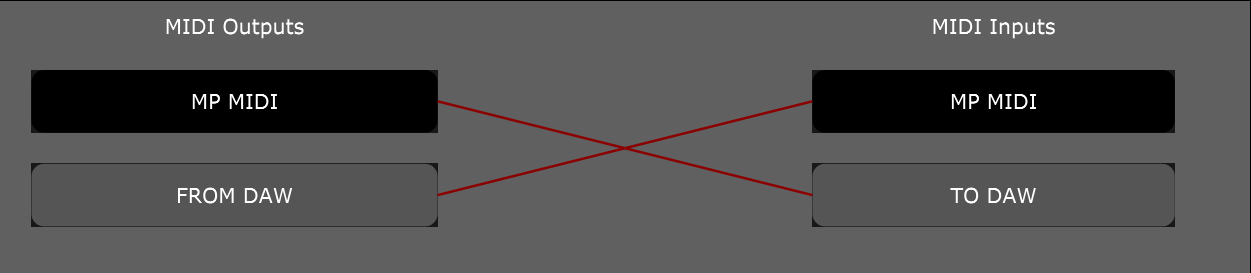 A MIDI port has both input and output. So, if you use the input on the MP MIDI, that input must not be used in the DAW. The same applies for output. Here is an example with virtual MIDI PORTS PORT 1 and PORT 2: MP MIDI APP: MIDI IN - PORT 1: ENABLED DAW: MIDI IN - PORT 1: DISABLED MP MIDI APP: MIDI OUT - PORT 1: DISABLED DAW : MIDI OUT - PORT 1: ENABLED MP MIDI APP: MIDI IN - PORT 2: DISABLED DAW : MIDI IN - PORT 2: ENABLED MP MIDI APP: MIDI OUT - PORT 2: ENABLED DAW : MIDI OUT - PORT 2: DISABLED