2. DAW MIDI Settings
IMPORTANT: Go in your DAW settings and remove the MP Midi controller C1-xMP1 (midi hardware) from being used. If you don’t do this step, the controller will not be able to communicate with the MPH plugin. This applies to Mac and Windows DAWs.
Here is how to disable C1-xMP1 in some popular DAWs:
-
In Ableton, go to preferences > Midi and turn it off completely (in/out, remote, track)
- In Bitwig, go to Settings, disable and remove it from the devices

-
In Cubase, go to Studio and deactivate the c1-xMP1 Controller (midi in/out) and choose MIDI Port Setup:
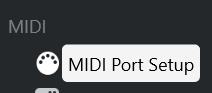 uncheck all the boxes for C1-xMP1
Additionally, make sure the C1-xMP1 is not selected in the following sections:

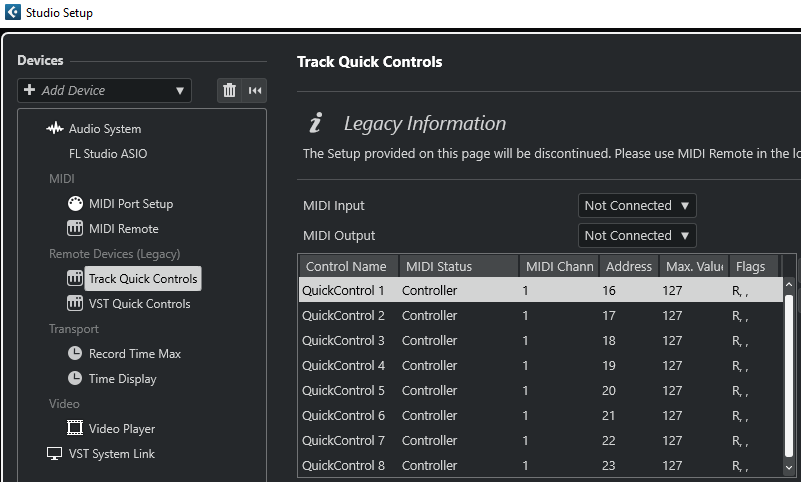
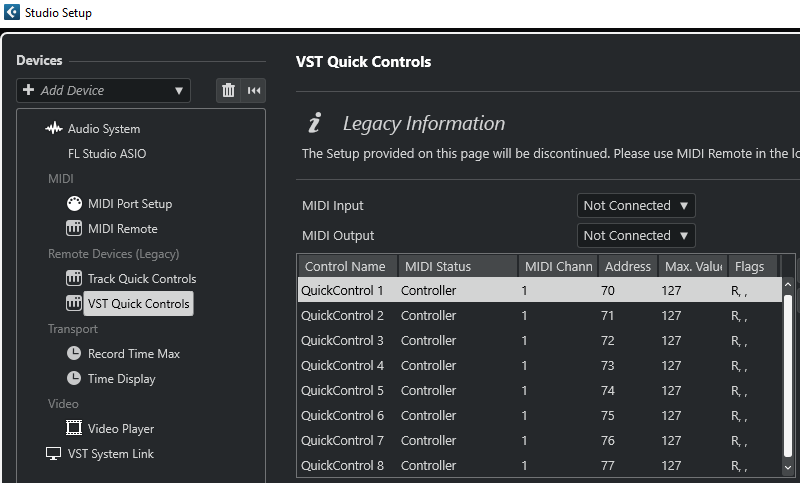
-
In Logic Pro X, to Preferences > MIDI >Inputs and uncheck the on checkbox for c1-xMP1.
-
In Pro Tools, click the Setup menu, go to MIDI, then click MIDI Input Devices and uncheck the c1-xMP1.
-
Furthermore, in Windows only, Pro Tools lock ALL the MIDI devices even if they are set to not active in the settings (while other DAWs do not lock the midi devices). This prevents the MPH plugin from accessing the c1-xMP1 controller.
-
There are a few options on how to work around this, you may choose either:
-
Connect the C1-xMP1 USB cable after Pro Tools has started and before loading an MPH plugin instance. This will prevent Pro Tools from locking the c1-xMP1.
-
Disable the C1-xMP1 in your Windows Device Manager and enable it after Pro Tools has started.
-
Use a USB hub with a USB power on/off switch. There are few with switches per USB port. Turn On the controller after Pro Tools has started.
-
Use this utility/script to start Pro Tools as administrator. This script will disable the controller, start Pro Tools and enable the controller again. There is a readme.txt in the zip file, please read it first. Download
- For Luna on Windows see this article
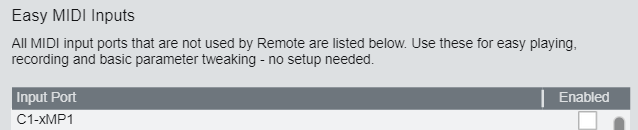
- Reason
Uncheck the C1-xMP1 from Settings
Troubleshoot Encoders Feedback Loop
If you encounter a feedback loop when turning the encoders - where some encoders behave erratically or appear stuck at the same value (as shown in the example video) - this usually indicates a MIDI conflict.
This issue occurs when the DAW is receiving MIDI input directly from the C1-xMP1, and at the same time, the MP Host plugin is trying to control the same parameter. Both sources are fighting for control, creating a loop.
On macOS
macOS allows multiple applications to share MIDI ports simultaneously. As a result, some plugins may be receiving MIDI directly from the C1-xMP1, even while the MP Host is actively controlling parameters.
To resolve this:
-
Disable MIDI input or control within the plugin itself.
-
Remove or disable MIDI CC assignments on individual plugin parameters, if applicable.
By ensuring the plugin only responds to the MP Host and not the direct MIDI input from C1-xMP1, the feedback loop will be eliminated.