2. MIDI Remote Control Surface for Cubase - Nuendo v13 and later
MIDI Remote Control Surface for Cubase - Nuendo v13 and latest versions.
How it works. The control surface comes as:
- A VST3 plugin named MP MIDI
- A standalone app named MP MIDI.
This means you can run it either as a plugin in Cubase/Nuendo or a standalone app (not not both).
The control surface uses the MIDI Remote method to interact with Cubase and Nuendo.
The latest version released 26th of September 2026 installs both the control surface and the MIDI Remote programs/scripts needed.
- Mixer now shows the track color under the fader.
- Encoders show the value and unit (when a plugin sends units) at the center of the encoder.
- Control the selected track's Send Volume Levels from the Mixer page.
- Pages 4 through 16 automatically map and color encoders for plugins and Cubase native devices.
- Continuous parameters are mapped to encoders, while switches and choices are mapped to the buttons. Press a button to turn a switch on or off, or to step through the choices.
- Improved coloring of encoders according to parameter name and group.
- The old Insert FX and Instrument pages 4 and 5 are replaced by these new plugin pages.
MP MIDI follows what you do in Cubase
- Move a parameter of a plugin or device with the mouse in a plugin, and MP MIDI jumps to the page holding it and flashes that encoder or button, so you can see where it is linked.
- Click a plugin's window in Cubase, and MP MIDI switches to that plugin, even if its track isn't selected.
- MP MIDI shows the plugin's name at the top and the name of the track it's on.
- Pages are remembered per plugin: when you come back to a plugin, you're on the page you last used for it.
New Control Surface buttons
- Sends - Enables controlling the Send levels in the Mixer page on the right column encoders.
- Follow Device: turn off to keep controlling the same plugin while you select other plugins in Cubase/Nuendo.
- Follow Param: turn off if you don't want MP MIDI to jump pages when you control parameters with the mouse.
- Follow Track Selection (Mixer page only):
On: Selecting a track in Cubase takes the Mixer to that track and selects it.
Off: the Mixer stays exactly as you left it.
- New installer: it installs MP MIDI, the plugin and the Cubase/Nuendo MIDI Remote controller script in one go. You choose Cubase, Nuendo or both. You don't need to import anything into Cubase/Nuendo.
- Updating: the installer replaces any older version of the MIDI Remote controller script. It asks you to close Cubase first, and resets Cubase's saved page list so the new pages show correctly.
- Your preset: your current default preset is kept as a backup before the new one is installed.
- WIndows MIDI Ports: you still need loopMIDI, with two ports named TO DAW and FROM DAW. MP MIDI now automatically switches these On in the Devices menu.
Here is an overview video of the Control Surface. (Note that the video does not showcase the latest version changes).
Latest version (download from your account):
It will also work with Cubase v12 but there may be some minor things that don't work quite ok as v12 does not send back all the necessary info via the MIDI remote scripts.

MIDI remote control surface is missing every time Cubase is restarted
This is an issue with Cubase 13.0.50 and onwards with MIDI remote scripts using the Cubase MIDI Remote API.
This issue happens with other Remote MIDI scripts, not just the MP MIDI. Upon restarting Cubase, the Control Surface is missing and needs to be added again.
Here is a video that shows how to reproduce the issue, in the video we select a controller from AKAI, just to illustrate it happens with any controller not just the MP MIDI, and the issue is the same on Mac and Windows.
A solution has been posted here: https://forums.steinberg.net/t/midi-remote-controller-disappearing-on-launch/951248/50?u=m_p and we have copied it here

How to download and install
Download the Cubase Nuendo Control Surface installer for Mac/Windows from your account.
For Windows, follow this Windows guide to continue the set up process.
For Mac, follow the macOS guide to continue the setup process.
Windows Users: See this article about the new Windows 11 MIDI services.

Pages in the MIDI Remote Script
Page 1 - Home - Quick Controls
Page 2 - Mixer - EQ and Mixer Controls
Page 3 - Channel Strip - Detailed EQ and Strip Effects, Send Volume Level mapped on the right encoders column
Page 4 to 16 - FX and Instrument control
Page 17 and onwards - User Assignable pages
Page 1 - General Control and Quick Controls
The first page carries a set of buttons pre-assigned to Cubase functions. When a button is pressed or selected it turns yellow. The colors can be customized from the button menu using right click.
The track name appears on the right side, highlighted with the color of the track from Cubase.
Below the track name there is the name of the device selected that has the QC focus.
On the left top there is the name of the preset and below the title of the page.
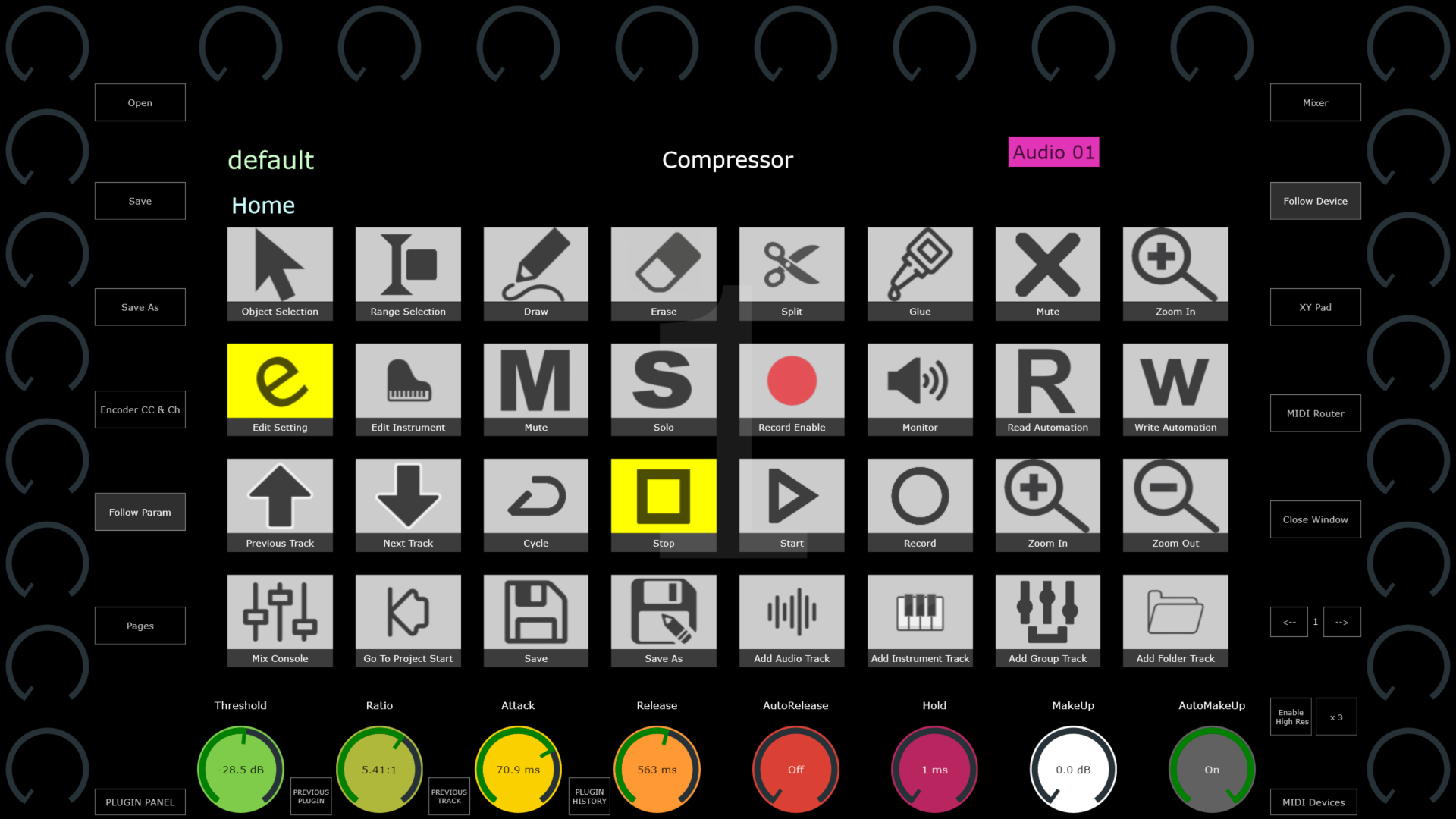
The bottom row of encoders are assigned to the 8 Quick Controls of Cubase (QC). You can change the assignments of Quick Controls in Cubase per device:
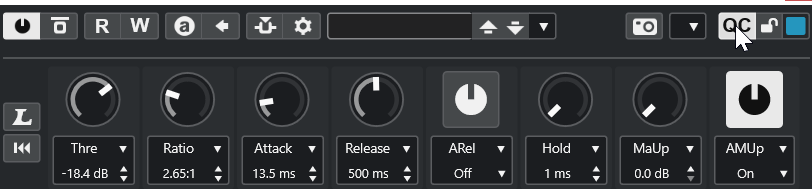
Once a device is selected in Cubase that has QC, the bottom row of encoders will sync with the QC parameters and display their names.
The QC section turns blue once a device is selected 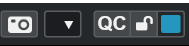
The rest of the encoders can be assigned freely to any parameter in Cubase or a third party plugin using the Learn Parameter function in Cubase.
Page 2 - Mix Console and EQ Control
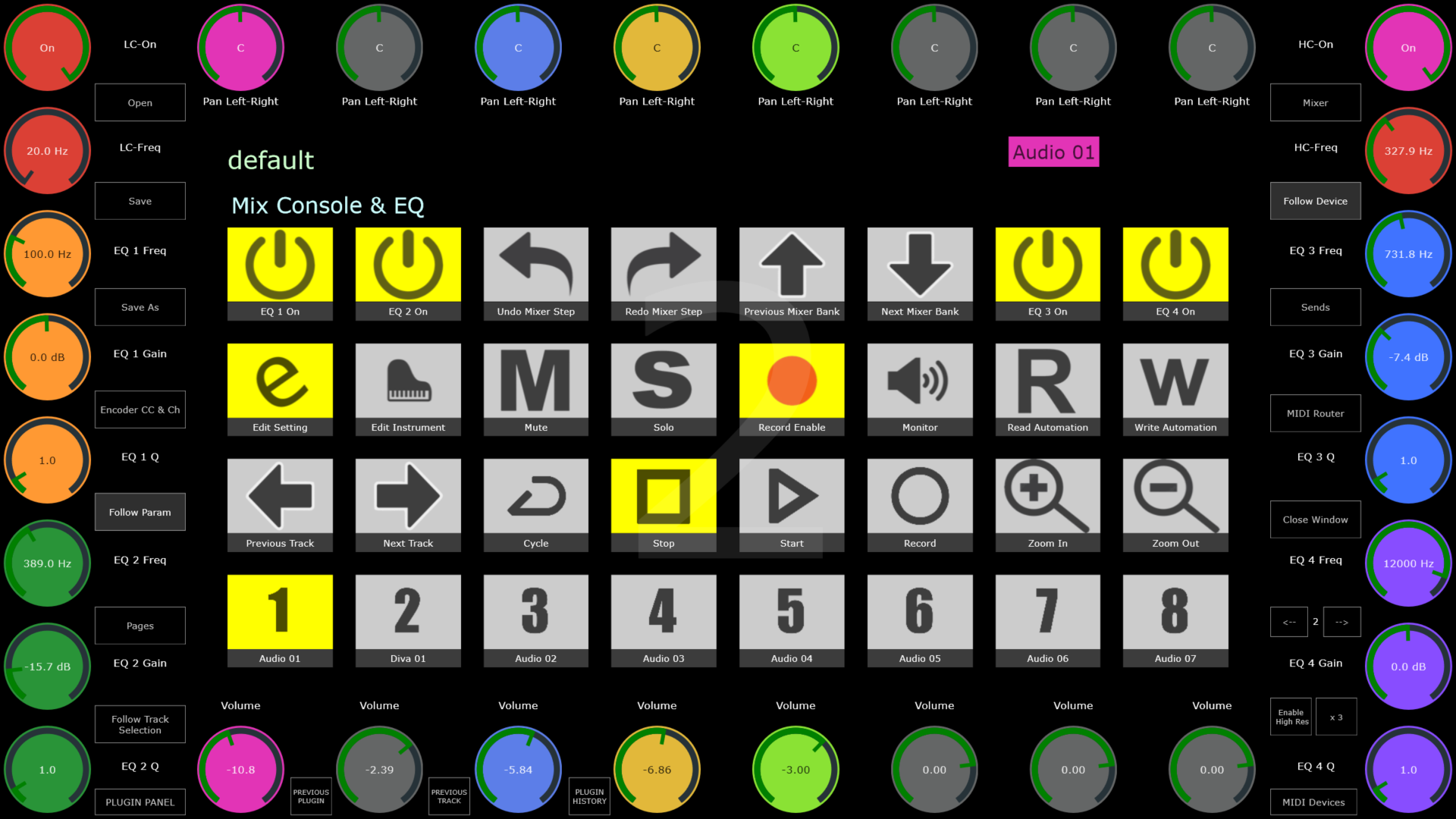
Page 2 is dedicated to controlling the Mix Console, the EQ and the 8 Send Levels of the selected track.
On the top row of encoders we have mapped the Pan and in the bottom row the volume of each track. The encoders take their colors from Cubase track colors.
On the left and right columns of encoders we have the EQ parameters and their colors are set to group them into bands.
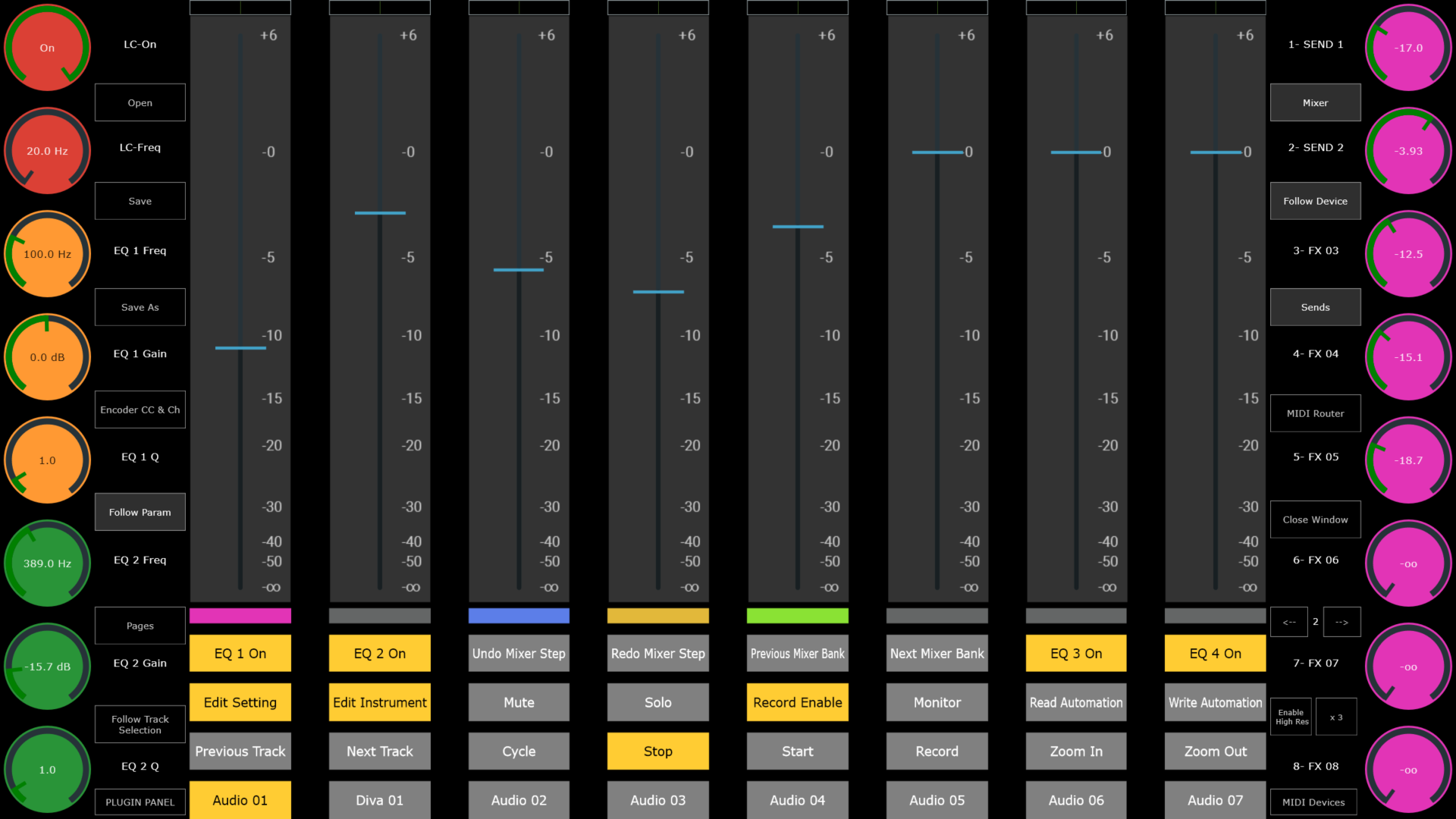
Pressing the Mixer button will hid the mixer view and show this view:
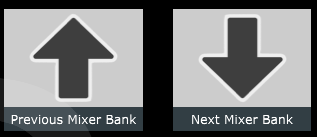
In this page, using the arrows buttons, Previous and Next Mixer Bank, will pass the control on the next 8 tracks.
You can also change tracks using the Previous and Next track buttons.

Page 3 - Channel Strip and EQ Control
In this page the top and bottom encoders are assigned to the EQ sections of the Channel Strip.
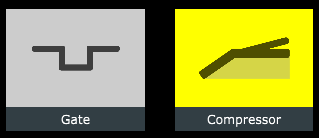
The left column of encoders is assigned to the Noise Gate and the Compressor of the Channel Strip.
The right column of encoders is assigned to the Tools, Tape and Limiter of the Channel Strip.
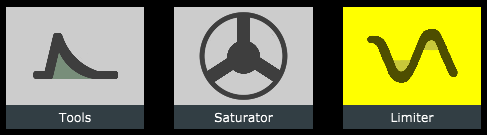
Selecting one from the buttons will deselect the rest of buttons and sync the parameter names and values of the controller encoders to the selected slot.
Note that rearranging the order of the slots would not affect the assignments on the MP MIDI app.
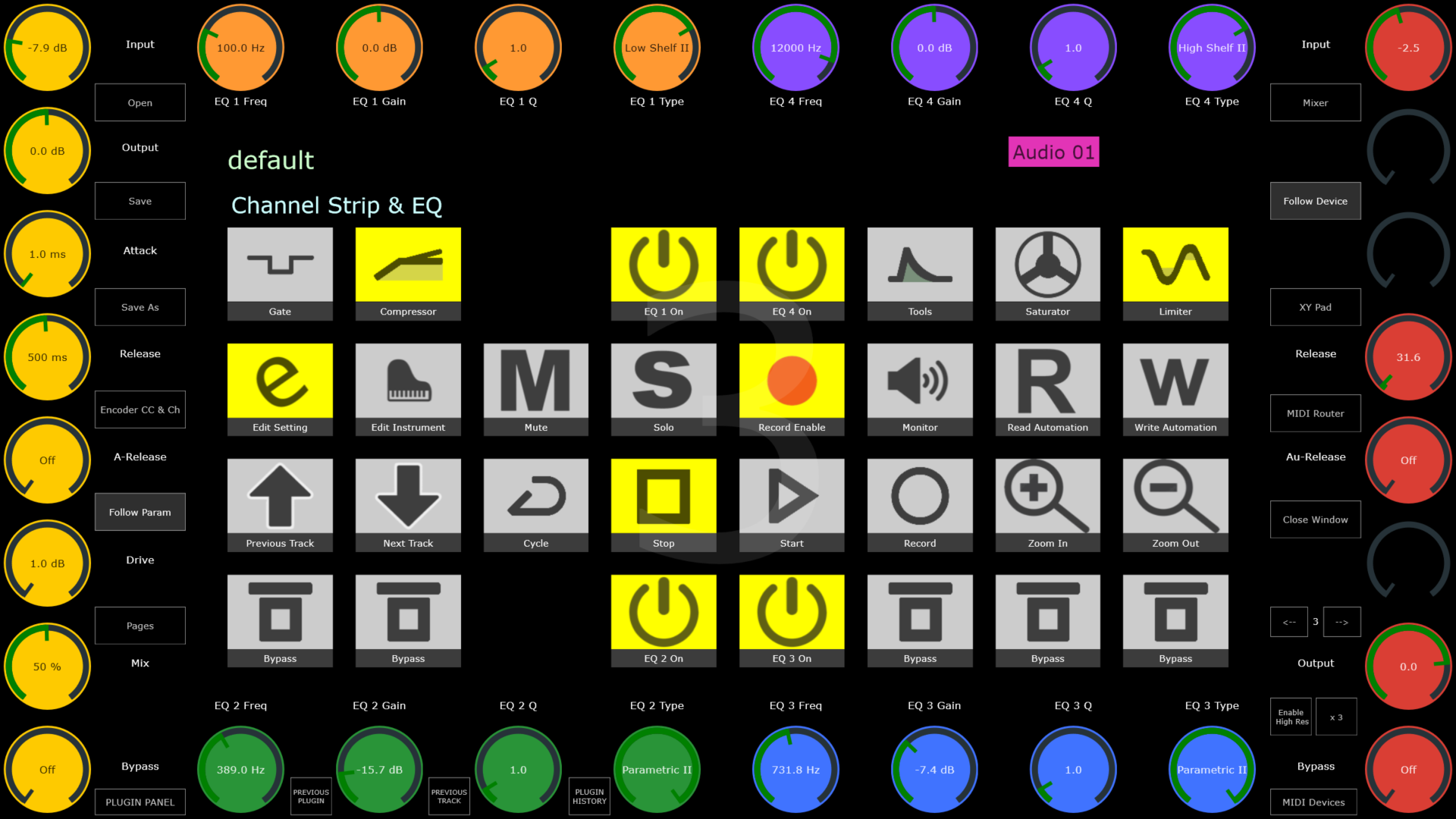
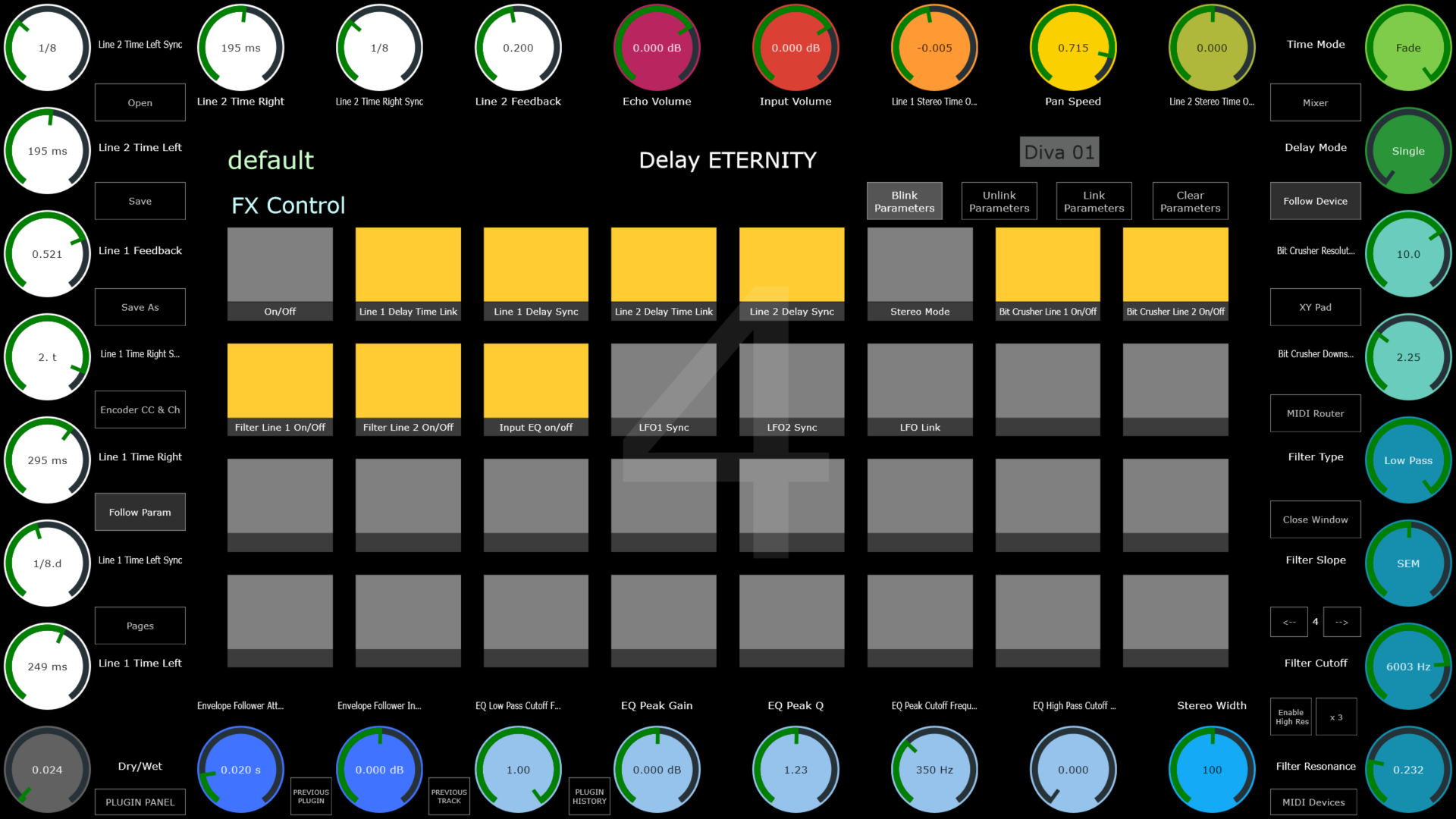
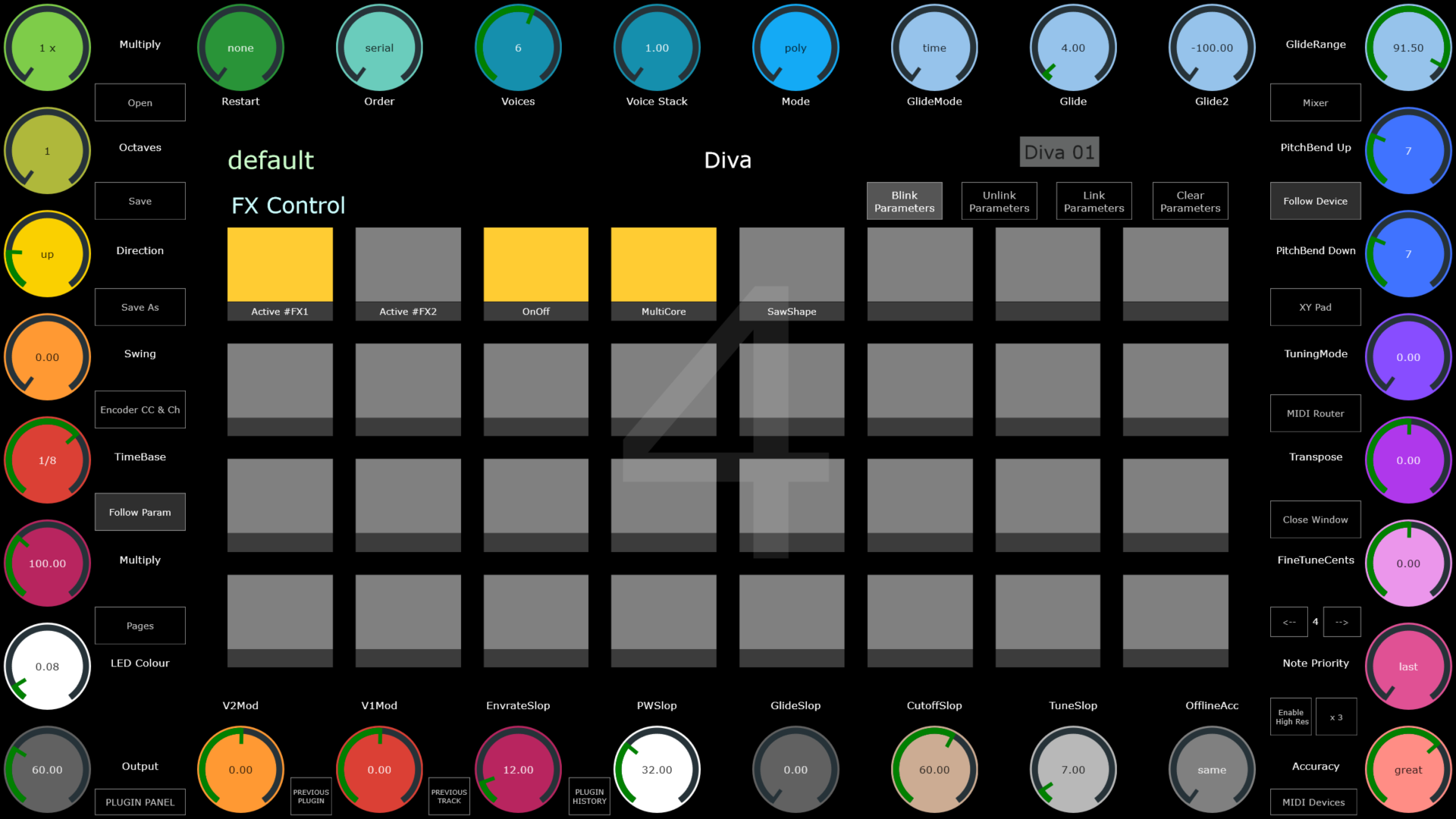
Page 4 to 16 - Plugin and Native Devices, MIDI effects, Audio Effect and Instrument Control
Audio Effect Control
Instrument Control
How to link parameters:
Press Clear Parameters to clear all mappings.
Press Link Parameters and it will begin blinking

Turn the encoder you want to map.
Click on the Plugin/Device Parameter in Cubase.
The encoder will be linked. Click on another parameter and it will link on the next encoder.
To exit linking mode press on the Link Parameters again.
Click Save to save the Plugin/Device preset.
The preset will be automatically loaded every time you select that Plugin/Device.
How to unlink parameters.
Press the Unlink Parameters button.
Click or turn the encoder you want to unlink. Click on other encoders if you need to unlink more.
Press the Unlink Parameters button again to exit the unlinking mode.
Following Cubase selections
Follow Device: turn off to keep controlling the same plugin while you select other plugins in Cubase/Nuendo.
Follow Param: turn off if you don't want MP MIDI to jump pages when you control parameters with the mouse.
Page 17 and onwards - User Assignable pages
These pages carry some of the most essential buttons and you can use the free buttons and encoders to link anything in Cubase, creating your custom pages.
For example, you can link 32 volume tracks for the Mix Console.
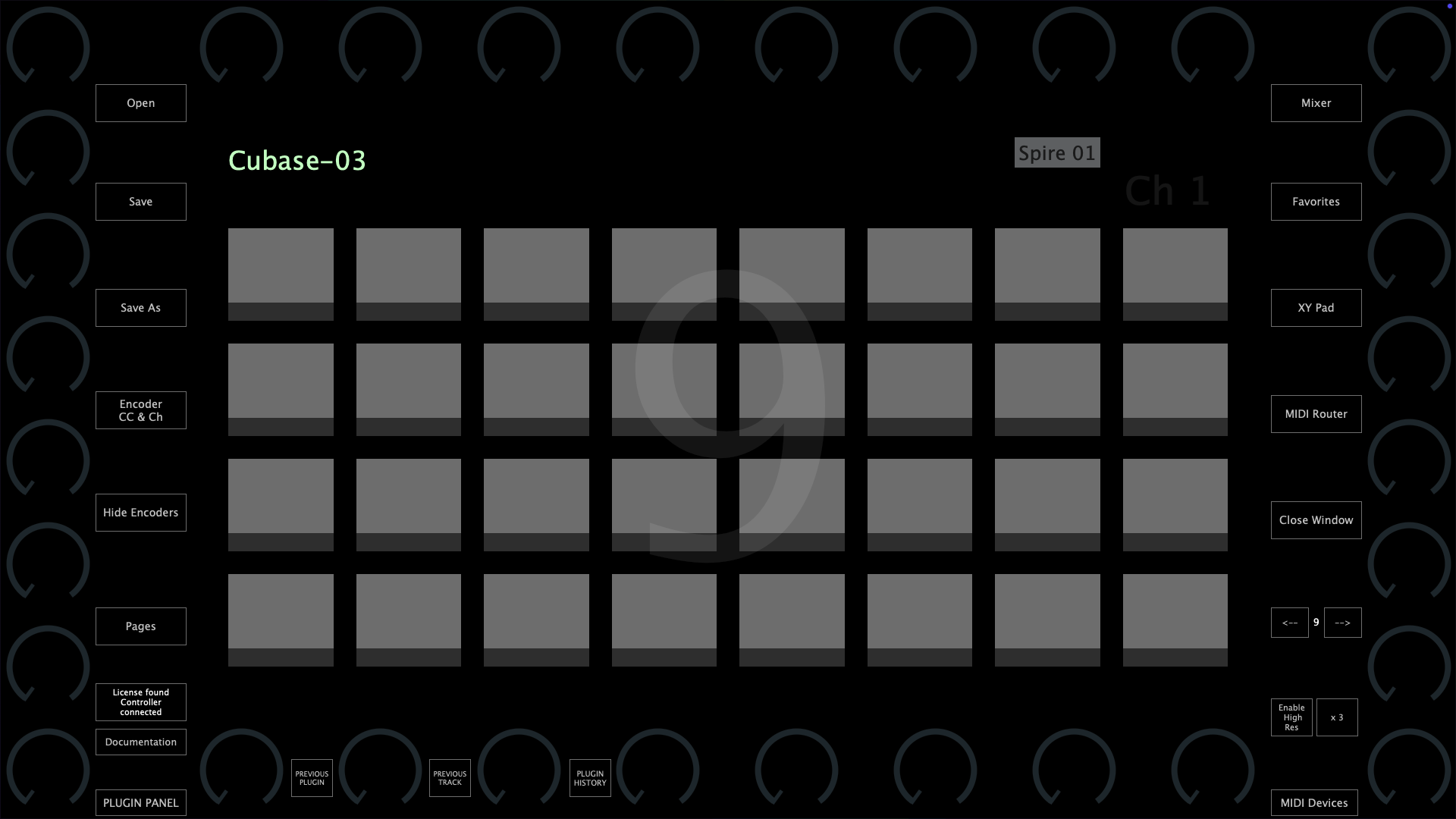
If you want to use the MP MIDI app for other MIDI control purposes, it is also a good idea to use one of the buttons to open up another preset (you can set a button to open a preset via Push Options > Go to Preset) where you will have all pages and buttons available to use for anything. The switch between presets is immediate so it will feel like you are working in the same preset.