# 2. Model 1A: Display flickering issue or green screen
This problem is caused by inadequate power to the Display port of the controller via USB-C.
Recommendations:
1. Use the 1m USB-C cables we provided if you are using other longer cables.
2. Connect directly to the USB port of the computer if you are connecting it via a hub.
3. The monitor can also be powered via a wall power adapter (a 10 Watt or more) phone charger can power on the monitor however if you connect the USB-C Display port of the controller directly to a wall adapter the touch function will not work because touch data is transmitted via that port. To use a wall adapter to power the monitor and have the touch function working use a [Y-Cable](https://kb.mpmidi.com/books/mp-controller-documentation/page/1-model-1a1a-using-a-y-cable-to-provide-more-power-to-the-display)
---
**Green Screen when connecting the HDMI**
If you get a green screen, this is called aging mode, it's a testing mode for monitors.
To stop this mode, there is a slit on the side here where there is a power button.
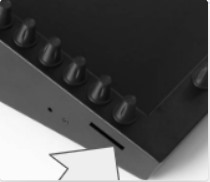
Using a pointing object, press and hold the monitor's power button until it shuts down (it's on the side). Then turn it on again, and connect the hdmi.
Alternatively, you can open the bottom cover and reach out for the button.