# 2. Mouse to touchscreen suggestions
1. Keyboard Shortcut to take automatically the mouse to the touchscreen and back with a small utility
Download from [here](https://mpmidi.com/utilities/mouse-mac.zip)
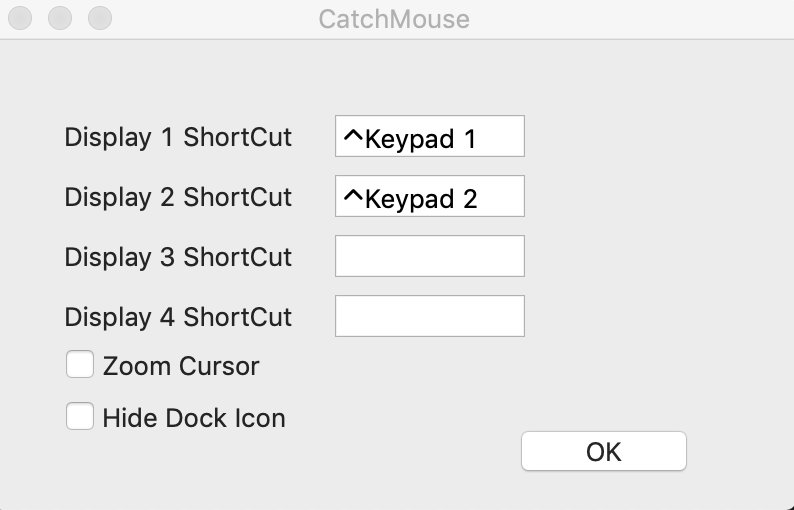
In the above example ctrl + 1 moves the mouse to the main screen, and ctrl + 2 moves the mouse to the touchscreen.
---
2. Take automatically the mouse to the touchscreen via [Better touch tool](https://folivora.ai/)
(45 day trial and paid $8.5 license)
1. Go to [BetterTouchTool](https://folivora.ai/) Preferences => Keyboard.
2. Click Add New Shortcut or Key Sequence button.
3. Assign new Keyboard Shortcut from Click to record shortcut
for example, for Monitor-1 Control+Shift+1, for Monitor-2 Control+Shift+2 etc.
4. Then from Trigger Predefined Action dropdown menu, select
Other Mouse Actions => Move Mouse To Position
5. A modal window will appear to capture your desired mouse position. Simply take your cursor to the desired position of a Monitor and Press Space to capture the position. Now Save the position in the Modal Window.
6. Repeat 2 to 5 for all your Monitors.
Now you'll be able to jump your mouse cursor to Monitor-1 by pressing Control+Shift+1, to
Monitor-2 by pressing Control+Shift+2 and to Monitor-3 by pressing Control+Shift+3.
---
3. Get the MP Controller Touch-base driver from here [https://touch-base.com/controllerbyte](https://touch-base.com/controllerbyte)
Trial available. To purchase the price is 35 GBP per license with 3 years of support.
This utility takes the mouse to the touchscreen automatically and there is no need for shortcuts
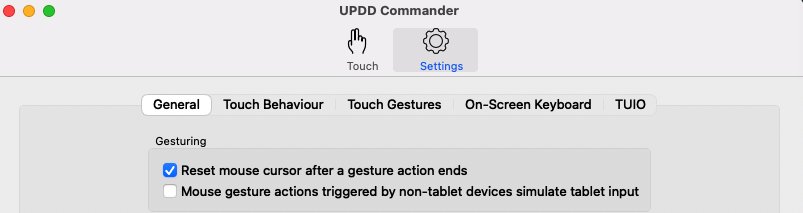
A very helpful setting in the UPDD settings is the Reset mouse cursor after a gesture action ends. This option automatically returns the mouse pointer back to its previous position after you finish with a touchscreen gesture. This means that If you are working on the main screen and you touched the touchscreen it will return back to the main screen automatically at the exact position it was before you touched the touchscreen.
For all UPDD features see [**here**](https://mpcontrollerbyteltd.freshdesk.com/a/solutions/articles/103000120458)