**The latest version of UPDD is configured to use Zoom Screen with the 2 finger tap gesture. Zoom Screen zooms only within the controller's display. The Smart Magnifier zooms outside the controller display as well.**
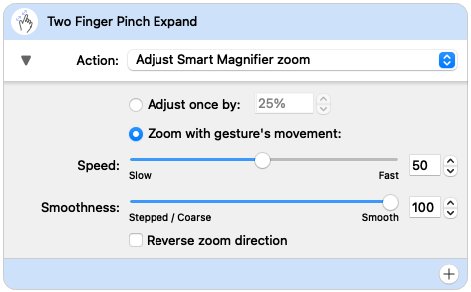
[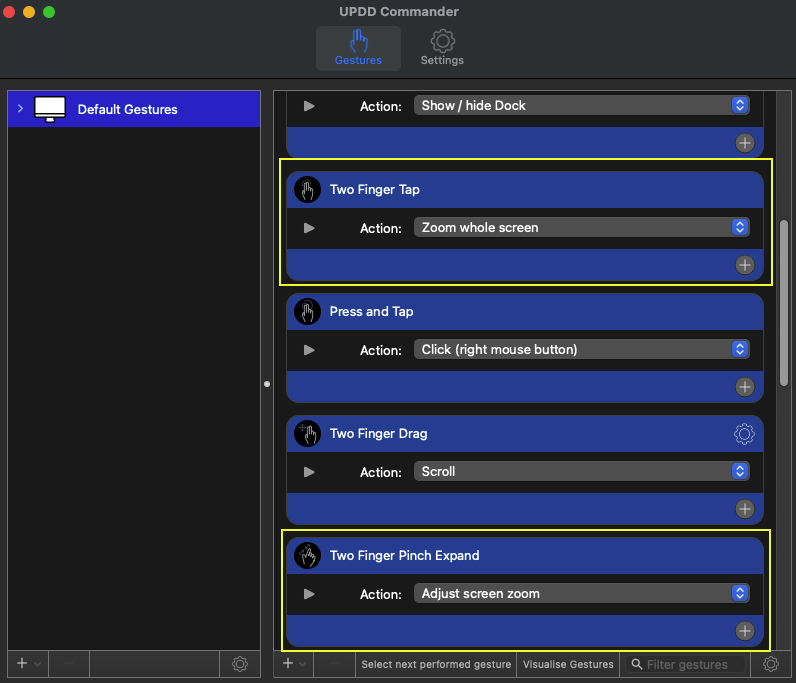](https://kb.mpmidi.com/uploads/images/gallery/2026-03/ZFWT7TFW7gtVY2yF-screenshot-at-mar-06-14-57-32.png) If you need to change the behavior of the Smart Magnifier here are the steps to do so. > If the Smart Magnifier shows the desktop instead of zooming on the MP Host plugin see [here](https://kb.mpmidi.com/books/mp-controller-documentation/page/7-mac-the-updd-smart-magnifier-shows-the-background-instead-of-the-mp-host) First make sure you have the latest UPDD version installed. This should be normally obtained from **[Touch Base](https://touch-base.com/controllerbyte)**. [**Allow** ](https://support.touch-base.com/Documentation/50778/Smart-Magnifier)the necessary access on Mac OS. Open the UPDD Commander Settings from the top bar on the Mac 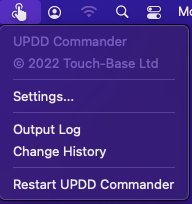 Go to Smart Magnifier tab and set the: 1. Width to 1920 2. Height to 1020 3. Rectangular Shape 4. and to Not follow touches 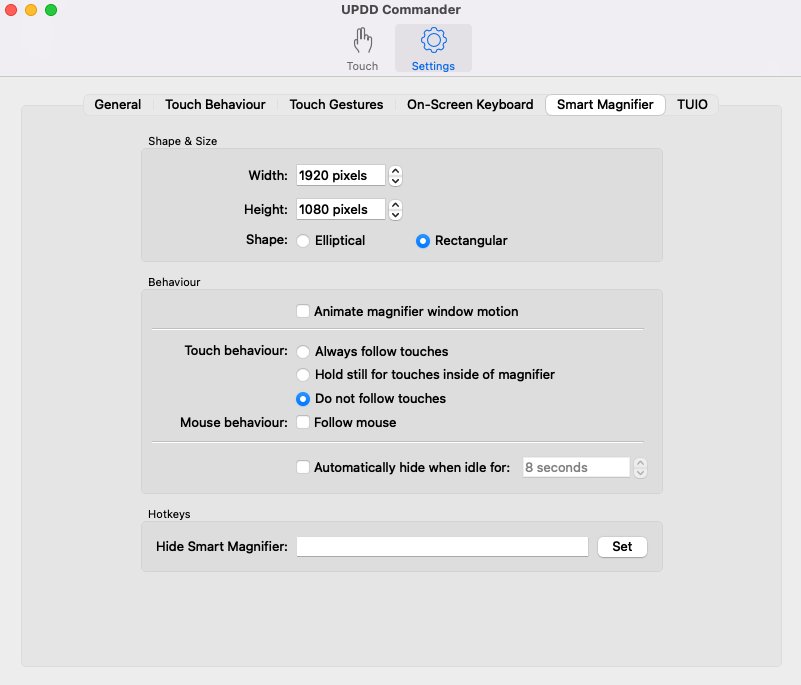 5. Navigate to All Applications And set the: Two Finger Tap to Action: Show/Hide the Smart Magnifier Optionally you can set the Two Finger Pinch Expand to Action: Smart zoom 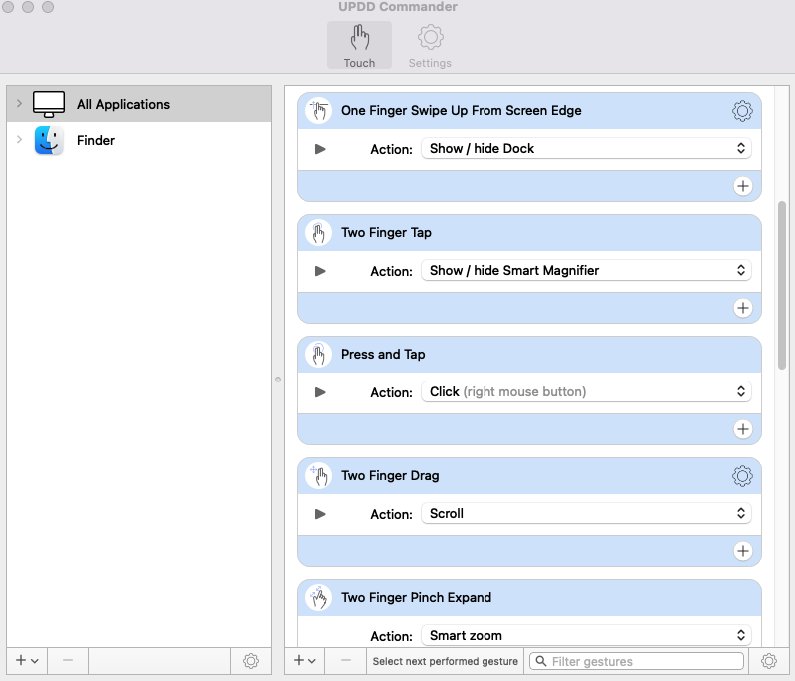 Set the Magnification to your preference ie 200% 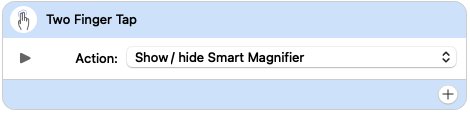 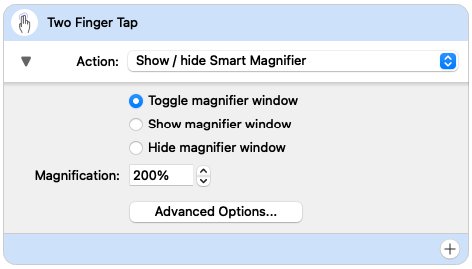 Then set the amount of Zoom with gesture movement.