Note that, if the display arrangement is vertical then the Dock will appear at the bottom of the bottom display. It's not possible to set the Dock at the bottom of the top display.
[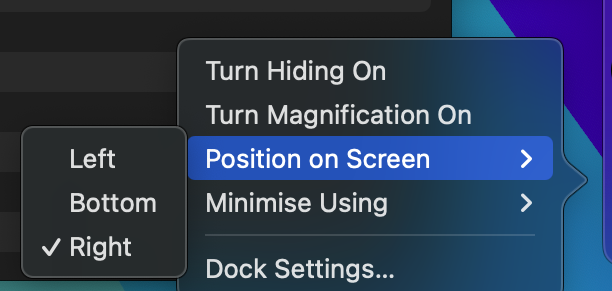](https://kb.mpmidi.com/uploads/images/gallery/2026-02/pKQzytzsm3tnsbmM-image.png) If the current possition of the Dock is on the MP Controller, choose another option and it will be moved to another display. For example, if it is on the Right of the MP Controller, choosing Left will be moved to the left side of the adjacent monitor that is on the left of the MP Controller.If the arrangement of your displays is vertical (the MP Controller is below your main display) and the macOS dock appears on the MP Controller [DockLock Lite](https://apps.apple.com/us/app/docklock-lite/id6741814079?mt=12), available on the App Store, can be used to keep the Dock visible only on the main display. After the 7-day trial period, the Dock-locking functionality should continue to work, while more advanced features, such as hotkeys, will be disabled. This allows the Dock to remain on the main display without appearing on the bottom display. However, the **“Displays have separate Spaces”** option must remain enabled in macOS settings.