# 6. UPDD Commander Presets - Studio One TUIO
**UPDD Commander:**
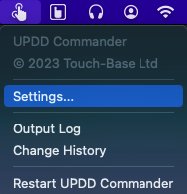
1. Open UPDD Commander settings.
2. Click the '+' Icon Left-Bottom and add the 'Studio One' preset.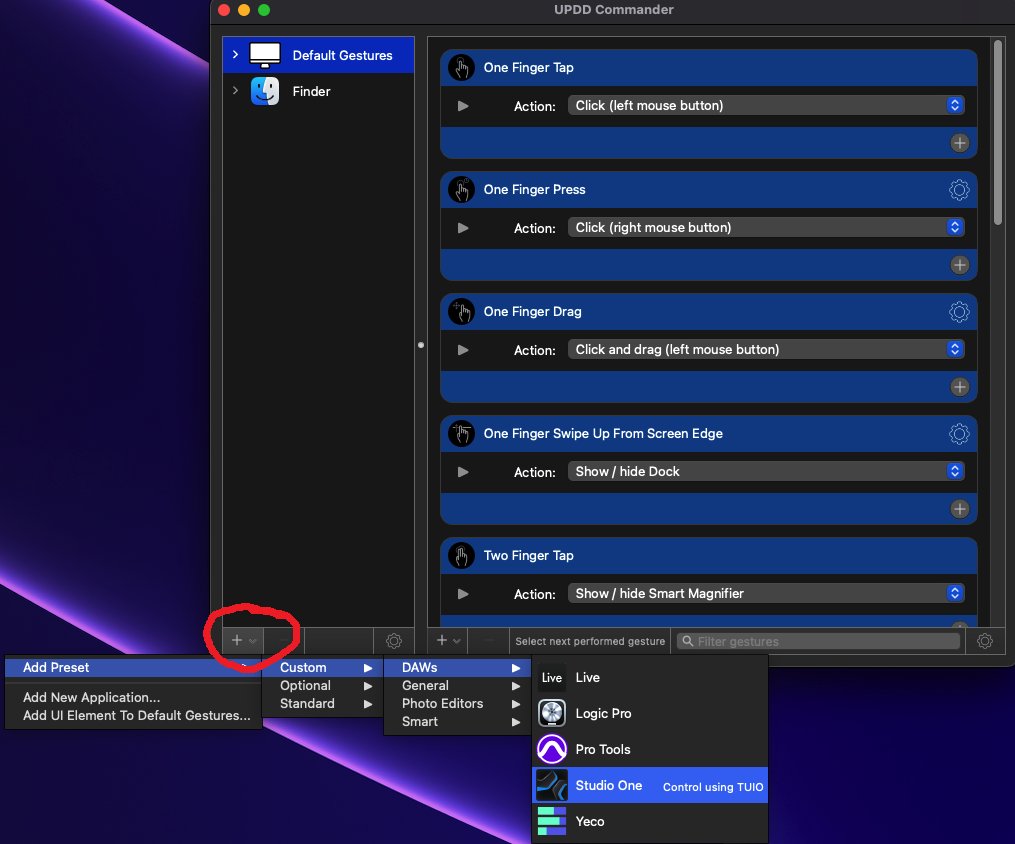
3\. Navigate to Studio One Section One the left should be like this as shown below.
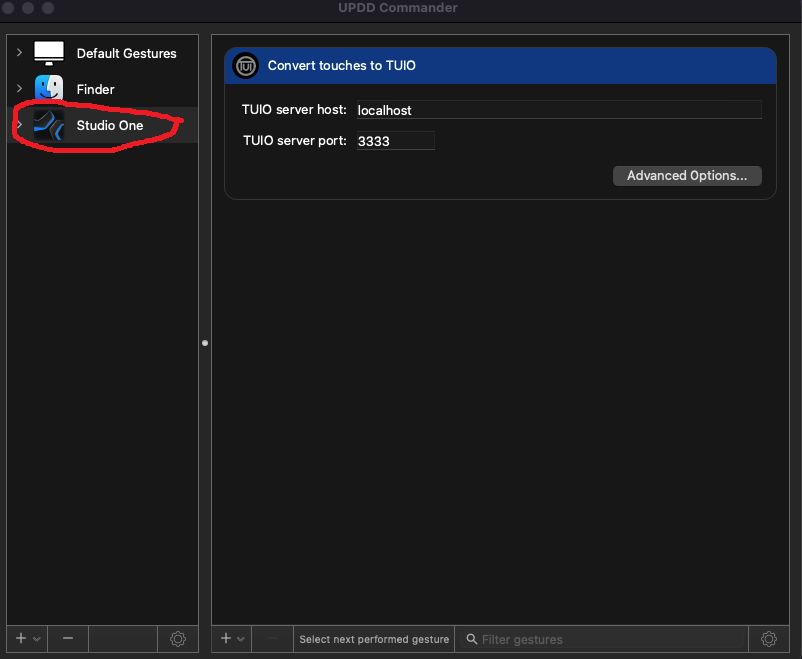
4. Click the '+' icon and add these gesture as shown below
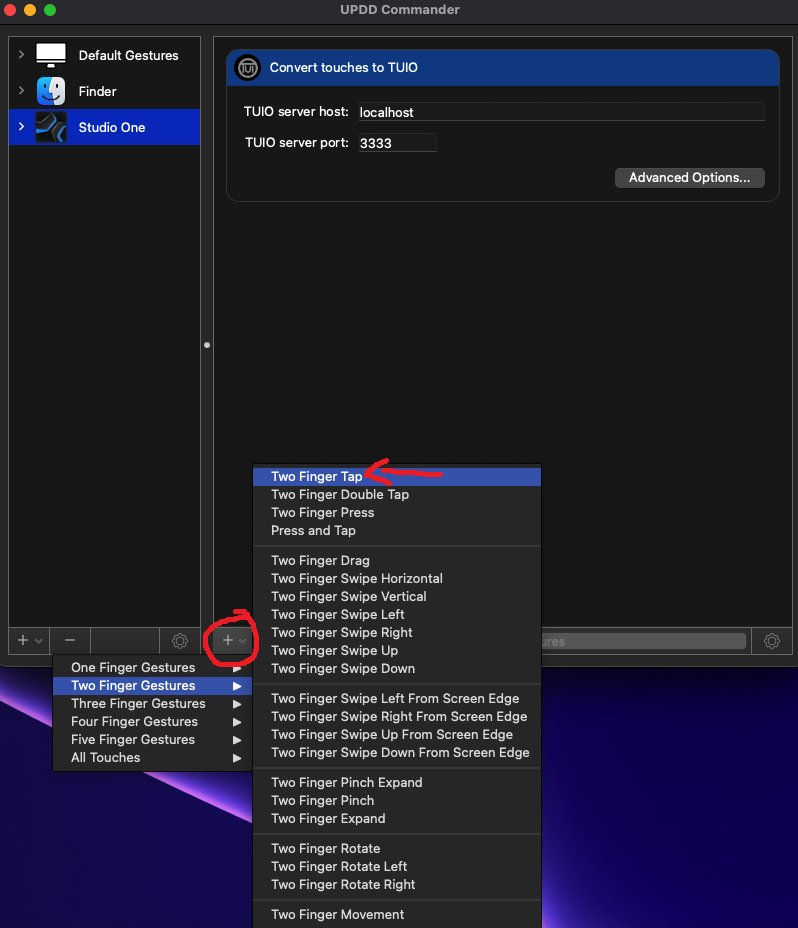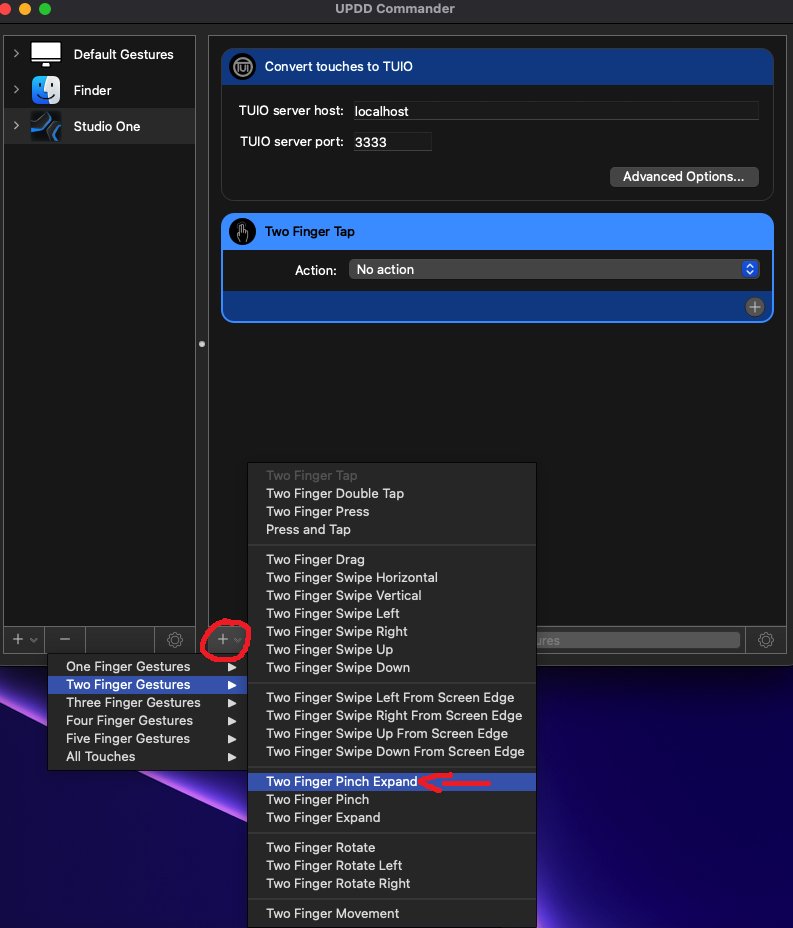
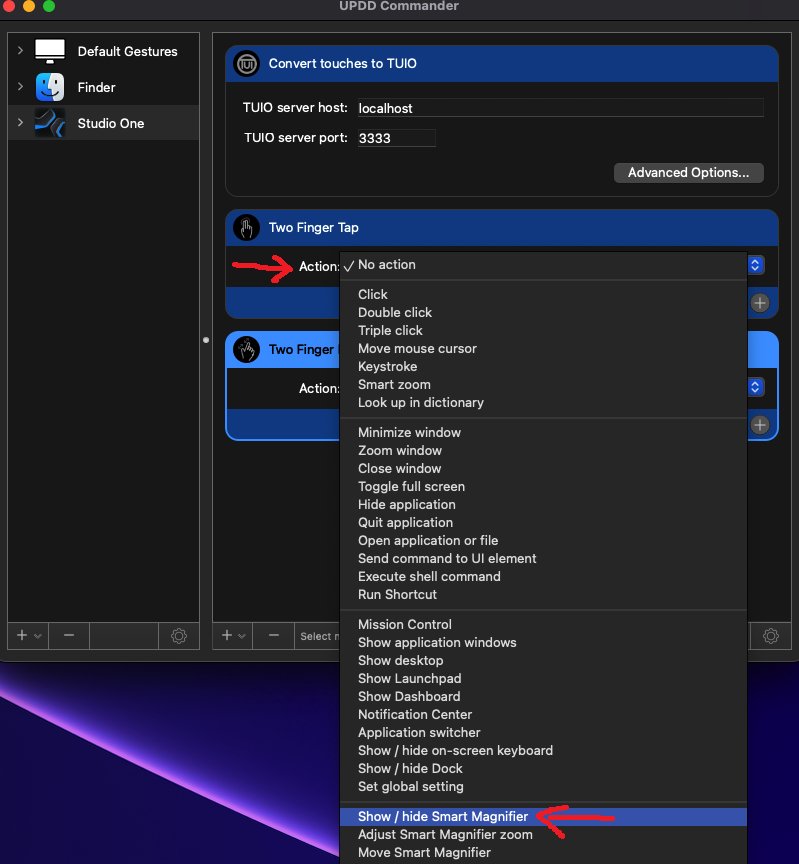
5. Set the Action for 'Two Finger Tap' to 'Show / hide Smart Magnifier'
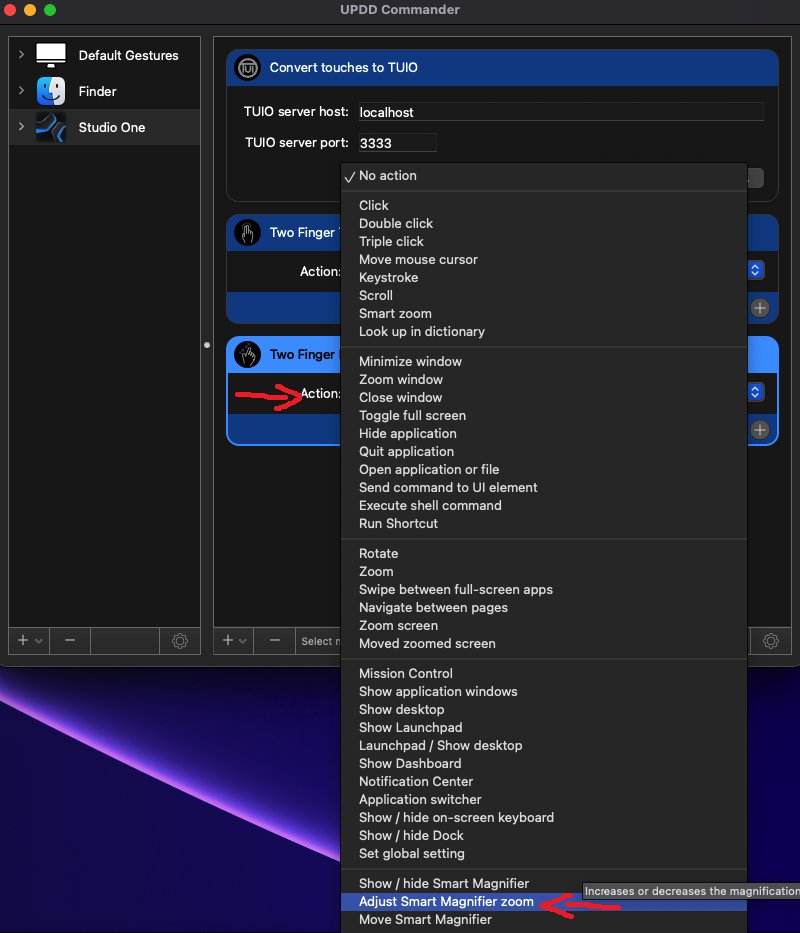
6. Set the Action for 'Two Finger Pinch Expand' to 'Adjust Smart Magnifier zoom'
**In Studio One:**
\- To enable touch in Studio One go to **Preferences > General** and **enable TUIO**.(**Set Port at: 3333**)
\- Drag the Preferences window that is shown below on the MP Controller's screen and click "**This**"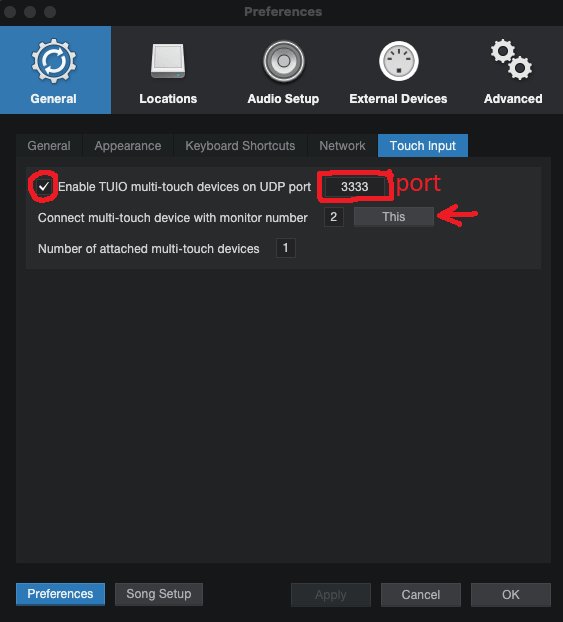
More information from Touch-base [here](https://support.touch-base.com/Documentation/50681/Studio-One).