The MP Controller is meant to be rack mountable and there are bridge ports mounted on the enclosure of the unit connected to each module.
To get to that port, you need to unscrew the bottom cover. Open up the bottom cover by unscrewing the bottom screws. Disconnect the microUSB cable from the C1-xMP1 as shown below and connect it again. On Windows check the Device Manager [](https://kb.mpmidi.com/uploads/images/gallery/2025-08/GxHDRVWhXLYd9TQb-image.png) or the Mac's System Report under the USB tree.The Mac's System Report needs to be reopened to show newly connected devices. Alternatively you can open a terminal and paste this command ***system\_profiler SPUSBDataType | grep -i "C1-xMP1"*** If it is connected it will print: C1-xMP1. If not, it will not print anything. While on the terminal pressing the up arrow on the keyboard and enter will repeat the command[](https://kb.mpmidi.com/uploads/images/gallery/2025-08/7nvgaW23UXnFDdGK-screenshot-at-aug-07-08-29-13.png)
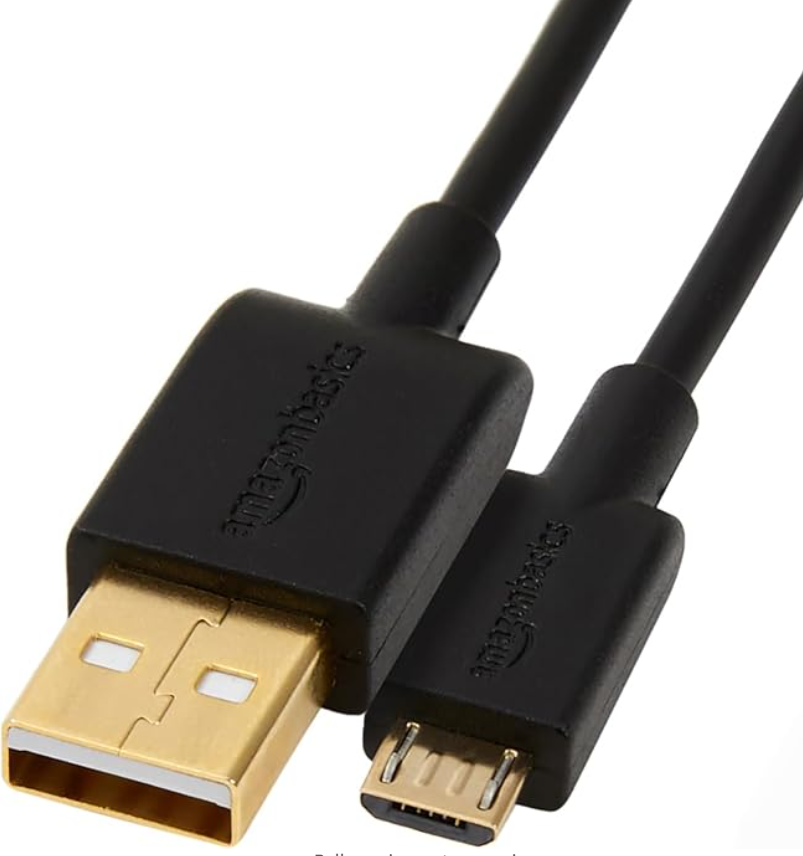
Disconnect by pulling gently the microUSB cable and connect it again. Check the Device Manager or System Report. 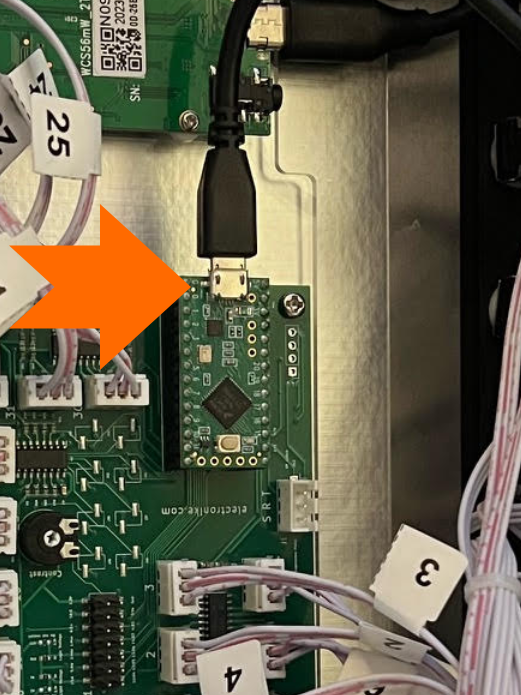 If it is still not showing in the System Report or Device Manager try the next step which is to replace the bridge port with a USB data cable. --- ##### Bypassing the internal USB bridge Port You can try to bypass the internal port of the C1-xMP1 and connect it directly from the MIDI board to the computer using a microUSB to USB-A **DATA** Cable like [this](https://www.amazon.de/-/en/Amazon-Basics-Micro-Cable-7T9MV4/dp/B07232M876).Please note that not all microUSB cables are data cables. Many are just charging cables and these will not work. Ensure you are using a data cable.
 If these steps do not solve the issue, send us an email to advise further on how to proceed.