Documentation of SendKeysMP is **[here](https://kb.mpmidi.com/books/mp-controller-documentation/page/8-mac-os-mp-midi-app-sending-keyboard-keys)**
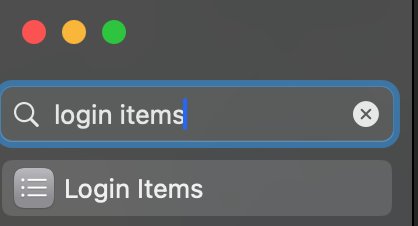
The SendKeysMP app needs to run along with the MP MIDI app. It does not matter which you run first, the MP MIDI app or SendKeysMP. You can set SendKeysMP to run automatically when you start your Mac (see the last section for instructions).  Run the SendKeysMP installer follow the steps below to provide the necessary permissions.Please note that you need to follow the steps exactly as they are described below. The MacOS asks for permissions twice, so we need to start and stop the app twice to complete the permission's process. Adding the SendKeys app to the System Settings manually will not work.
1\. Navigate to the Applications > SendKeysMP folder and double click on SendKeysMP.app. This application does not have a window. 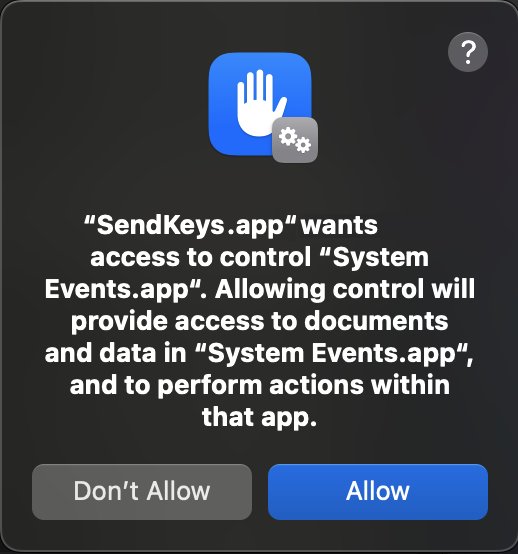 Click Allow 2. Double click on the stop the app run the **StopSendKeysMP.app** from the Applications > SendKeysMP folder. This application does not have a window.  3. Run the SendKeysMP.app again. You will be prompted with this message. Choose to Open System Settings. 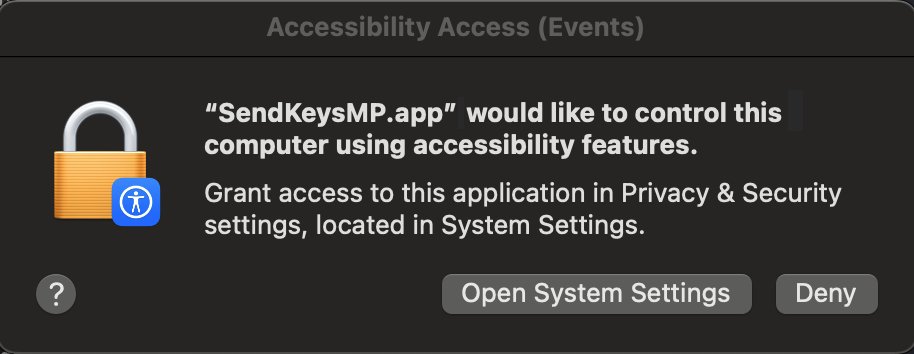 4\. Select Privacy & Security 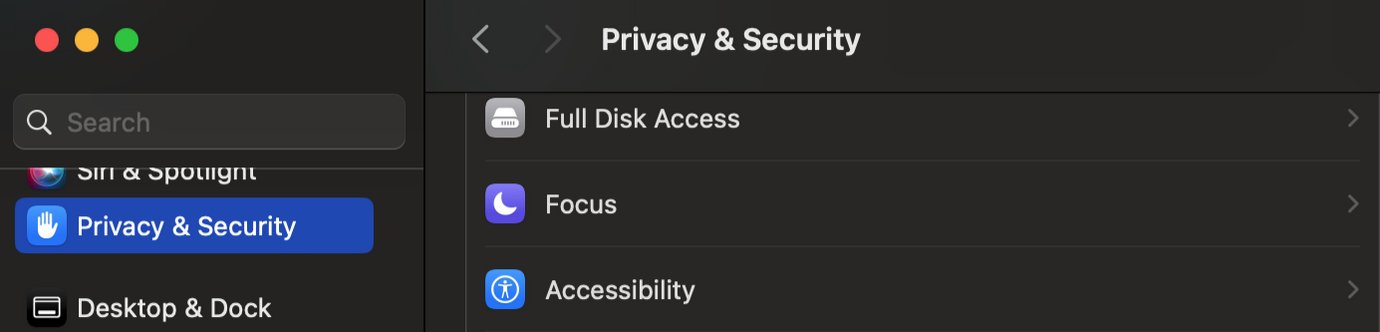 Then from within Privacy and Security, choose Accessibility  Enable the SendKeysMP.app switching it to enabled from the right slide button.  5. Double click on the stop the app run the **StopSendKeysMP.app** from the Applications > SendKeysMP folder. This application does not have a window. 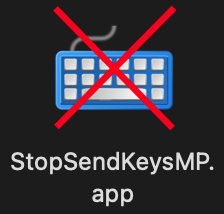 Run the SendKeys.app again. Now it has access to send keys to your apps.Optionally, after the prior steps, you can add the SendKeysMP.app to Login items in System Settings to start automatically when you start your Mac computer. This will way you don't have to run SendKeysMP every time you want to send keyboard keys from the MP MIDI app.