On the Mac the Virtual MIDI ports are already created and named MPSEQ.
Select this port in the MIDI out of the sequencer pages you want to use. Then select the MIDI channel to send MIDI output. [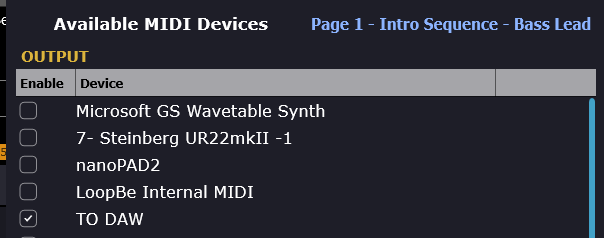](https://kb.mpmidi.com/uploads/images/gallery/2026-04/lxsEaRivJOqyju8y-image.png) [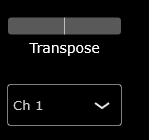](https://kb.mpmidi.com/uploads/images/gallery/2026-04/NkVEJNB9H8ntBxN4-image.png) [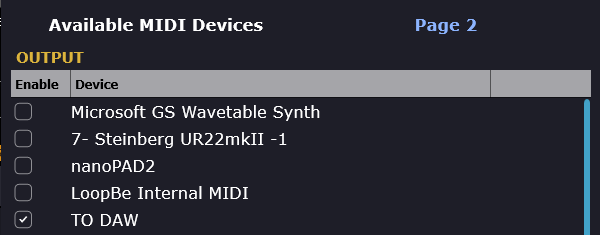](https://kb.mpmidi.com/uploads/images/gallery/2026-04/HUNK7eDst5GKRrM4-image.png) [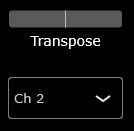](https://kb.mpmidi.com/uploads/images/gallery/2026-04/MjLJwmpcBGiNd8B2-image.png) Set the Input port in Ableton Live settings, Track - checked [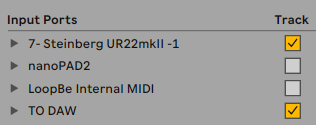](https://kb.mpmidi.com/uploads/images/gallery/2026-04/S5iFxrHiaZuPKGC3-image.png) Select the MIDI IN port and Channel on the Ableton Live track [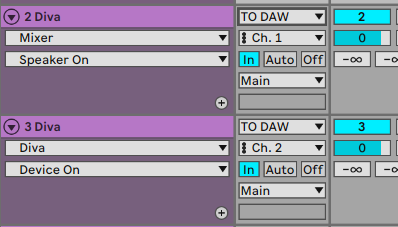](https://kb.mpmidi.com/uploads/images/gallery/2026-04/xmvCp3UfMAB5yIQl-image.png) Ensure that all pages are set to Enabled in MPSEQ [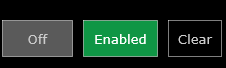](https://kb.mpmidi.com/uploads/images/gallery/2026-04/NwCwOEp2NTadKbUB-image.png) Press G.Play and your instrument tracks will play. [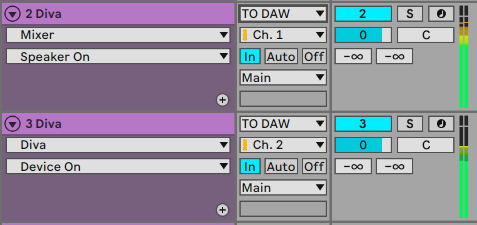](https://kb.mpmidi.com/uploads/images/gallery/2026-04/6uOyMgTGRuHZcLWs-image.png)In case you are using the standalone MPSEQ, to enable Play/Stop from the DAW see [here](https://kb.mpmidi.com/books/mp-controller-documentation/page/mpsequencer-sending-playstop-to-the-standalone-mpseq-app)