
16. Blocking C1-xMP1 MIDI Input CC Messages in Logic Pro
When the Logic Control Surface is enabled, it requires the C1-xMP1 to be enabled as a MIDI input device in Logic Pro. This, depending on your Logic configuration, may cause some components in Logic or devices/plugins to be listening on MIDI CC messages coming from the C1-xMP1.
For plugins, there should be an option to disable these MIDI CC mappings (listenning on MIDI Channel 1) or disable MIDI CC IN completely so that it does not conflict with MIDI controllers.
Alternatively, you can do the following in Logic, if the plugin is listening to CC coming from Logic and not directly from other MIDI ports.
If you disconnect a specific MIDI device from the Sequencer Input in Logic’s Environment, it blocks all MIDI data from that device, including:
-
MIDI CC (Control Change)
-
Note On/Off
-
Pitch Bend
-
Aftertouch
-
Program Change
-
Anything else sent via standard MIDI
This is useful if you notice that instruments or audio effects in Logic receive conflicting MIDI CC messages from C1-xMP1.
Step-by-Step: Fully Block a MIDI Device from Logic Instruments
1. Open the Environment (Cmd+8)0)
Go to the Click & Ports layer.
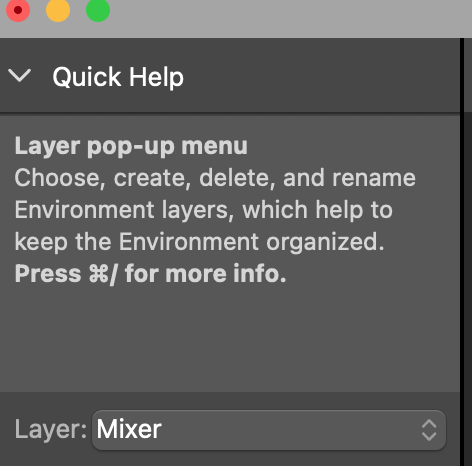
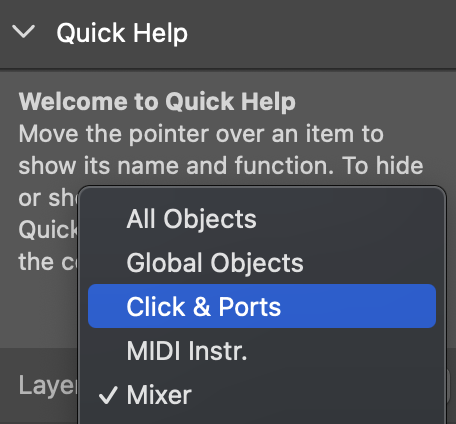
2. Identify the C1-xMP1 Device in "Physical Input"
You'll see ports like “All”, “IAC Driver”, “C1-xMP1”, etc.
3. Disconnect the Device
- Disconnect the cable from the device you want to block (e.g., "MP Controller") so that it does not connect to the "Sequencer Input". Click on the C1-xMP1 cable and it will be highlighted
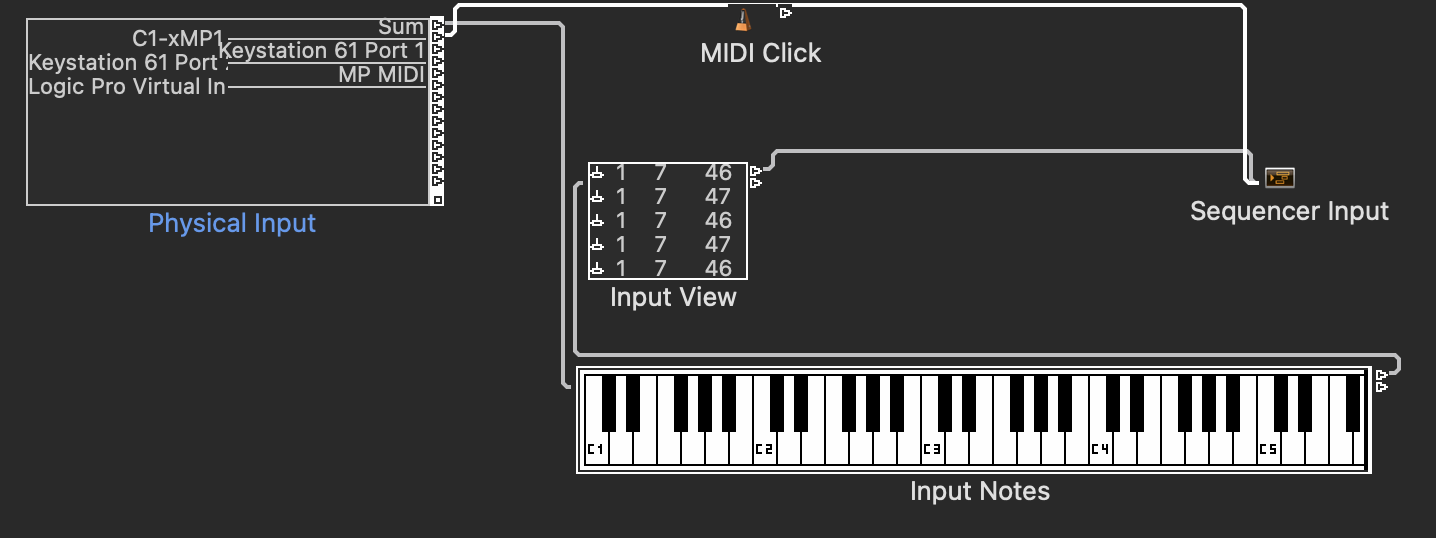
The from the Edit dropdown select Clear Cables only
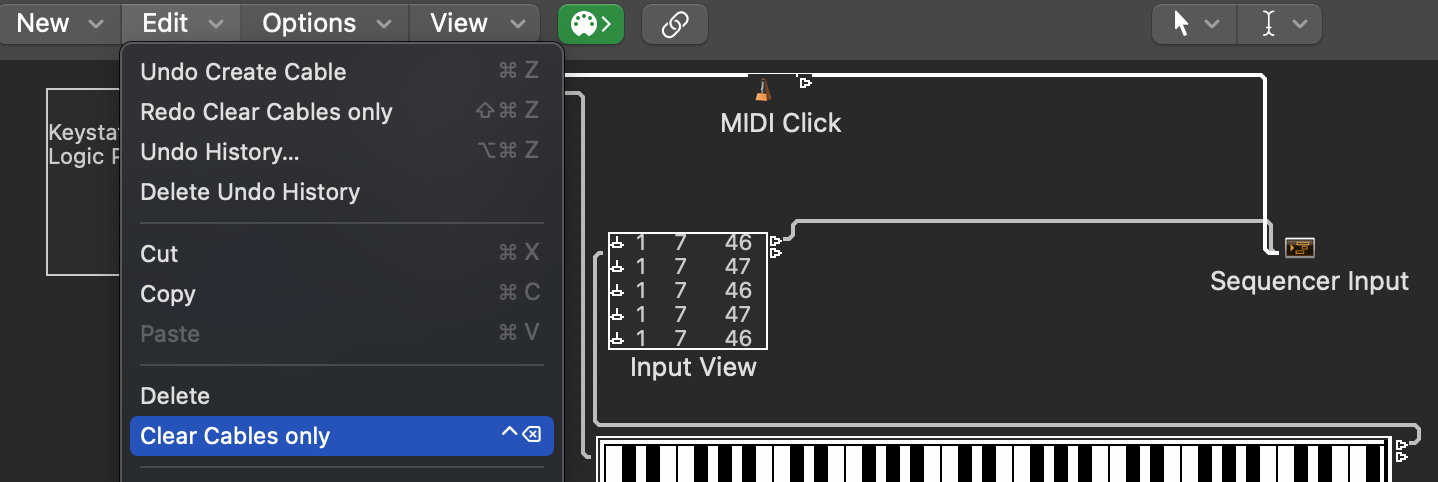
The cable is removed, so now Logic does not receive MIDI CC from C1-xMP1
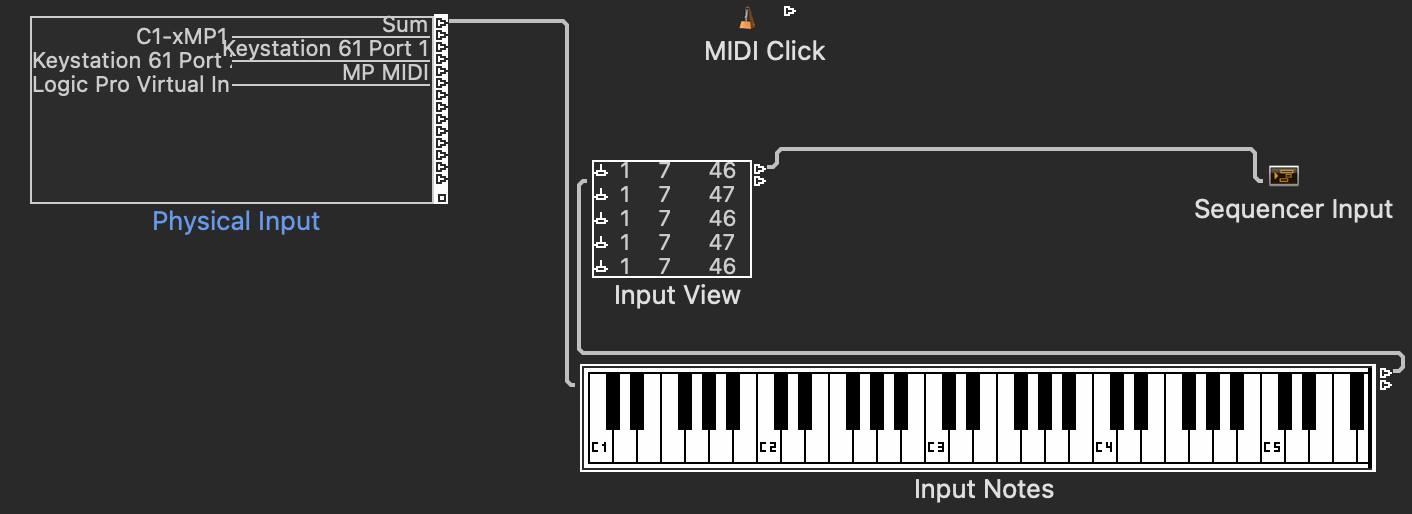
This means Logic will not receive any MIDI input from that device in instrument tracks.
4. (Optional) Route the Device Elsewhere
If you want to still use the device to control Logic through custom scripts or MIDI routing:
-
Route the device to a Monitor or Transformer object instead.
-
You can then filter, transform, or reroute the data to Logic’s control surface system, MIDI FX plugins, or external apps without affecting Logic Instruments.
5. Close the Logic Environment window.