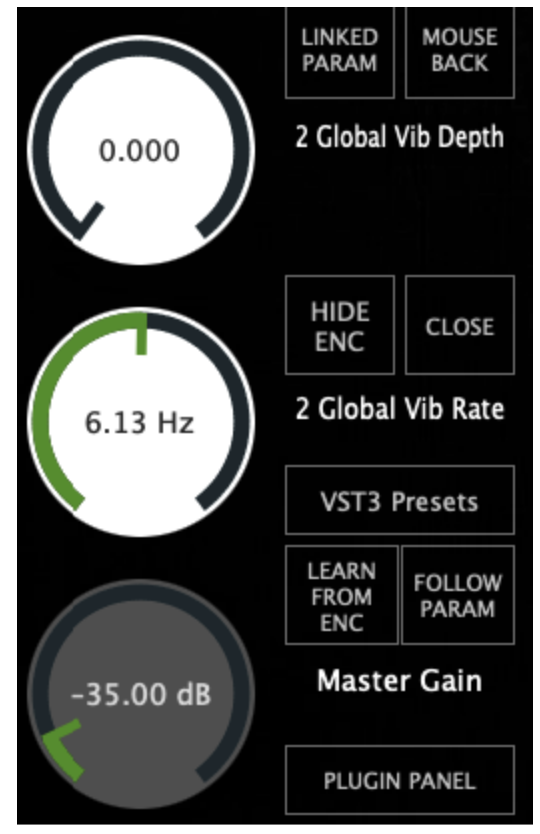
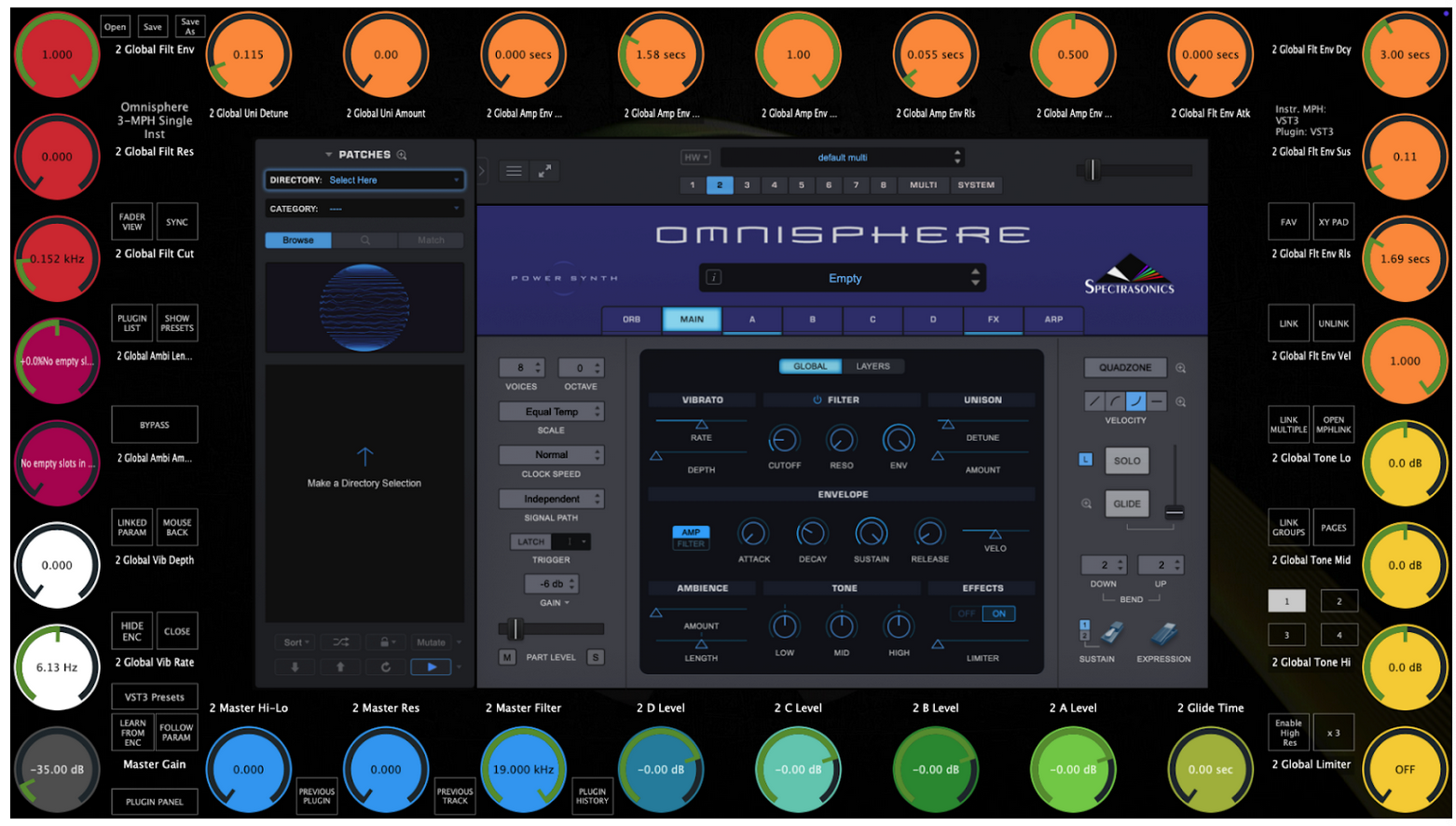
25. Controlling UVI Workstation, Omnisphere by enabling Host Automation
Link Parameters
To enable Host Automation right click on the parameter you want to link and choose Enable Host Automation.
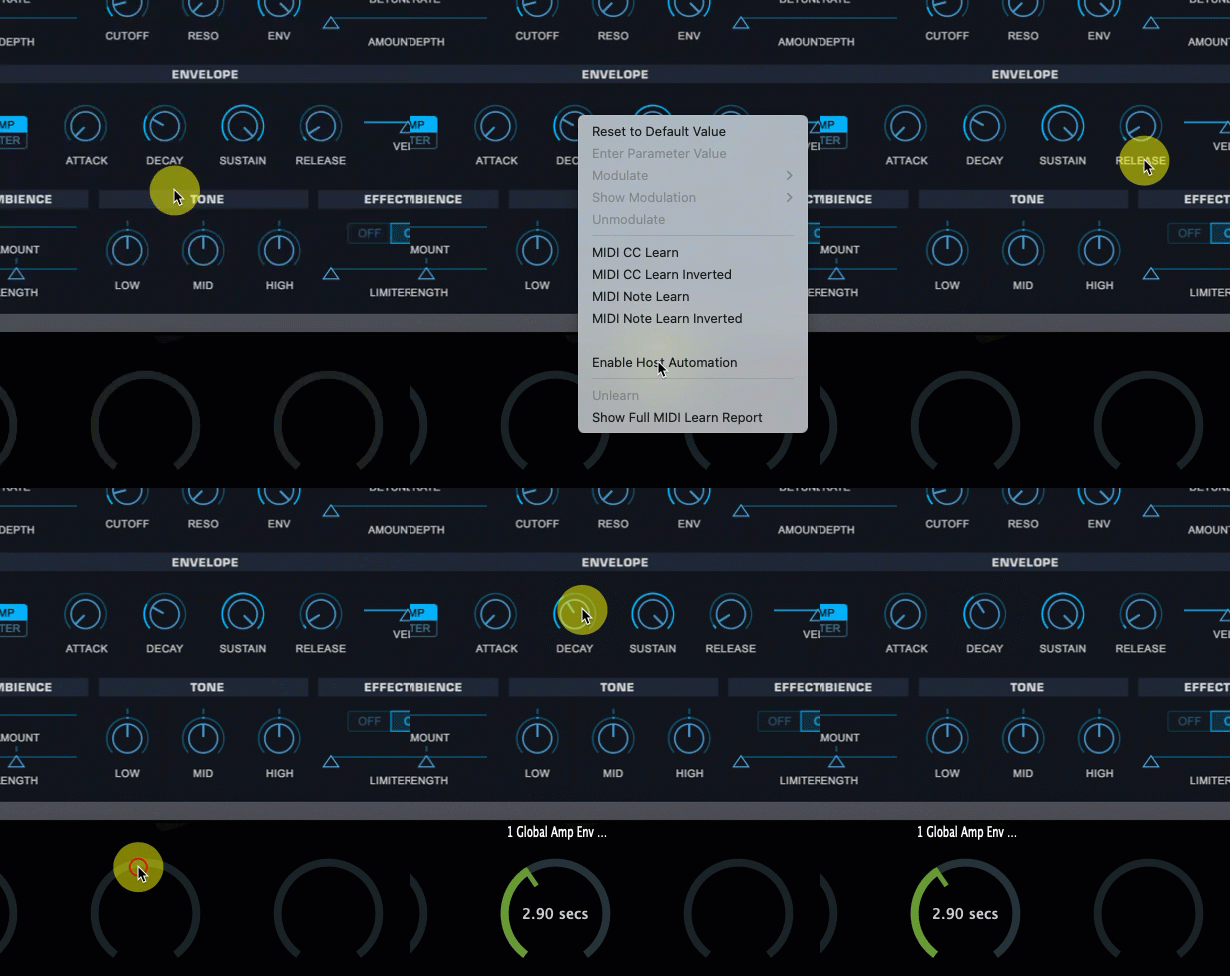
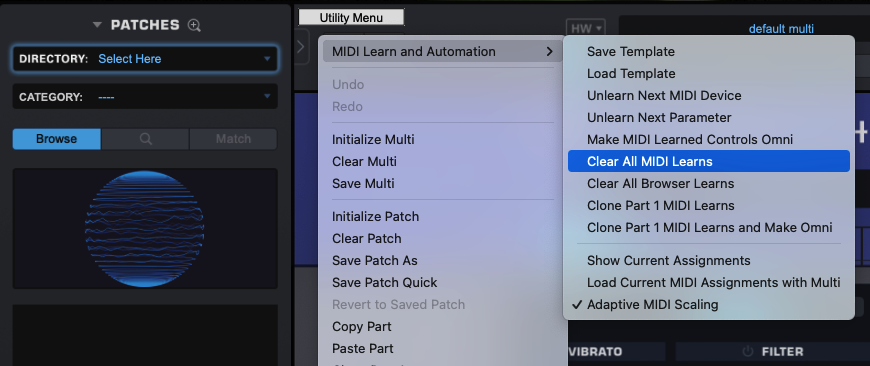
To avoid getting conflicting MIDI CC incoming messages, it is a good practice at first to clear all MIDI assignments in Omnisphere (note that this clears automated parameters assignments as well, save as template if you want to keep your assignments).
Additionally, note that as of Omnisphere V3.0.1 it only supports up to 256 of automatable parameters maximum (not 512 as stated in the Omnisphere online manual). If you link more than 256 parameters it will behave erratically and you can reproduce this behavior loaded directly in your DAW without the MP Host.
Using our premade template
Omnisphere has more than 20,000 parameters and a limit to control only 256 parameters per instance. Therefore, we adjusted our template accordingly. The template uses 184 parameters so you can link more as you go.
Note that the Omnisphere manual reports that there are 512 parameters available for automation in V3, however it does not work properly after it exceeds 256. This has been reported to Spectrasonics (V 3.0.1) and they will issue a fix.
How to use our template:
You need to do this process once. Here is an overview video that shows the following process.
Download the templates from here (same for Mac and Windows).
Extract the zip contents to your Omnisphere STEAM folder: /STEAM/Omnisphere/Settings Library/Presets/MIDI Learn/
For STEAM folder locations see the Omnisphere manual
Load the MP Host Instrument plugin (Single or Multi) in your DAW
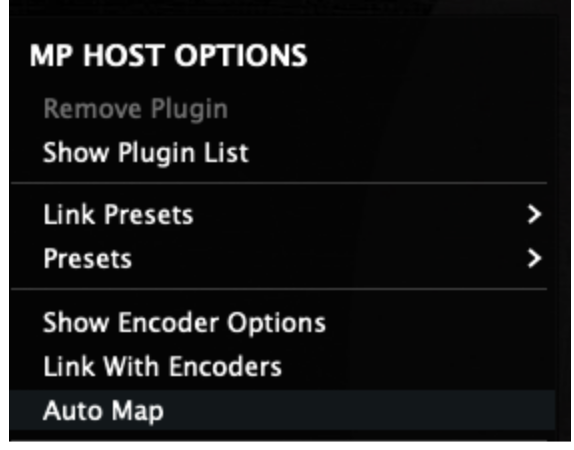
Right click on the controller window and disable Automap:
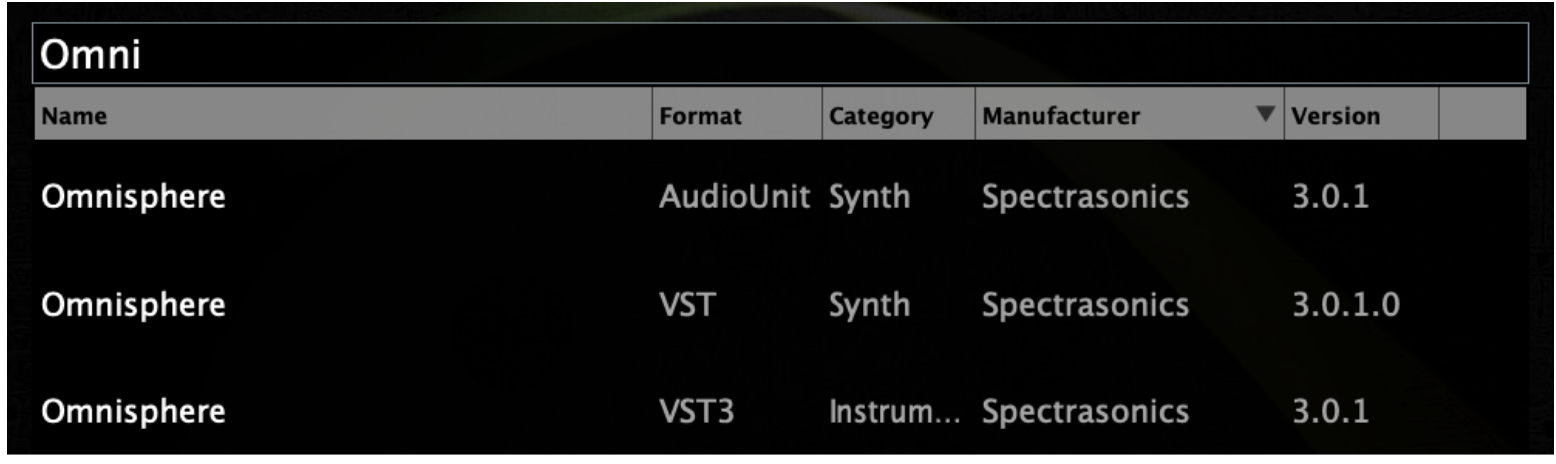
Then load Omnisphere from the Plugin List (anyone from AU,VST2/3)
Clear all MIDI assignments and automation ids in Omnisphere.
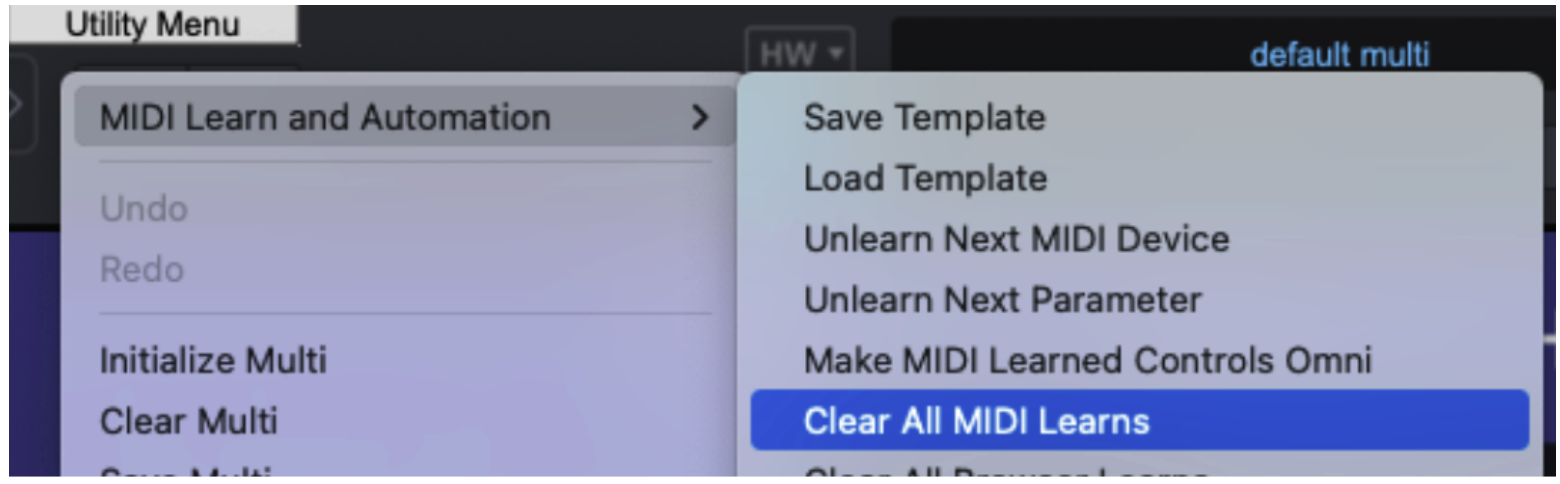
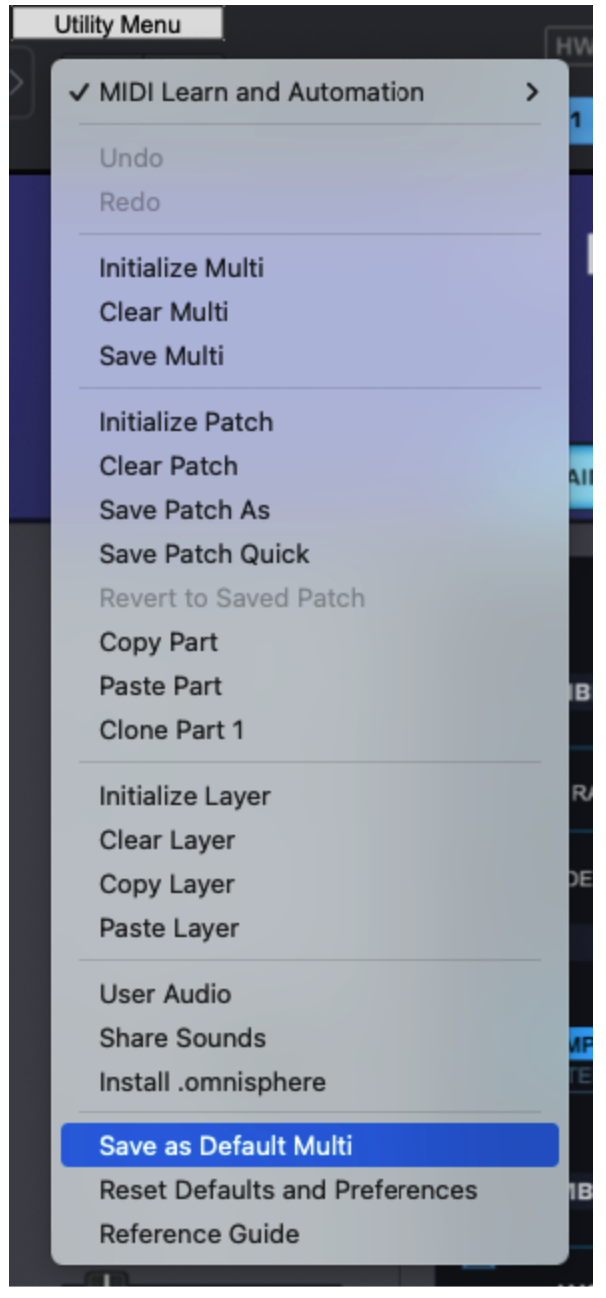
Then from the same menu choose Load Template

The file dialog will open and you will see the Omnisphere template you copied from the zip.
Choose 
Now, right click again on the controller's empty area and from the right click menu, enable Automap again.
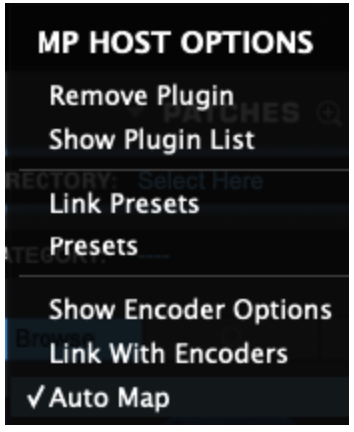
Then again from the right click menu, Remove Plugin.
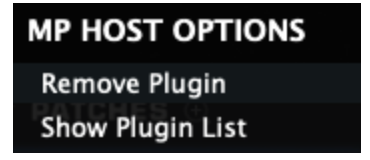
Now load Omnisphere again from the Plugin List
You will see the parameters linked and ready to be controlled. There are 9 pages of parameters linked, grouped by color.
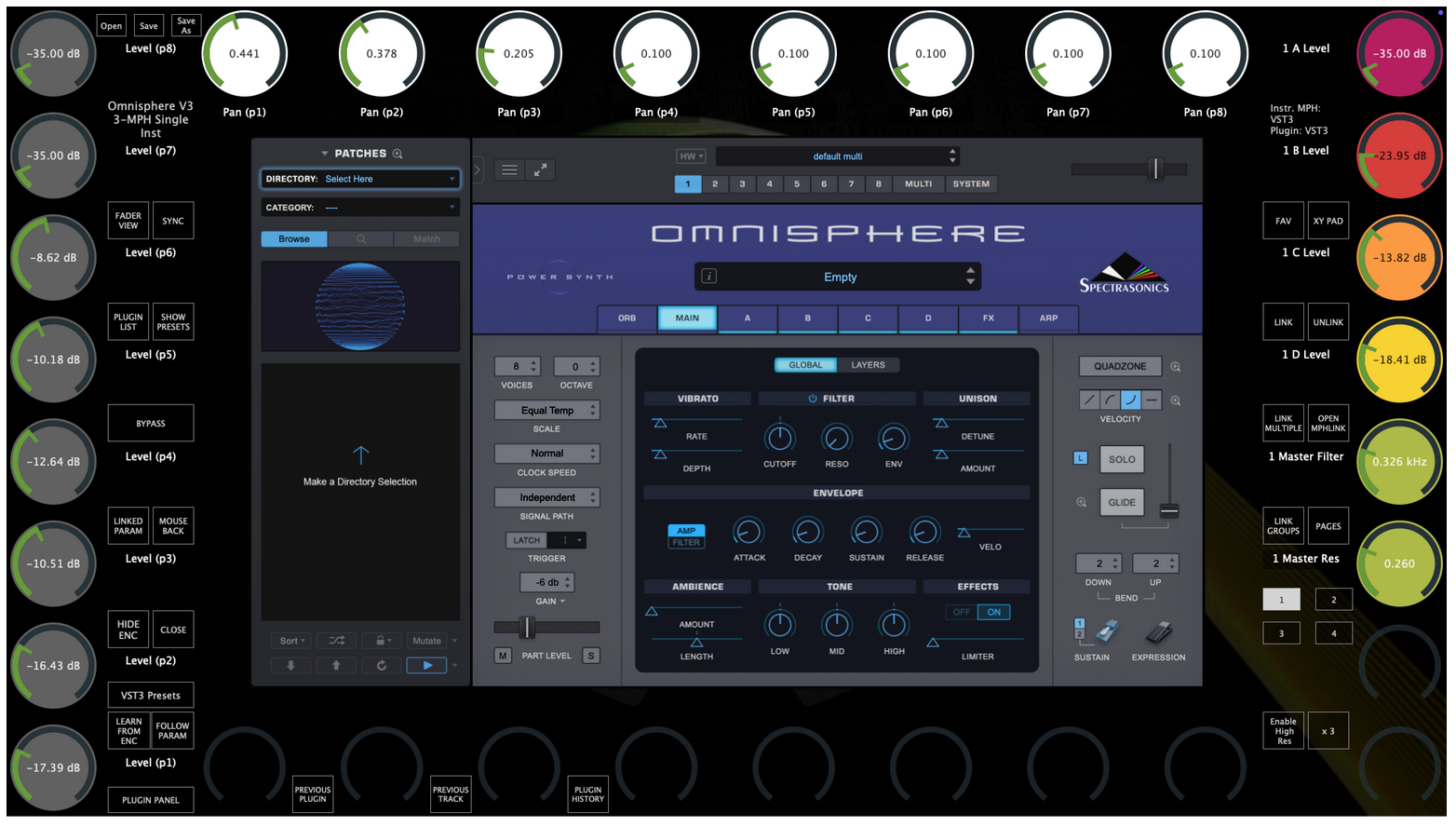
Moving any parameter with the mouse will cause the linked encoder to blink. If the encoder is on another page, it will go automatically to the other page.
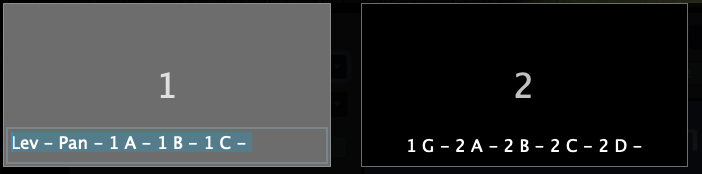
Optional: You can rename the pages by right clicking on the page title and save your preset
Other Omnisphere V3 templates (OPTIONAL)
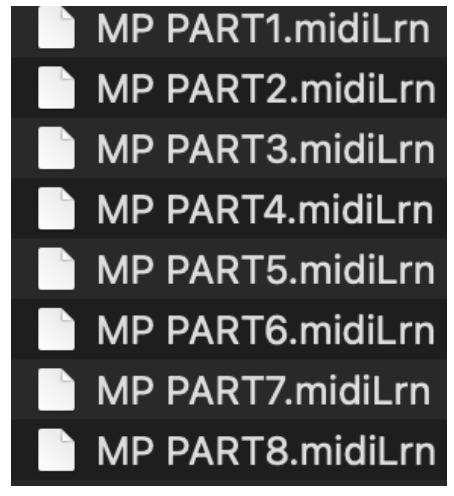
We have created additional templates for each part. These have more parameters linked per part. You need to load a different template to control a different part (1 - 8) of Omnisphere. For example, to control Part 2, load MP PART2.midiLrn in Omnisphere as shown above.
Note that when you load a different template any existing automation will be replaced by the parameter that matches in the loaded template.
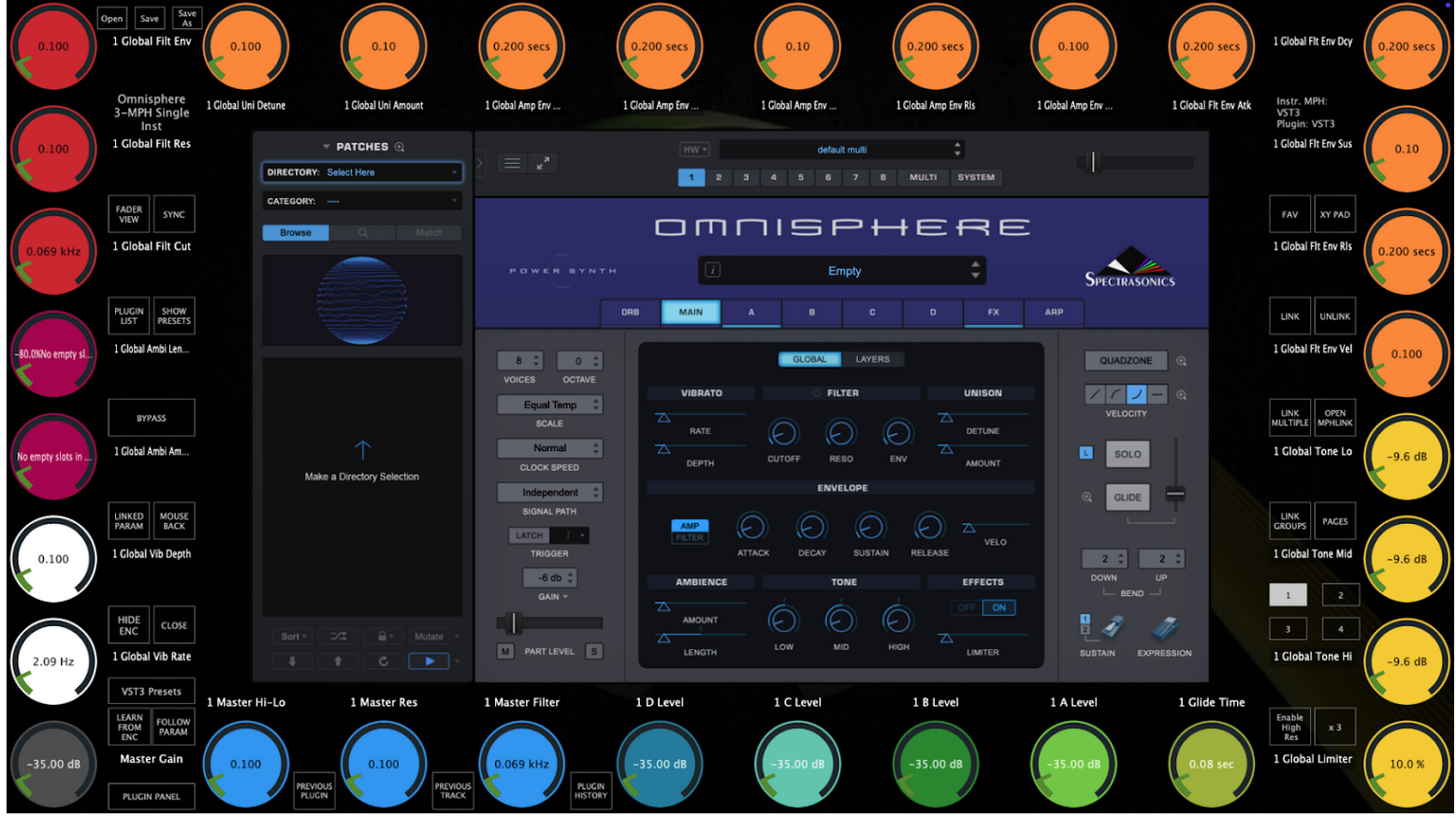
Pages 6, 7, 8 control global parameters.
You can save this as an MP Host preset and load it from Favorites or the Preset List.
This template now controls Part 1 of Omnisphere. You can edit the linked parameters (unlink, replace with other etc, link parameters from the FX section that we have not linked)
To control Part 2 - 8, load the corresponding template and the parameters will be automatically updated.

Select Part 2 in Omnisphere and load the MP PART2 template.
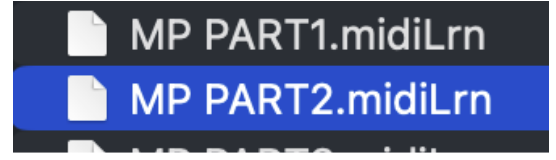
All parameters now begin with "2"