3. How to configure the UPDD Zoom and gestures
The latest version of UPDD is configured to use Zoom Screen with the 2 finger tap gesture. Zoom Screen zooms only within the controller's display. The Smart Magnifier zooms outside the controller display as well.
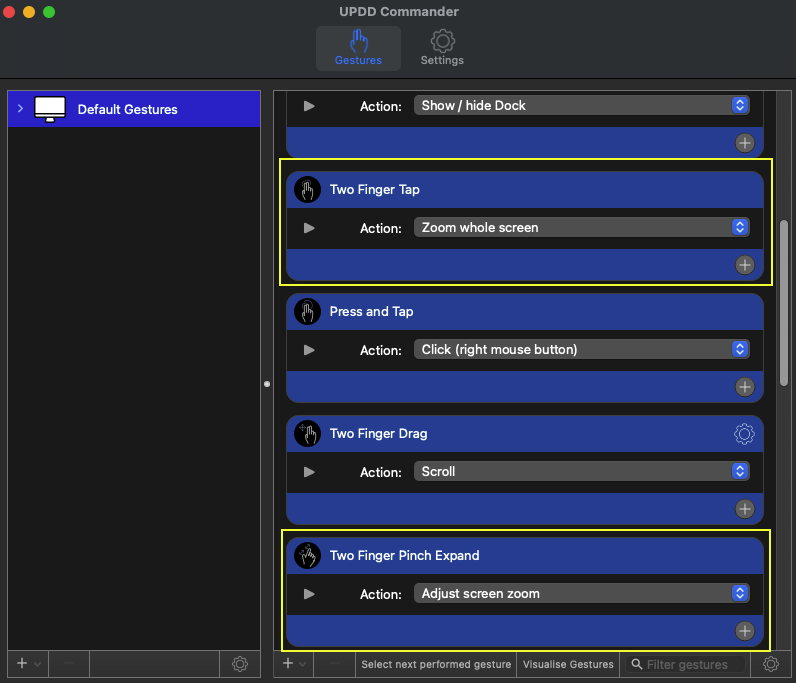
If you need to change the behavior of the Smart Magnifier here are the steps to do so.
If the Smart Magnifier shows the desktop instead of zooming on the MP Host pluginseesee here
First make sure you have the latest UPDD version installed. This should be normally obtained from Touch Base.
Allow the necessary access on Mac OS.
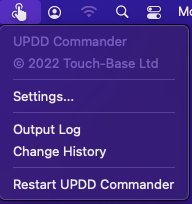
Open the UPDD Commander Settings Commander Settings from the top bar on the Mac
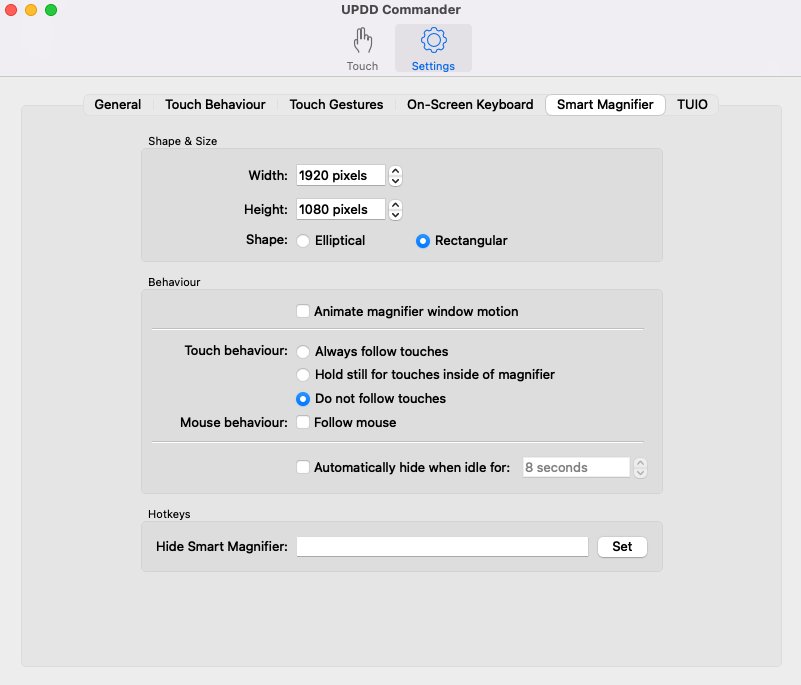
Go to Smart Magnifier tab and set the:
-
Width to 1920
-
Height to 1020
-
Rectangular Shape
-
and to Not follow touches
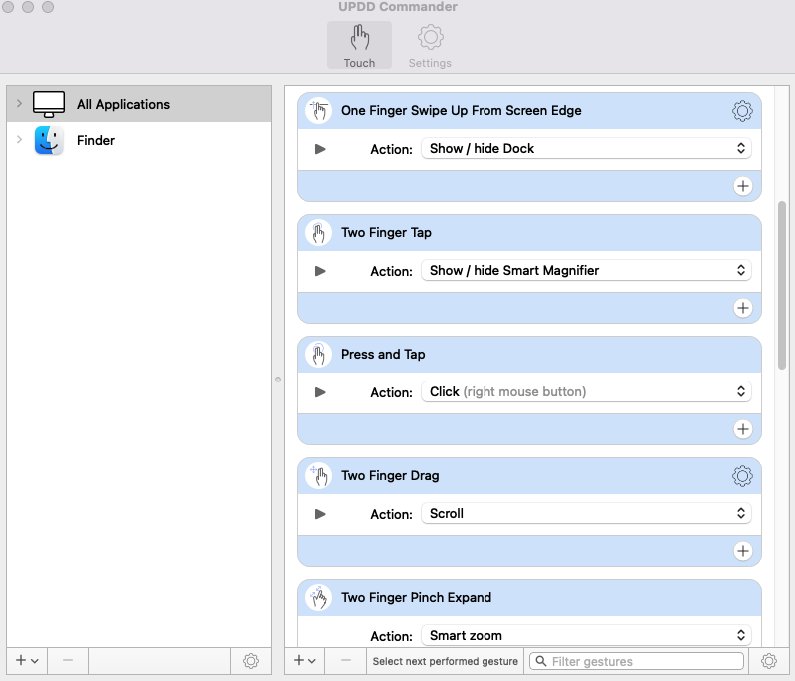
5. Navigate to All Applications
And set the:
Two Finger Tap to
Action: Show/Hide the Smart Magnifier
Optionally you can set the
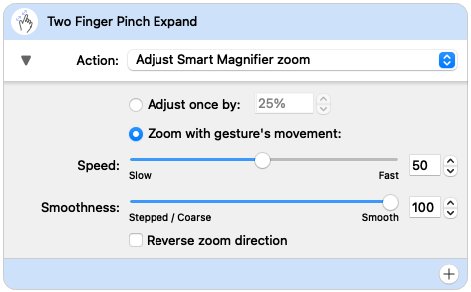
Two Finger Pinch Expand to
Action: Smart zoom
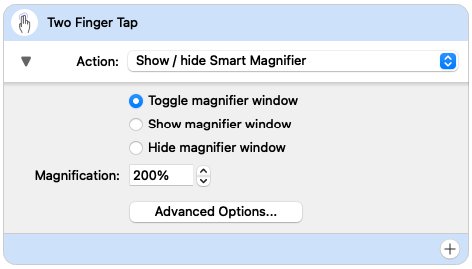
Set the Magnification to your preference ie 200%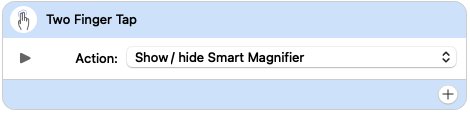
Then set the amount of of
Zoom with gesture movement.