
34. Switching to other Plugins via the Plugin Panel
The Plugin Panel is part of the update v1.7-dbe3ca3c--H2024-06-14--B2024-06-14 or later version.
With this feature we can now switch to any plugin loaded in an MPH Multihost instance.
The Beta version of January 2026 allows the usage of the MP Single Host in the plugin panel as well.
Version 09-March-2026 enables switching to/from the Plugin Panel view double clicking on the background area as shown in this demo video
While previously it was only possible switching, via the touch screen, to other plugin slots of the current Multihost, with the plugin panel you can switch to any plugin slot of any Multihost.
The Plugin Panel button appears at the left bottom area of the Multihost controller window and there are 3 additional buttons
- Plugin History, which displays the last 12 accessed plugins.
- Previous Plugin, which switches over to the previously accessed plugin.
- Previous Track, which opens the Plugin Panel and selects the previously selected track.
How it works
Note that the 09-03-2026 update allows the MP Single Host to participate in the plugin panel.
Here is a brief tutorial video on the Plugin Panel.
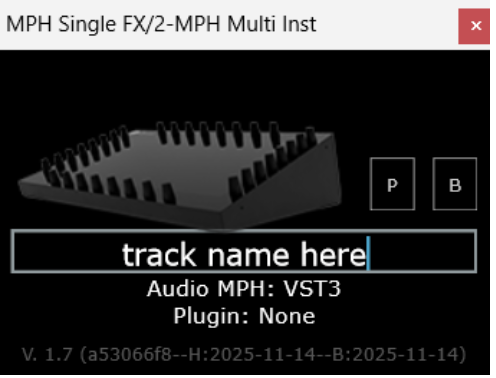
For a plugin to appear in the Plugin Panel, the track name must be provided by typing it in the text area of the Multihost and hit enter.
Logic and Cubase DAWs provide the track names automatically therefore the track name will appear in the text area upon loading the Multihost.
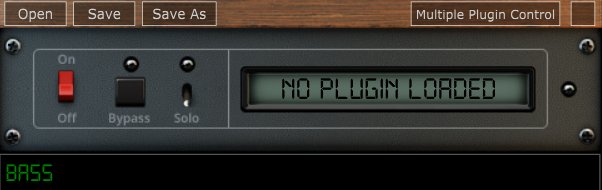
If two or more Multihosts are used on a track, these must carry the same track name, so that they appear under the same track in the Plugin Panel.
Note that on the main window of the MP Host the track name is now displayed under the plugin/preset name
Important information: The plugin panel reads only track names, it is not aware of the track order in the DAW. The DAW sends the track names it receives from the VST instances to the plugin. You can rename the track on the MP Single and MP Mult Hosts.
For the same reason, the order may differ when you open a session because it depends on the order Ableton loads plugins. The Plugin Panel does not save the order. Each plugin has its own plugin panel, but there is no central plugin panel to save the order.
That would be impossible because it totally depends on the DAW. So, when you move tracks in the DAW, the Plugin Panel will not be aware of that order.
Typically, it would load them in the same order, but that is not guarranteed. It is possible every time you open a session project, the order will be different.
Ableton Users: When using the Automatic Track Naming in Ableton Live and you move the track, Ableton sends out a notification that the track name has changed (it cannot notify you that the track has been moved, only the name of the track). Therefore, the Plugin Panel now knows that you have 2 plugins in track 1 because it was never notified that track 1 became track 2. You can avoid this issue by using custom track names instead of Ableton's automatic naming.
The Beta version of January 2026 allows the usage of the MP Single Host in the plugin panel as well.
Plugin panel sections
The Plugin Panel window is split in 2 parts. The left part displays the tracks (as buttons)
and the right part displays the plugins of the selected track in columns.
Each column represents a Multihost plugin.
Multihost Instruments will appear always first and the Multihosts Effects will be placed after Instruments.
Each column shows the plugin slots (as buttons) of its respective Multihost.
The order of the Multihost columns cannot be changed and the Multihosts will appear in the order that are opened by the DAW, typically in most DAWs this is the order that are placed and appear in the DAW.
If you add/remove Multihosts and the order does not match the one you see in the DAW, you can save and reopen the DAW project for the Multihosts to be reordered.
Selecting tracks and plugins
The active track has a yellow color. This is the track that has the plugin currently open (being viewed).
If you select another track button, this will become grey and it will list the plugins loaded in the Multihosts of that track. If you select a plugin from the right section, then this will become the selected track and the button will turn yellow.
Adding a new track
When adding a new track and a new Multihosts instance, after the track name is entered (Logic and Cubase provide the track names automatically to the Multihost) the track button will appear last in the track area.
Moving a track button
If you need to place the track button anywhere in between the existing tracks, click and hold the track button for one second and it will turn orange. Then, click on another track button and the track will be moved to the place of that track button.
Removing tracks
If you remove/delete a track on the DAW that carries one or more Multihost plugins, these will automatically be removed from the tracks listed in the Plugin Panel.
Duplicating Tracks
When duplicating DAW tracks that carry Multihost instances, then these Multihosts will have the name of the original track copied. You need to change the name of the track to the new track name.
If the track name remains the same, then these Multihosts will appear as columns in the original track.
Opening a Multihost Preset
When you open a Multihost preset, the track name displayed on the Multihost bottom text area will be replaced (if you have already typed a name). Therefore, the track name needs to be entered after loading a Multihost preset.
Opening projects in Logic Pro X
The Plugin Panel clears the shared list of loaded plugins every time a DAW project closes.
Logic, uses a separate AU Hosting Service to host plugins which keeps open after a project has closed. Therefore, we recommend, when working with a Logic project that carries MP Multihost instances, to close Logic before loading another project that carries MP Multihost instances.
Alternatively, instead of closing Logic you can load an empty Logic project that carries no plugins.
You can also force quit the AUHostingservice from the activity monitor, prior to loading another Logic project that carries the MP Multihost.
Logic Pro X reports the MP Multihost as not compatible
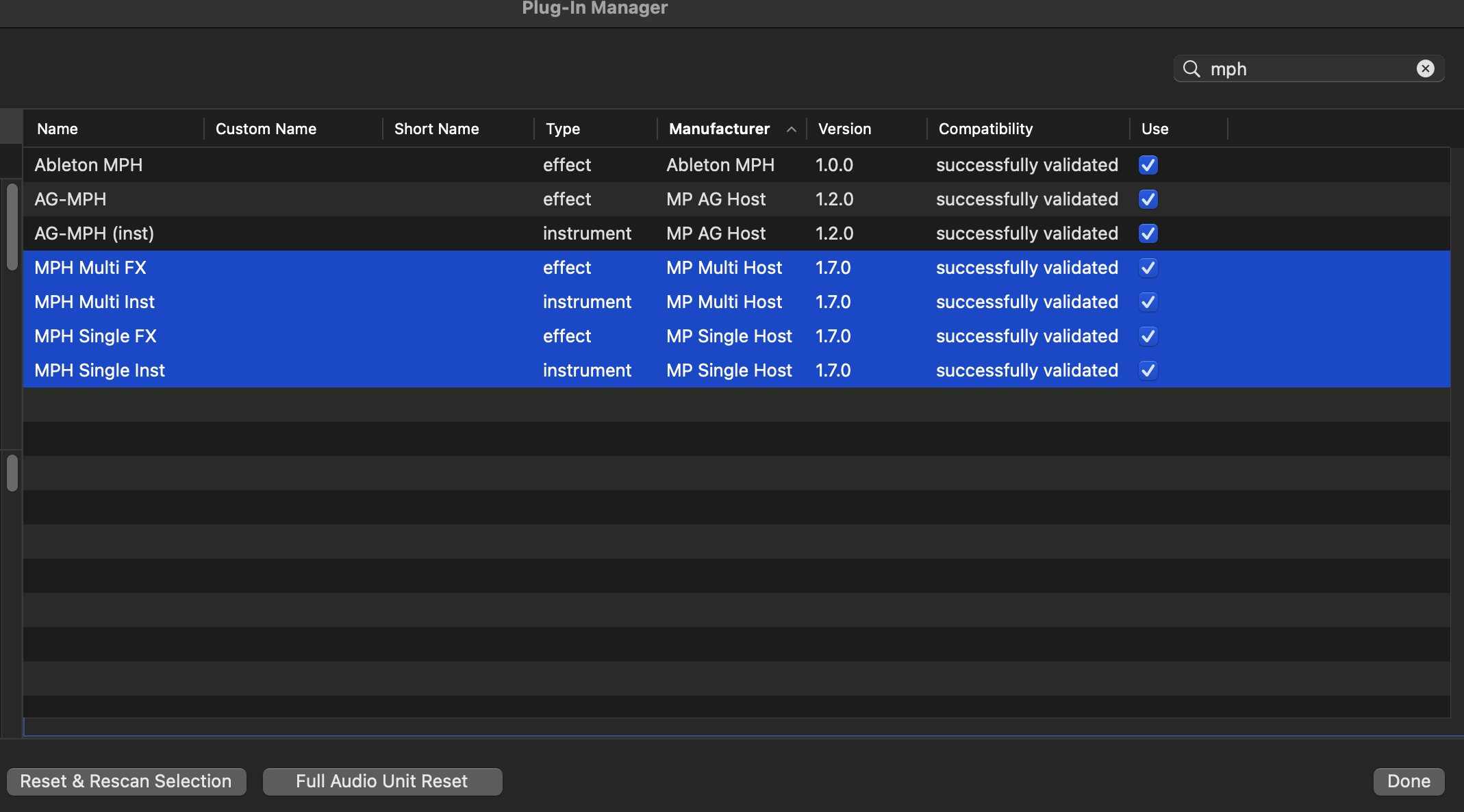
If Logic does not load the MP Multihost open the Logic Plugin Manager and choose to re-scan the selected plugin by pressing on "Reset and Rescan Selection".
If it gives a warning that it does not pass validation scan it again with "Reset and Rescan Selection" and it will pass the validation.
Troubleshooting
This applies to MP Host version, prior to the 2026 versions which work with the MP Bridge system.
The version of the Multi host that features the Plugin Panel uses an app allowing instances of the Multihost to communicate with each other. If you are having any issues such as a crash when you load the Multihost, ensure that the MPHCSM is installed in the MP Host folder:
Windows: %AppData% and under folders MP\Host\MPH Cache
Mac: Applications/MPH Cache.app
If the MPH Cache does not exist after you run the installer please send us an email to help you troubleshoot further.
Additionally, when you run the DAW ensure that the MPHCSM shows up as a running process while the MP Multihost plugin is loaded the DAW:
- Windows Task Manager or process explorer (allows searching for processes)
- Mac Activity Monitor (search for MPH in the Activity Monitor and it will show up)

The MPHCSM process will exit automatically when the DAW closes.
Please note that there were reports from users that when using the N.I. Maschine plugin in a DAW project, the plugin panel does not report the tracks.