
6. Select the target monitor for the MP Controller
The first time you load the MP Host plugin, it will be displayed on your main monitor.
You need to select the target monitor from the big window of the MP Host plugin.
Right click anywhere on the main black area of the big window and from the menu under Monitor, select the target monitor which will be the last monitor in the list.
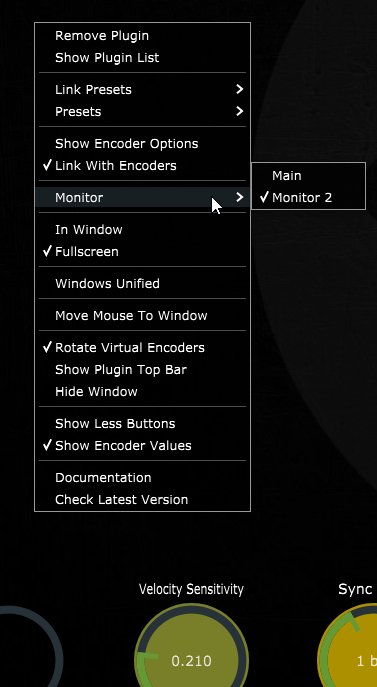
When you right click anywhere on the empty area of the main window the following menu will show up as shown in this video
The same principle applies to other MP Controller plugins or apps. Each app has it's own properties file in the /MP/Host folder where it stores the selected target monitor.
Troubleshooting:
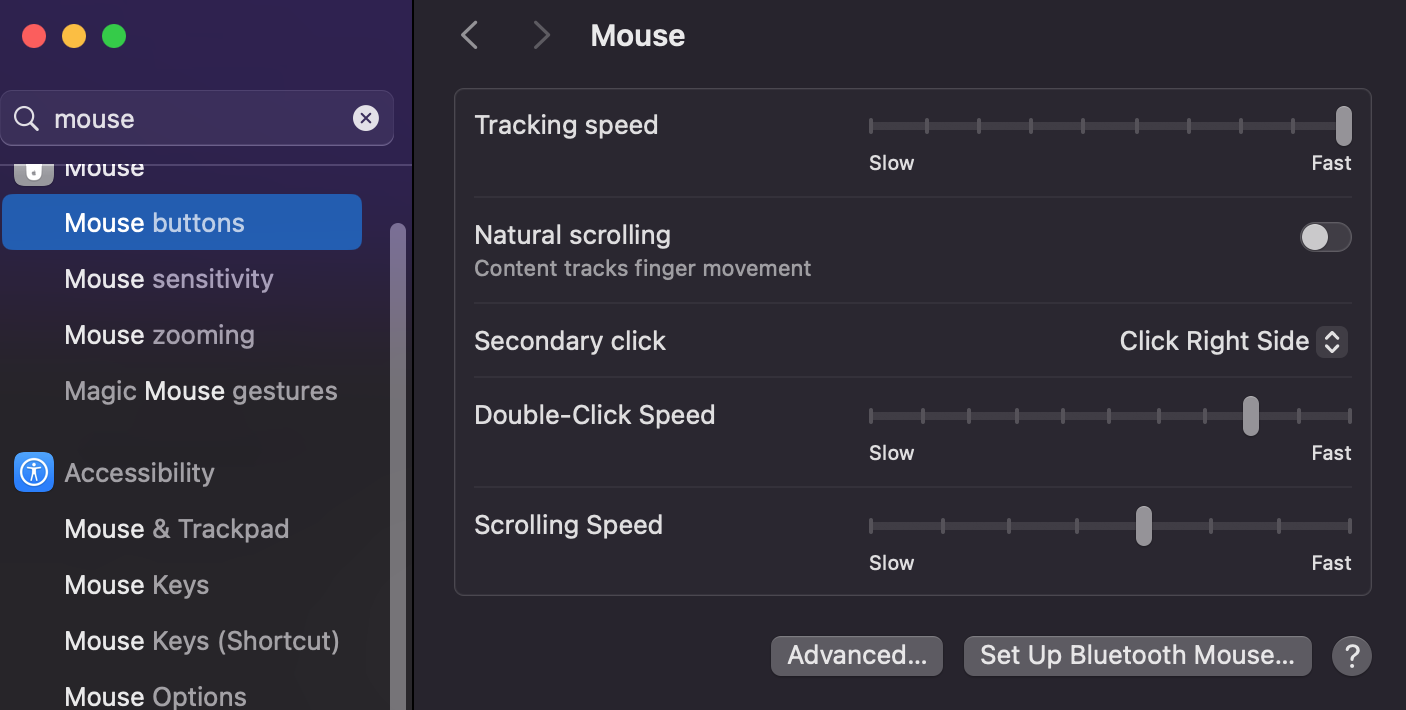
On the Mac, isif you are using aan magicApple mouse,Magic Mouse, you have to press the CTRL key and hold it while you right click to generate the right mouse click.
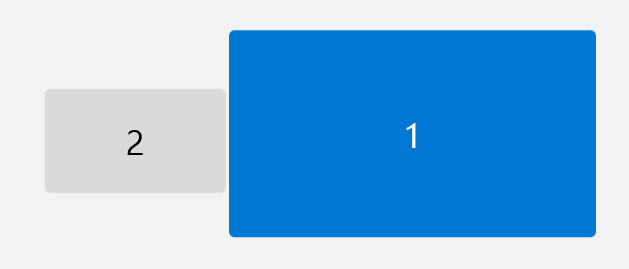
If you don't see the menu when you right click, check the arrangement of your displays. It is adviced to place the mp controller left of right of your main display, on Mac or Windows.
If it is set as shown and you are on the Mac, try using a mouse that has a right click button. For more information, see this article here
Ensure you have set the Mouse button Secondary Click to "Click on Right Side"
Additionally, if you installed UPDD you can right click by touch and hold on the main area of the MP Host plugin.