
Controller EQ-01 Documentation
The Mixing and Mastering EQ we always wanted.
Controller EQ-01 is a faithful recreation of a classic analog equalizer, bringing its distinctive musical character and precision to modern mixing and mastering workflows.
Through detailed analysis and accurate reproduction of the original hardware's frequency and phase responses, we have recreated its sonic characteristics in a highly optimized plugin that delivers sound virtually indistinguishable from its analog counterpart while using minimal CPU resources.
Designed specifically for the MP Controller, Controller EQ-01 features automatic parameter mapping, allowing effortless, hands-on control of every parameter. The result is a beautifully musical equalizer that combines the sound and feel of classic analog hardware with the precision, flexibility, and convenience of digital processing.
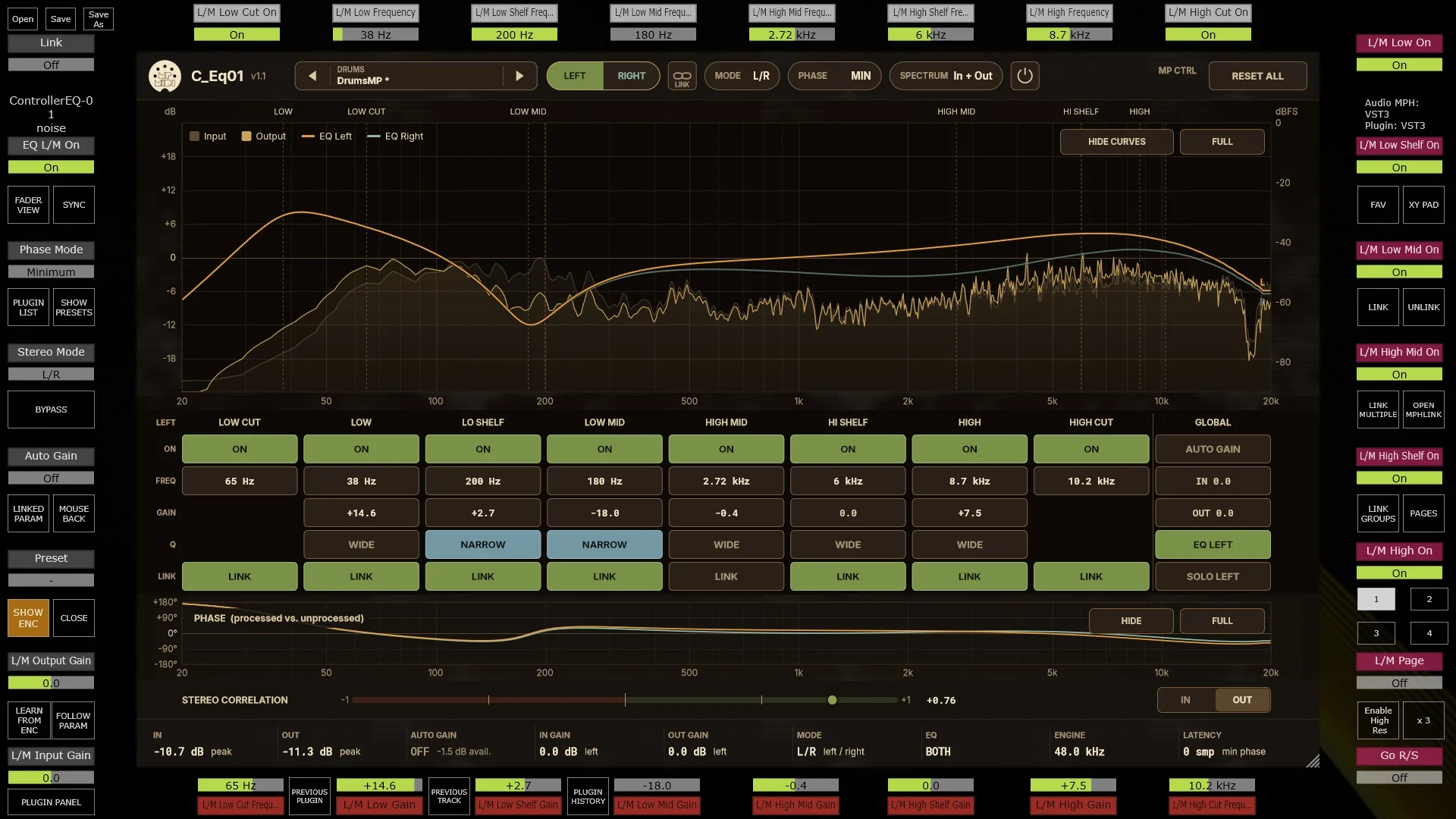
Controller EQ-01 in MP Host: encoder page 1 (L/M) around the plugin window, L/R mode, Link off.
What's new in v1.1. A per-band LINK row in the control strip keeps single bands identical on both channels while the rest are shaped separately. The phase panel has its own background colour, its title and HIDE / FULL buttons sit on the chart, and the spectrum gets the space they used. Auto Gain now weights the Side at 1/10 in M/S mode, so width boosts stay. The Bypass button and parameter now always take effect immediately.
1. Overview
Controller EQ-01 is made to be used in MP Host, where it automaps in an optimal way on the MP Controller. It works in three ways, all mapped automatically:
- Linked (the default): one EQ for both channels; either encoder page edits both.
- L/R unlinked: separate EQs for the Left and the Right channel.
- M/S unlinked: separate EQs for the Mid (centre) and the Side (stereo) content.
When you click or touch the LEFT / RIGHT (or MID / SIDE) buttons, MP Host shows the encoder page that carries that channel's parameters, so you can control it just like a hardware device.
- Curves and phase shift recreated from measurements of a classic hardware mastering EQ: magnitude within 0.01 dB of the measured responses, identical at every sample rate.
- Eight bands per channel: Low Cut, Low, Low Shelf, Low Mid, High Mid, High Shelf, High, High Cut, with the original's stepped frequency positions and Narrow / Wide bandwidth.
- Two phase modes: MIN (minimum phase, zero latency) and EXACT (the measured phase, 1024 samples latency).
- Automatic gain compensation, so the output level stays the same while you tweak.
- Spectrum, EQ curves, phase and stereo correlation display; 91 factory presets in 11 categories.
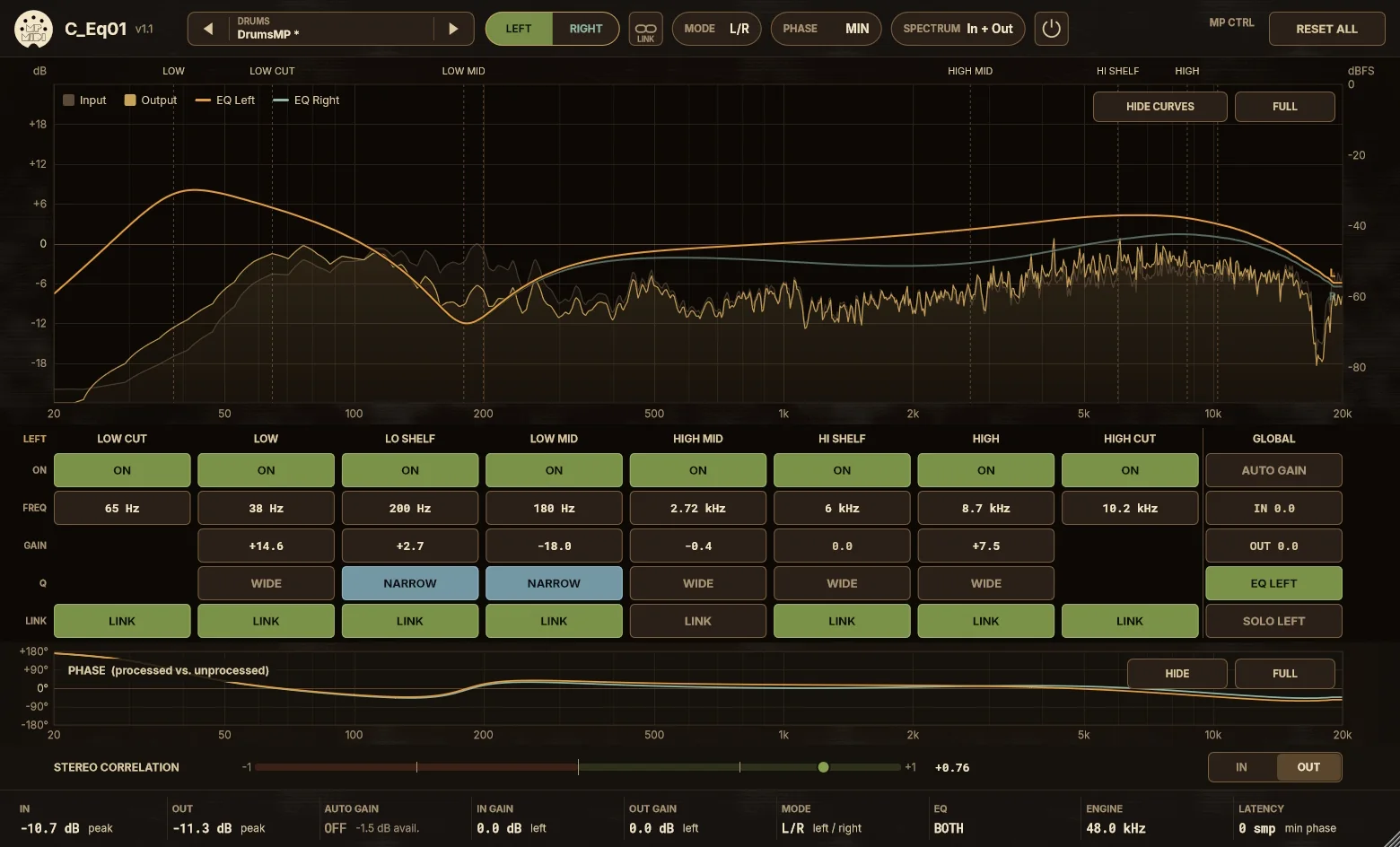
Figure 1. The plugin window: header, spectrum with the EQ curves of both channels, the control strip, the phase panel and the status bar.
2. The window
2.1 Header

Figure 2. The header.
| Control | What it does |
|---|---|
| Logo, title, version | Tap the logo to open this documentation. |
| PRESET | Category (small) and preset name; * means changed since loading. The arrows load the previous / next preset; tap the name to open the presets page. |
| LEFT | RIGHT (or MID | SIDE) | The view: which channel's settings the control strip shows and edits. Each channel has its own colours (L / Mid brass and olive, R / Side patina green). MP Host follows: L/M shows encoder page 1, R/S page 2. |
| LINK (chain) | Lit: both channels use the same settings - editing either edits both. Switching it on copies the channel shown to the other one. |
| MODE | L/R or M/S stereo mode. |
| PHASE | MIN or EXACT phase mode (section 5). |
| SPECTRUM | In + Out / Input / Output / Off: what the analyser shows; also encoder 36. Display only. |
| Power button | Bypass. Lit when bypassed; the audio passes through the same path, so the latency never changes when you bypass. |
| MP CTRL | The last control moved on the MP Controller and its value. |
| RESET ALL | Tap, then tap again within 3 seconds: every control returns to its default. |
Table 1. Header controls.
2.2 Spectrum and curves
The analyser shows the input (subdued) and output (bright) spectrum, and the EQ response: one curve while both channels are equal, otherwise one per channel in the channel colours (EQ Left / EQ Right or EQ Mid / EQ Side), marked at the right edge. Tap a band's title in the strip to show that band's curve alone. HIDE CURVES hides the EQ curves; FULL lets the spectrum fill the window.
2.3 The control strip

Figure 3. The control strip, LEFT channel shown, Link off: every band is linked except High Mid.
One column per band and a GLOBAL column, for the channel shown. Toggles: tap. Values: drag up / down (FREQ steps through the original's positions). Double tap resets a value.
| Row | Bands | GLOBAL column |
|---|---|---|
| ON | Band on / off. | AUTO GAIN on / off. |
| FREQ | Frequency: the stepped positions of the original (continuous on Low Cut and High Cut). | IN: input gain of the channel (+/-24 dB). |
| GAIN | -18 to +18 dB (Low Cut and High Cut have none). | OUT: output gain of the channel (+/-24 dB). |
| Q | NARROW / WIDE bandwidth (Low, High, Low Mid, High Mid: the original's bandwidth switch; on the shelves, NARROW is a steeper shelf). Not on the encoders. | EQ LEFT (RIGHT / MID / SIDE): that channel's EQ on / off - a quick before / after. |
| LINK | The band follows itself on both channels (frequency, gain, Q, on). Lit on every band while Link is on. | SOLO LEFT (RIGHT / MID / SIDE): that channel alone on both outputs. |
Table 2. The control strip.
| Band | Type | Frequency positions (examples) |
|---|---|---|
| Low Cut | high-pass | continuous, about 9 Hz to 165 Hz and up |
| Low | bell | 27, 38, 53, 63, 74, 87, 103, 121, 143, 200, 278, 387, 538 Hz |
| Low Shelf | shelf | 35, 60, 200 Hz |
| Low Mid | bell | 180, 249, 293, 344, 405, 476, 560, 659, 913 Hz, 1.26, 1.75, 2.42 kHz |
| High Mid | bell | 727 Hz, 1.01 ... 3.78 kHz, 4.46, 5.26, 6.2, 8.63 kHz |
| High Shelf | shelf | 3, 6, 20 kHz |
| High | bell | 4, 5.45, 6.37, 7.44, 8.7, 10.2, 11.9, 13.9, 16.3, 19 kHz |
| High Cut | low-pass | continuous, about 1.3 kHz to 18.6 kHz and up |
Table 3. The eight bands. The FREQ box shows the exact position as you drag.
2.4 Phase panel

Figure 4. The phase panel, with its own background colour. The PHASE title sits on the chart (top left), HIDE and FULL at the top right.
- The graph shows the phase of the processed against the unprocessed signal (-180 to +180 degrees) for both channels, in the channel colours. It always shows the measured phase (section 5).
- HIDE / SHOW collapses the panel to its title row and the correlation meter; the spectrum takes the space. FULL / EXIT FULL lets the phase graph fill the window.
- STEREO CORRELATION with IN / OUT: +1 is mono, 0 is very wide, negative values warn of phase problems in mono.
2.5 Status bar

Figure 5. The status bar.
| Field | Shows |
|---|---|
| IN / OUT | Peak input and output level. |
| AUTO GAIN | ON with the current compensation, or OFF with the compensation that would apply ("dB avail."). |
| IN GAIN / OUT GAIN | Input and output gain of the channel shown. |
| MODE | L/R (left / right) or M/S (mid / side). |
| EQ | Which channels' EQ is on: BOTH, one of them, or none. |
| ENGINE | The sample rate the EQ runs at. |
| LATENCY | 0 samples (MIN phase) or 1024 samples at 44.1 kHz (EXACT phase). |
Table 4. Status bar.
3. Two channels: Link, L/R and M/S
Controller EQ-01 has two complete sets of eight bands. Set A is the Left channel in L/R mode or the Mid in M/S mode; set B is the Right channel or the Side. Each set also has its own input and output gain, EQ on / off and Solo.
- Link (on by default): both sets are equal and either encoder page edits both - one stereo EQ.
- Band link (the LINK row): with Link off, a lit LINK keeps that one band identical on both channels. Tapping a band's LINK while Link is on switches Link off and keeps every other band linked, so you can free a single band in one tap. Band links are set in the window; they are not on the encoders and not automatable.
- L/R mode: shape the Left and Right channels separately - fix a channel that differs (a duller overhead, a hum on one side), or make two channels complementary.
- M/S mode: the plugin converts the stereo signal to Mid and Side, equalizes each, and converts back. Boost the Side highs for width, low-cut the Side to keep the bass mono, shape the centre (vocal, kick, bass) without touching the stereo content.
- Solo: SOLO SIDE plays only the Side, exactly the width you add; SOLO MID plays what a mono listener hears.

Figure 6. The same strip with the RIGHT channel shown: the R / Side set has its own colours. High Mid is unlinked, so its gain differs from the Left channel.
Sessions and presets made before the two sets (with a pan per band) are converted when they load: each panned band is split between the two sets and Link is switched off, so they sound as before.
4. The MP Controller map
Load Controller EQ-01 in MP Host and press Automap. The parameters land on two pages of 32 encoders: page 1 for the L/M set, page 2 for the R/S set, with every band in the same place on both pages. The encoders ring the plugin window: 1-8 up the left side, 9-16 along the top, 17-24 down the right side and 25-32 along the bottom from right to left. Each band is a column: its frequency on top, its gain below, its on / off on the right.
4.1 Page 1: L/M (Left or Mid)
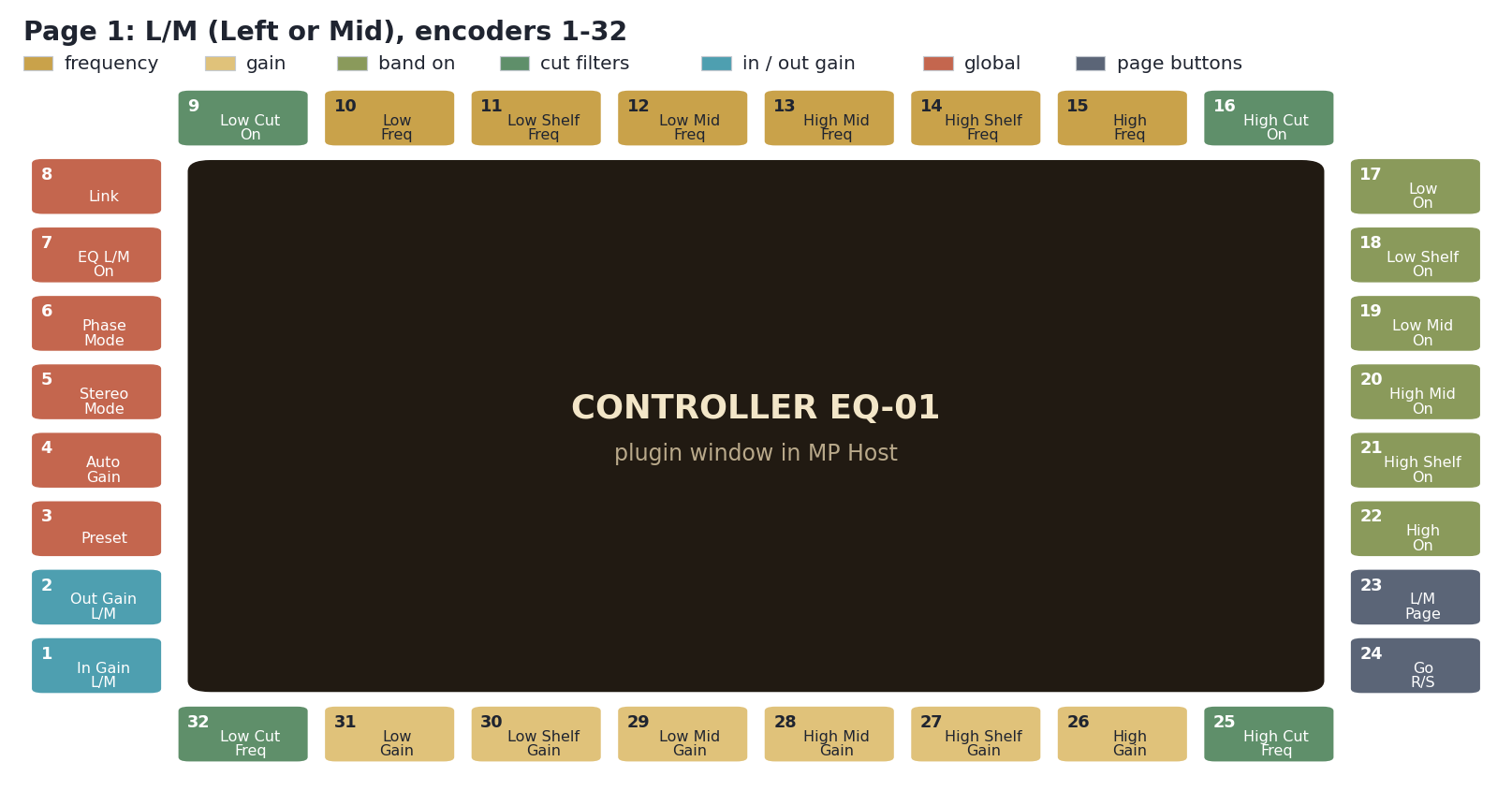
Figure 7. Encoder page 1.
| Encoders | Parameter |
|---|---|
| 1, 2 | Input Gain L/M, Output Gain L/M (+/-24 dB) |
| 3 | Preset: steps through the presets, loads when you stop turning |
| 4 | Auto Gain on / off |
| 5 | Stereo Mode (L/R, M/S) |
| 6 | Phase Mode (Minimum, Exact) |
| 7 | EQ L/M On |
| 8 | Link |
| 9 | Low Cut On |
| 10-15 | Frequency of Low, Low Shelf, Low Mid, High Mid, High Shelf, High |
| 16 | High Cut On |
| 17-22 | On of Low, Low Shelf, Low Mid, High Mid, High Shelf, High |
| 23 | L/M Page (page button) |
| 24 | Go R/S: switches to the R/S set (and page 2) |
| 25 | High Cut Frequency |
| 26-31 | Gain of High, High Shelf, High Mid, Low Mid, Low Shelf, Low |
| 32 | Low Cut Frequency |
Table 5. Encoder page 1.
4.2 Page 2: R/S (Right or Side)
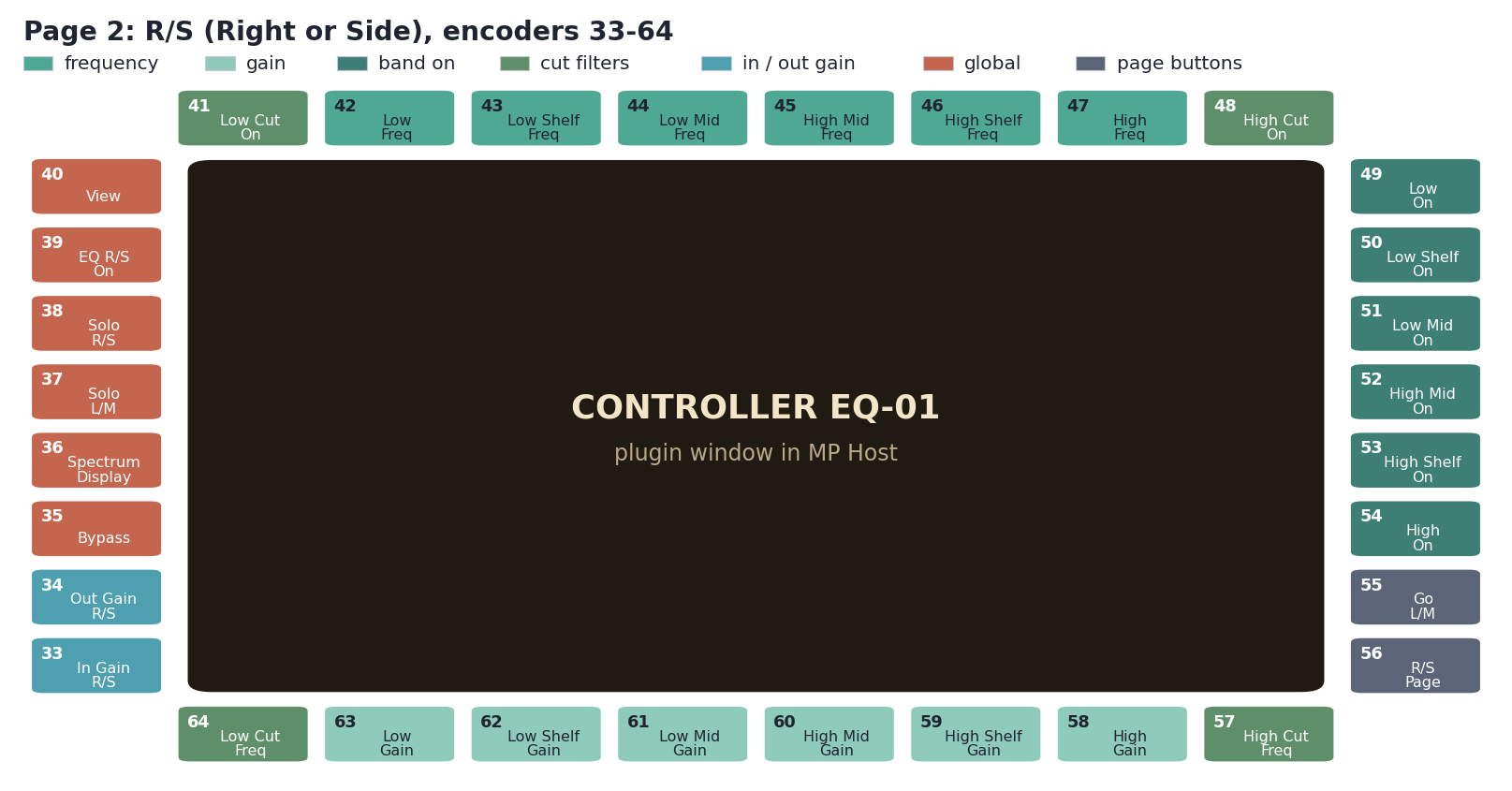
Figure 8. Encoder page 2: the bands in the same places as page 1, for the R/S set; the left side holds the remaining global controls.
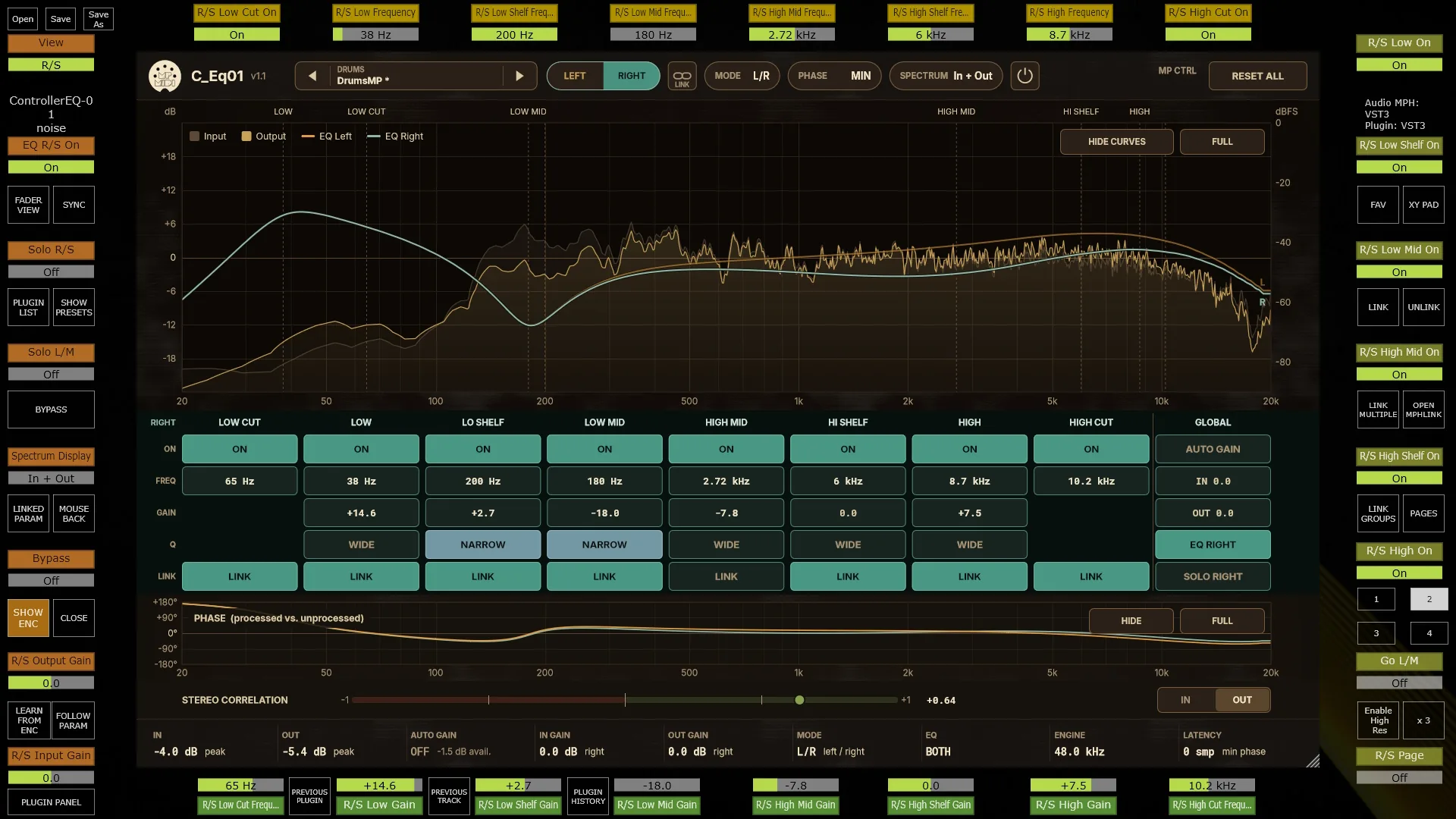
Figure 9. Page 2 in MP Host, RIGHT shown.
| Encoders | Parameter |
|---|---|
| 33, 34 | Input Gain R/S, Output Gain R/S |
| 35 | Bypass |
| 36 | Spectrum Display |
| 37, 38 | Solo L/M, Solo R/S |
| 39 | EQ R/S On |
| 40 | View (L/M or R/S) |
| 41-54 | The R/S bands, as 9-22 on page 1 |
| 55 | Go L/M: switches to the L/M set (and page 1) |
| 56 | R/S Page (page button) |
| 57-64 | The R/S cut frequencies and gains, as 25-32 on page 1 |
Table 6. Encoder page 2.
4.3 Page buttons and Follow Param
Whenever the view changes - from the LEFT / RIGHT buttons, encoder 40, Go R/S (24) or Go L/M (55) - the plugin presses the page button of the channel shown (encoder 23 or 56). With FOLLOW PARAM on in MP Host, the controller then jumps to page 1 for L/M and page 2 for R/S, so the encoders always match what you see. With Link on, both pages edit both channels.
Not on the encoders: the Narrow / Wide Q switches and the band links. Set them in the window.
5. Phase modes: Minimum and Exact
Both modes give exactly the same frequency response. They differ only in phase, latency and pre-ringing.
| MIN (Minimum phase) | EXACT | |
|---|---|---|
| Latency | 0 samples | 1024 samples at 44.1 kHz (about 23 ms, the same time at every sample rate) |
| Phase | Built from the magnitude curve alone | The measured phase of CTRL-EQ-01 |
| Pre-ringing | None (all ringing comes after the sound) | Slight, as in the measured EQ |
| Match to the measured EQ | Magnitude exact, phase within about 2° below 19 kHz | Magnitude exact, phase within 0.85° |
| CPU | Lowest | Slightly higher (more noticeable at 88.2 / 96 kHz) |
Table 7. The two phase modes.
How each mode works
- MIN takes the target magnitude and computes the minimum-phase filter that has exactly that magnitude. It is causal: nothing comes out before the input, so there is no latency and no pre-ringing.
- EXACT uses the measured phase as well. The measured responses ring slightly before the main impulse, mostly because of the steep converter edge near 21 kHz in the original's sampled responses. To play that early part, the plugin delays everything by 1024 samples and reports that latency to the host, so your DAW compensates and the track stays in time.
Below 19 kHz the two modes differ by at most a few degrees, which is inaudible on its own.
When to use which
- MIN is the default. Use it for tracking, live use, low-latency monitoring and almost all mixing.
- EXACT is for when you need phase-identical behaviour to the measured EQ, for example: nulling it against the original; parallel processing, where the EQ'd copy must stay phase-coherent with another copy processed the same way; mastering, when you want the exact reference.
Switching modes
The phase display
The phase panel below the spectrum always shows the measured phase. In MIN mode the actual phase is within about 2° of what is drawn below 19 kHz.
6. Auto Gain
Auto Gain keeps the output level the same while you boost and cut, so you judge the tone, not the loudness. Switch it with encoder 4 or AUTO GAIN in the GLOBAL column. It applies one gain to both channels, so it never works against a difference between them:
- L/R: it uses the average of the two channels.
- M/S: the Side counts at 1/10 of the Mid. A Side boost (more width) now stays almost entirely instead of being half turned back down - for example, "Mid-Side / Master Mid-Side Polish" keeps nearly all of its +2 dB Side shelf.
With Auto Gain off, the status bar shows the compensation that would apply ("dB avail.").
7. Presets
Presets are files in %APPDATA%\MP\Host\ControllerEQ-01\<Category>\<Name>.ceq (macOS: ~/Library/Application Support/MP/Host/ControllerEQ-01). Each folder is a category. Factory presets are written once and never overwritten; a deleted factory preset stays deleted. Presets are linked unless they are written for L/R or M/S.
| Category | Presets | Examples |
|---|---|---|
| Basics | 10 | Flat, Low Cut Clean-Up, Vocal Presence, Air Lift, Mud Cut |
| Vocals | 8 | Lead Vocal, Female Vocal Air, Male Vocal Body, De-Box, Sibilance Soften |
| Drums | 9 | Kick Punch, Snare Crack, Overheads, Drum Bus, Hi-Hat Clean |
| Bass | 5 | Bass DI Tone, Bass Growl, Sub Focus |
| Guitars | 6 | Acoustic Sparkle, Electric Crunch, Fizz Removal |
| Keys & Synths | 5 | Piano Clarity, Warm Rhodes, Pad Make Room |
| Mix Bus | 5 | Gentle Smile, Warm Glue, Open Top |
| Mastering | 5 | Subtle Polish, Clarity, Weight, De-Harsh |
| Mid-Side | 20 | Wide Air, Mono Bass, Wide Top, Vocal Forward, Master Mid-Side Polish, Mono Check |
| Left-Right | 12 | Complementary Widen, Guitar Double Split, Room Pair Match, Left Rumble Fix |
| Creative | 6 | Telephone, AM Radio, Lo-Fi Dull, Underwater |
Table 8. The 91 factory presets in 11 categories.
Best Practice Tip: Enable High Res in MP Host and set it to x3 or x4 on the preset encoder, so it needs a greater turning distance to change to the next preset.
8. Best practices
8.1 Setting up in MP Host
- Automap the plugin after loading it and turn on FOLLOW PARAM: the controller then always shows the page of the channel in the window.
- Use Go R/S (encoder 24) and Go L/M (encoder 55) to switch channels from the controller without touching the screen.
- Every band sits in the same place on both pages, so the same hand movement edits the same band on either channel.
- Re-run Automap if the plugin was mapped with an earlier version.
8.2 Working with the two channels
- Start linked. For ordinary tone shaping leave Link on: one stereo EQ, either page edits both channels.
- Unlink only what must differ. Tap the LINK of the band you want to shape per channel - the rest stay linked. For example, keep the Low Cut and Low bands linked so the low end stays centred.
- M/S for width and focus. On a stereo bus or master, use M/S: a little High Shelf on the Side for air and width, a Low Cut on the Side to keep the bass mono, a Low Mid cut on the Mid to clear the centre. The Mid-Side presets are good starting points.
- L/R for corrections. Use L/R when one channel needs something the other does not: a rumble or hum on one side, a duller microphone in a pair.
- Listen to what you change. SOLO SIDE plays only the Side - the width you add. SOLO MID plays what a mono listener hears. EQ LEFT / EQ RIGHT (MID / SIDE) switches one channel's EQ off for a before / after.
- Check mono. Watch the correlation meter on OUT: it should stay clearly above 0 after Side boosts.
- Leave Auto Gain on while you shape, so louder never sounds better by accident; in M/S it lets width boosts through.
- Phase mode: MIN for tracking and mixing; EXACT for mastering references, nulling against the hardware and phase-coherent parallel chains.
8.3 Troubleshooting
| Problem | What to do |
|---|---|
| Moving one channel moves both | Link is on, or the band's LINK is lit. Switch Link off in the header, or tap the band's LINK. |
| MP Host does not change page with the view | Turn on FOLLOW PARAM in MP Host, and Automap again if the plugin was mapped with an earlier version. |
| M/S has no effect | The track is mono: M/S needs a stereo track. |
| The DAW re-syncs when switching phase mode | Expected: EXACT adds 1024 samples of latency (at 44.1 kHz) that the host compensates. |
| No sound change at all | Check the power (bypass) button, EQ on of the channel, and the licence message. |
Table 9. Troubleshooting.
9. Licence
Controller EQ-01 uses the same licence as MP Host and MP Mix Placement: one mph.license in %APPDATA%\MP\Host (macOS: ~/Library/Application Support/MP/Host) covers all of them. hardware.id is written there when missing, for upload to the MP User Portal (userportal.mpmidi.com). Without a valid licence the audio passes through unprocessed and the window shows HOW TO LICENSE, OPEN LICENSE FOLDER and CHECK AGAIN.
10. Surround
Controller EQ-01 also runs on surround tracks. Every channel gets its own complete 8-band EQ - the LFE included - with its own bands, input and output gain, EQ ON and SOLO. A link matrix decides which channels move together, and every left/right pair can run in L/R or M/S, just like the stereo version.
Mono and stereo work exactly as before: the sound is identical, and older sessions and presets load and sound the same.
10.1 Supported formats
The plugin follows the format of the track: open it on a 5.1 track and it shows 6 channels, on a 7.1.4 track 12. Input and output always have the same format.
| Format | Channels |
|---|---|
| Quadraphonic | L R Ls Rs |
| LCRS | L R C S |
| 5.1 (ITU 775) | L R C LFE Ls Rs |
| 6.1 (ES/EX) | L R C LFE Ls Rs Cs |
| 7.1 | L R C LFE Lss Rss Lrs Rrs |
| 7.1 (SDDS) | L R C LFE Lc Rc Ls Rs |
| 5.1.2 | L R C LFE Ls Rs Lts Rts |
| 5.1.4 | L R C LFE Ls Rs Ltf Rtf Ltr Rtr |
| 7.1.2 | L R C LFE Lss Rss Lrs Rrs Lts Rts |
| 7.1.4 | L R C LFE Lss Rss Lrs Rrs Ltf Rtf Ltr Rtr |
Table 10. Supported surround formats (Lss/Rss = side surrounds, Lrs/Rrs = rear surrounds, Ltf/Rtf, Lts/Rts, Ltr/Rtr = top front, top side, top rear).
In MP Host, put the MP Host plugin on the surround track: MP Host passes the track's format on to Controller EQ-01.
10.2 The channel strip
On a surround track a row of channel buttons appears at the top left of the spectrum - one per channel, in the usual order (L R C LFE, then the surrounds, then the heights). The small tag under each name shows its link group (G1 ... G6, or - for none).
- Tap a channel to show and edit it. A pair (L/R, Ls/Rs, Ltf/Rtf ...) opens in the familiar two-channel view: the view switch in the header (for example LS | RS), MODE, the curves, the control strip and the meters now belong to that pair (see sections 2 and 3).
- Single channels (C, LFE, Cs, S) open on their own. The view switch shows only the channel's name, MODE is hidden and the control strip has no LINK row, as there is no partner. EQ and SOLO in the GLOBAL column belong to that channel.
- LINKS opens the link matrix (10.3).
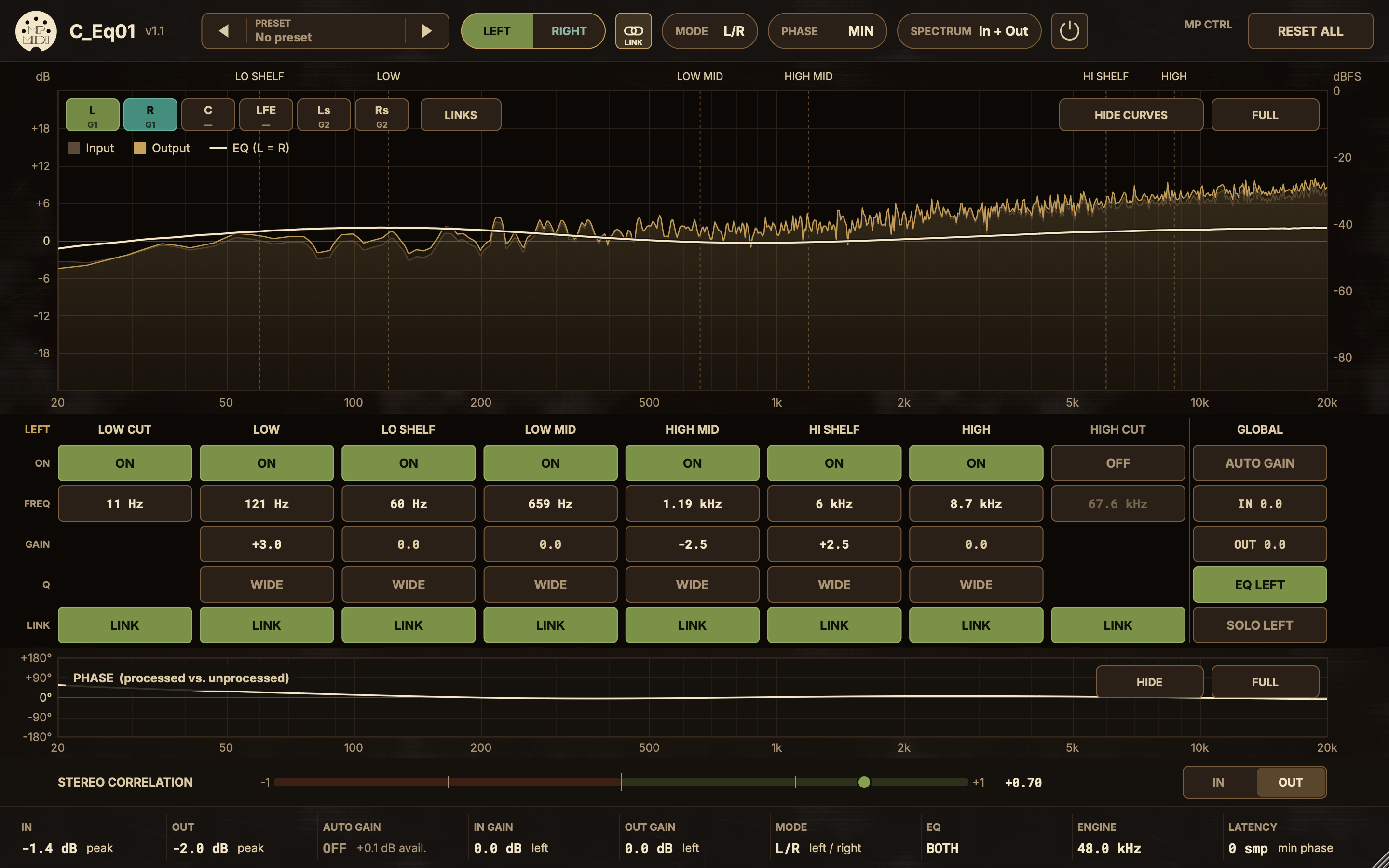
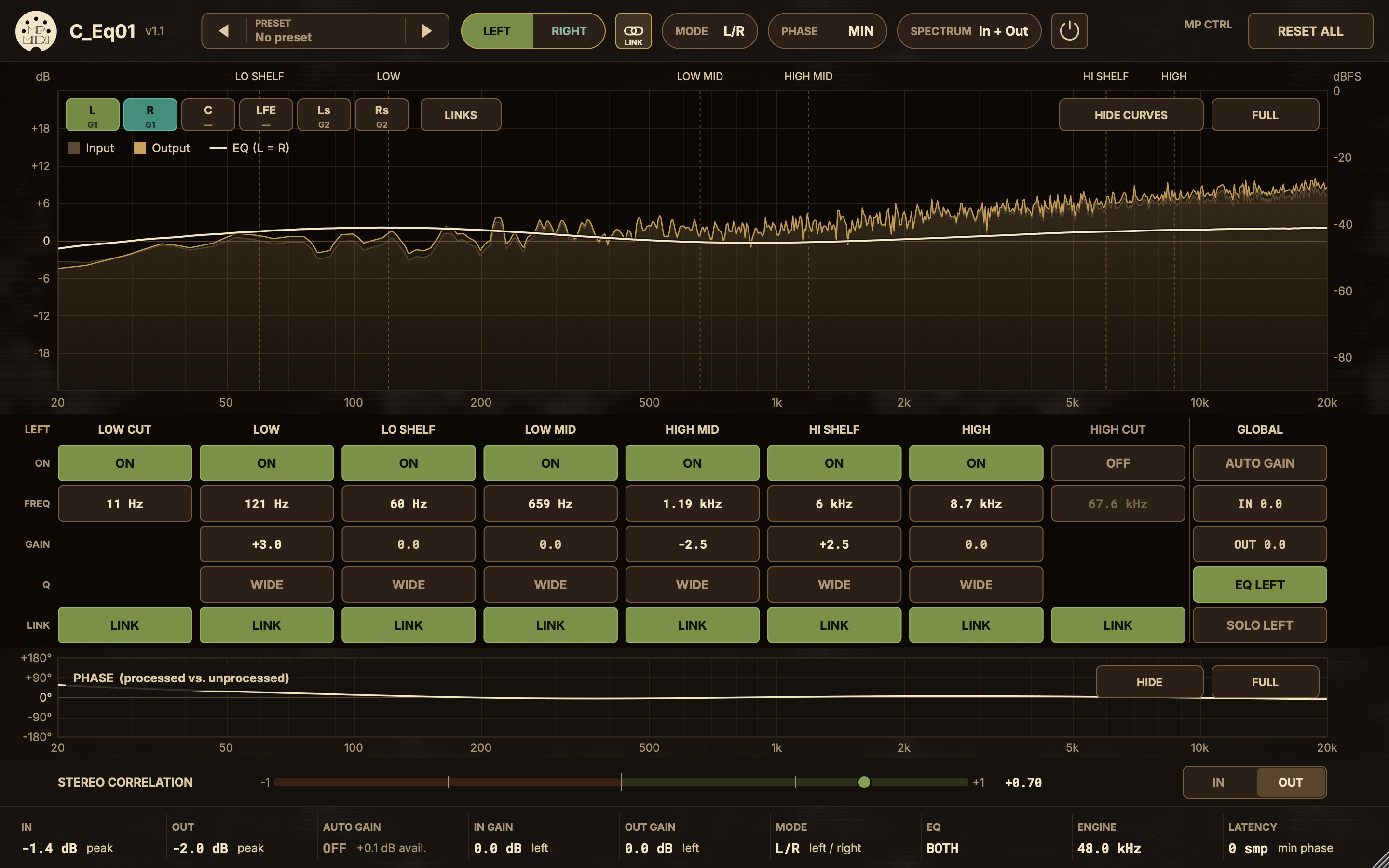
Figure 10. A 5.1 track: the channel strip (L R C LFE Ls Rs, with their groups) and the LINKS button. L/R is shown.
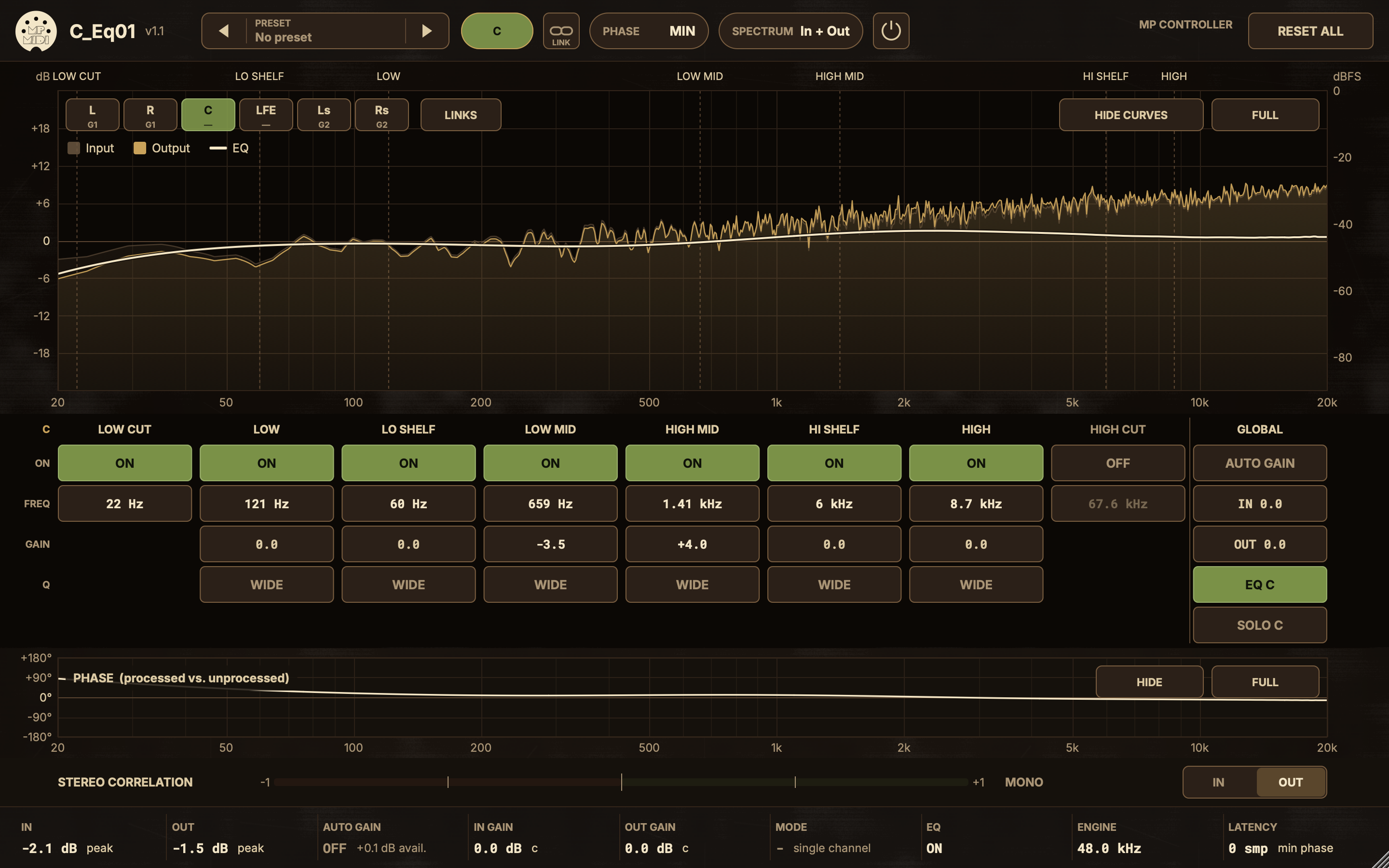
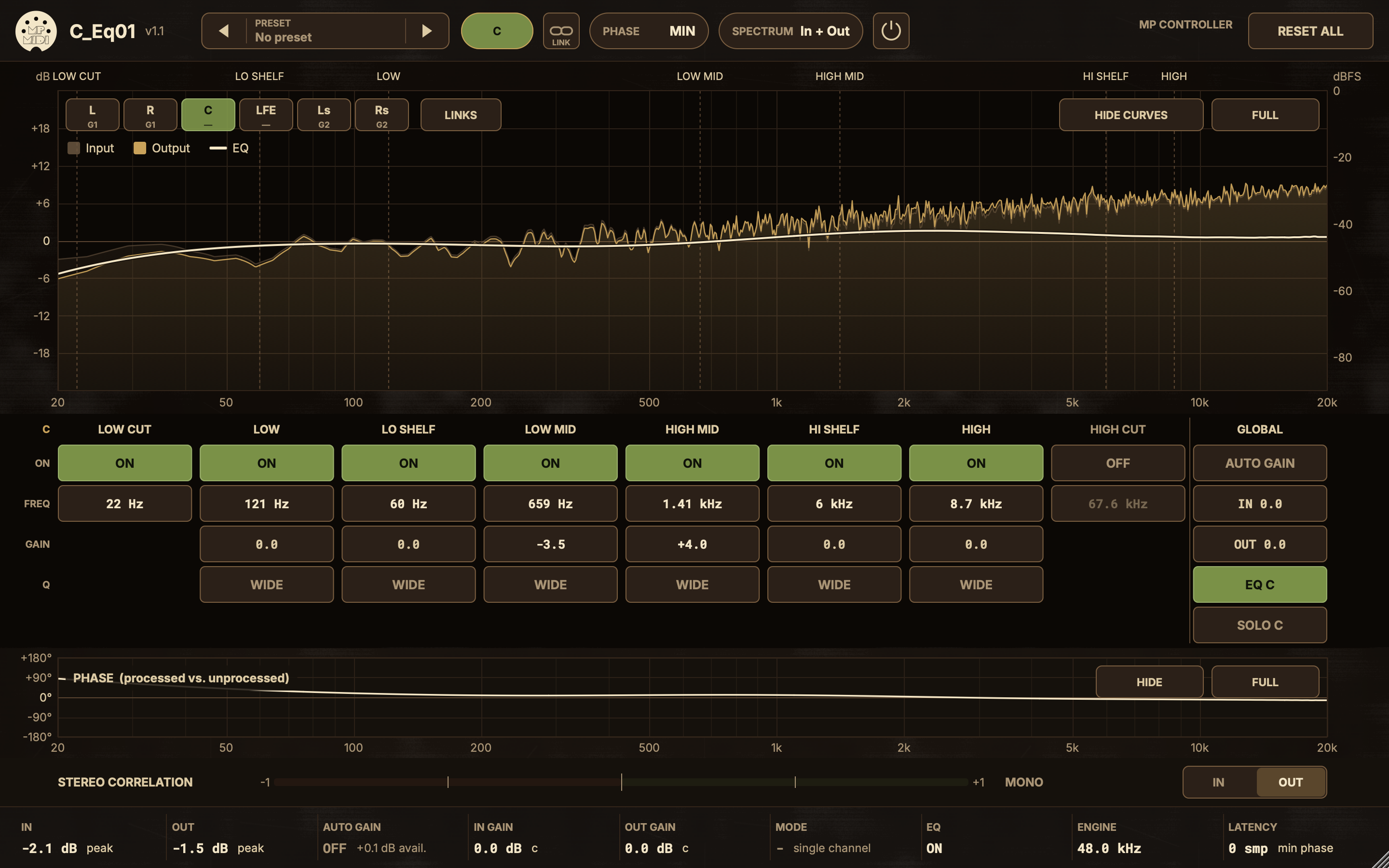
Figure 11. The centre channel shown on its own: its own EQ, EQ C and SOLO C; no MODE and no LINK row.
10.3 The link matrix
Tap LINKS to open the link matrix. It replaces the graphs until you tap CLOSE.
- One row per channel, one column per group. Tap a box to put that channel in G1 ... G6, or in - to keep it on its own.
- A channel that joins a group copies the group's settings. A channel that leaves keeps its own.
- PAIR - on the left row of each pair: switch the pair between L/R (left and right edited separately) and M/S (the pair is processed as Mid and Side; in the window it then shows as "Mid Ls" / "Side Ls"). MODE in the header does the same for the pair shown.
- Tap a channel name to show that channel.
- DEFAULTS puts every left/right pair in a group of its own (L/R in G1, Ls/Rs in G2 ...) and leaves C, LFE and other single channels on their own.
- HOW LINKING WORKS at the bottom of the page explains all of this in a few lines.
Inside a group, the LINK button and the band links work as in stereo (section 3):
| LINK | What follows inside a group |
|---|---|
| On | Everything: a change on any channel of the group is copied to the others. |
| Off | Only the bands whose LINK box (the control strip's LINK row) is on. All other bands stay independent. |
Table 11. LINK and the band links in a group.
Channels in different groups never affect each other. For example, with L/R in G1 and Ls/Rs in G2, a change on Ls moves Rs (with LINK on) but never L or R. To make the whole front and back move together, put L, R, Ls and Rs in the same group.
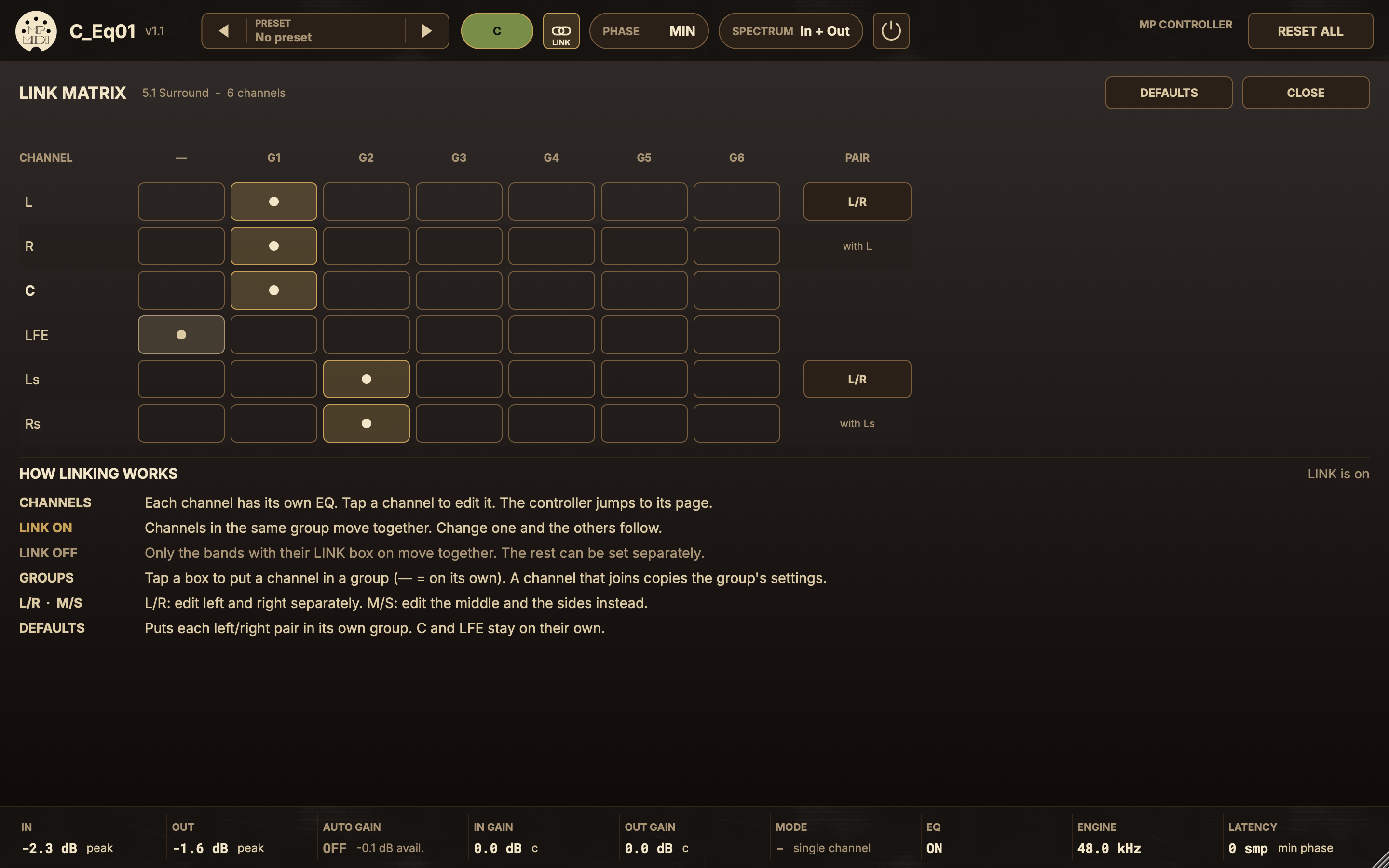
Figure 12. The link matrix on a 5.1 track: L, R and C in G1, LFE on its own, Ls/Rs in G2. HOW LINKING WORKS underneath.
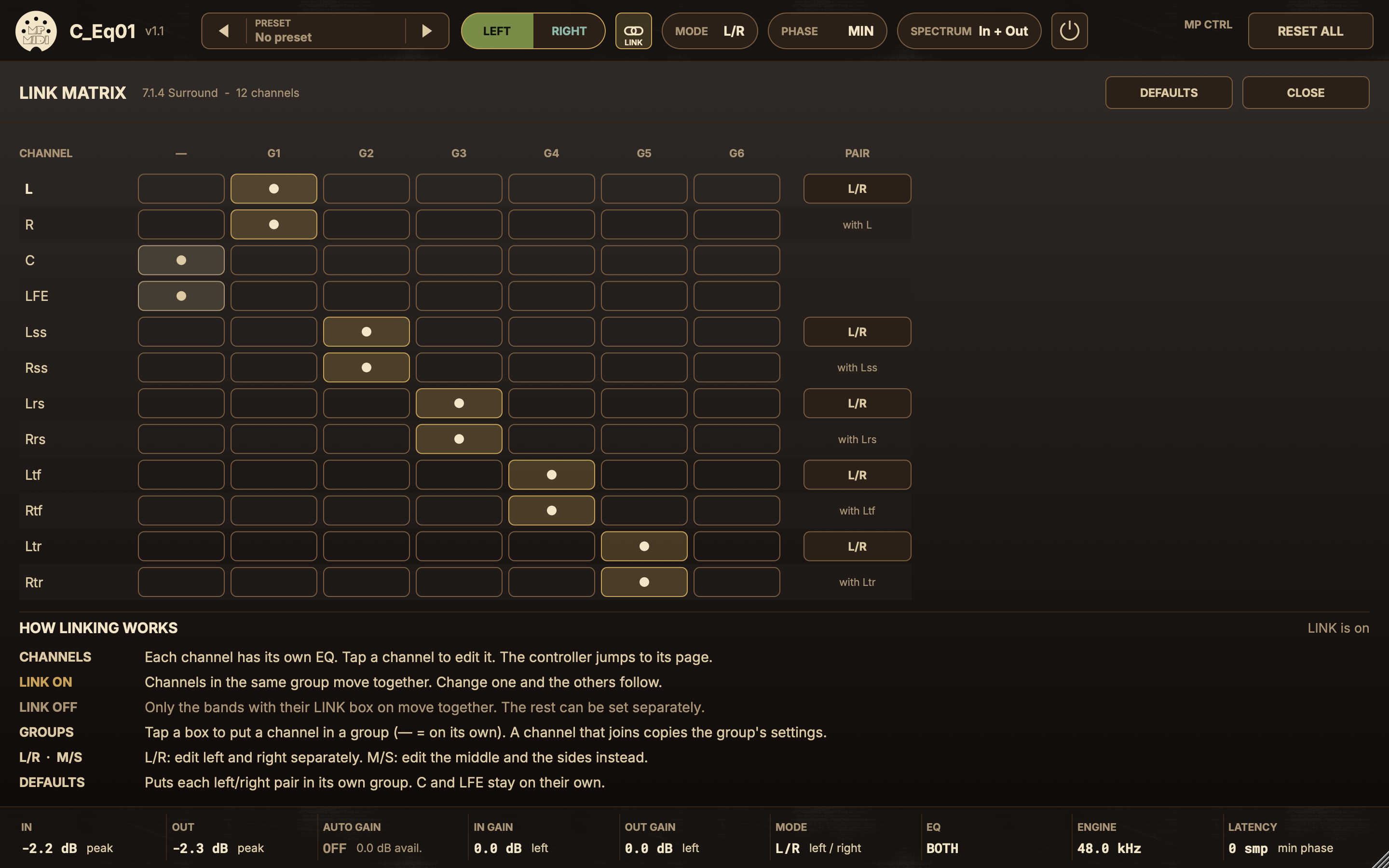
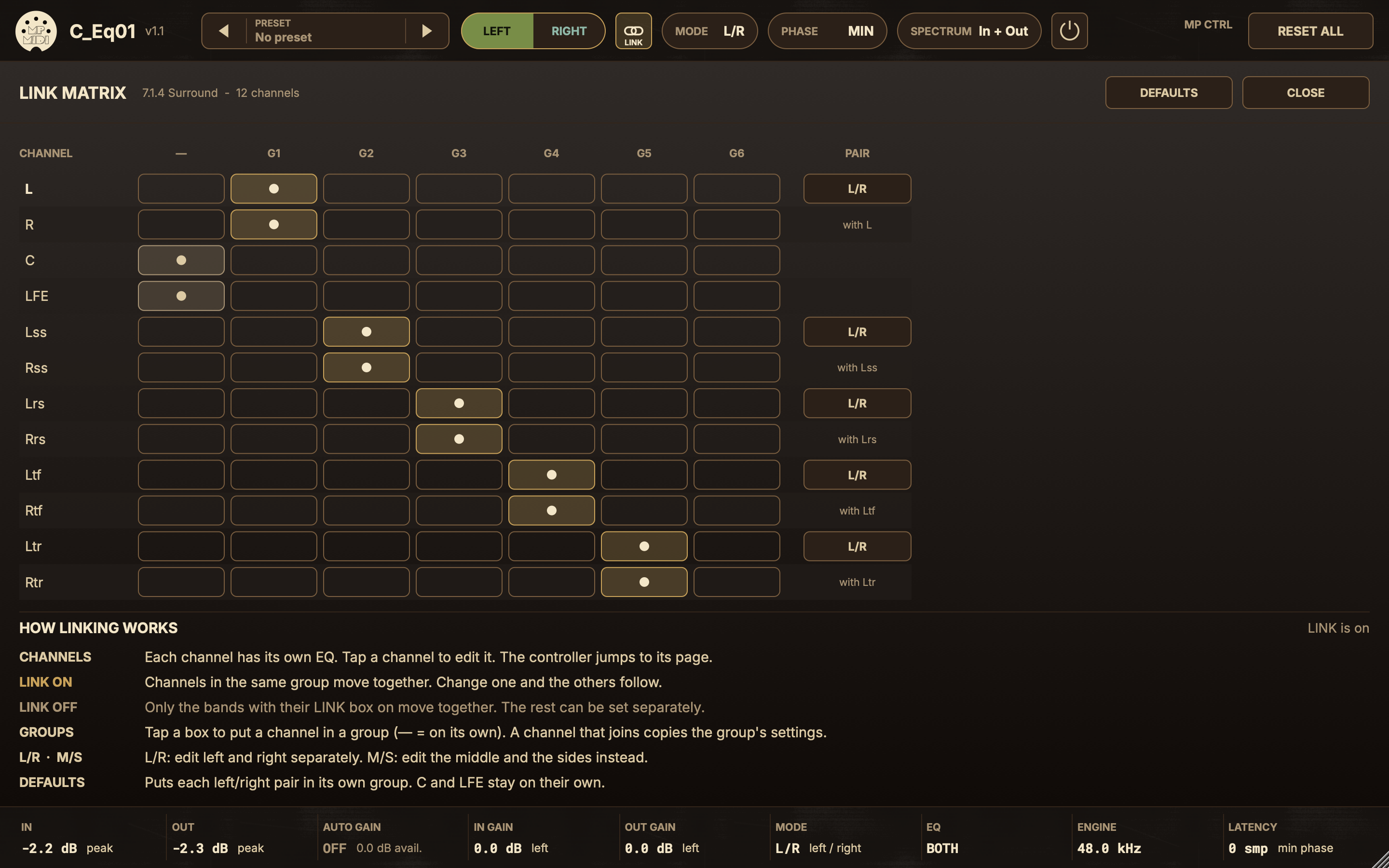
Figure 13. The link matrix on a 7.1.4 track with the default groups: each pair its own group, C and LFE on their own.
10.4 The MP Controller map in surround
Pages 1 and 2 stay exactly as in stereo: L/M (page 1) and R/S (page 2) - see section 4. Every further channel gets a page of its own, in the order the DAW delivers the channels:
| Page | Channel |
|---|---|
| 1-2 | L/M and R/S (unchanged) |
| 3-12 | Channels 3 ... 12, one page each |
Table 12. Encoder pages in surround (384 encoders in all).
Pages 3-12 use the layout of page 2 (Table 6), with the channel's own controls on the left side:
- Encoders 1-2 - Input gain and output gain.
- Encoder 3 - EQ On.
- Encoder 4 - Solo.
- Encoders 5-8 - Free.
- Encoders 9-16 - Low Cut On, the frequency of Low, Low Shelf, Low Mid, High Mid, High Shelf and High, High Cut On.
- Encoders 17-22 - On of the same six bands.
- Encoder 23 - Page button: steps to the next channel.
- Encoder 24 - Free.
- Encoders 25-32 - High Cut frequency, the gain of High ... Low, Low Cut frequency.
As on pages 1 and 2, the Narrow / Wide switches and the band links are not on the encoders.
Which channel is on which page depends on the format:
| Format | Page 3 | 4 | 5 | 6 | 7 | 8 | 9 | 10 | 11 | 12 |
|---|---|---|---|---|---|---|---|---|---|---|
| Quadraphonic | Ls | Rs | ||||||||
| LCRS | C | S | ||||||||
| 5.1 | C | LFE | Ls | Rs | ||||||
| 6.1 | C | LFE | Ls | Rs | Cs | |||||
| 7.1 | C | LFE | Lss | Rss | Lrs | Rrs | ||||
| 7.1 (SDDS) | C | LFE | Ls | Rs | Lc | Rc | ||||
| 5.1.2 | C | LFE | Ls | Rs | Lts | Rts | ||||
| 5.1.4 | C | LFE | Ls | Rs | Ltf | Rtf | Ltr | Rtr | ||
| 7.1.2 | C | LFE | Lss | Rss | Lrs | Rrs | Lts | Rts | ||
| 7.1.4 | C | LFE | Lss | Rss | Ltf | Rtf | Ltr | Rtr | Lrs | Rrs |
Table 13. The channel on each page, per format.
In MP Host the parameters of these pages are named by position ("Ch3 ...", "Ch4 ..."), as a plugin's parameter names cannot change with the track format.
To control a group from the encoders, use the page of any channel in that group with LINK on. For example, on a Quad track with Ls/Rs in G2, page 3 (Ls) controls both Ls and Rs.
Tip. If pages 3 and up are empty in MP Host, the encoders were mapped before the surround version was loaded. Switch Auto Map off and on in MP Host's Tools menu, or load Controller EQ-01 again from the plugin list.
10.5 Solo, Auto Gain and meters
- SOLO - Soloed channels play, all others are silent. Soloing the Mid or Side of an M/S pair plays it on both channels of that pair, as in stereo.
- Auto Gain - One compensation for the whole track, so the balance between channels stays as you set it. Channels are weighted as in loudness measurement (ITU-R BS.1770): side surrounds count a little more, the LFE does not count. In an M/S pair the Side counts at 1/10, as in stereo (section 6).
- Spectrum, phase, correlation and the status bar - Show the pair (or single channel) on screen. A single channel shows as mono.
10.6 Presets and sessions
- Everything is saved - the settings of every channel, the groups and the L/R or M/S mode of every pair are saved with the project and in user presets.
- Stereo presets on a surround track - all factory presets are stereo. On a surround track, L/M settings go to the left-side channels and the centre channels, R/S settings to the right-side channels. The LFE starts flat.
- Older sessions load as before; on a surround track the extra channels are filled the same way.
10.7 CPU and latency
Each channel runs its own EQ, so the load grows with the channel count, but it stays low: measured on an Apple M4 Pro at 48 kHz (one core, Release build), about 2.5 % for a 7.1.4 track with every channel's EQ active, in MIN and in EXACT. A setting change recalculates only the channels it affects. The latency is the same as in stereo (0 samples in MIN, 1024 samples at 44.1 kHz in EXACT) on every channel.