
1. Cockos Reaper Control Surface Documentation
Installation
Download and run the ReaperCS installer from the user portal.
The installer installs the ReaperCS Launcher on your Desktop so that you can start it with Reaper. Once you quit Reaper it will quit the ReaperCS automatically.
The installer copies:
- The ReaperCS Launcher on your Desktop
- The ReaperCS app in Applications on the Mac and in C:\Program Files\ReaperCS on Windows
- The bridge Reaper control surface integration plugin in /Users/USERNAME/Library/Application Support/REAPER/UserPlugins/reaper_csbridge.dylib on the Mac.
Then run the ReaperCS Launcher from your Desktop. It will start Reaper and the ReaperCS app which is the control surface app.
To uninstall, run the uninstaller.
Views
There are 3 views in ReaperCS:
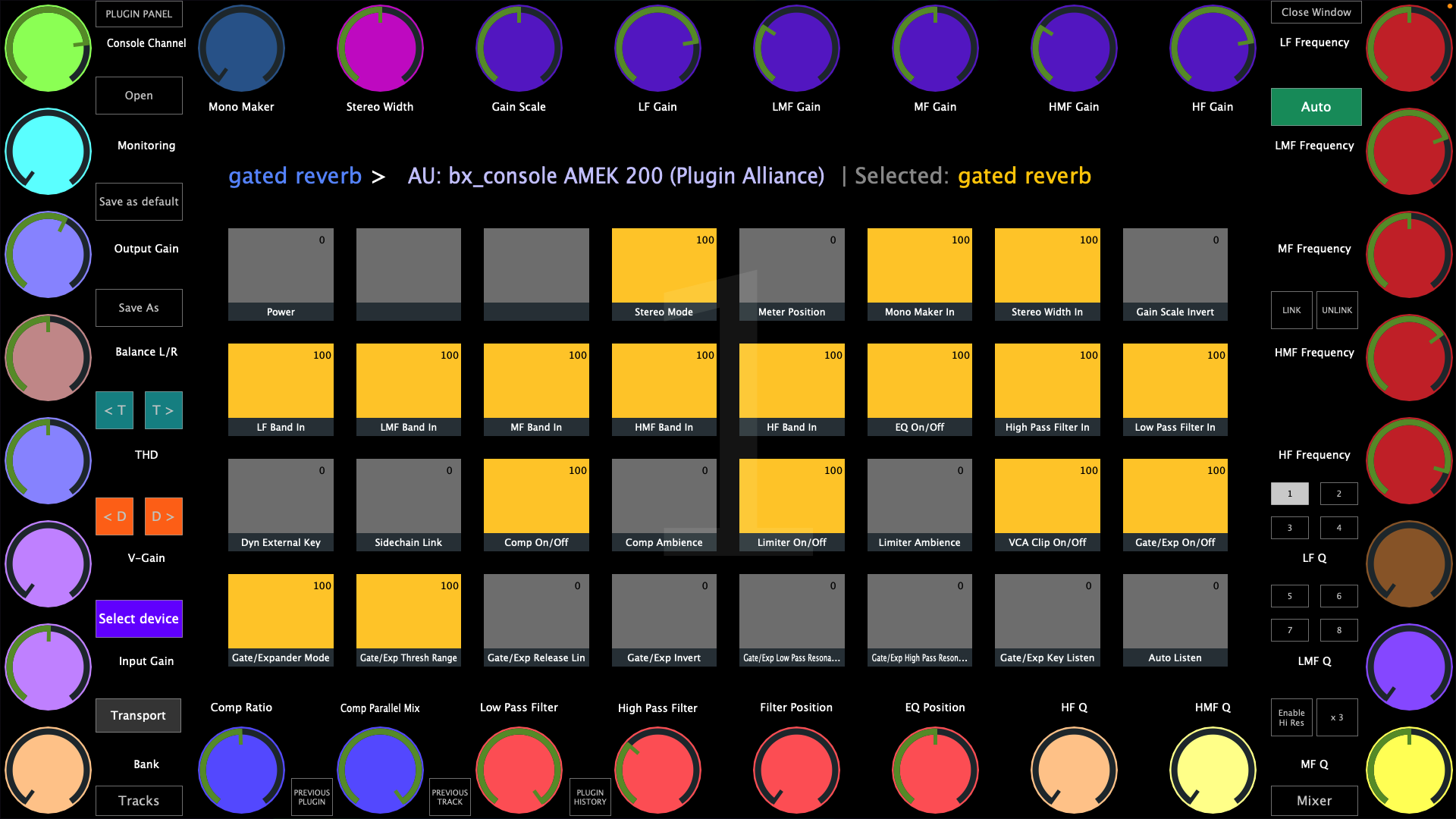
1. The main view for controlling Reaper devices and plugins
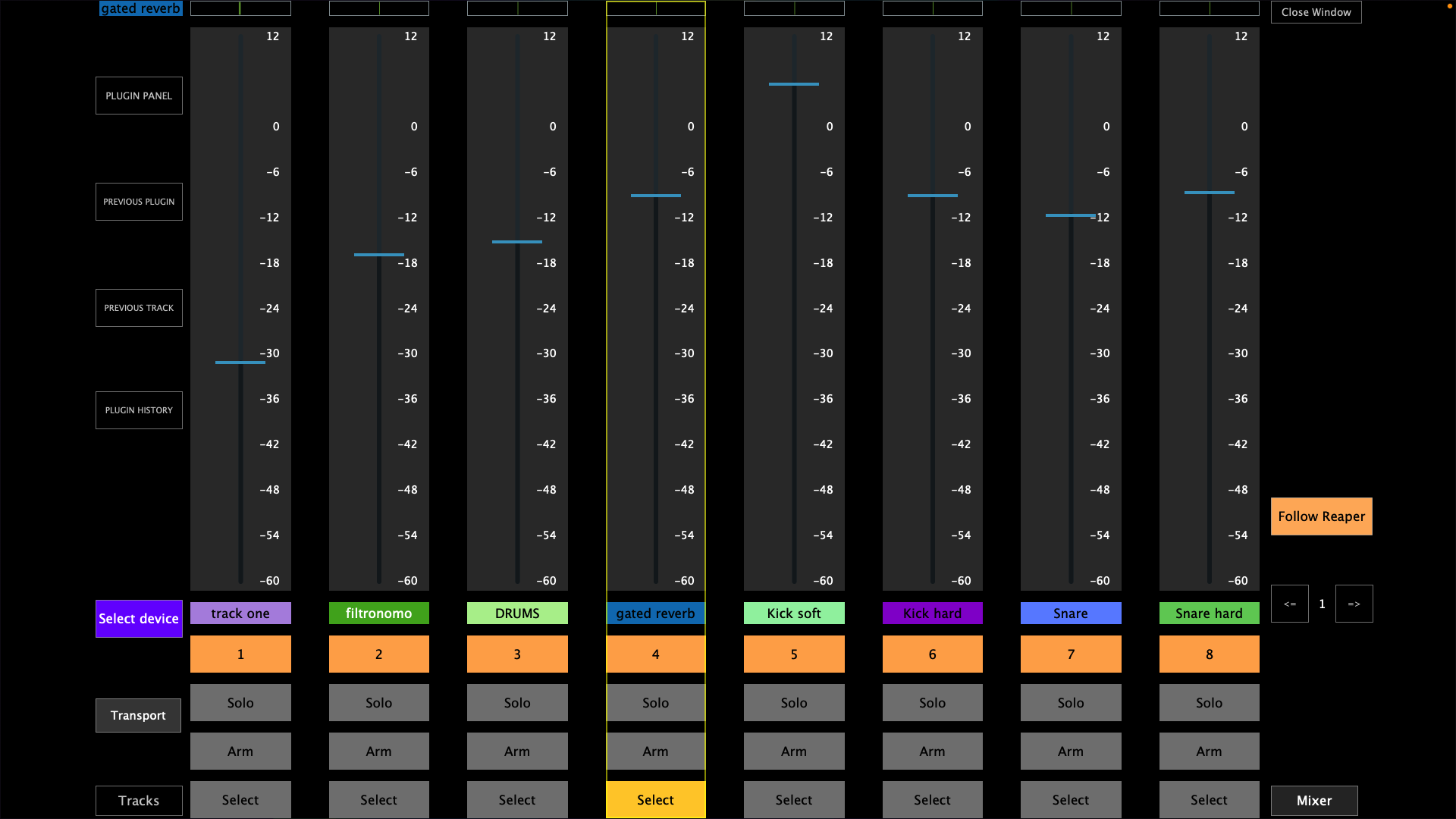
2. The Mixer view for controlling the mixer
3. The Selected Device view for selecting the device you want to control from the current track
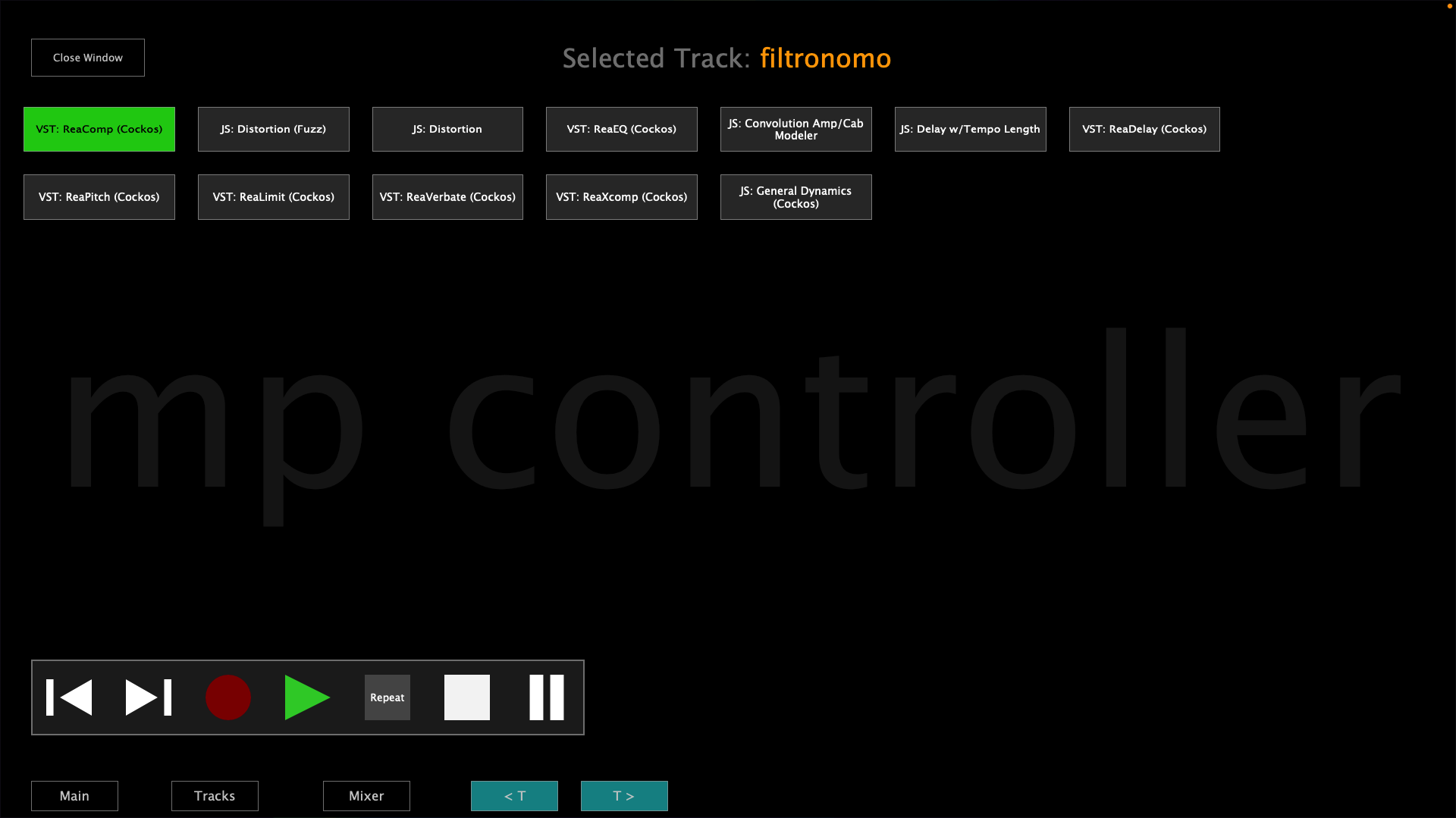
Each view has the option to control the transport controls and on the Select Device view the trasport controls are shown permanently while on the other views the transport control window shows/hides when the Transport button is pressed.
Selecting and controlling devices
You can control devices by selecting any device from Reaper or by selecting a device from the Select Device view or by using the Previous/Next device buttons in the main view.

When the Auto mode is enabled (default) and you select different devices in Reaper it follows the selection of devices and syncs with the device selected (in Focus in Reaper). Setting the Auto mode to manual will stop following the selection of devices in Reaper and will keep controlling the device that is currently being controlled. In manual mode a button shows "Go to selected device", when pressed it will sync and control the device currently selected in Reaper.
Switching Tracks
When you switch tracks from Reaper, all 3 views follow Reaper track selection. In the main view, when selecting a different track does not select another device on the selected track. In the main view it shows:
The track name of the device being controlled > the name of the device being controlled | the name of the selected track in Reaper.

You can switch tracks using the Previous/Next buttons in the Main view and the Select Device view

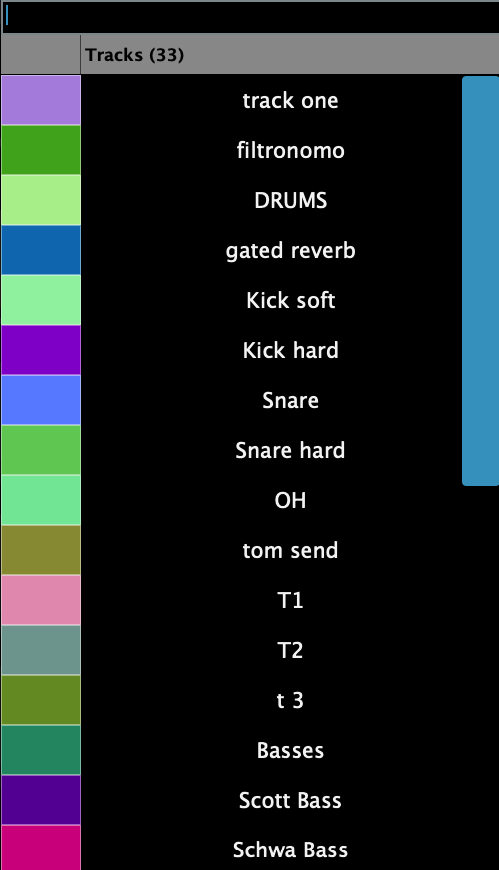
or using the Tracks button
In the Mixer view you can select tracks by clicking anywhere on the virtual fader or using the Select button