
1. Cockos Reaper Control Surface Documentation
Tutorial video
A tutorial video showcasing the capabilities of the control surface.
The control surface can control and sync with Reaper for mixer, transport, device/plugins control.
Installation
Download and run the ReaperCS installer from the user portal under the "New Releases" section.
Latest Updates released on 20th August 2026:
-
Parameter values on the encoders. Each encoder shows the current value of the parameter it is controlling, in black or white depending on the encoder's colour.
-
Send FX on the mixer encoders. Selecting a track in the mixer view puts its sends on the two encoder columns: sends 1–8 down the left, 9–16 down the right. Each encoder is labelled with the track the send feeds, coloured to match it, and shows the send level in its centre.
-
Track Width. A new button above Follow Reaper switches the mixer's pan encoders and pan bars over to each track's stereo width. Press it again to go back to pan. It always starts off.
-
Levels shown under every fader and bar. The fader carries its dB at the top; the bar under the track name reads out C / 50%L / 50%R for pan, or a percentage for width. Both follow a move exactly as you make it.
-
Double-click to reset. Double-clicking a fader returns it to 0 dB, a pan bar to centre, and a width bar to full width.
-
Undo and Redo. Two buttons to the right of the transport's Pause.
-
Stepping through plugins no longer opens their windows. < D and D > used to open each plugin's window as you passed it. Now they only do so if you already had a window open, in which case it follows your selection instead of stacking up.
-
PLUGIN WINDOW button. To the right of PLUGIN ONLINE, opens and closes the current plugin's window. It stays lit while that window is on screen, including when you open or close it in Reaper.
-
Selection border fixed in the mixer. The yellow outline sometimes stayed on the previously selected track, or failed to appear on the newly selected one, when the track was selected from Reaper. It now follows the selection every time.
-
Clicking the app no longer consumes double-clicks. The keyboard-focus helper handed the keyboard back to Reaper between the two clicks of a double-click, it now waits for the gesture to finish.
-
Added Automap, Blink Param and Follow Param buttons. Three new switches over the parameter buttons, each remembered between sessions: whether a newly focused plugin is mapped across the encoders automatically, whether a parameter moved in Reaper flashes its encoder, and whether the app turns to the page that parameter is on.
-
The CS bridge extension is now a universal binary that also works on Intel Macs.
-
Added button to take plugin Offline/Online.
-
Added Encoder options for controlling multiple parameters via a single encoder.
The installer installs the ReaperCS Launcher on your Desktop so that you can start it with Reaper. Once you quit Reaper it will quit the ReaperCS and quit the laucher app automatically.
The installer copies the following:
- The ReaperCS app and ReaperCS Launcher app in Applications on the Mac
and in C:\Program Files\ReaperCS on Windows.
- It creates a shortcut for the ReaperCS Launcher on your Desktop.
- The bridge Reaper control surface integration plugin in
/Users/USERNAME/Library/Application Support/REAPER/UserPlugins/reaper_csbridge.dylib on the Mac
and in C:\Users\USERNAME\AppData\Roaming\REAPER\UserPlugins\reaper_csbridge.dll on Windows.
Then run the ReaperCS Launcher from your Desktop. It will start Reaper and the ReaperCS app which is the control surface app.

To uninstall, run the included uninstaller.
IMPORTANT: If you are using UPDD with the "Reset Keyboard Focus" option enabled, disable it as it will conflict with the automatic keyboard focus that the ReaperCS has. ReaperCS takes the keyboard focus back to Reaper automatically.
Views
There are 3 views in ReaperCS:
1. The main view for controlling Reaper devices and plugins
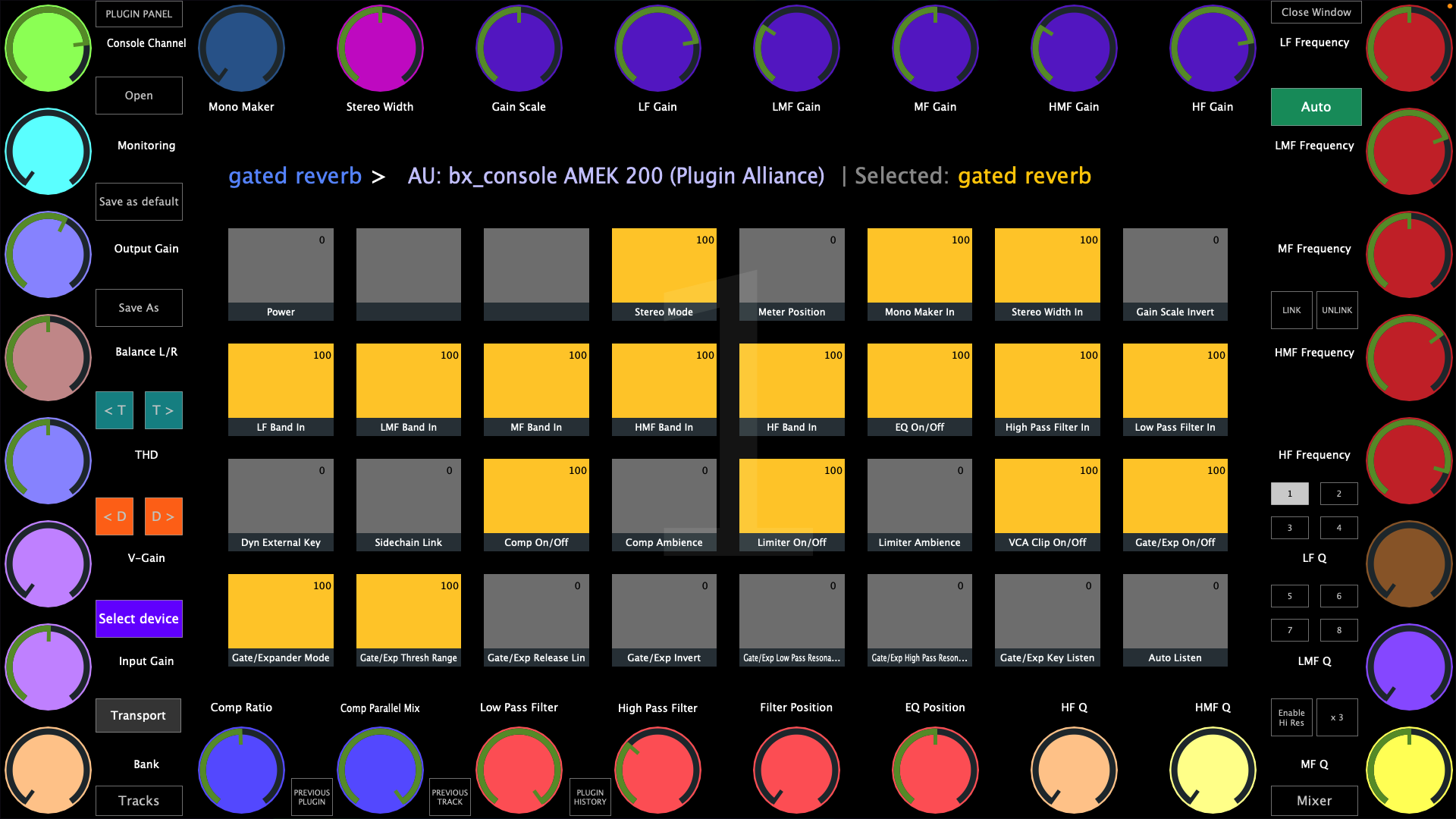
2. The Mixer view for controlling the mixer
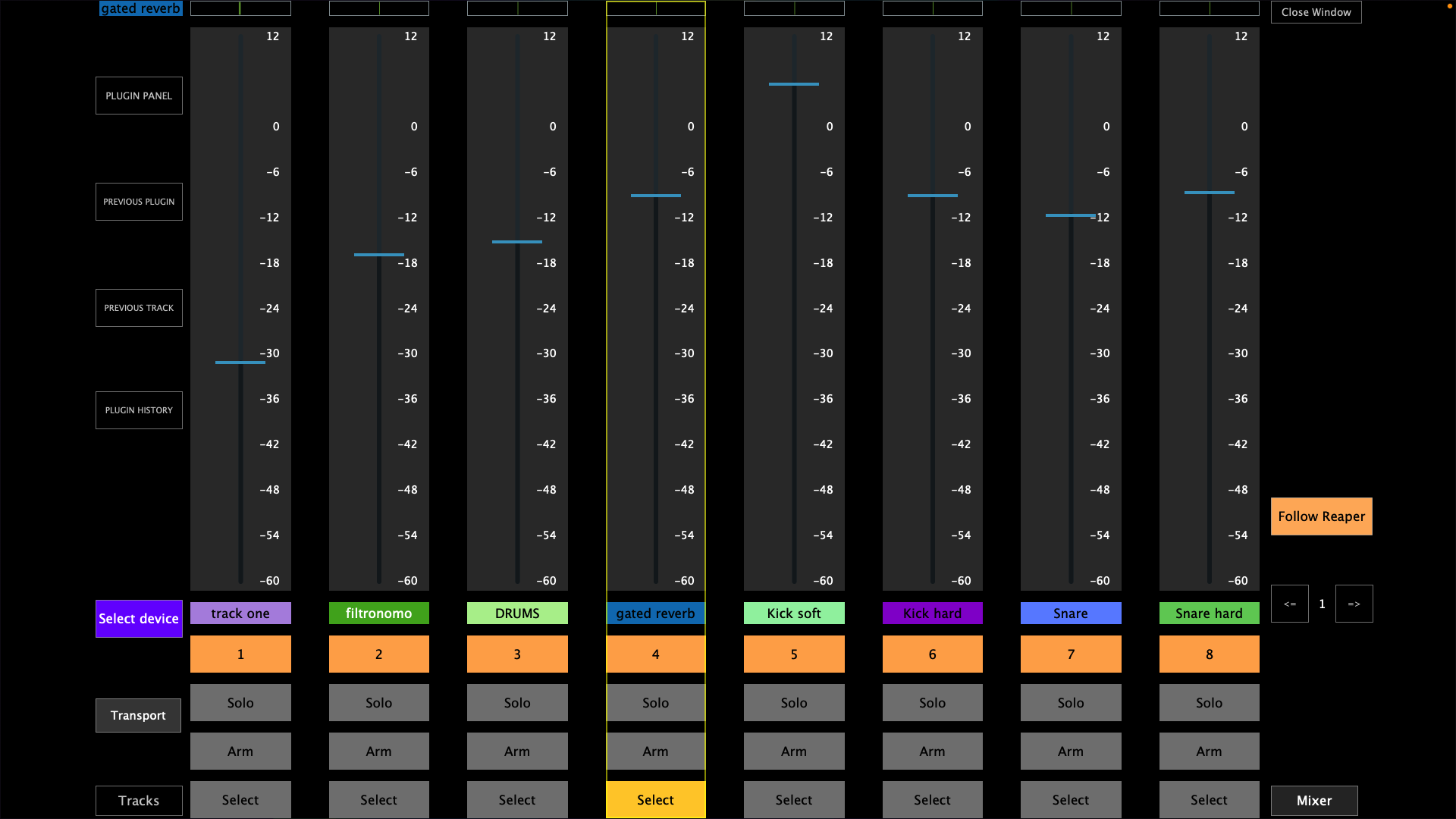
3. The Selected Device view for selecting the device you want to control from the current track
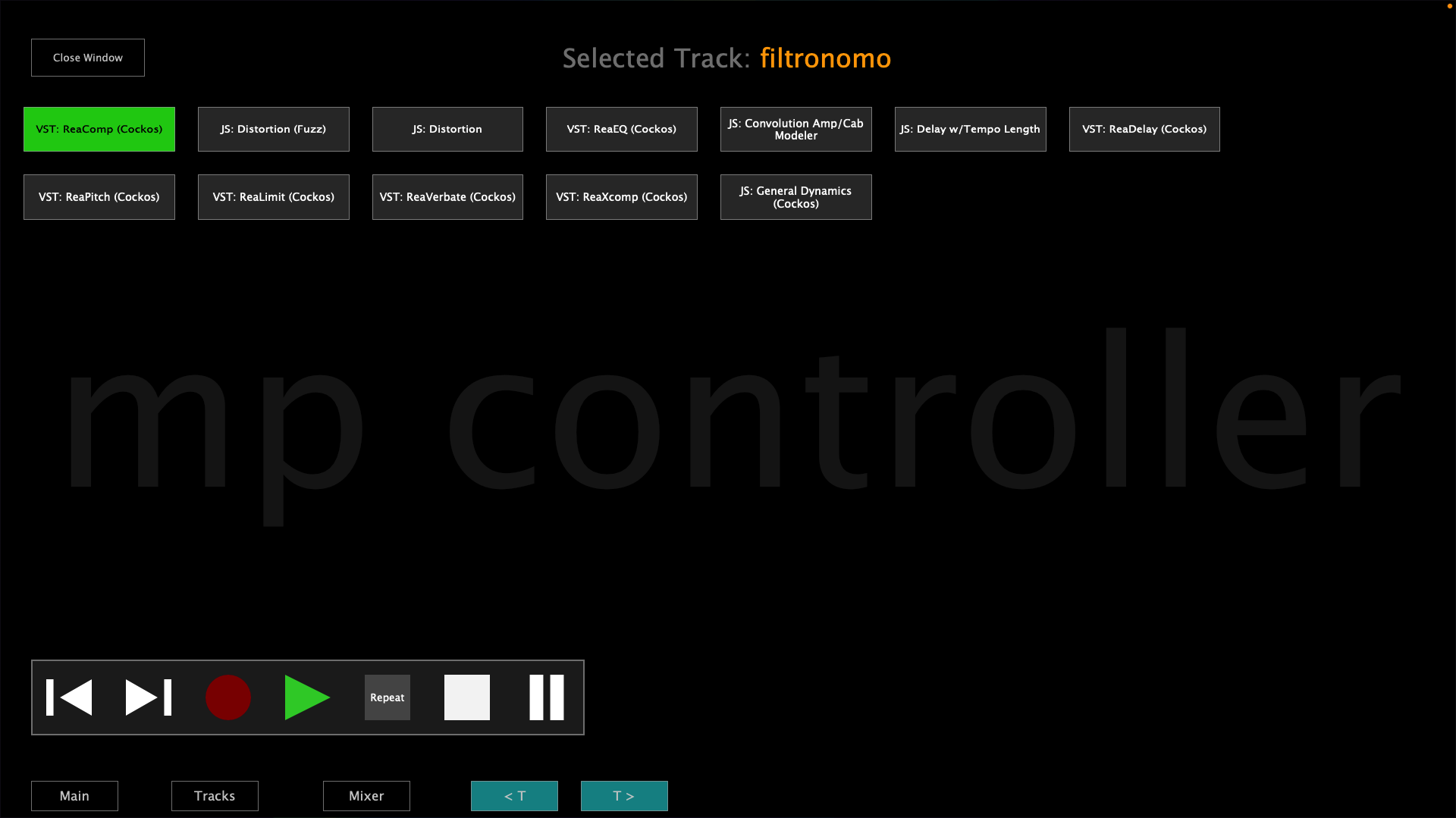
Each view has the option to control the transport controls and on the Select Device view the trasport controls are shown permanently while on the other views the transport control window shows/hides when the Transport button is pressed.
Selecting and controlling devices
You can control devices by selecting any device from Reaper or by selecting a device from the Select Device view or by using the Previous/Next device buttons in the main view.

When the Auto mode is enabled (default) and you select different devices in Reaper it follows the selection of devices and syncs with the device selected (in Focus in Reaper). Setting the Auto mode to manual will stop following the selection of devices in Reaper and will keep controlling the device that is currently being controlled. In manual mode a button shows "Go to selected device", when pressed it will sync and control the device currently selected in Reaper.
In the Select Device view, the device buttons may have the following background colors:
Green: The device is being controlled by the control surface and its window is open in Reaper.
Yellow: The device is being controlled by the control surface and its window is closed in Reaper.
Switching Tracks
When you switch tracks from Reaper, all 3 views follow Reaper track selection. In the main view, when selecting a different track does not select another device on the selected track. In the main view it shows:
The track name of the device being controlled > the name of the device being controlled | the name of the selected track in Reaper.

You can switch tracks using the Previous/Next buttons in the Main view and the Select Device view

or using the Tracks button
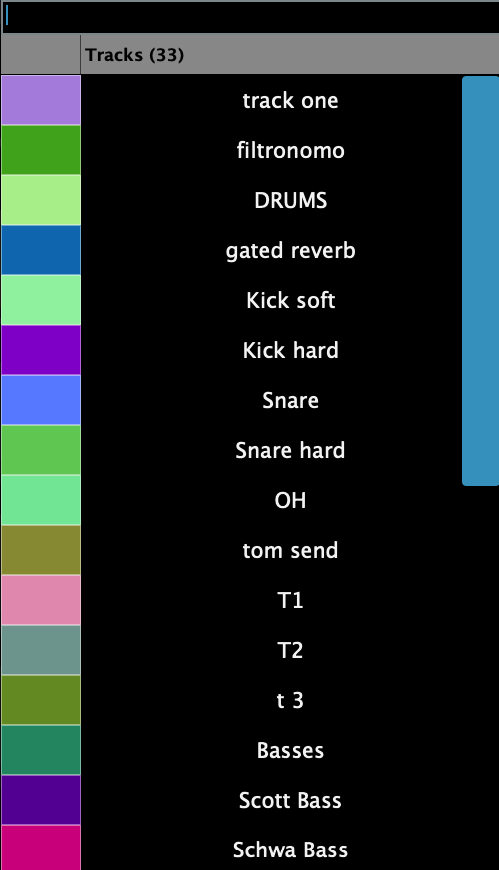
In the Mixer view you can select tracks by clicking anywhere on the virtual fader or using the Select button
Device Control
A device can be controlled by 256 encoders and 256 buttons. There are 8 pages with 32 encoders and 32 buttons per device.
Once a device is selected, ReaperCS automaps the available parameters to encoders if they are continous and non-continous parameters are mapped to buttons. The order of mapping is given from Reaper as it provides the list of parameters. The on-screen encoders receive a color and if the next encoder's name is similar to the previous encoder's name it will assign the same color. For example: Delay rate, Delay amount will both get the same color.
When moving a parameter from a device in Reaper it will cause the mapped parameter on ReaperCS to blink twice. If the parameter is mapped on a different page it will go to that page automatically and blink the parameter. This is done so that mapped parameters are easy to identify. The same principle applies to buttons and they blink with a green color.
Mapping Parameters Manually
If you want to change the automatic mapping it is possible using the LINK button which sets ReaperCS in a linking mode.
Click on the LINK button and then click on an encoder. The encoder will get a yellow circle around it, marking it that is ready to be linked. Move the parameter you want to map in Reaper on the device being controlled and it will unlink it from its current encoder and link it to the selected encoder. The yellow circle will be applied on the next encoder and stop at the last encoder of the current page. To exit the linking mode press the LINK button again.
To link a button, right click on the button and it will show the button's option menu. Click on the Link button and then move the parameter you want to link. It will unlink it if it is linked on another button or encoder and link it to that button. It will automatically exit the linking mode after linking the parameter.
Unmapping Parameters
To remove the mapping from parameters click on the UNLINK button. It will go in a continous unlinking mode. Then select the encoder you want to remove the mapping from. It will show a red circle around the encoder. Click the encoder again and it will unmap the encoder and the red circle will go on the next encoder. Clicking on that encoder will unlink it as well and so on. To ecit the unlinking mode click on the UNLINK button.
The same applies to buttons but it will only unlink one button at a time. Click on the UNLINK button, then click the button you want to unlink and it will remove the currently linked parameter.
Saving Presets
If you have created your own mapping and want to use them every time that device is selected click on the "Save as default" button. It will save a preset in the /Users/USERNAME/Library/Application Support/MP/Host/ReaperPresets/default/PRESET_NAME.xml and it will be automatically loaded every time that device is selected, in this or any other project. You can also save as using another name and load it manually if you want to use a different preset for that device.
Note that if you have made custom mappings and you switch to another device prior to saving them, they not be retained and they will be reset to the automatic mapping when you go back to that device.
Plugin Panel
The plugin panel allows you to switch to another MP Host device and it works the same way as the plugin panel in the MP Host. The buttons are the bottom of the main view and on the left in the Mixer view are for selecting MP Host plugin instances:

If you are on the MP Host, you can switch to ReaperCS using the ReaperCS button in the bottom row.
The Mixer view
The Follow Reaper button will select automatically the track selected in Reaper. If you want to stay in the current mixer page, you can disable the Follow Reaper button.
The on screen faders are calibrated to the Reaper's default mixer configuration. You can control the volume of each track using the bottom row of physical encoders or the on screen faders using touch and drag. Touching a fader will only select the track. The top physical encoder control the panning of each track.
Controlling Reaper native devices
You will notice that when controlling some parameters on Reaper's native devices there may be intervals that jump when controlling these parameters. This is because the parameters change exponentially instead of linear. To have more fine control you can enable the
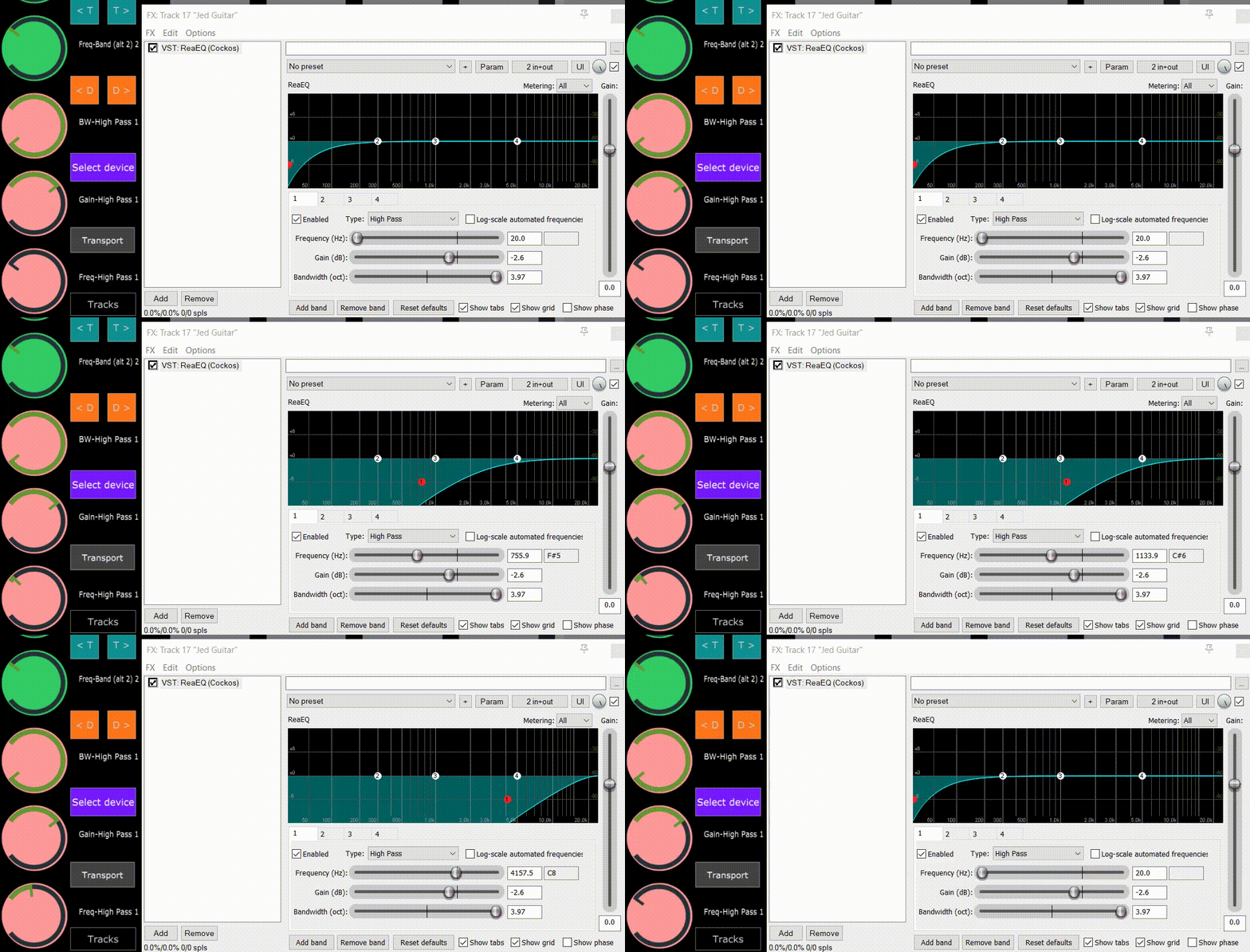
Here is an enample of a parameter jumping to the next value when being controlled.
Plugin Panel
The Plugin Panel allows you to switch to any other MP Host (Single or Multi) when running the latest version that works with the MPBridge switching system.
