
20. Audiogridder - MP Host: AG-MPH Guide

Audiogridder - MP Host Integrated Guide
The Audiogridder project is an open source project that enables DSP processing of third party plugins outside the DAW.
See the original Audiogridder here
We have created a modified version of the Audiogridder, called AG-MPH so that it works in an optimal way with the MP Controller. See example videos Logic on Mac and Bitwig on PC, however the principle is the same for all DAWs.
To get the installer of the AG-MPH send us an email.
The latest AG-MPH version is v1.2-8fcc74c--H2026-09-09--B2026-09-09
Motivation for this project
Audiogridder, even when used on the same computer, utilizes much better the CPU and allows running more plugins than when running then directly in the DAW. In fact, on a recent test we did on a Mac M1, we found that we could run almost 3 times more - heavy on resources - Acustica plugins than when hosted the same plugins in Logic. (We were able to run 10 instances of an Acustica Eq plugin directly hosted in Logic. We were able to run 28 instances of the same Eq plugin via Audiogridder).
You can run the AG-MPH without additional latency by setting the buffer block size to 0, however for taking advantage of the DSP offloading we suggest to set it to 1 or 2 blocks of buffer size where the latency is hardly noticeable (that of course also depends on your computer and the DAW project you are running).
As the number of plugins loaded in Audiogridder increases, you may want to increase the buffer size (blocks) of the Audiogridder to avoid audio dropouts and the exact same applies when using the AG-MPH.
Prerequisites and Settings
You need to have the latest version of the MP Host installed for the AG-MPH to work. The MP Host installer is not included in the AG-MPH installer. There are 2 separate installers.
You need to install the AG-MPH using the AG-MPH installer. It will install
-
The AG-MPH server and AG-MPH plugin tray on both Mac and Windows.
-
On Mac, the AG-MPH VST3, AU and AAX, all universal binaries x64.
-
On Windows, the AG-MPH VST3.
On Windows, the AG-MPH server is placed in C:\Program Files\AG-MPH\
Create a shortcut on your desktop or taskbar for convenience.
On the Mac, it will place it in Applications.
For both Win and Mac, you only need to run the Server once, before you open your DAW project.
The plugin tray will automatically launch when you load the AG-MPH plugin in the DAW.
Check that you have these settings in AG-MPH Server (From the menu choose Settings, right click on the Server taskbar icon)
The Sandbox mode in AG-MPH is set automatically to Chain Isolation
This mode will host each AG-MPH plugin instance in a separate process. If something goes wrong with a plugin in that instance it will just affect that process, not the whole AG-MPH server.

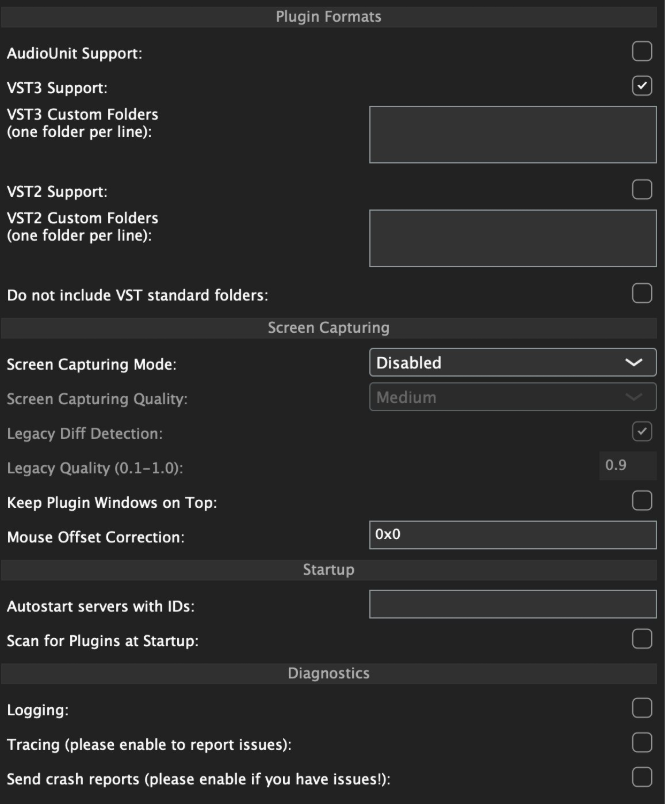
The rest of the settings should be:
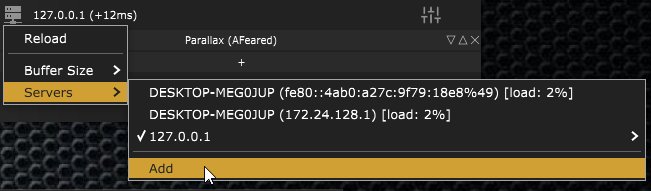
Once you load the AG-MPH plugin in the DAW, click on "add server" and type in 127.0.0.1. If the server is running on the local machine, it may add it automatically.
This IP address (127.0.0.1) is a universal address on all operating systems for the local machine. By adding this as the default server you ensure that the AG-MPH will always connect to the local machine via the fasted route (instead of going through virtual ethernets or your router).
Check that the MPH Single Instrument and Audio effect were found and scanned by the AG-MPH
Running the server on a remote machine
Just like the original Audiogridder, since the server processes and hosts the plugins, the MP Controller needs to be connected on the remote machine. This allows using multiple MP controllers, one per server machine. Additionally, you can have Windows machines processing plugins while your DAW is on a Mac.
Automation
Right click on a slot in the AG-MPH plugin, Select Automation and select the parameters you want to automate. The list shows parameters that have been mapped in the MPH.
You can automate up to 128 parameters per AG-MPH plugin instance.
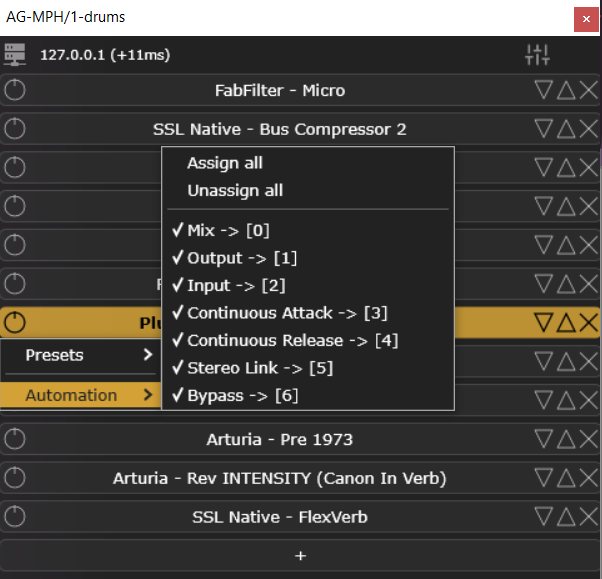
Identifying Parameters for Automation
Sometimes when the list of mapped parameters is big, it is hard to find the parameter you want.
Move the parameter you want to automate from the controller. The open the list of Automated parameters.
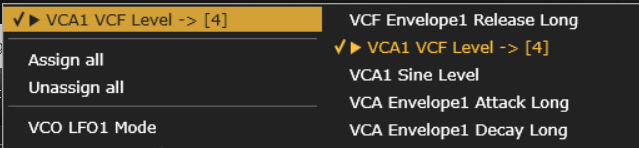
The last parameter you moved is highlighted and shows on top of the list:
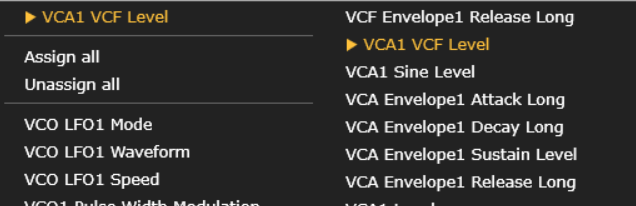
Click on it and it is now activated for automation.
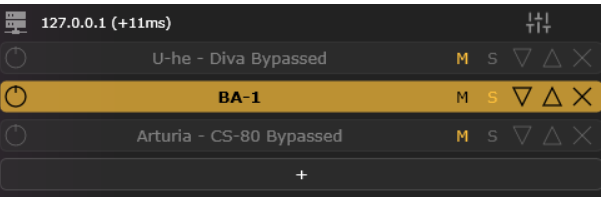
Muting and Soloing Instruments
The AG-MPH Isntrument plugin can host up to 12 instruments and each slot can be muted or soloed:
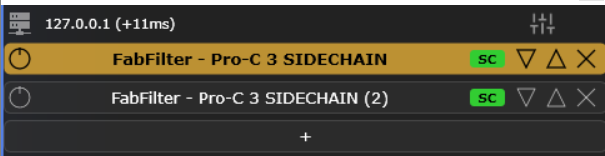
Side Chain on the AG-MPH Audio plugin
Each slot receives side chain signal. You can enable side chain on each slot by activating the SC button. The sidechained audio signal passes to the next slot so you can engage side chain on the slot that you want.
Track names
The AG-MPH client shows the track name at the bottom and the color of the track as a vertical stripe on the sides.
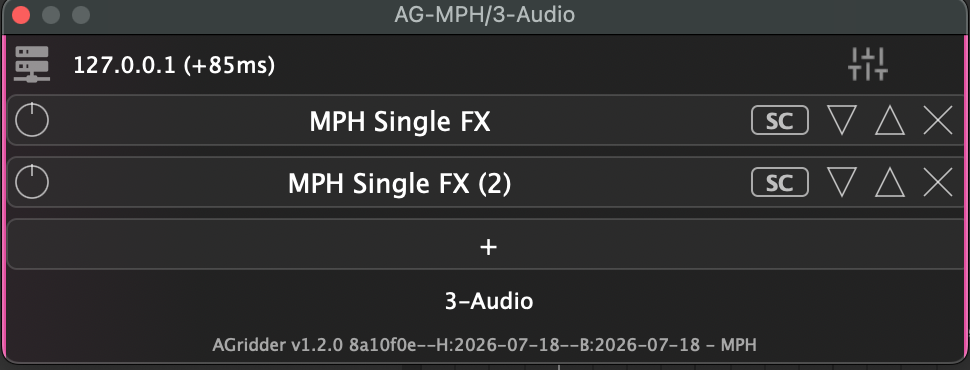
The track name is editable. If your DAW does not send the track name, you can type it in manually by double clicking in the track name area.

The track name is necessary to show the AG-MPH plugins in the plugin panel.
Round Trip latency
You can set it from the AG-MPH plugin. If you get cracks or pops in the audio, try increasing this value to a higher number of blocks.
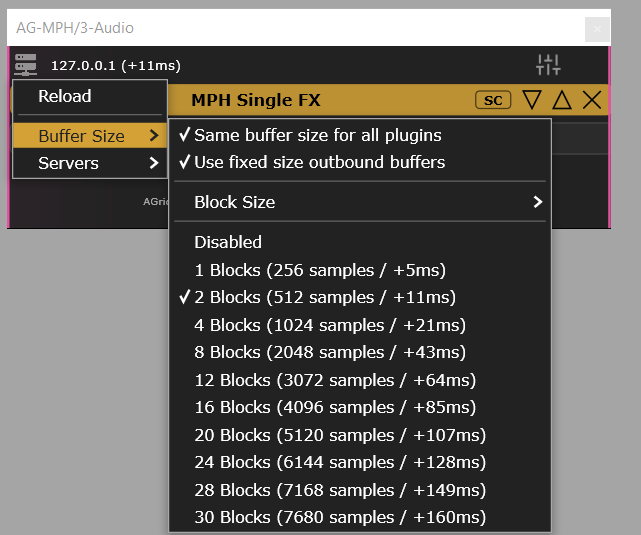
How to Uninstall AG-MPH on Windows:
- Delete the folder C:/Users/[name]/AppData/Roaming/AudioGridder or by navigating to %appdata% and then deleting the AudioGridder folder
- Delete the folder C:/ProgramFiles/AG-MPH and C:/ProgramFiles/AG-MPHPluginTray
- Delete the folder of plugins from C:/ProgramFiles/Common Files/VST3/AG-MPH
Wavelab settings
When using Wavelab, for the AG-MPH plugin to connect to the server, an audio file needs to be imported in Wavelab and press play. See video here
Setting Permissions for AG-MPH server on the Mac
If you see this message when you start AG-MPH
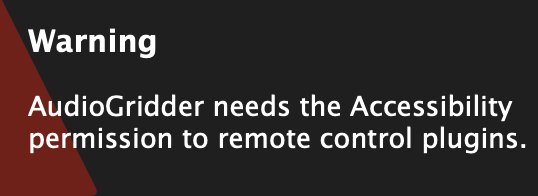
Go to Settings > Privacy & Security > Accessibility

Click the + sign and add AG-MPH

Restart AG-MPH
Troubleshooting on the Mac
If you see an error, it may be that the VST3 plugin cannot be accessed by the AG-MPH.
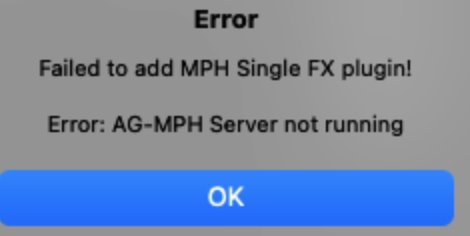
AG-MPH works with MP Host VST3.
Quit the AG-MPH server.
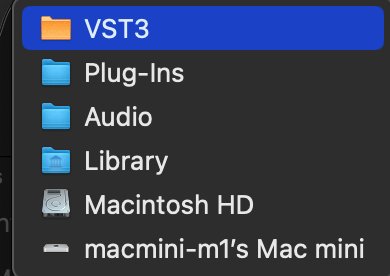
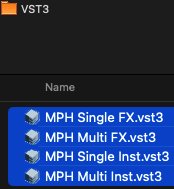
Then reset Audiogridder/AG-MPH go in your home folder and Press Command+Shift+Dot this will show your hidden folders.


When you reset AG-MPH, you need to check the server settings and set them again as described in the section above.
Diagnostics and Troubleshooting
Mac and Windows.
The Audiogridder logs are in these locations as shown in the audiogridder website.
Knowhow and limitations
- You can have both Audiogridder and AG-MPH installed on the same computer, however, you cannot run the original Audiogridder server at the same time you run AG-MPH server. Only one server can run at a time.
- When using the AG-MPH server, it automatically loads the MP Host plugin VST3. You cannot load any other third party plugins directly in AG-MPH, but only through MPH.
- You need to run the AG-MPH server app and then the AG-MPH plugin in the DAW, just like the original Audiogridder.
- If you plan to run an AG-MPH server on another computer, then the MP Controller should be connected on that computer, because the server is the app that runs and displays the hosted third party plugin. You can run AG-MPH on a Windows computer while running the AG-MPH plugin on a Mac computer, just like the original Audiogridder. See Video
- Via the AG-MPH plugin, you can connect on an AG-MPH server in the same way you connect on an original Audiogridder server.
- On the Mac, you need to give the AG-MPH permissions in the Mac Accessibility settings, so that it does not complain when starting the server, just like the original Audiogridder. Press the + button in Accessibility and navigate to AG-MPH to add it to the list.
- The AG-MPH was built using the codebase from Audiogridder version 1.2.0 stable which is the latest as of May 2023.
- The third party plugins are being hosted by the MP Host and the workflow remains the same as when using the MPH in the DAW including presets etc.
- You can install MP Host updates when we release these, and MPH will work normally with the AG-MPH.
- There is no additional CPU load when using the AG-MPH, compared to the original Audiogridder. There is no additional latency either when compared to the original AudioGridder.
- Resetting the Audiogridder server settings on the Mac (by deleting the files) will reset the AG-MPH as well. To reset Audiogridder/AG-MPH go in your home folder and Press Command+Shift+Dot this will show your hidden folders. You will have a folder .audiogridder grayed out and delete it.