
41. Plugins appearing magnified and missing parts of their UI
If you load plugins in the MP Host and part of the plugin UI is missing because it looks bigger in size or just part of it is not showing, for example:
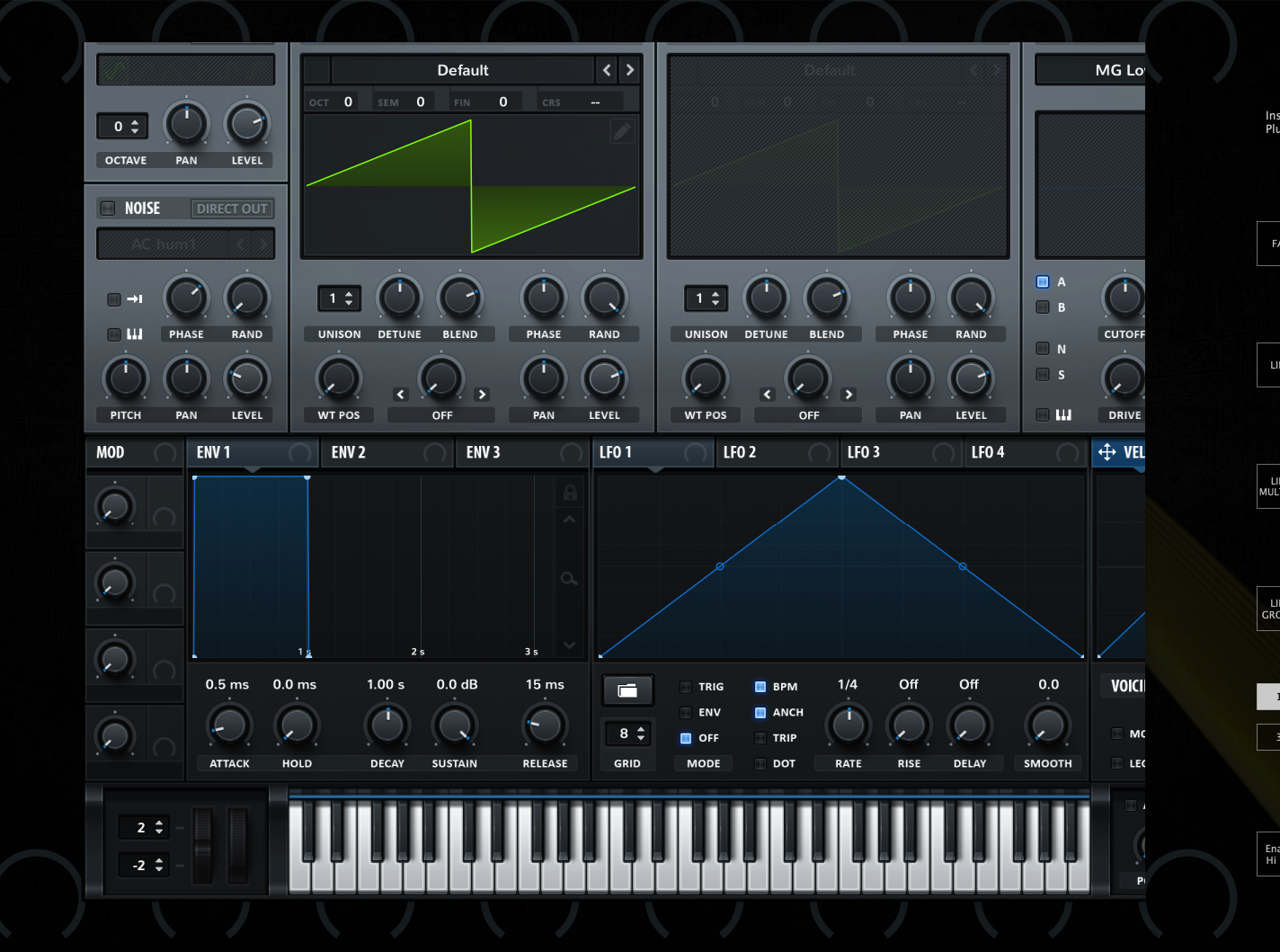
For Ableton Live, disable plugin Auto scaling on the MP Host plugins as described here
Or the plugin appears smaller with white surrounding area, for example Serum AU.
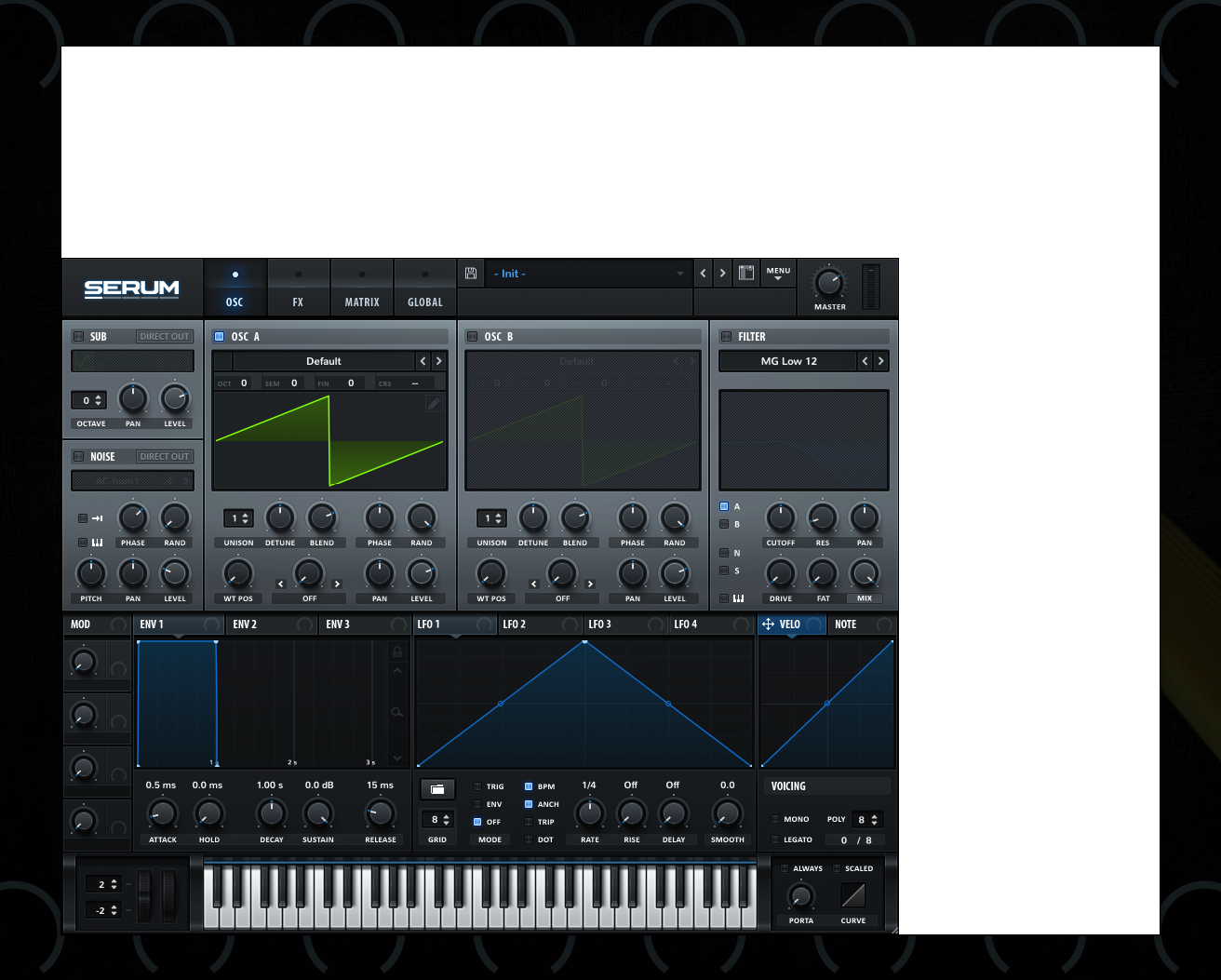 It means that the current plugin type (for example Audio Unit) is set to resize automatically and this may cause incompatibilities with the MP Host.
Try to use another format of the plugin, like VST2 or VST3 or AU if possible to test.
Additionally, if the plugin has the option to set the default zoom level, set it to your liking and the plugin will appear at that zoom level when you load it in the MP Host even when you open an MPH preset.
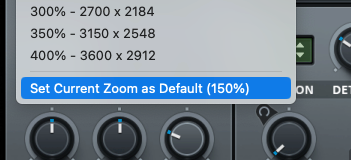
In this example, Serum VST3 on the Mac it loads at 150% and shows correctly
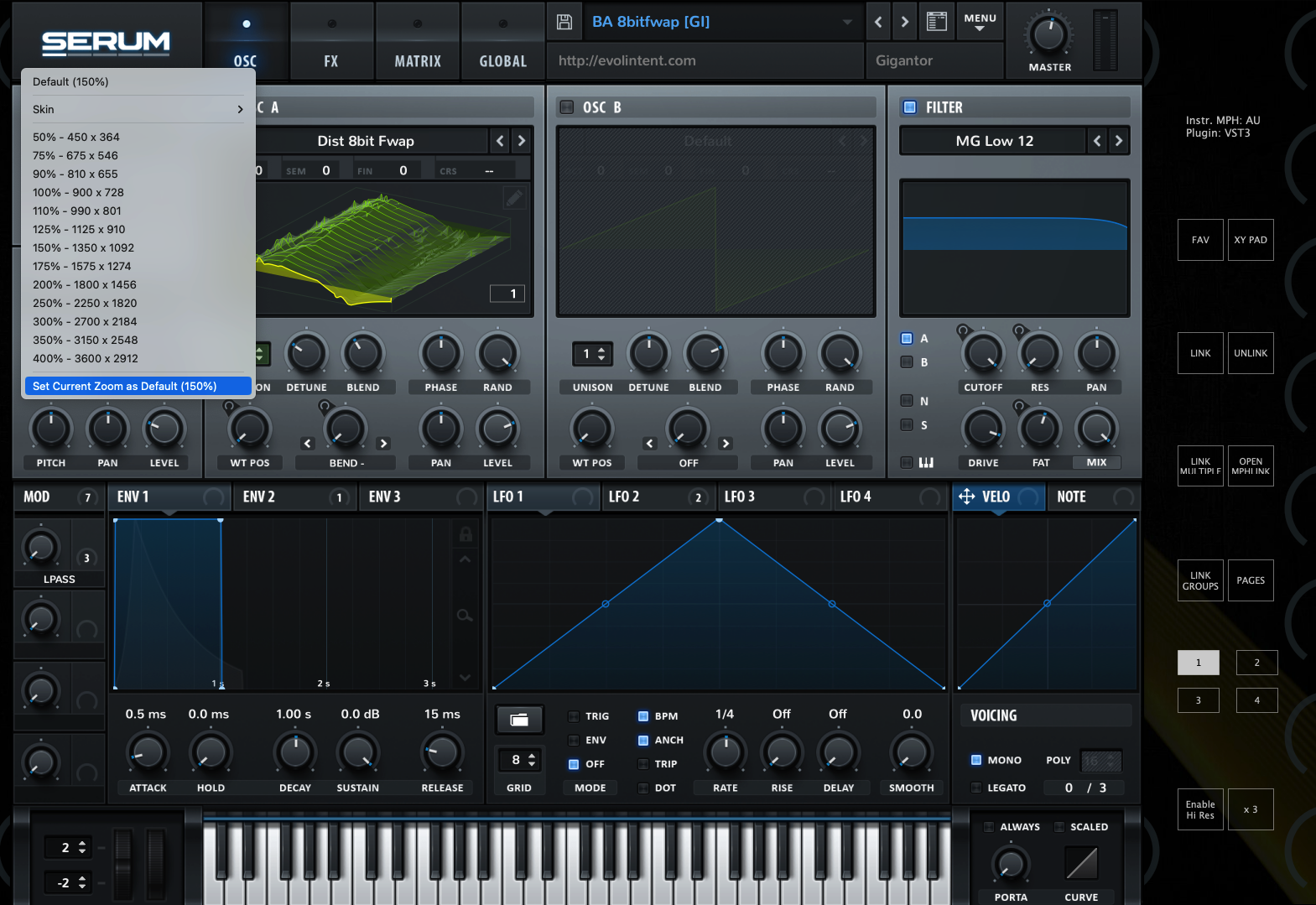
Note that if a plugin does not have a "Set Default Zoom Level" and just saves as default the last resized value, then when loading an MPH preset, the size of the plugin's UI may not look correct, if you have resized the plugin loaded directly in the DAW, after you have saved the MPH preset.
This is because after you have resized the plugin outside the MP Host, when loading the MPH preset, the default size would have changed, thus the MP Host may not display it correctly.
To solve issue, resize it and save the MPH preset. Keep in mind that if the plugin does not have a default size setting and you resize it outside the DAW, then the next you load your MPH preset it may use the previous size setting and therefore not show in full.
Here are some suggestions to avoid the issue
- You can either load it directly from the plugin list and with Automap enabled so that it links parameters instead of using an MPH presets or
- Use a consistent size (ie do not resize it outside the MP Host) or
- Always load it in the MP Host instead of directly in the DAW and enable the Top Bar option so that you can drag it on other displays as well.
If the resize menu of the plugin is not visible, then load the plugin from the plugin list
in the MP Host and resize it. Then load your MPH preset.
For example:
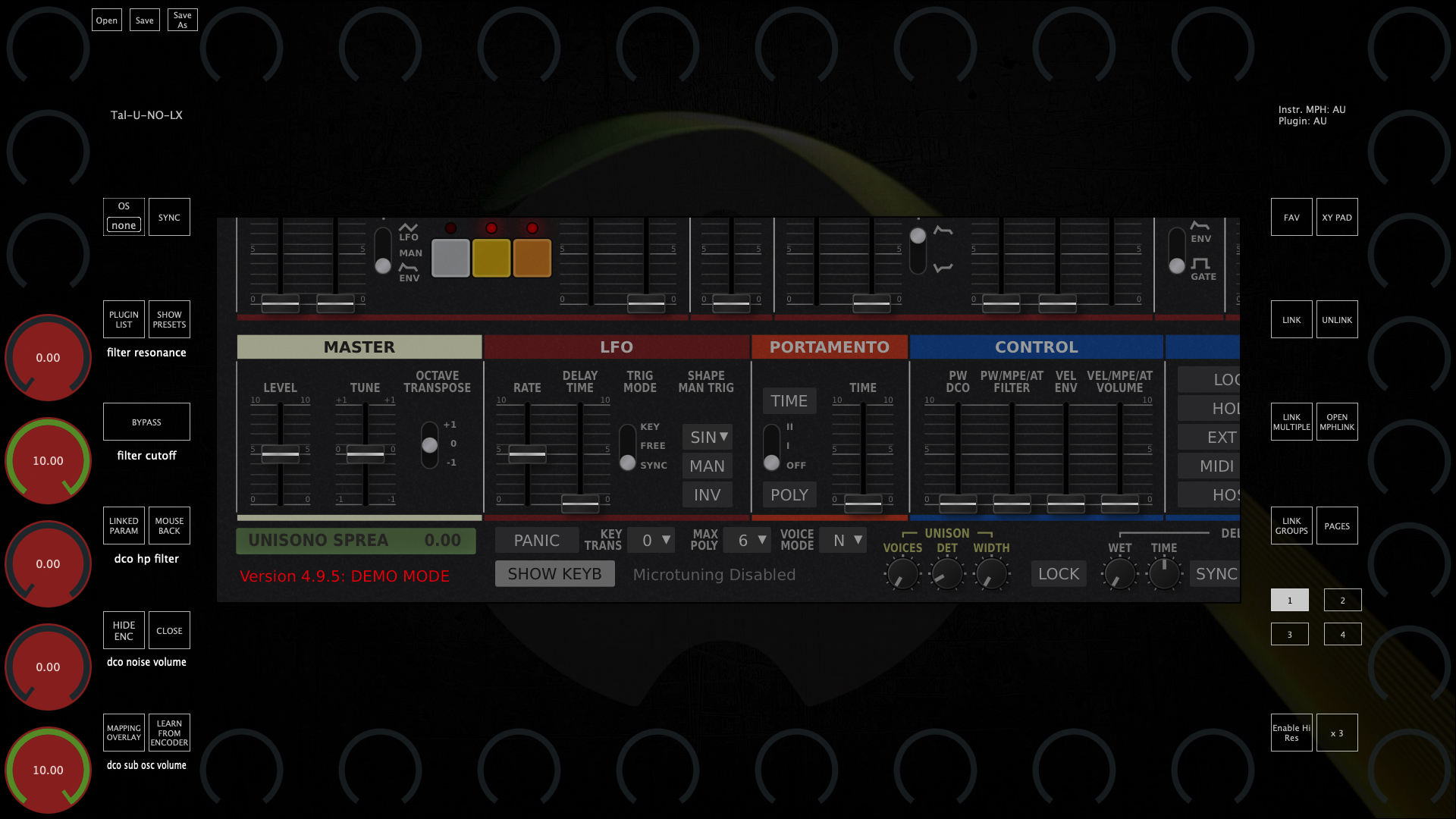
Load the plugin from the PLUGIN LIST (not preset)

Resize it
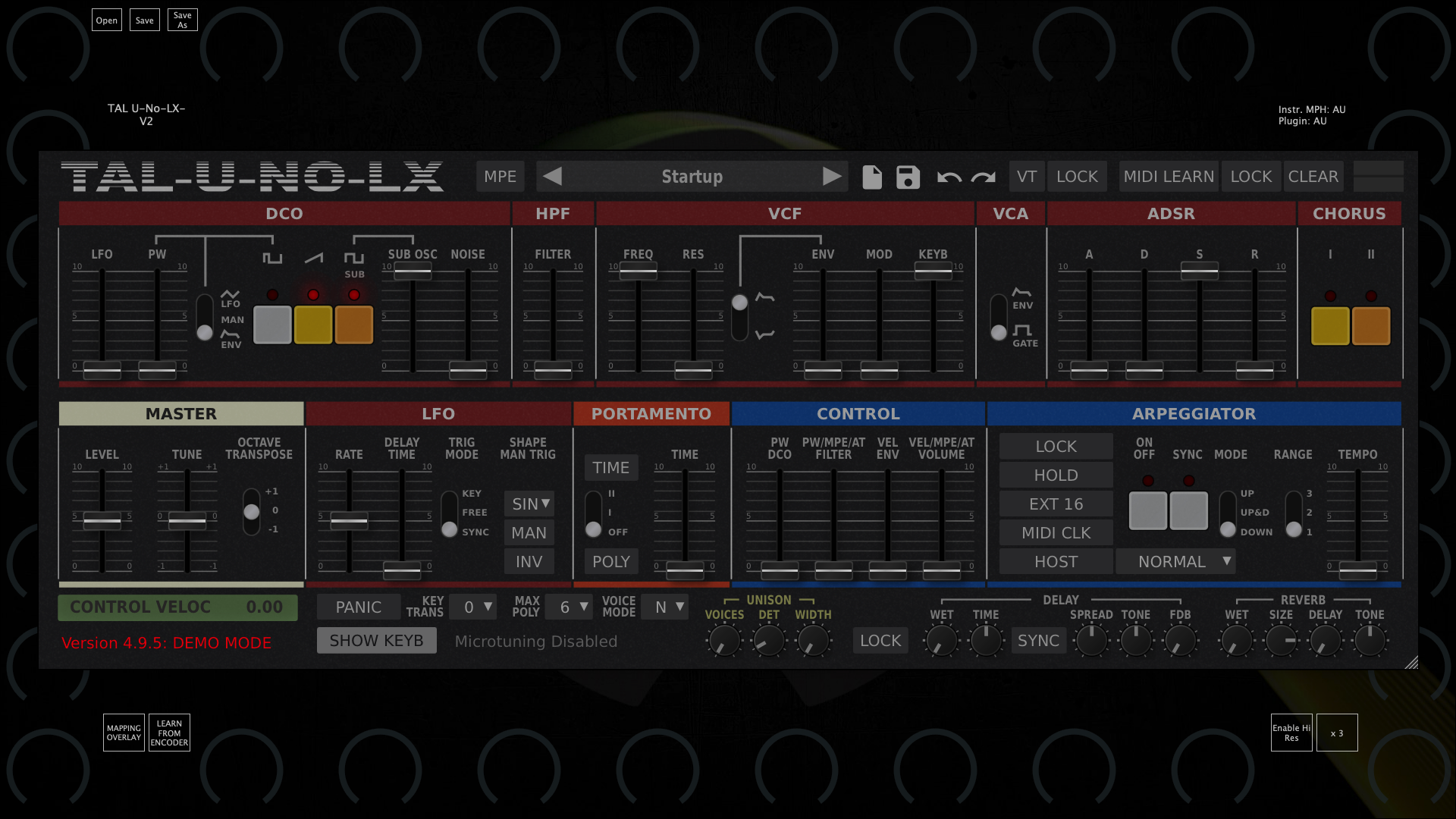
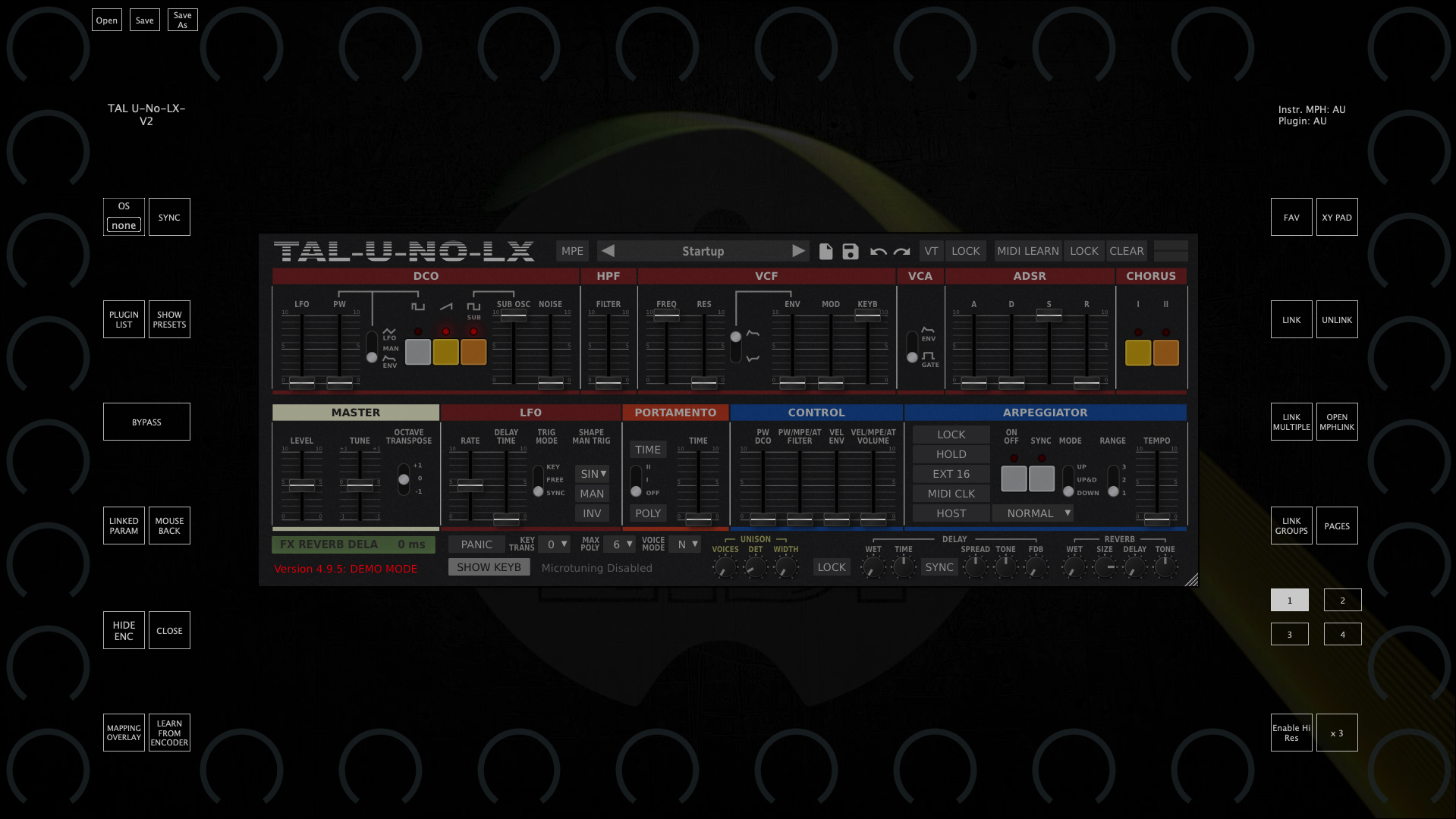
and load your MPH preset.
Alternatively, use UPDD smart magnifier to magnify plugins on demand.
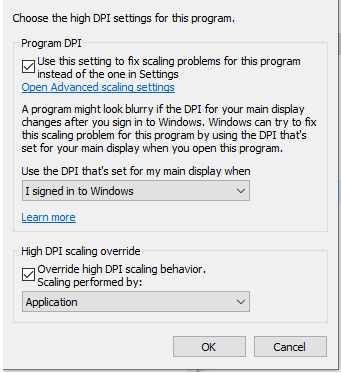
If on Windows still show magnified and cropped, right click on the DAW exe program file and choose Properties, then click high DPI settings and try these options:
Additionally, you may try disabling the top bar from the right click menu of the MP Host and enable "Windows Unified".