
45. VST3 Generator Utility (Mac and Windows)
This software requires the MP Host version released on May 5th, 2026 or later.
The application can be downloaded from your user portal account.
The use of this application is completely optional and the MP Controller can operate without using this application.
This video shows the MP Controller best practices.
This application generates VST3 plugins for any installed third party plugin on your computer based on the MP Host. This is similar to the M-Plugins generated based on AU plugins. The benefit is that you can load these directly in your DAW without loading the MP Host and they will be displayed in your DAW as "Plugin Name - MP". For example the plugin "Pro Q4" will be shown as "Pro Q4 - MP" under the vendor "MP Controller" in your DAW.
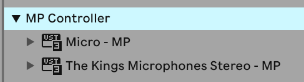
When loading these plugins they will show as "Plugin Name - MP" instead of "MPH Single FX"

This works for all DAWs that can host VST3 plugins. The created VST3 plugins can participate and show in the Plugin Panel like MP Single Host plugins because they are just copies of the MP Single Host with a different plugin name.
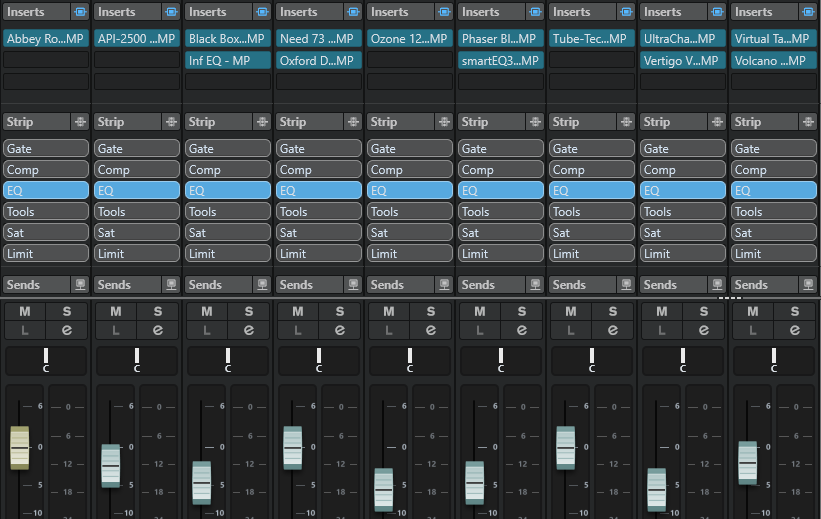
How does it work?
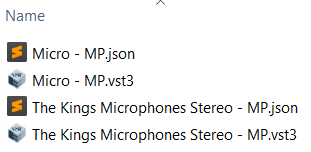
The application creates copies of the MP Single Host (Instrument or Effect) in your VST3 folder :
Windows: C:\Program Files\Common Files\VST3\MP CONTROLLER
Mac: /Library/Audio/Plug-Ins/VST3/MP CONTROLLER
These VST3 plugins are named after the selected plugin and a json txt file is also created that holds the VST3 attributes of the plugin.
The MP Host templates are installed by the MP Host installer in ~\MP\Host\MPH Templates\ and the MP Host must be installed first, before using the VST3 Generator application.
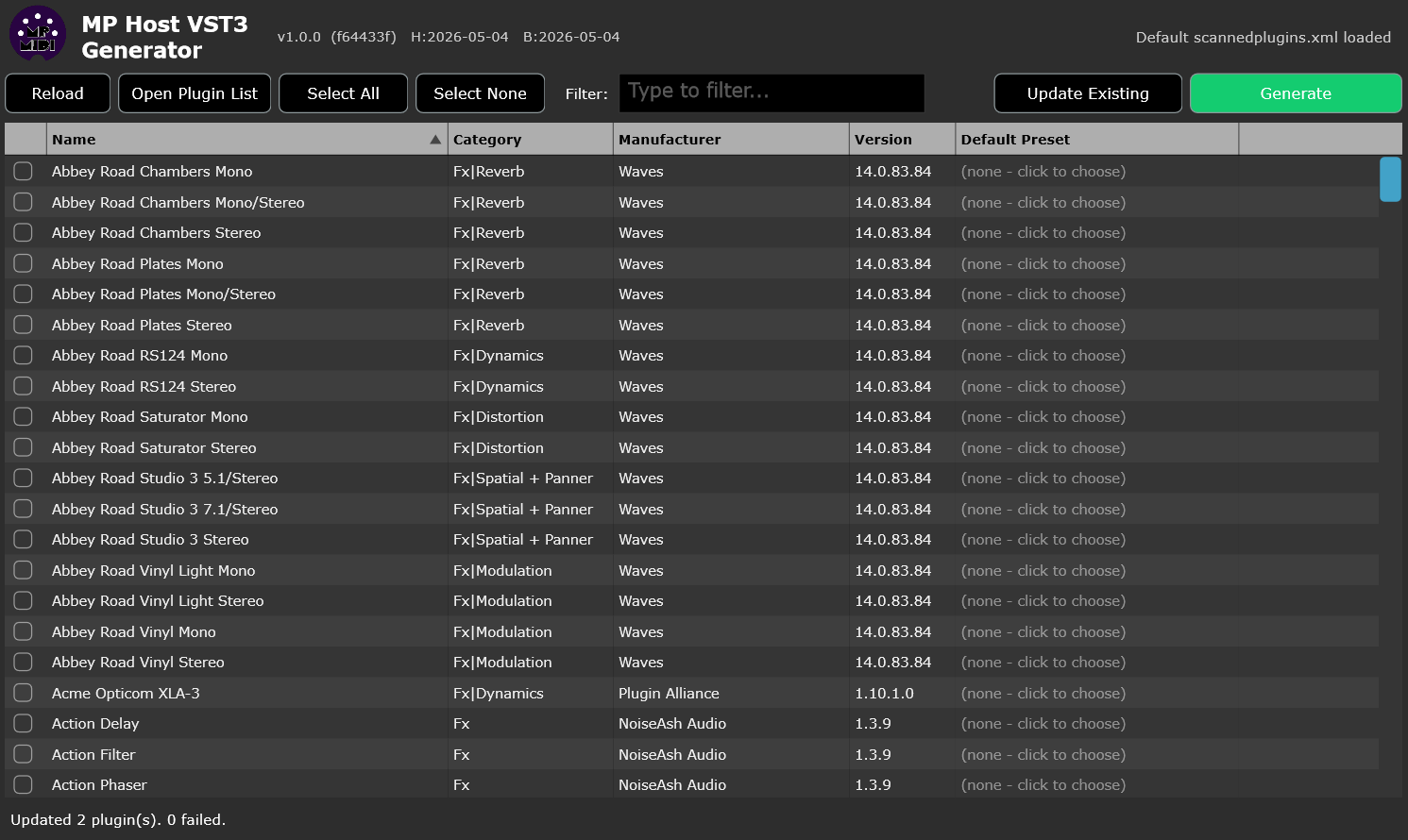
It is important that you scan your plugins first and populate them in your MP Host. You can also use the Plugin Scanner utility
to populate your scannedplugins.xml which is the file that holds information about the installed plugins on your computer (located in ~\MP\Host\scannedplugins.xml)
Each row allows the selection of an existing preset and you can point the new VST3 plugin to use a specific preset you have already created upon loading. This becomes the default preset for the plugin. If you don't choose a preset, it will load the plugin directly and if Automap is enabled, it will map it in the same way when loading a plugin in the MP Host from the Plugin List.
Do not save a preset as default in the MP Host generated plugin (replacing the default preset of the MP Host). It will replace the default.xml of your MP Host and load that preset every time you open the MP Host. You should never replace the MP Host default.xml preset. Instead use the generator app to assign a default preset to each of your generated plugins if you wish to have a selected preset when the plugin loads in the DAW.
How to use it.
Exctract from zip file and run the application.
On Windows right click on the app and choose Run as and Administrator because it will need permissions to create VST3 files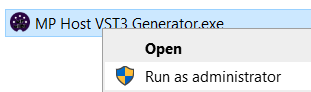
Select the plugins you want to generate VST3 plugins by checking the box on the left for each plugin.
Optionally, select a preset for each plugin. The MP Host preset can be any preset, even those using VST2 or AU third party plugins. If you don't select a preset, it will automap the plugin's parameters.
Click Generate.
This is it. It should generate vst3 plugins and json files for each of the plugins. Open your DAW and it will find these new plugins. Use them the same way you use the MP Host. They have no difference than the MP Single Host. because these are simply copies of the MP Single Host, Instrument and Effect.
If you have created the plugin and you decide later to use a preset as the default, open this application to select the plugin and the preset and click Generate. It will prompt you that the plugin is already created with an option to set the preset as default.
Updating the generated vst3 plugins.
When you install a new version of the MP Host it will install the new MP Host template vst3 files.
Close your DAW (Very Important). Open the Generator application. Click on Update.
It will update all the generated vst3 plugins to the latest version of the MP Host and place a log file on your Desktop.
You can delete that log file.