
1. Reason Control Surface Installation - Windows
We have created a control surface to control Reason's native devices, extension devices and plugins.
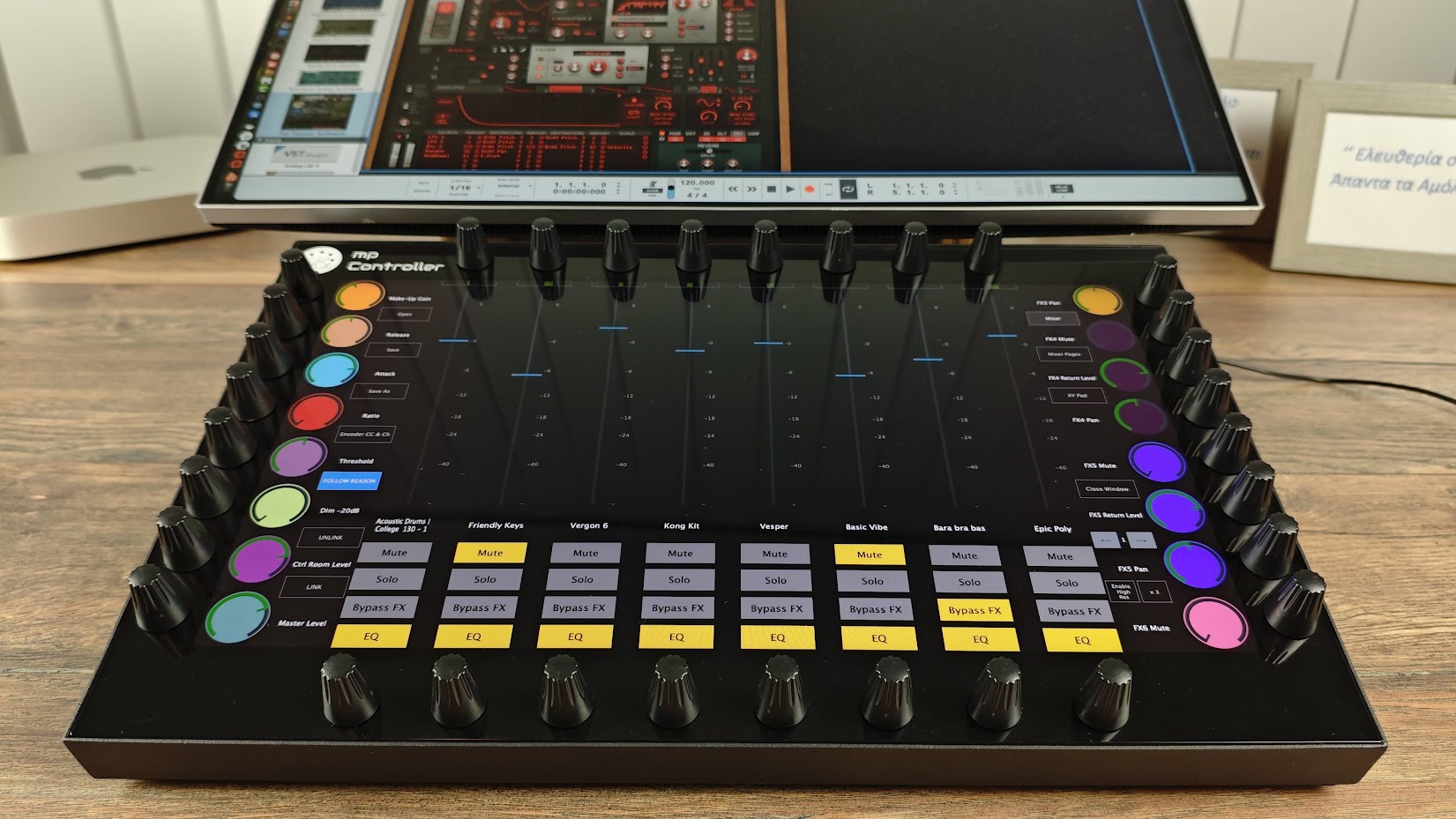
Download the installer from the user portal and run the installer. It will install the following:
- The Reason Control Surface in C:\Program Files\MP Reason Control Surface\
- The Reason Control Surface
launcherlaunchers on your Desktop (One for Reason 13 and another for Reason 14) - The presets for Reason native devices in the /MP/Host/MP Reason CS Presets
- The Reason Control Surface scripts and remotemap files in
C:\Documents and Settings\All Users\Application Data\Propellerhead Software\Remote\Codecs\Lua
Codecs
C:\Documents and Settings\All Users\Application Data\Propellerhead Software\Remote\Maps
Note that the MP Controller must be connected to the computer for the Control Surface app to work
MIDI PORT Installation and Configuration
To use the MP MIDI on Windows, you need to install a virtual midi port software.
We recommend loopMIDI which is a free utility software. There are others as well like LoopBe30.
LoopMIDI allows you to create many virtual ports you need and set custom names for each port.
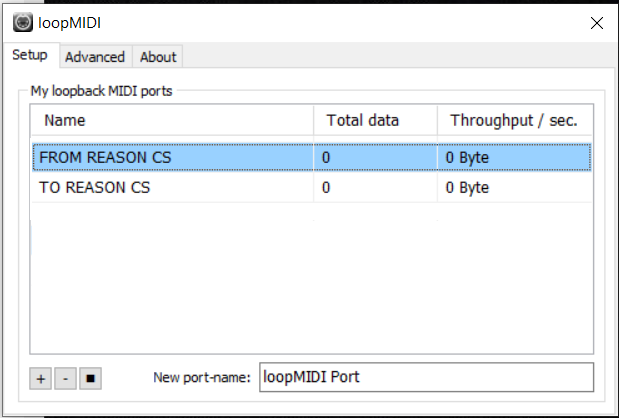
For the Reason Control Surface we need two ports, one for sending MIDI CC and another one for receiving MIDI CC messages.
After you install loopMIDI, open loopMIDI and add a port, name it "FROM REASON CS",
then add another port and name it "TO REASON CS"


so it will look like this:
We have created a launcher app to start Reason and the MP Controller Reason Control Surface. The installer should place these shortcuts on your desktop. The launcher will start both applications, the Control Surface app and Reason. Once you close Reason it will close the Control Surface app as well.
There is a Launcher for Reason 13 and one for Reason 14
Run the Reason Control Surface launcher from your Desktop and it will start the control surface app and Reason.
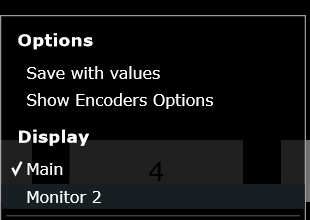
Set the Display of the controller so that the Control Surface app appears there automatically. Right click on the empty area above the buttons and the following menu will appear. Select the last monitor in the list.
Reason MIDI Configuration
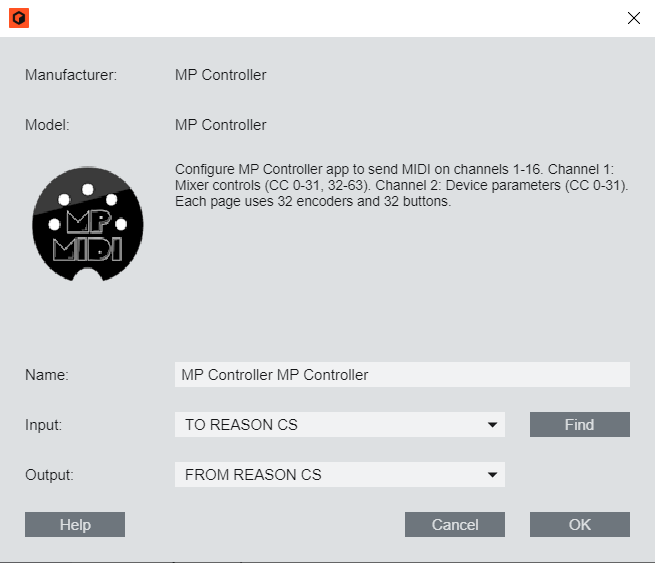
Open Reason > Edit > Preferences > MIDI and add the control surface.

Select the MP Controller from the list
Select the available MIDI ports.
Select TO REASON CS as the input port and
FROM REASON CS as the output port.
It should look like this and click OK.
No other application should be using these virtual MIDI ports.
When you run the Launcher app to start the apps and then you close Reason,
the control surface app will quit as well after a couple of seconds.
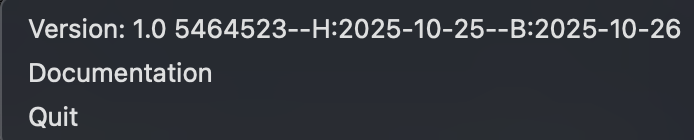
To view the version or quit of the Reason Control Surface right click on the bar icon
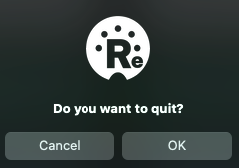
To quit click OK on the popup window:
When running the Launcher it takes a few seconds for Reason to send all the necessary data to the control surface. You can then select any device or track to control it.
Next: Documentation of the Reason Control Surface