
2. Fender Studio Pro - Presonus Studio One Control Surface Documentation
Device & Plugin Control
When you select a device in the DAW it will automatically be mapped on the encoders of the MP Controller
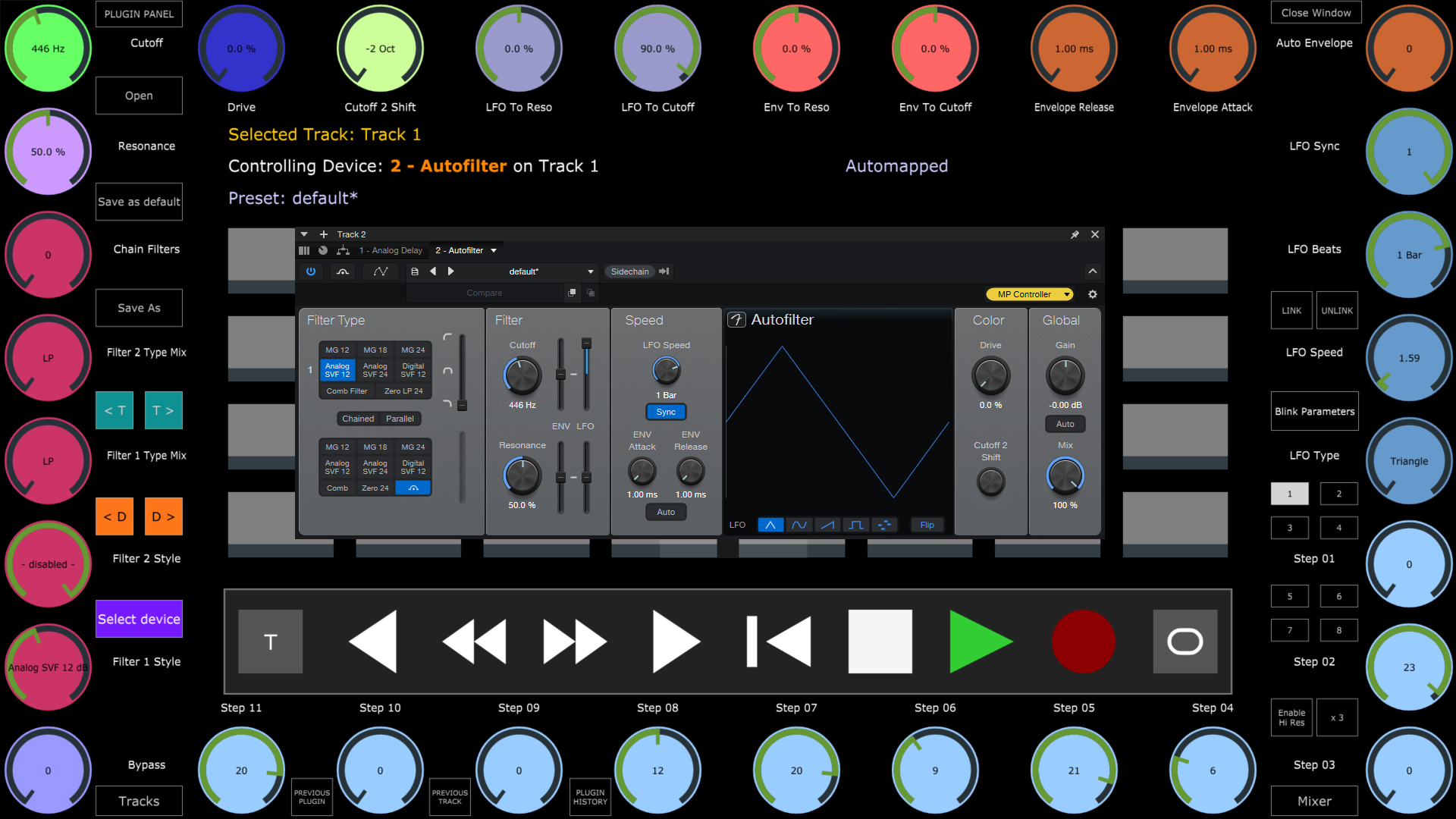
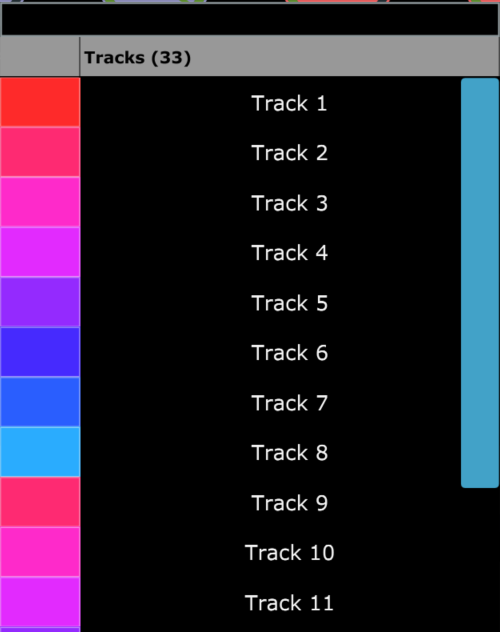
You can also select Tracks using the Tracks button
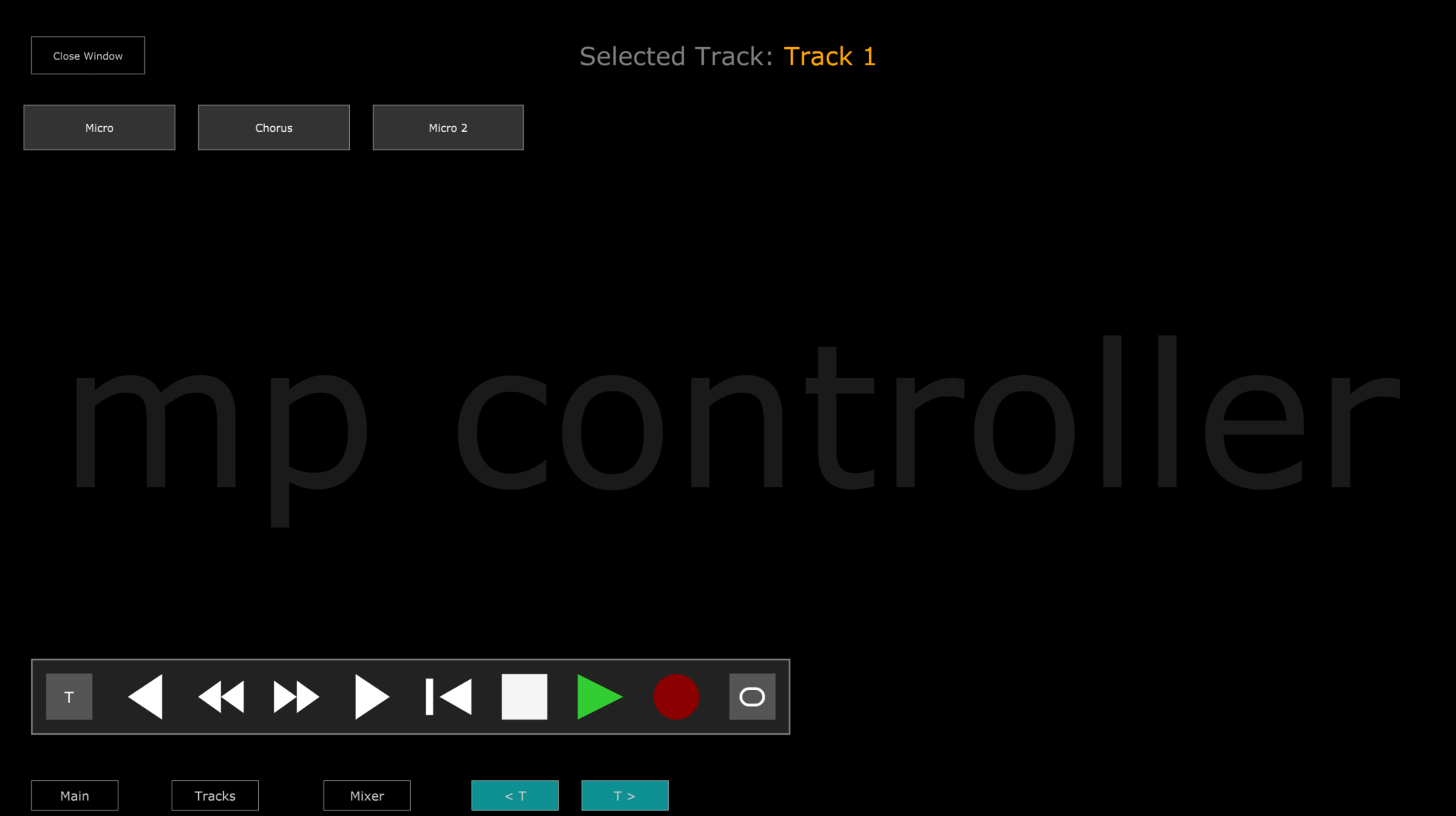
and Devices from using the Select Device button
How to link parameters
Press the LINK button, then turn or click on an encoder and it will highlight it yellow

Move a parameter from the device or plugin you want to link and it will link the device parameter.
Press Save as default to save the mapping as a preset so the next time you select that device (any instance) it will load that preset.
Linking Buttons
Right click on a button and click Link
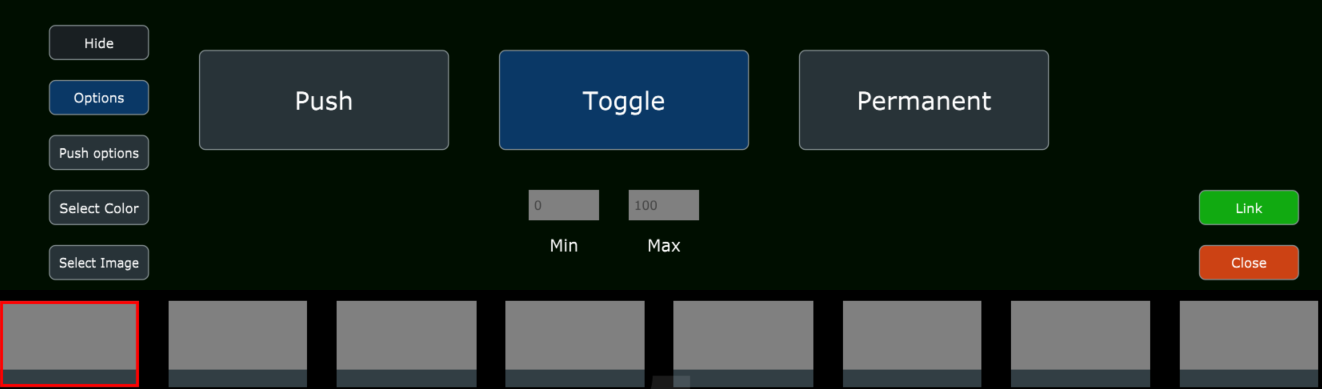
Move or click on the parameter you want to link and it will link it to the button
Controlling the Mixer
Click on the Mixer button and the Mixer view will open.
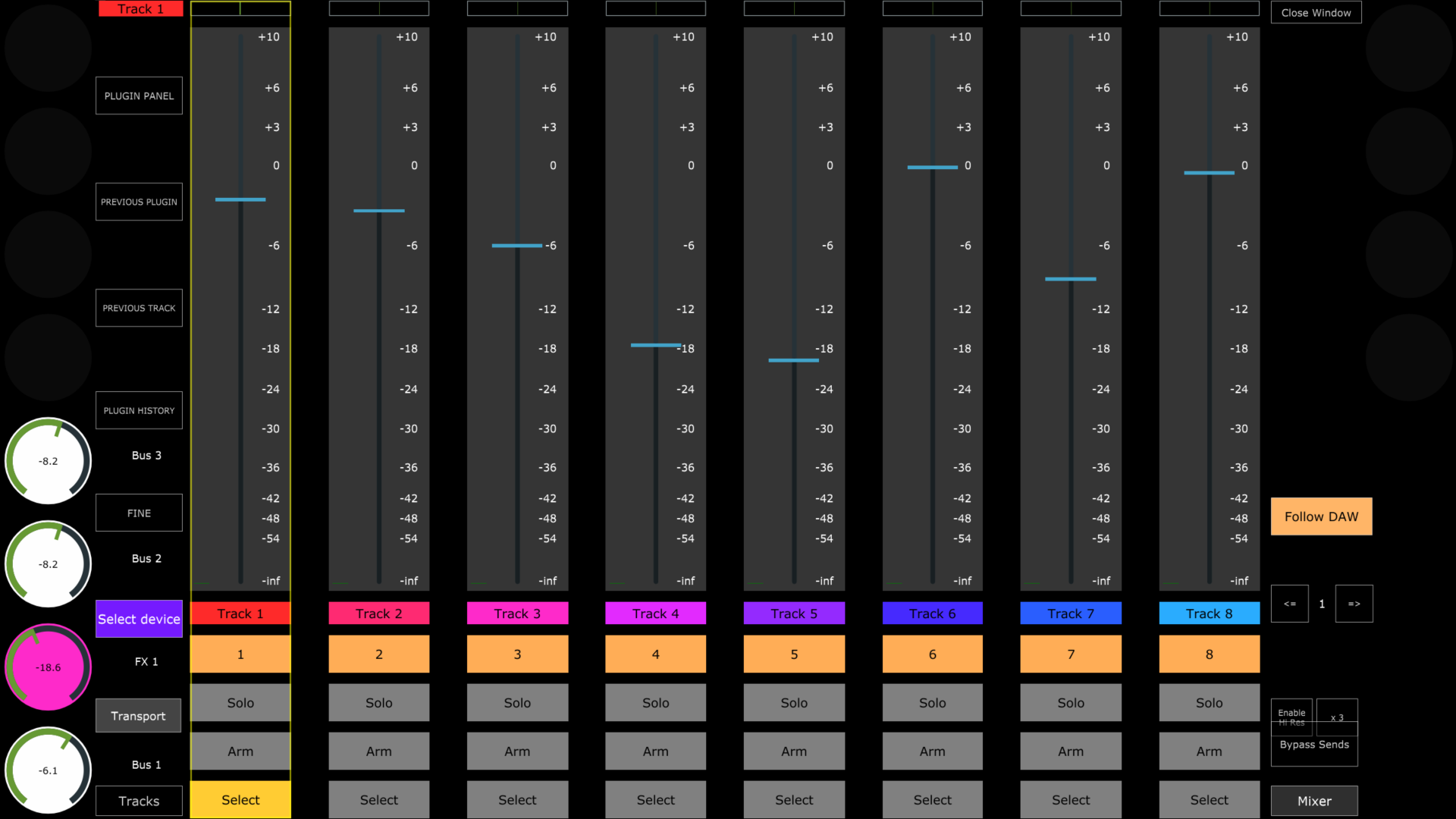
The top row encoders control the pan.
The 12 encoders on the left and right columns (8 on the left and 4 on the right columns) control the Send volume of the selected track.
The bottom row encoders control the volume of the track above it.
The Follow DAW button will change to the mixer page of the selected track in the DAW. If you disable it, it will not change to that page automatically.